> For the complete documentation index, see [llms.txt](https://usermanuals.geojit.com/llms.txt). Markdown versions of documentation pages are available by appending `.md` to page URLs; this page is available as [Markdown](https://usermanuals.geojit.com/fundsgenie-mobile/portfolio.md).
# Portfolio
### This Section Contains :
* [View Your Portfolio Summary ](#how-to-view-your-portfolio-summary)
* [View Your Mutual Fund Holdings](#how-to-view-your-holdings)
* [How to Sort/Apply Filter ?](#how-to-sort-apply-filter)
* [View Invested Fund Page ](#how-to-sort-apply-filter)
* [Genie Star Insights ](#how-to-invest-more)
* [Fund Category Breakup](https://usermanuals.geojit.com/fundsgenie-mobile/portfolio#how-to-access-1)
* [Fund House Allocation ](#fund-house-allocation)
* [Net Cash Flow Trends ](#how-to-analyse-net-cash-flow-trends)
* [How to Invest More ?](#how-to-invest-more)
* [How to Withdraw fund ?](#how-to-withdraw-funds)
* [How to place STP order ?](#how-to-place-stp-systematic-transfer-plan-order)
* [How to switch fund ?](#how-to-switch-your-mutual-fund-units)
* [How to create a goal ?](#how-to-create-a-goal)
### Portfolio Summary
In your Portfolio Summary, both your investments with Geojit and external investment data are displayed separately in this section, making it convenient for you to analyze.
* **Tap on** the '**Portfolio**' icon given at the bottom banner.
* Your '**Portfolio Summary**' will be located at the top section.
Your Portfolio Summary Includes:
* **Holding Value with 1 Day Change**—both in number and percentages.
* **Invested amount** - The amount you are currently invested.
* **Total invested amount** - The complete sum of all your investments, regardless of any withdrawals made.
* **Unrealized P\&L** - The profit or loss on your current holdings that you haven’t sold yet.
* **Absolute Return** - The percentage gain or loss on your investment without considering time.
* **Total Return** - The overall return including price changes, dividends, and any other income from the investment.
* **XIRR** - Extended Internal Rate of Return. It measures annualized returns considering multiple cash flows (investments and withdrawals) over time.
* **Realized P&**L - The profit or loss you’ve actually locked in by selling your investments.
* **Dividend** - The cash or stock payout you receive from a company’s profits for holding its shares.
* **Withdrawn** - The amount of money you’ve taken out from your investment account.
### View Mutual Fund Holdings
* **Tap on** the '**Portfolio**' icon given at the bottom banner.
* Your '**Portfolio Summary**' will be located at the top section.
* **Tap on** the **arrow mark** given next to the Portfolio Summary.
* You will be navigated to your **Mutual Fund Holdings** Page.
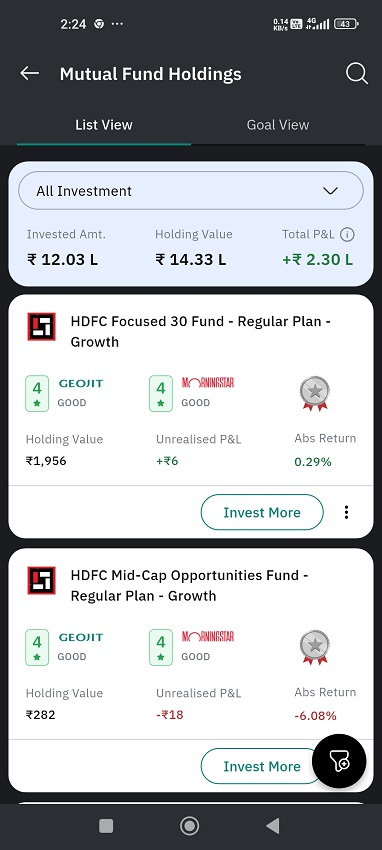
* Here, you will by default land on the **'List View' page** of your mutual fund holdings.
* Here you can see '**All your investments,**' both Geojit and External.
* Select either of the two, and you can see **Invested Value, Holding Value,** and **Total Returns** here.
* Your mutual fund investments, according to the option you chose (Geojit/External), will be listed with the top-rated fund placed at the top.
* Each fund card displays information like :
* SIP status (indicates 'Active' when the SIP is active)
* Resident Type (NRE/NRO)
* Both Geojit rating and Morning star rating.
* Your total holding value respective to that fund.
* Unrealized P\&L.
* Absolute Return
* The star rating
* Tap on any fund card to explore detailed information about your investment in that fund.
{% hint style="info" %}
You can make more investments by clicking on the **Invest More** button given at the bottom bar of the page.
{% endhint %}
### How to Sort/Apply Filter ?
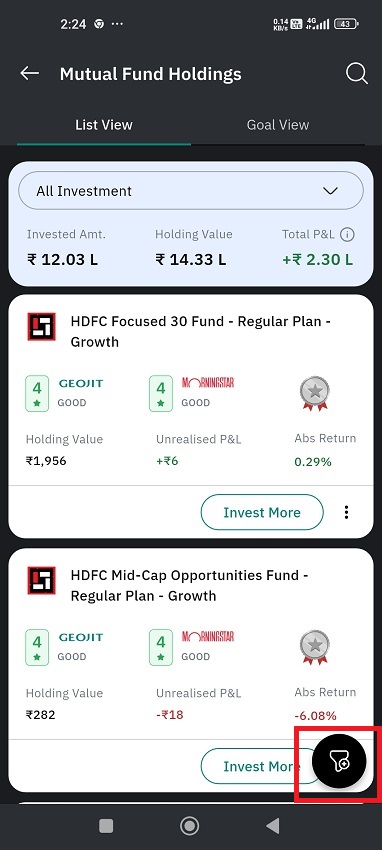
You can filter/sort this list according to your preference using the filter icon given at the bottom right corner.
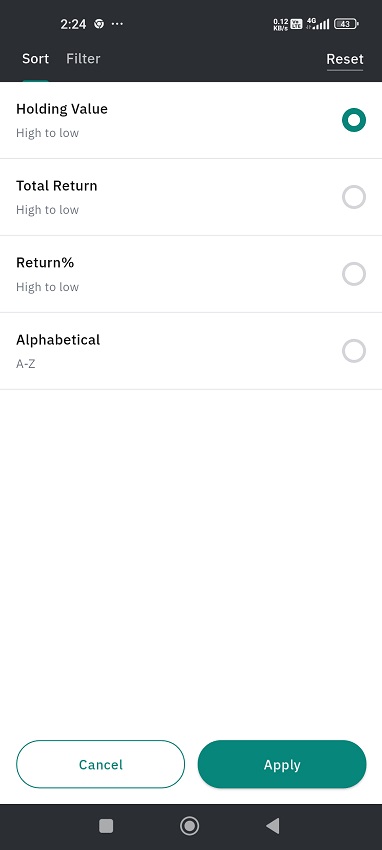
You can sort your holdings according to the :
* **Holding value**: high to Low
* **Total Return**: High to Low
* **Return Percentage**: high to low
* **Alphabetical order**: A-Z
You can also filter this section according to:
* Holding status
* Plan
* Category
* Resident Status
You can cancel/reset the filter by tapping on the respective buttons given at the bottom and top of the page, respectively.
{% hint style="info" %}
You can also view the mutual fund holdings as per the goal you have set. That feature will be coming soon.
{% endhint %}
### View Invested Fund Page
* **Tap on** the '**Portfolio**' icon given at the bottom banner.
* Your '**Portfolio Summary**' will be located at the top section.
* **Tap on** the **arrow mark** given next to the Portfolio Summary.
* You will be navigated to your **Mutual Fund Holdings** Page.
* Tap on any fund card to explore detailed information about your investment in that fund.
* At the top, you’ll see:
* **Fund Name & Plan**
* **Holding Value** – Current value of your investment
* **Absolute Return** – Percentage gain/loss since you invested.
* Scroll down to see the Key Metrics :
* **Invested Amount** – Total money you’ve invested
* **Total P\&L** – Overall profit or loss.
* **Unrealized P\&L** – Profit/loss on holdings not yet sold.
* **Realized P\&L** – Profit/loss from sold units.
* **XIRR** – Annualized return considering all cash flows.
* **Dividend** – Any payouts received.
* **Total Withdrawn** – Amount withdrawn so far.
* View Holding Breakup
* **Units** – Number of units you hold.
* **Avg NAV** – Average price at which you bought units.
* **Current NAV** – Current price per unit.
* **Folio Number** – Your unique fund identifier.
* Fund Rating
* Ratings from **Geojit** and **Morningstar** help you assess fund quality.
* See active SIP details:
* SIP Amount
* SIP Date
* Installment count
* Upcoming SIP status (e.g., *Due in 3 days*).
* Towards the bottom of the page you will be provided with two buttons :
* [**Withdraw**](#how-to-withdraw-funds) – Redeem units if you need funds.
* [**Invest More**](#how-to-invest-more) – Add more money to this fund.
### Genie Star Insights
Genie Star Ratings shows a breakup of your current mutual fund holdings based on performance ratings provided by Geojit and Morningstar. It helps you quickly understand how much of your portfolio is in top-performing, moderate performing , under performers, or unrated funds, enabling better portfolio review and decision-making.
#### **How to Access ?**
1. **Open** the FundsGenie App
2. Go to **Portfolio**
3. Scroll to **Genie Star Insights.**
4. Tap **View Details** to see the complete breakup.
#### **What You See on This Screen ?**
1. Performance Categories
Your funds are grouped into four clear categories:
* **Top Performers (Green)** – Funds rated **4 or 5 stars**. These are considered strong performers.
* **Moderate Performers (Yellow)** – Funds rated **3 stars**. These are average performers.
* **Under Performers (Red)** – Funds rated **1 or 2 stars**. These may need review.
* **Unrated Funds (Grey) -** Some funds may not have a rating. This does not mean they are bad. They might be:
* less than 3 years old
* Is an Index, Sectoral, or Factor-based fund
* Does not have sufficient comparable data
#### Each category shows:
* Number of funds
* Percentage of your total portfolio value
* Tap **View Details →** for a detailed breakdown of ratings and reasons for unrated funds.
{% hint style="info" %}
**What does this mean ?**
* For **Unrated Funds**, check their category and age before making decisions.
* If you have **Under Performers**, consider reviewing or replacing them.
* If most of your portfolio is in **Top Performers**, you’re in a good position.
{% endhint %}
2. **Portfolio Value Summary** (Top of Screen)
At the top of each category tab, you will see:
* Invested Value – Total amount invested in this category
* Market Value – Current value of these investments
* Unrealised P\&L – Profit or loss as of today
This helps you understand category-wise performance at a glance.
2. **Fund-Level Details**
Each fund row shows:
* Fund Name
* Geojit Rating (if available)
* Morningstar Rating (if available)
* Holding Value – Current value of your investment
* Unrealised P\&L – Gain or loss on that fund
* Return (%)
* External Fund Tag (if the fund is held outside Geojit)
Why This Feature Is Important ?
✔ Quick Portfolio Health Check\
Instantly see how much of your money is in strong vs weaker-performing funds. If most of your portfolio is in **Top Performers**, you’re in a strong position.
✔ Performance-Based Visibility\
Helps you focus attention where it matters—especially underperforming funds
✔ Better Review & Monitoring\
Useful during periodic portfolio reviews and rebalancing
✔ Simple, Non-Technical View\
No complex ratios—just clear performance grouping
### Fund Category Breakup
The 'Fund Category Breakup' section shows how your mutual fund holdings are distributed across different **fund categories** such as Large Cap, Mid Cap, Small Cap, Diversified, Sector, Hybrid ,Debt, Index, and Others.
It helps you understand your **asset and style exposure** at a category level and evaluate whether your portfolio is well-balanced.
#### **How to Access ?**
1. Open the **FundsGenie App**
2. Go to **Portfolio**
3. Scroll to **Fund Category Breakup**
4. Use the toggle to switch between:
\- Current Holdings
\- Total Returns
5. Tap the **info (ⓘ) icon** to view category definitions
#### **What You See on This Screen ?**
1\. Current Holdings (Allocation View)
This view shows the **category-wise breakup of your current portfolio value**.
**What it includes ?**
* Investments made **through Geojit**
* Investments from **external (non-Geojit) sources**
**How it is displayed ?**
* **Donut chart** showing percentage allocation
* Category-wise value shown in ₹ (L / K format)
This view answers: “In which category of mutual funds are money currently invested?”
2\. Category-wise Total Returns
This view shows how each category has **performed in terms of returns**.
**What it includes**
* **Only investments made through Geojit**
* Returns calculated **as on date**
**Switch Between Views**
* At the top of the chart, you can toggle between:
* **Current Holdings** (default view)
* **Total Return** (to see performance)
**Total Return Calculation**
**Total Return =**
* Realized P\&L
* Unrealized P\&L
* Dividend
Returns are shown **category-wise**, not fund-wise.
External (non-Geojit) investments are **not included** in Total Returns.
3\. Category Definitions (Info View)
By tapping the **info (ⓘ) icon**, you can see what fund types are included under each category.
Examples
**Diversified**
* Focused Funds
* Large & Mid Cap Funds
* Multi Cap Funds
* Flexi Cap Funds
**Others**
* Value Funds
* Dividend Funds
* ELSS Funds
* Global Funds
* Other category funds
**Index**
* Index Funds
* Fund of Funds (Index)
**Debt**
* All Debt Funds
* Fixed Income Index Funds
**Hybrid**
* All Hybrid Funds
* Solution Funds (Children’s Plan, Retirement Funds)
* Precious Metals Funds
This helps you clearly understand **how your funds are classified**.
Why This Feature Is Important ?
✔ **Understand Category Exposure**\
Shows whether your portfolio is tilted towards equity-heavy, hybrid, or defensive categories.
✔ **Track Performance by Category**\
Helps identify which categories are contributing most to your returns.
✔ **Support Rebalancing Decisions**\
Makes it easier to decide when to increase, reduce, or maintain exposure to certain categories.
✔ **Single View Across Sources**\
Allocation combines **Geojit + external holdings**, giving a complete portfolio picture.
### Fund House Allocation
The Fund House Allocation section shows how your mutual fund investments are distributed across different Asset Management Companies (AMCs) such as HDFC, Invesco, Kotak, Axis, etc.\
It helps you understand concentration risk and AMC-level diversification in your portfolio.
#### **How to Access ?**
1. Open the FundsGenie App.
2. Go to **Portfolio.**
3. Scroll to **Fund House Allocation.**
4. Tap **View All** to see the complete list.
#### **What You See on This Screen ?**
1\. Fund House Name & Investment Value
* Each row represents one fund house
* The amount shown (₹ value) is the total invested value across all funds from that AMC
2\. Portfolio Percentage (Right Side)
* Shows how much of your total portfolio is invested in that fund house
* Expressed as a percentage (%)
3\. Allocation Bar (Color-Coded by Asset Type)
Each bar shows the asset mix within that fund house:
* Equity
* Hybrid
* Debt
If the bar shows 100%, it means:
* All investments under that fund house belong to a single asset type
If the bar shows multiple colors, it means:
* That AMC has a mix of Equity, Hybrid, and/or Debt funds in your portfolio
Tap on **View All →** to see the full list of fund houses and their allocations.
{% hint style="info" %} **Why This Feature Is Important ?**
✔ Understand AMC Concentration Risk
* High exposure to a single AMC can increase risk
* This view helps identify over-dependence on one fund house
✔ Improve Diversification
* Ensures your investments are spread across multiple AMCs
* Reduces fund-house-specific risks (style changes, fund manager exits, AMC-wide issues)
✔ Better Portfolio Decisions
* Helps decide where to:
* Add new investments
* Avoid further exposure
* Rebalance existing holdings
{% endhint %}
### Net Cash Flow Trends
The Net Cash Flow Trends section shows your **net cash movement** in mutual funds for each financial year.
{% hint style="info" %}
It is calculated as: **Money Invested** – **Money Withdrawn**.
{% endhint %}
It helps you quickly understand whether you are **consistently adding to your portfolio** or **withdrawing more than you invest** over time.
#### **How to Access ?**
* Open the FundsGenie App
* Go to **Portfolio**
* Scroll to **Net Cash Flow Trends**
* In the yearly view, you can see financial year-wise bar chart:
* Data is shown for the **last 5 financial years**
* Each bar represents one financial year (e.g., 2021–22, 2022–23)
* The value shown on/near each bar is the net **amount for that year.**
* Green bars indicate - **Net Inflow** (money you invested)
* Your investments are more than your withdrawals for that financial year
* Red bars indicate**- Net Outflow** (money you withdrew)
* Your withdrawals are more than your investments for that financial year
* Tap on '**View Monthly**' to see detailed monthly inflows and outflows for a selected year. Here:
* **Green bars** show net inflow month (invested more than withdrawn)
* **Red bars** show net outflow month (withdrawn more than invested)
* The amount shown next to the month is the **net value for that month**.
* Months with no transactions are shown as NIL.
{% hint style="info" %}
**Why This Feature Is Important ?**
✔ Understand Your Investment Behaviour
* Shows whether you are consistently adding money or frequently withdrawing
✔ Support Long-Term Goal Planning
* Steady inflows help build wealth over time
* Large or repeated outflows may impact future goal achievement
✔ Identify Patterns Early
* Helps spot months/years where withdrawals increased so you can plan better
{% endhint %}
### How to Invest More ?
* **Tap on** the '**Portfolio**' icon given at the bottom banner.
* Your '**Portfolio Summary**' will be located at the top section.
* **Tap on** the **arrow mark** given next to the Portfolio Summary
* You will be navigated to your **Mutual Fund Holdings** Page.
* Here you can see '**All your investments,**' both Geojit and External.
* Tap on the '**Invest More**' button, given towards the **right-hand side** of each fund.
* Enter the SIP/one-time amount, date, duration, mode of transaction, and bank account.
* If your holdings are in physical form, an order authentication window will appear.
* **Authenticate the order** by selecting the mobile number, and desired option. Then **generate OTP**.
* As a payment mode, you can either select net banking, UPI, or NEFT/RTGS.
* Accept the payment before time-out, and your new SIP order will be placed successfully.
* If your holdings are in demat form, enter the amount or units in the order placement window and click on **Continue**.
* Cross-check your details and click on the 'Register SIP' button.
* As a payment mode, you can either select net banking, UPI, or NEFT/RTGS.
* Accept the payment before time-out, and your new SIP order will be placed successfully.
### How to Withdraw Funds?
If you want to withdraw your funds:
* **Tap on** the '**Portfolio**' icon given at the bottom banner.
* Your '**Portfolio Summary**' will be located at the top section.
* **Tap on** the **arrow mark** given next to the Portfolio Summary
* You will be navigated to your **Mutual Fund Holdings** Page.
* Here you can see '**All your investments,**' both Geojit and External.
* You can only withdraw funds that are invested via Geojit.
* Tap on the fundyou wish to withdraw, and the fund investment details page open up.
* You can find a **'withdraw'** button towards the bottom of the page.
* You will recieve a pop-up message saying you can avail loan against your MF holding, instead of redeeming units.
* If you tap on **'Take a loan',** then you will recieve a pop saying 'Request captured'. Out team will contact you.
* If you **wish to proceed with redeeming units**, then click on **'Continue to Sell'.**
* Now **enter the amount** or **units**.
* If your holdings are in physical form, an order authentication window will appear.
* **Authenticate the order** by selecting the mobile number, and desired option. Then g**enerate OTP**.
* Enter the OTP received on your registered mobile number and press the '**Submit**' button.
* If your holdings are in demat form, enter the amount or units in the withdrawal pop-up window and click on **Continue**.
* Another window will appear containing the details, like the folio number, mode of holding, and the bank account to which the amount will be deposited.
* Tap on **Continue**, and again a pop-up will arise requesting you to state the reason for withdrawing the amount.
* Choose a reason and click on '**Continue**.'
* Your order will be processed.
Why did I receive my mutual fund redemption as cheque instead of direct credit to my bank account?
### How to place STP (Systematic Transfer Plan) order ?
An STP allows you to transfer a fixed amount between two funds within the same AMC, at regular intervals, helping you move money gradually instead of all at once.
* **Tap on** the '**Portfolio**' icon given at the bottom banner.
* Your '**Portfolio Summary**' will be located at the top section.
* **Tap on** the **arrow mark** given next to the Portfolio Summary
* You will be navigated to your **Mutual Fund Holdings** Page.
* Click on any fund you wish to transfer.
* Scroll down to find the options button.
* Tap on it and you will be provided with two options - STP & Fund Switch.
* Select STP or Systematic Transfer Plan.
* Now you will land on the STP order page.
* In the **“Transfer to”** field, search and select the mutual fund where you want the money to be transferred.
* Next enter the amount you want to transfer.
* Choose the date of the month when the transfer should happen.
* Enter **number of months** and **number of transfers**.
* Check all details: target fund, amount, date, duration.
* Tap **Continue** to confirm your STP order.
### How to Switch Your Mutual Fund Units ?
Switching allows you to move your investment from one mutual fund to another within the same fund house, without redeeming and reinvesting manually.
* **Tap on** the '**Portfolio**' icon given at the bottom banner.
* Your '**Portfolio Summary**' will be located at the top section.
* **Tap on** the **arrow mark** given next to the Portfolio Summary
* You will be navigated to your **Mutual Fund Holdings** Page.
* Click on any fund you wish to switch.
* Scroll down to find the options button.
* Tap on it and you will be provided with two options - STP & Fund Switch.
* Select 'Fund Switch'.
* Now you will land on the Switch Order page.
* In the **“Switch to”** field, search and select the fund you want to switch into.
* You can switch by **Amount** or **Units**:
* **Amount** – Enter the amount you want to transfer.
* **Units** – Enter the number of units you want to switch.
* If you want to move everything, tick **“Redeem All Units”**.
* Tap **Continue** to proceed.
### How to create a goal ?
This feature helps you create a financial goal, understand **indicative SIP or lumpsum requirements,** and **allocate existing holdings and active SIPs** to track and estimate progress toward the goal.
#### Access Goal View
* **Tap on** the '**Portfolio**' icon given at the bottom banner.
* Your '**Portfolio Summary**' will be located at the top section.
* **Tap on** the **arrow mark** given next to the Portfolio Summary
* You will be navigated to your **Mutual Fund Holdings** Page.
* You will be by default landing on the **'List View'.**
* **Switch to Goal View.**
#### **Create a New Goal**
1. Tap on '**Add Goal**' if no goals exist..
2. Select a goal type (Home, Education, Retirement, Custom, etc.).\
\

3. When creating a goal, you can choose between:
**Future Goal Value**
* Select this option if you already know the amount required in the future.
* Enter the future value and the time period.
**Current Goal Value**
* Select this option if you only know the current cost of the goal.
* Enter the current value and expected inflation rate.
* The platform automatically calculates and displays the future goal value.
4. **Set Investment Assumptions**
* Set expected Rate of Return : Adjust the expected rate of return using the slider.
* Choose mode of Investment : SIP/Lumpsum/Both
{% hint style="info" %}
📌 The SIP and/or lumpsum amounts shown are **indicative only**. They help users understand how much **SIP or lumpsum may need to be allocated** to achieve the goal. No investments are executed at this stage.
{% endhint %}
5. **Create Goal :**
\- Review the goal details.
\- **Tap Create Goal**.
\- A confirmation message appears: **“New Goal created successfully.”**
**After Goal Creation, view Goal Summary :**
* Goal Amount
* End Date
* Current Value
* Remaining Amount
* Remaining Time
* SIP Allocated
* Goal Progress
6. **Allocate Existing Holdings**
* Now, click on '**Allocate Funds'** to your goal.
* The funds you currently hold will be displayed under the 'holdings' tab for Geojit and External. Tap on the checkbox to allocate them for your goal.
* Likewise, in the SIP tab, you can see your active SIPs which you can allocate for your goal.
* Tap **Continue.**
* **Set Holding Allocation Percentage :**
* Set the allocation percentage (0%–100%) for each selected fund
* Tap **Allocate Funds**.
* A pop up will appear - ***"Funds allocated successfully."***
* The system shows the allocated value in real time.
* The progress bar under the goal name shows the percentage achieved.
* You can find the allocations just under the goal card.
* Review allocation percentages and adjust if needed to stay on track.
**Set SIP Allocation Amount :**
* Set the allocation amount for each selected fund
* Tap **Allocate SIP**.
* The system shows the allocated value in real time.
* The progress bar under the goal name shows the percentage achieved.
* You can find the allocations just under the goal card.
* Review allocation amount and adjust if needed to stay on track.
{% hint style="info" %}
📌 **Important Clarification**
* SIP allocation is used only to consider future investments toward the goal.
* It does not modify or create SIP orders.
* SIP allocation is currently used for goal projection purposes.
{% endhint %}
***
Goal Projection (Under Development)
* Goal projection will use:
* Current holdings allocated to the goal, and
* SIP amounts allocated to the goal
* The platform will estimate by when the goal may be achieved under different rate-of-return scenarios.
* Projections are illustrative estimates, not guaranteed outcomes.
Key Notes
* Holding and SIP allocation is for **goal tracking and projection only.**
* No buy, sell, or SIP modification is triggered during allocation.
* SIPs can be allocated across multiple goals, subject to available amount.
* Allocations can be edited or removed anytime.
***
Outcome
Users can:
* Allocate both **existing investments and future SIP contributions.**
* Track and estimate progress toward financial goals
* Understand potential goal timelines under different return assumptions
#### How to modify goal ?
* **Tap on** the '**Portfolio**' icon given at the bottom banner.
* Your '**Portfolio Summary**' will be located at the top section.
* **Tap on** the **arrow mark** given next to the Portfolio Summary
* You will be navigated to your **Mutual Fund Holdings** Page.
* You will be by default landing on the **'List View'.**
* **Switch to Goal View.**
* **Your goals will be displayed here.**
* Tap on any goal card to view the details.
* Click on the edit icon .
* A modify goal details page will open up.
* Make necessary changes and click on the **'save changes'** button once done.
* Click on 'Add Funds' if you want to allocate more funds to your goal.
* To remove any funds, tap on the delete icon :trash-can: right next to the fund name.
* A pop-up message confirming de-allocation pops-up. Click Confirm.


 .
.

