> For the complete documentation index, see [llms.txt](https://usermanuals.geojit.com/llms.txt). Markdown versions of documentation pages are available by appending `.md` to page URLs; this page is available as [Markdown](https://usermanuals.geojit.com/fundsgenie-mobile/dashboard.md).
# Dashboard
The dashboard is the core hub of FundsGenie app
Once you have successfully logged in, you will by default land on the 'Dashboard' page.
### This Section Contains:
1. [How To Activate Your BSE Star membership ?](#how-to-activate-your-bse-star-membership)
2. [How to View SIPs](#how-to-view-my-sips) ?
3. [How to Invest More ?](#how-to-invest-more)
4. [How to Withdraw fund ?](#how-to-withdraw-your-fund)
5. [How to Track/Sync External Investments ?](#how-to-sync-external-investments)
6. [Universal Search Option of Funds](#universal-search-option-of-funds)
### How to Activate Your BSE Star membership ?
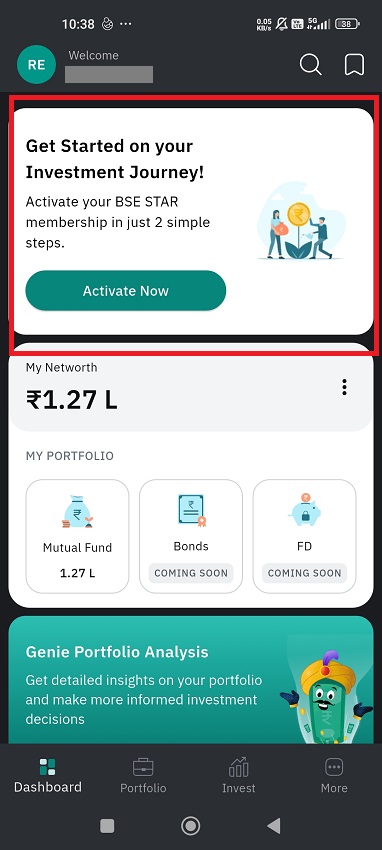
Once you have successfully logged in, you will by default land on the 'Dashboard' page. If you don't have an investment with Geojit, you need to **Activate** **Your BSE Star membership**.
* Tap on '**Activate Now**' button
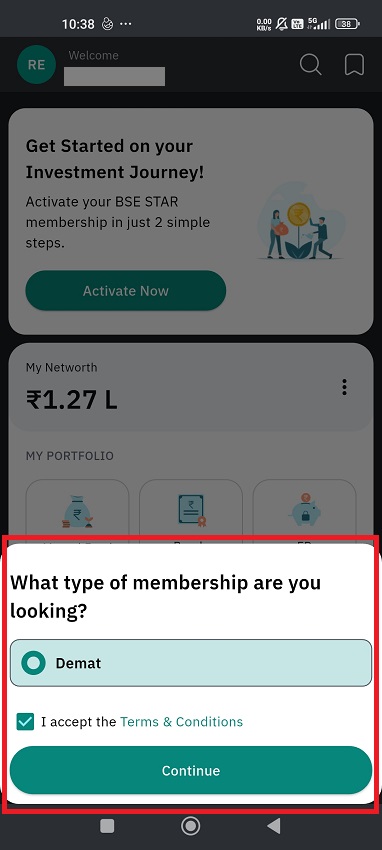
* A pop-up will appear asking, '**What type of membership are you looking for**?'
* Click on '**Demat**' and **read & accept** the **terms and conditions**.
* Click on **Activate,** and you will get a message stating, 'Membership Activation In-Progress.'.
It usually takes 2-3 hours for BSE approval. Once approved, the user will be able to place their first order. Once you get the approval, you can invest in your desired mutual fund.
{% hint style="info" %}
You can activate your **FundsGenie membership** under **NRO status** too**.**
{% endhint %}
> **Read More :** \
> [**How to Invest in SIP/Lumpsum ?**](https://usermanuals.geojit.com/fundsgenie-mobile/invest#how-to-invest-in-sip-one-time)\
> [**Mutual Fund Transactions Explained: What You Can Do in Physical vs Demat Mode**](https://support.geojit.com/support/solutions/articles/89000020970-mutual-fund-transactions-explained-what-you-can-do-in-physical-vs-demat-mode)
### My Networth
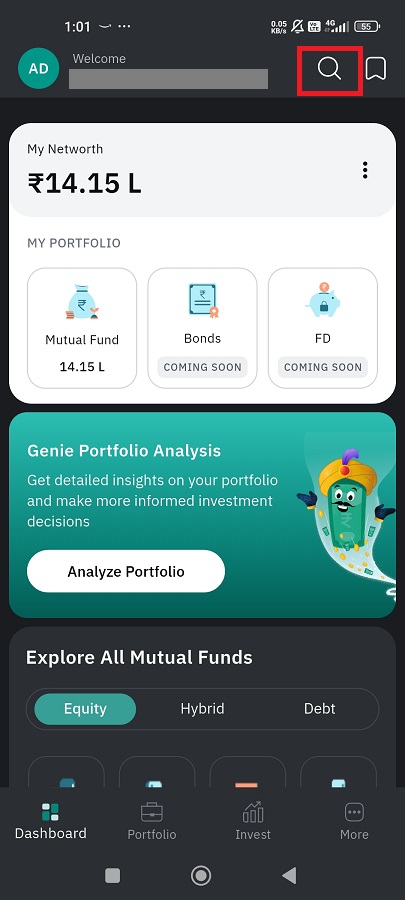
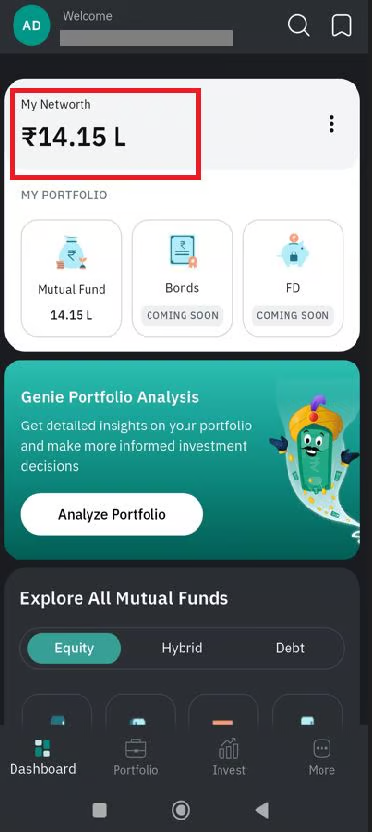
Upon opening the app, the user's **net worth** will be displayed on the top itself if he/she already has holdings.
Your net worth is the **total Market value of your mutual fund holdings, both in** **Geojit** and in an **external account**.
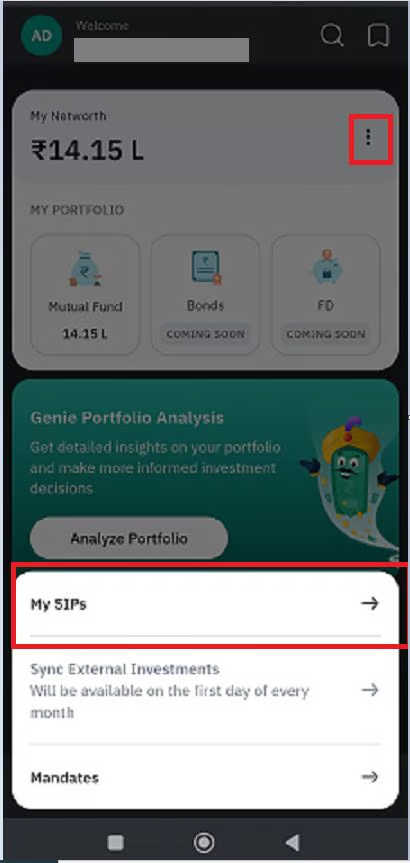
Tap on the **three dots** on the **right side** of the **networth,** and a pop-up with three options will appear:
* My SIPs
* Sync External Investments
* Mandates
### How To View My SIPs
Click on My SIPs, and you will be navigated to the '[**My SIP**](https://usermanuals.geojit.com/fundsgenie-mobile/dashboard/my-sip)' page, where you can see all your active, paused, completed, and cancelled SIPs.
If you have active SIPs via FundsGenie, then the number of active SIPs, the monthly SIP amount, and the deduction date marked in the SIP calendar can be seen. The funds in which you have SIP will also be listed out, which carry the fund name, SIP amount, SIP date, and number of installments made on total installments.
These details are applicable in the paused, completed, and cancelled SIP sections too.
### How to Track/Sync External Investments
If you have mutual fund investments with any other brokers, you can import your external mutual fund investments to the FundsGenie app to track and analyze all your investments in one place. For this:
* **Log in** to FundsGenie.
* You will land on the **'Dashboard'** page.
* Scroll down to find **'Track/ Sync External Portfolio'**. **Tap on it.**
* On the next screen, you will find the steps to track your external investments.
* Go through the steps and **tap on 'Continue to MF Central'.**
* Your PAN number and registered mobile number will be displayed here by default. You can also **enter your registered email ID instead of mobile number.**
* On this screen select the type of information you want to include - '**Summary'** or **'Transaction'.**
* **Choose 'Transaction'.**
* Next click **'Submit'.**
* Now you will be redirected to **MF central's authentication screen** where you have to **enter a 6 digit OTP** you would have received in your registered mobile number and email ID.
* Tap on **'Authenticate OTP'.**
* **Now your PAN and mobile number is verified successfully.**
* Next, you will land on the 'Generate QR Code for CAS request' page.
* Scroll down and tap on **'Select All'** button to select all the AMCs all at once.
* Then, tap on **'Generate QR code'.**
> The generated QR code will remain valid for 24 hours only.
* You will be navigated to a QR code screen now.
* Now click on the download button to **download the QR code** and then click the **'Continue'** button on the same screen.
* Now you will be navigated to the FundsGenie app screen where you need to **upload the QR code.**
* **Tap on 'Upload QR code'** to upload the QR code you just downloaded.
* Once the QR code is successfully uploaded, you will land on the success screen which states, *Your external investments have been successfully synced!*
* You can go back to the dashboard and visit the [**portfolio page**](https://usermanuals.geojit.com/fundsgenie-mobile/portfolio#how-to-view-your-holdings) to see the external fund you have just fetched.
{% hint style="info" %}
It may take a few minutes to sync the portfolio. The **user will be notified** once the syncing is over. Syncing will be available only on the first day of every month.
{% endhint %}
### My Portfolio
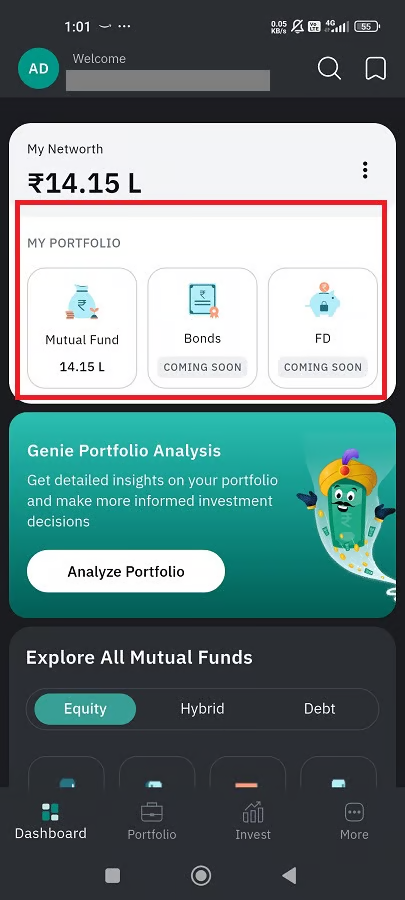
The investments in your portfolio are classified into three:
* Mutual Fund
* Bonds
* FD
> Currently, you can only invest in mutual funds. Investments in bonds and FDs will be available soon.
From the home page itself, you can see the total investment in each section. The total investment will be **displayed** just **under** the term **'Mutual Fund'**.
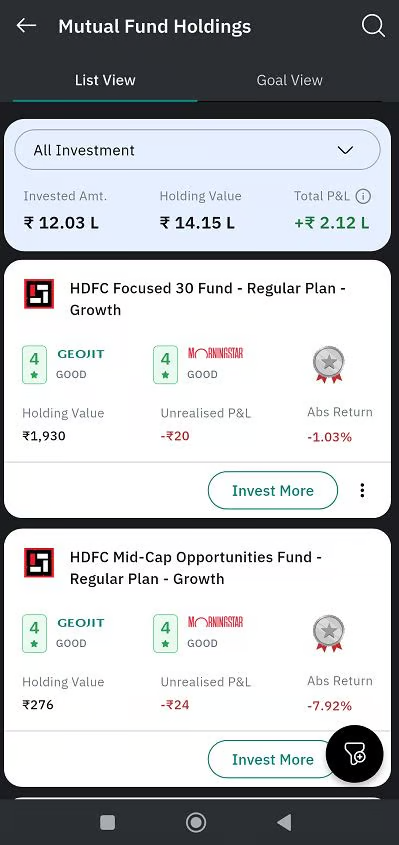
* Tap on the **'Mutual Fund'** to know the details of your **holdings**.
* You will be navigated to a new page dedicated to your mutual fund holdings.
* Here you can see '**All your investments,**' both Geojit and External.
* You can select either of the two.
* You can see **Invested Value, Market Value**, and **Total Profit** here.
Your mutual fund investments, according to the option you chose (Geojit/External), will be listed, with the top-rated fund placed at the top.
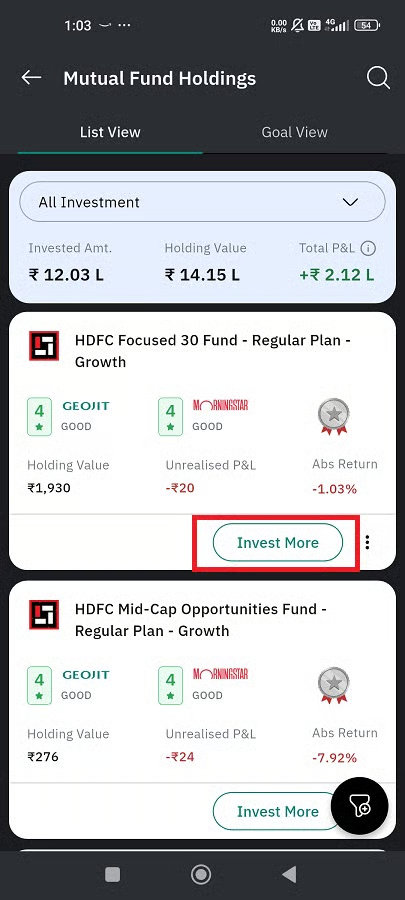
### How to Invest More?
Once the funds are listed, if you wish, you can invest more in the same fund. Follow the below steps:
* Tap on the '**Invest More**' button.
* Enter the SIP/one-time amount, date, duration, mode of holding, and bank account.
* Click on **Continue**.
* Cross-check your details and click on the '**Register SIP**' button.
* As a payment mode, you can either select **net banking**, **UPI**, or **NEFT/RTGS**.
* Accept the payment before time-out, and your new SIP order will be placed successfully.
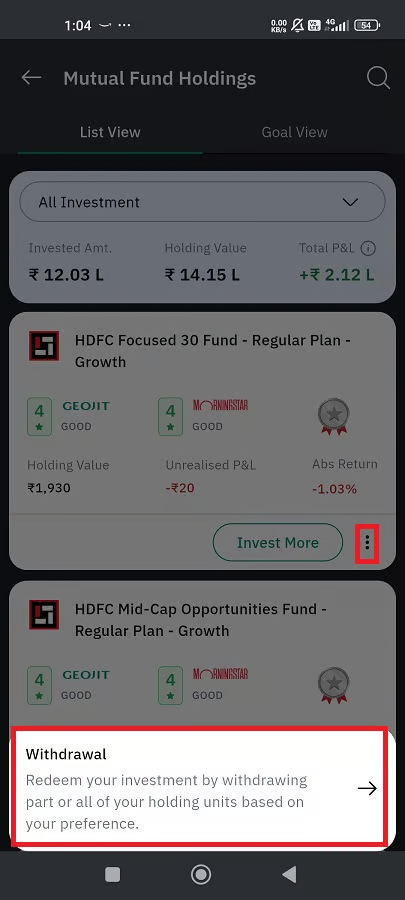
### How to Withdraw Your Fund?
If you want to withdraw your funds:
* Tap on the **three dots** given right next to the '**Invest More**' button.
* A '**Withdrawal**' pop-up will appear. Tap on it and **enter the amount** or **units**.
* Click on **Continue**.
* Another window will appear containing the details, like the folio number, mode of holding, and the bank account to which the amount will be deposited.
* Tap on **Continue**, and again a pop-up will arise requesting you to state the reason for withdrawing the amount.
* Choose a reason and click on '**Continue**.'
* Your order will be processed.
### Universal Search Option of Funds
Search for a specific fund using the **magnifying glass icon** located on the **top-right-corner**.
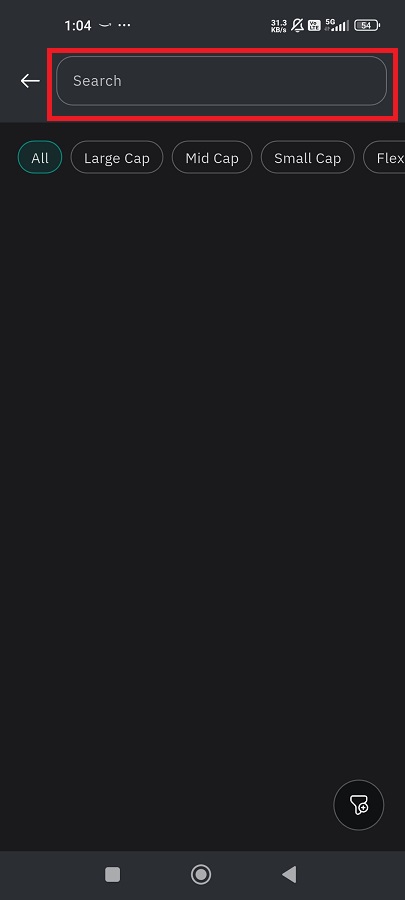
* Enter the desired fund name.
* You will be provided with the list of funds as per your search.
* You can choose the category you wish to see, by clicking on the market capitalization options (large/mid/small/flexi) provided at the top.
* You can also apply a filter , by clicking on the **filter icon** .
* Select the **category, rating, risk, investment mode, option, fund size,** and **AMC**.
* Click on '**Apply**.'
* Your desired search result will be displayed.
* Tap on the '**Clear'** button located at the top right corner of the search bar, to clear the search.


 located on the **top-right-corner**.
* Enter the desired fund name.
* You will be provided with the list of funds as per your search.
* You can choose the category you wish to see, by clicking on the market capitalization options (large/mid/small/flexi) provided at the top.
* You can also apply a filter , by clicking on the **filter icon**
located on the **top-right-corner**.
* Enter the desired fund name.
* You will be provided with the list of funds as per your search.
* You can choose the category you wish to see, by clicking on the market capitalization options (large/mid/small/flexi) provided at the top.
* You can also apply a filter , by clicking on the **filter icon**  .
* Select the **category, rating, risk, investment mode, option, fund size,** and **AMC**.
* Click on '**Apply**.'
* Your desired search result will be displayed.
* Tap on the '**Clear'** button located at the top right corner of the search bar, to clear the search.
.
* Select the **category, rating, risk, investment mode, option, fund size,** and **AMC**.
* Click on '**Apply**.'
* Your desired search result will be displayed.
* Tap on the '**Clear'** button located at the top right corner of the search bar, to clear the search.