> For the complete documentation index, see [llms.txt](https://usermanuals.geojit.com/llms.txt). Markdown versions of documentation pages are available by appending `.md` to page URLs; this page is available as [Markdown](https://usermanuals.geojit.com/mygeojit-mobile/my-account/profile.md).
# Profile
Manage and update your personal details effortlessly
The Profile page of MyGeojit is where you can access your personal details, KYC info, bank details etc. If you want to modify any of those details, you can do it online easily. But, if there's **any mismatch of name** in your PAN card and MyGeojit account, then the below given details can't be updated unless you update your account with the name given in the pan card.
* Email
* Mobile
* [FATCA](#how-do-i-add-the-fatca-declaration)
* [Bank](#how-do-i-add-delete-a-bank-account)
* [Nominee](#how-to-add-delete-nominees)
* [Annual KYC](#how-to-add-delete-nominees-1)
* [6KYC](#id-6kyc-update)
* Additional Terms & Conditions
* [Segment Addition](#how-do-i-activate-deactivate-segments)
* [SLBM activation](#how-do-i-activate-deactivate-segments)
If there's any **mismatch of DOB** (Date of Birth), then you need to contact your branch.
#### This Section Contains :
* [How do I access my profile details ?](#how-do-i-access-my-profile-details)
* [How to edit my mobile number/ email ID in MyGeojit ?](#how-to-edit-my-mobile-number-email-id-in-mygeojit)
* [How to mark family flag ?](#how-to-mark-family-flag)
* [How do I know my Personal Identification Number (PIN) ?](#how-do-i-know-my-personal-identification-number-pin)
* [How do I add the FATCA declaration ?](#how-do-i-add-the-fatca-declaration)
* [How do I edit/update FATCA declaration ?](#how-do-i-edit-update-the-fatca-declaration)
* [How do I access my bank account information?](#how-do-i-access-my-bank-account-information)
* [How do I add/delete a bank account ?](#how-do-i-add-delete-a-bank-account)
* [How do I edit IFSC code ?](#how-do-i-edit-ifsc-code)
* [How do I re-activate my inactive bank account ?](#how-do-i-activate-standing-instruction)
* [How do I activate Standing Instruction ?](#how-do-i-activate-standing-instruction)
* [How to update Running Account Authorization preference ?](#how-to-update-running-account-authorization-preference)
* [How to add GST details ?](#how-to-add-gst-details)
* [How do I activate different services ?](#how-to-activate-different-services)
* [How to subscribe/unsubscribe Free Research Services ?](#how-to-subscribe-unsubscribe-free-research-services)
* [How do I activate/deactivate segments ?](#how-do-i-activate-deactivate-segments)
* [How do I update nominee details ?](#how-to-add-delete-nominees)
* [How do I update KYC details ?](#how-to-add-delete-nominees-1)
* [6KYC update](#id-6kyc-update)
* [How do I request a DIS book?](#how-do-i-request-a-dis-book)
* [How do I request CML ?](#how-do-i-request-cml)
* [How do I close my trading account?](#how-do-i-close-my-trading-account)
* [How do I close my DP account ?](#how-do-i-close-my-dp-account)
### How do I access my profile details ?
Know everything related to your account, be it personal data or account-related. You can view and update:
* **Personal Details-**Trading
* **Account Info**: Customer ID, CIN Number, Trade Code, CKYC Number, Account Type, Account Status
* **KRA Status**
* **FATCA Declaration**
* **Additional details** like Aadhaar.
To edit them :
* Go to '**My Accounts**'.
* Select '**Profile**'.
* You will by default land on '**Personal Profile**.'
* Here, your name will be displayed at the top. Just below your name, you can see personal details. **To make any changes**, **click on** the '**edit**' 🖊 button.
* **Scroll down** to see your '**Account Info'— customer ID or CID, CIN Number , Trade Code, CKYC Number etc.**
* **Scroll down further**, and you can see your **KRA status, FATCA declaration,** and your additional details. **Click on** the '**edit**' 🖊 button to make changes and save changes.
### How to edit my mobile number/ email ID in MyGeojit ?
* Go to '**My Accounts**'.
* Select '**Profile**'.
* You will by default land on '**Personal Profile**.'
* Here, your name will be displayed at the top. Just below your name, you can see personal details.
* If you want to edit your mobile number /email ID or Whatsapp number,, **click on** the '**edit**' 🖊 button right next to the preferred data you need to change.
* Now you will **recieve an OTP** in your registered email ID and mobile number.
* Now, a change email or change mobile number window pops up.You current email ID or mobile number will be displayed in this window.
* Next **enter your new** email ID or mobile number.
* Now you will **recieve an OTP** in your new email ID or mobile number.
* Next click on '**Proceed to aadhar eSign**'.
* The application form for eSign will be displayed now. Click on '**Proceed to Aplication form eSign'**.
* Next step involves your aadhar/Virtual details digitally signing documents to update the details.
* For this, please **click on the check box** and **enter your Aadhar number** and click on '**Send OTP**'.
* Now **enter the OTP.**
* The **'Success'** pop-up will appear.
#### How to mark family flag ?
While updating your email ID and mobile number you can mark to whom those data belongs to. For example, if you are adding your spouse's mobile number as contact info, then you can flag that number as 'Spouse' instead of 'Self'. Follow the below steps to add family flag :
* Go to '**My Account**'.
* Click on '**Profile**' and go to **'Personal Profile'** or '**KYC Update**'.
* Here you can see your details displayed, including your email ID and Mobile Number.
* Right next to the email ID and Mobile Number, you can see the '**Belongs to**' field.
* Click on the '**Edit**' button right next to the belongs to field.
* You will be provided with a **set of options**, where you can choose to whom the contact info belongs to- either Self/Spouse/Dependent Children/ Dependent Parents. ( For any options other than the given list, kindly contact your branch).
* Select any option and **click confirm**.
* Now you will recieve an OTP both in your registered email ID and Mobile number.
* Enter the OTP recieved and click 'Confirm'.
* Now the family flag will be updated successfully.
{% hint style="info" %}
This feature is available only for **resident individuals.**
{% endhint %}
### How do I know my Personal Identification Number (PIN) ?
The PIN (Personal Identification Number ) and Customer ID options are used to authenticate activities in your account made while calling Customer Care.
* Go to '**My Account**.'
* Select '**Profile**.'
* Click on '**Personal Profile**.'
* Scroll down to see your Account Info
* Here you can see your :
* Customer Id
* CIN Number
* Trade Code
* Account Type
* Account Status
* **PIN** ( long press on the closed-eye button to reveal the PIN. Once you take your hands off the button the PIN will be masked again)
### How do I add the FATCA declaration ?
* Go to '**My Accounts**.'
* Select '**Profile**.'
* You will by default land on '**Personal Profile**.'
* Scroll down and find '**FATCA Declaration.'**
* If you are a tax resident of any other country other than India, click YES.
* A window '**Add FATCA**' will open up.
* Your Jurisdiction will be displayed there by default ( which cannot be edited).
* **Enter TIN** or equivalent > Search and select Country of Birth > Search and add Place or City of Birth > Click on the check box ✅ to declare the details submitted are correct > **Click Submit.**
* If you **don't have TIN**, then select the check box ✅ right next to **'I don't have TIN'.**
* Now click on the drop down arrow and **select the reason for not having TIN.**
* If your reason is not specified in the options, then select 'Other'.
* Now a comment box will appear where you need to **Specify The Reason.**
* **Next,** Search and select Country of Birth > Search and add Place or City of Birth.
* Click on the check box ✅ to declare the details submitted are correct.
* **Click Submit.**
### How do I edit/update the FATCA declaration ?
* Go to '**My Accounts**.'
* Select '**Profile**.'
* You will by default land on '**Personal Profile**.'
* Scroll down and find '**FATCA Declaration.'**
* **Click on** the '**edit**' 🖊 button to make changes.
* A window '**Add FATCA**' will open up. Enter the details accordingly. If you are a **tax resident of the United States**, then choose the option **YES** under the column **US National**.
* Enter the details and click on '**Submit.'**
### How do I access my bank account information?
* Go to '**My Accounts.**'
* Select '**Profile**.'
* Right below the profile tab, you will see **'Bank Info'** > **Click on it**.
* Your bank account information will be displayed in different categories: **active bank** (**trading)**, **active bank (DP)**, and **inactive bank (trading).**
* Your primary bank account will be marked as **'primary.'** If you have more than one bank account and want to switch the primary bank account, click on the more  button right next to the desired bank account and make it as primary.
**Read More**: [***How can I change my primary bank to another registered bank account?***](https://support.geojit.com/support/solutions/articles/89000007695-how-can-i-change-my-primary-bank-to-another-registered-bank-account-)
### How do I add/delete a bank account ?
To add a bank account:
* Go to '**My Accounts.**'
* Select '**Profile**.'
* Right below the profile tab, you will see **'Bank Info'** > **Click on it**.
* Click on the '**Add Bank**' button given towards the right-hand side.
* Select if you want to add the bank to Trading, DP, or both of them.
* Search your bank with IFSC and click on the '**Add**' ➕button.
* Enter Bank account number and account type.
* Click on **Confirm**.
* An **OTP** will be sent to your **Email ID** and **Mobile number**. Enter the OTP and click '**Confirm**'.
To delete a bank account:
* You can deactivate your bank account by clicking on the **red cross mark ❌** given towards the right-hand side.
### How do I edit IFSC code ?
* Go to '**My Accounts.**'
* Select '**Profile**.'
* Right below the profile tab, you will see **'Bank Info'** > **Click on it**.
* Find the desired bank account for which you need to edit the IFSC code.
* Click on the options button.
* Click on **Edit IFSC**.A new window will open up, where you can **search** a new IFSC code.
* Once done, click **Save.**
* You will receive an **OTP** to your **registered mobile number**.
* **Enter the OTP** and your IFSC code will be changed successfully.
{% hint style="info" %}
* You cannot change the IFSC code of the bank account linked to the depository.
* Clients whose DP is not with Geojit, cannot edit the IFSC code of the bank account linked with your trading account.
{% endhint %}
### How do I re-activate my inactive bank account ?
* Go to '**My Accounts.**'
* Select '**Profile**.'
* You will by default land on '**Personal Profile.**'
* Right next to personal profile, you will see **'Bank Info'** > **Click on it**.
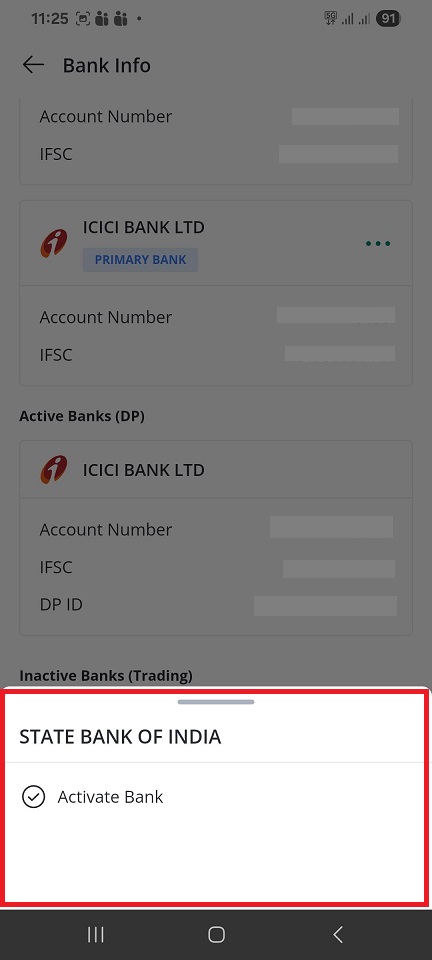
* Scroll down to find the **'inactive bank'** section.
* Click on the green dots so that the '**Activate Bank**' button displays. Click on it.
* You will get a pop asking whether you want to add the bank to Trading/DP. Select a preferred option.
* Now click **'Confirm'.**
* Now you will land on the **'Activate Bank' page,** where the details like **- bank name, IFSC, address, branch name, account number and account type** are displayed**.**
* If you want to edit the IFSC code, click on the edit icon .
* If you want to make this bank account as **a primary account, then click on the check box** right next to the **'Make Primary Account'** tab**.**
* Once done**, click on 'Confirm Bank Details'.**
* An OTP will be sent to your registered Email ID and Mobile number.
* Enter the OTP and click on **'Verify OTP'**.
* If there's **any mismatch in the details** between your bank and trading account, you will be required to **upload a bank proof.**
* You can either upload **bank account passbook/ bank account statement/ bank letter/ cheque leaf** or any **other** valid bank documents.
* If the document is **password protected**, kindly unlock it by entering the password in the 'Password field'.
* Now click on **'Verify'.**
* The process is completed and you will receieve a success message pop-up.
### How do I activate Standing Instruction ?
* Go to **My Account** > **Profile** > **Bank Info**
* Under '**Settlement of funds**,' select **Standing Instruction**. Choose a bank account from the drop-down menu.
* **Select the** **trading segments** for which you wish to activate the facility.
* Click **'Save Changes**.'
* To disable this, **uncheck the box** right before the 'Standing instruction.'
> **Read More** : [**What is a Standing Instruction?**](https://support.geojit.com/support/solutions/articles/89000007588-what-is-a-standing-instruction-how-can-i-activate-it-in-my-account-)
### **To deactivate standing instruction :**
* Go to **My Account** > **Profile** > **Bank Info**
* Under '**Settlement of funds**,' find **Standing Instruction**.
* Uncheck the standing instruction, by clicking on the checkbox. 🔲
* Click on '**save changes**', and you are good to go.
### How to update Running Account Authorization preference ?
Running Account Authorization (RAA) is an arrangement in India where an investor authorizes their stockbroker to retain funds and securities in their trading account, rather than performing a settlement-to-settlement clearance after every trade. This process is mandated by the Securities and Exchange Board of India (SEBI). Your payout settlement can either be monthly or quarterly.
* Go to **My Account** > **Profile** > **Bank Info**
* Under '**Settlement of funds**,' you can see '**Running Account Authorization'** will be selected by default.
* Choose your payout settlement frequency—monthly or **quarterly.**
* Once done, click on **'Save Changes.'**
### How to add GST details ?
* Go to **My Account** > **Profile** > **Bank Info**
* Scroll down and find Goods & Service Tax (GST).
* Click on the add button .
* An '**add details'** page will slide in.
* Enter the details and click on the add button given towards the bottom.
* For better understanding of the details to be entered, refer to the image given below. You can find the **GSTIN State Code**, **Entity Code** and the **GCheck Code** in the image.
### How to activate different services ?
You can activate the below-given services provided by Geojit.
* [Demat Debit and Pledge Instruction](https://support.geojit.com/support/solutions/articles/89000007730) (DDPI)—The Demat Debit and Pledge Instruction (**DDPI)** is a document that authorizes a stockbroker and Depository Participant to access an investor’s demat account. The DDPI serves the same purpose as the PoA authorization.
* [Digital Contract Note](https://support.geojit.com/support/solutions/articles/89000007574) - Digital/Electronic Contract Notes are sent to your registered email ID after each trade is executed in your account.
* [Additional T\&C](https://support.geojit.com/support/solutions/articles/89000007814-what-is-additional-t-c-where-can-i-accept-it-) - Acceptance of additional terms and conditions **is required** to avail of facilities such as online trading, BTST, eIPO, etc.
* [Margin Trading Funding](https://support.geojit.com/support/solutions/articles/89000007826-how-do-i-activate-the-mtf-facility-) (MTF)—Margin Trading Funding (MTF) is a facility that allows you to capitalize on investment opportunities that may otherwise not be possible due to a shortage of funds. By paying for a part of your order value in the form of a margin, the remaining amount will be funded by Geojit. This margin can be brought as cash and/or pledged securities, and [interest charges](https://support.geojit.com/support/solutions/articles/89000007812-what-is-the-interest-rate-charged-for-mtf-) are levied on the broker-funded amount.
* [GTD Orders](https://support.geojit.com/support/solutions/articles/89000007731) - A Good Till Date (GTD) order is an order time condition wherein an order remains active to a predefined date.
* [Smart Plus Agreement](https://support.geojit.com/support/solutions/articles/89000007483-how-can-i-activate-the-oco-bracket-order-facility-) - To place OCO/bracket orders in your account, you will first have to activate the Smart Plus Agreement.
* [F\&O Intraday](https://support.geojit.com/support/solutions/articles/89000007603-what-are-the-margin-fund-requirements-for-an-f-o-trade-) - Intraday F\&O trading is a type of trading where traders buy and sell futures and options within the same day, without holding any positions overnight
* [Client Commodity Categorization](https://support.geojit.com/support/solutions/articles/89000017896-how-to-choose-commodity-category-) - As per[ ***Exchange Circular MCX/TRD/007/2019***](http://spaces/EX31Xx9NZFHlRfi6I1mp/uploads/vLTaHkVxXgIFC5IJQuf8/categorisation%20circular.pdf%20\(gitbook.com\)) issued by SEBI, exchanges are now required to categorize participants in the Commodity Derivatives market
* [Holding Statement - ](https://support.geojit.com/support/solutions/articles/89000007494-how-can-i-subscribe-to-get-updates-of-my-holding-statement-)You can **subscribe** to receive your **Holding** **Statement** (every trading day/once a week/once a month) to your registered email ID on [MyGeojit](https://support.geojit.com/support/solutions/articles/89000007494-how-can-i-subscribe-to-get-updates-of-my-holding-statement-). This feature is available only for those who have dp in Geojit NSDL.
* [SLBS Registration](https://support.geojit.com/support/solutions/articles/89000006796) - The Securities Lending & Borrowing Scheme (SLBS) is a system through which traders can borrow shares (that they do not own) or lend shares that they own. The borrower in an SLBS transaction is required to pay the lender certain fees for borrowing securities for a fixed period.
* User Agreement - Accept T\&C.
* [Voluntary Freezing/Blocking Online Trading Account](https://support.geojit.com/support/solutions/articles/89000018865-how-do-i-block-the-online-access-to-my-trading-account-) - Voluntarily ***block/unblock*** online access to your trading account if you suspect any suspicious activity.
**How to activate ?**
* Go to '**My Accounts.'**
* Select '**Profile**.'
* You will by default land on '**Personal Profile**.'
* Next to it, spot '**Activables**.'
* **Activate** whichever option you want.
### How to subscribe/unsubscribe Free Research Services ?
If you want to see Geojit's research recommendations in Flip and MyGeojit, you need to subscribe to our research services first. Follow these steps to activate **'Free Research Services.'**
* Go to '**My Accounts.'**
* Select '**Profile**.'
* You will by default land on '**Personal Profile**.'
* Next to it, spot '**Activables**.'
* Scroll down to find '**Free Research Services'.**
* Click on **Subscribe/Unsubscribe** button.
### How do I activate segments ?
* **Choose** **the segments** you want to activate by switching on the toggle button.
* Switching on the toggle button collectively switch on **all the exchanges** coming under that segment.
* If you want to **turn off any exchange**, then **uncheck the relevant box** :black\_square\_button: adjacent to the exchange.
* Once you have done it, click on '**Proceed**.'
* Now you will land on the **'Add documents'** page.
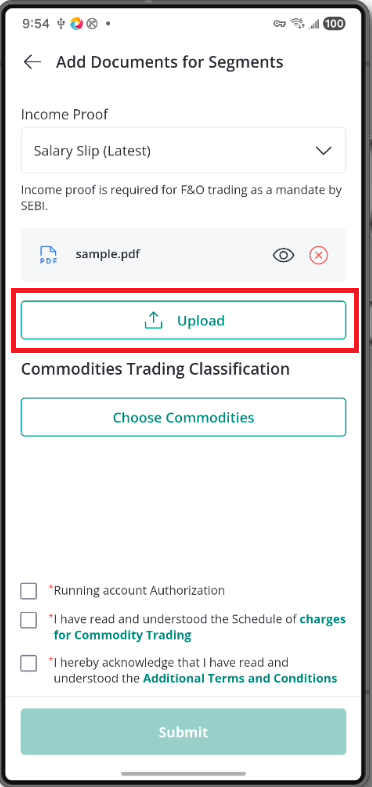
* You need to upload your income proof.
* For this, **click on the drop-down arrow** and **select the type of income proof.**
* Now choose a file to upload. Click on **'choose a file'**.
* Your gallery will open up, where you can select a file to upload.
* Once done, click on the **'Upload'** button.
* Next, **choose commodities** ( if you are activating commodities segment) :
Choose the categories of commodities you would like to trade in. You can always change this later.
* Click on the all **three checkboxes** :white\_check\_mark: given towards the end of the page.
* Now tap on the **'Submit'** button.
* You will recieve an OTP in your registered mobile number. **Enter OTP.**
* Click **'Confirm'.**
* You will get a success pop-up.
### How to add/delete nominees?
* Go to '**My Accounts.'**
* Select '**Profile.'**
* You will by default land on '**Personal Profile.'**
* Next to it, spot '**Nominee Details**' and **click on it**.
* Click on **'Add Nominee.'** You can either select nominee from already nominated list or you can add a new nominee.
* Enter the name and other details and set the percentage allocation.
* Click on the 'Submit' button.
* You will receive a pop-up, "***Choice** **of nomination updated successfully."***
* Click on the ***"Ok"*** Button.
* To opt out of nomination, click on the '**opt out from nominee'** button given towards the top-right corner of the page.
* Clients who had opted out earlier can now easily add a nominee anytime.
{% hint style="info" %}
* Joint account holders and non-individuals cannot add/update nominee details online. For this, you need to contact your respective branch.
* You can update 1 nominee in your trading account, and up to 10 nominees in your demat account OR you can opt -out of the Nomination
{% endhint %}
### How to update KYC ?
You can update your KYC details by :
* Go to '**My Accounts'**.
* Select '**Profile**'.
* You will by default land on **'Personal Profile'**.
* Spot **KYC Update** tab and click on it.
* You can see when you last updated your KYC and when the next update date is.
* All your KYC details, like name, DOB, address, PAN, mob number, email ID etc., will be updated here.
* You will find an **edit button** right beside each detail, and once you have finished editing, click '**Update**'.
How to Update Income Details?
* **Select Income Sources**
* Go to the **“Source of Income”** tab.
* Click on the **drop-down arrow**.
* Select **one or more income sources**.
* **Enter Employment Details**
* Fill in your **Employer Name** and **Designation**.
* **Additional Details (for Professional/Business Income)**
* If you choose *Professional Income* or *Business Income*, provide:
* **Name of the establishment/organization**
* **Business activity**
* **Financial Details**
* Select your **Annual Income Slab**.
* Enter your **Net Worth**.
* Set the **Date**.
* **Official Contact Information**
* Fill in the required **official contact details**.
* **Office Address**
* Scroll down and enter your **office address**.
* **Derivatives (F\&O Users Only)**
* If you have activated **F\&O**, upload your **income proof** under the **“Derivatives”** tab.
* **Final Step**
* Answer the required questions.
* Click **Update** to save your details.
### How do I temporarily deactivate derivative ?
If you do not wish to trade in derivatives, then you can deactivate derivative trading. For this :
* Login to MyGeojit.
* Go to My Accounts > Profile > KYC Update.
* Scroll down to find the 'Derivatives' section.
* Switch on the toggle button for temporarily deactivating the derivative segment.
**If you have holdings:**
If you have **holdings worth ₹1,000 or more**, then you **need not upload a holding statement**. We'll use your latest DP holding statement as proof of income/net worth.
{% hint style="info" %}
*This auto upload feature is available only for clients whose DP is with Geojit.*
{% endhint %}
***If you don't have holdings or :***
* If you're using **any other proof**, please select **"Manual"** and upload the document.
* You will receive a confirmation pop-up.
* Click on 'Proceed.'
* You will receive a confirmation pop-up.
* Click on 'Proceed.'
#### 6KYC update
The 6KYC update process enables you to **review and update your missing attributes online** in a single go.
To check whether you have any updates pending,
* Log in to MyGeojit.
* Go to **My Accounts** > **Profile**.
* Scroll down to the KYC section.
* ✅ **Green tick** → Updated
* ❌ **Red cross** → Pending / missing
* To update the missing attributes, click on the **update** button given on the top-right-hand side.
* Now you will be redirected to the 6KYC page.
* Update the necessary fields.
* Review the displayed **KYC details**
* Click **'Submit'** after making updates.
* Apart from this, if you attempt to update your KYC details—such as your bank account or any other information—from a different section of the profile page, you will still be redirected to the same 6-step KYC page.
* In such cases, a “**KRA Update Required**” pop-up will be displayed.
* Click 'Continue'.
* Now you will be redirected to the [6KYC page](https://usermanuals.geojit.com/mygeojit-web/my-account/profile#id-6kyc-update).
* Update the necessary fields.
* Review the displayed **KYC details**
* Click **'Submit'** after making updates.
{% hint style="info" %}
#### Please Note
* **Address ( PIN code) updates** can currently be done **only through the branch.**
* **Nominee updates** require you to **visit your bank.**
{% endhint %}
### How do I know your DP info ?
* Go to '**My Accounts**'.
* Select '**Profile**'.
* You will by default land on '**Personal Profile'**.
* Next to it, spot '**DP Info**' and **click on it.**
* All your DP-related information will be displayed on this page.
### How do I request a DIS book?
**Delivery Instruction Slips** (DIS) authorize your Depository Participant (Geojit) to debit shares from your demat account. You can place a DIS book request only AMC dues (if any) are cleared. To request for DIS Book :
* Go to '**My Account**.'
* Select '**Profile**.'
* Click on '**DP Info**.'
* Scroll down and click on '**Request for DIS Book**.'
* Select the number of slips.
* Select address.
* Click '**Continue**.'
* Choose a payment mode.
* Click on continue.
* You will be navigated to the transaction page, where you have to enter billing information.
* Once done, scroll down and choose the payment type (credit/debit card/UPI/net banking/wallet).
* Your order details will be displayed towards the right-hand side.
* Click on **make payment**.
### How do I request CML ?
CML, or Client Master List, will be sent to your registered email ID by the end of the day.
* Go to '**My Account**'.
* Select '**Profile**'.
* Click on '**DP Info**'.
* Scroll down and click on '**Request for CML**.'
* On request you will receive CML to your registered mail ID.
* Click on **Confirm.**
You can also look back at your request history by clicking on the '**Request History**' button, located right next to the '**Request For CML**' button.
### How to Know Your KRA Status ?
To know your KYC status,
* Go to '**My Account**'.
* Select '**Profile'**.
* Click on **KRA Status**.
### How to Logout from MyGeojit ?
* Go to **'My Account.'**
* Find the '**Logout**' ➡️ button towards the end.
* **Click on it,** and you will be logged out.
* You will get Trading account closure request form.
* **Proceed to the application form eSign.**
* Click on the checkbox and enter **Aadhaar/VID.**
* Click on **send OTP**.
* **Complete the process**, and your account will be closed.


 button right next to the belongs to field.
* You will be provided with a **set of options**, where you can choose to whom the contact info belongs to- either Self/Spouse/Dependent Children/ Dependent Parents. ( For any options other than the given list, kindly contact your branch).
button right next to the belongs to field.
* You will be provided with a **set of options**, where you can choose to whom the contact info belongs to- either Self/Spouse/Dependent Children/ Dependent Parents. ( For any options other than the given list, kindly contact your branch).


 to reveal the PIN. Once you take your hands off the button the PIN will be masked again)
### How do I add the FATCA declaration ?
* Go to '**My Accounts**.'
* Select '**Profile**.'
* You will by default land on '**Personal Profile**.'
* Scroll down and find '**FATCA Declaration.'**
* If you are a tax resident of any other country other than India, click YES.
* A window '**Add FATCA**' will open up.
* Your Jurisdiction will be displayed there by default ( which cannot be edited).
* **Enter TIN** or equivalent > Search and select Country of Birth > Search and add Place or City of Birth > Click on the check box ✅ to declare the details submitted are correct > **Click Submit.**
* If you **don't have TIN**, then select the check box ✅ right next to **'I don't have TIN'.**
to reveal the PIN. Once you take your hands off the button the PIN will be masked again)
### How do I add the FATCA declaration ?
* Go to '**My Accounts**.'
* Select '**Profile**.'
* You will by default land on '**Personal Profile**.'
* Scroll down and find '**FATCA Declaration.'**
* If you are a tax resident of any other country other than India, click YES.
* A window '**Add FATCA**' will open up.
* Your Jurisdiction will be displayed there by default ( which cannot be edited).
* **Enter TIN** or equivalent > Search and select Country of Birth > Search and add Place or City of Birth > Click on the check box ✅ to declare the details submitted are correct > **Click Submit.**
* If you **don't have TIN**, then select the check box ✅ right next to **'I don't have TIN'.**


 options button.
* Click on **Edit IFSC**.A new window will open up, where you can **search** a new IFSC code.
* Once done, click **Save.**
* You will receive an **OTP** to your **registered mobile number**.
* **Enter the OTP** and your IFSC code will be changed successfully.
{% hint style="info" %}
* You cannot change the IFSC code of the bank account linked to the depository.
* Clients whose DP is not with Geojit, cannot edit the IFSC code of the bank account linked with your trading account.
{% endhint %}
### How do I re-activate my inactive bank account ?
* Go to '**My Accounts.**'
* Select '**Profile**.'
* You will by default land on '**Personal Profile.**'
* Right next to personal profile, you will see **'Bank Info'** > **Click on it**.
* Scroll down to find the **'inactive bank'** section.
options button.
* Click on **Edit IFSC**.A new window will open up, where you can **search** a new IFSC code.
* Once done, click **Save.**
* You will receive an **OTP** to your **registered mobile number**.
* **Enter the OTP** and your IFSC code will be changed successfully.
{% hint style="info" %}
* You cannot change the IFSC code of the bank account linked to the depository.
* Clients whose DP is not with Geojit, cannot edit the IFSC code of the bank account linked with your trading account.
{% endhint %}
### How do I re-activate my inactive bank account ?
* Go to '**My Accounts.**'
* Select '**Profile**.'
* You will by default land on '**Personal Profile.**'
* Right next to personal profile, you will see **'Bank Info'** > **Click on it**.
* Scroll down to find the **'inactive bank'** section.

 .
* If you want to make this bank account as **a primary account, then click on the check box** right next to the **'Make Primary Account'** tab**.**
* Once done**, click on 'Confirm Bank Details'.**
.
* If you want to make this bank account as **a primary account, then click on the check box** right next to the **'Make Primary Account'** tab**.**
* Once done**, click on 'Confirm Bank Details'.**




.jpg?alt=media&token=765f1c06-442c-40bd-9cd8-9ba8862e3435)


