# Orders

### This section contains <a href="#this-section-contains" id="this-section-contains"></a>

1. [How to Place an Order](#how-to-place-an-order)
2. [How to Square Off Position](#how-to-square-off-positions)

### How to Place an Order <a href="#how-to-place-an-order" id="how-to-place-an-order"></a>

To place buy/sell order using the Flip Web, follow these steps:

* Choose the desired **"Watchlist"**![](https://flipwebmanual.geojit.com/~gitbook/image?url=https%3A%2F%2F42355363-files.gitbook.io%2F%7E%2Ffiles%2Fv0%2Fb%2Fgitbook-x-prod.appspot.com%2Fo%2Fspaces%252F8HyBnjhMAvNmNocnFrq5%252Fuploads%252FjZDQztXlX5tDyxHBiGph%252Fwatchlist%2520clicked.png%3Falt%3Dmedia%26token%3D74aab071-b201-4074-9879-e8a722c614ec\&width=300\&dpr=4\&quality=100\&sign=189537cd\&sv=2)**.**
* **Locate** and **Right Click** on the Symbol or click on the **"Three Green Dot"**![](https://flipwebmanual.geojit.com/~gitbook/image?url=https%3A%2F%2F42355363-files.gitbook.io%2F%7E%2Ffiles%2Fv0%2Fb%2Fgitbook-x-prod.appspot.com%2Fo%2Fspaces%252F8HyBnjhMAvNmNocnFrq5%252Fuploads%252FSDJ3jL06zhECUELILOiR%252Fthree%2520dots%2520icon.png%3Falt%3Dmedia%26token%3Dac8c324c-5333-4d0f-b7ea-1ff975b4f47e\&width=300\&dpr=4\&quality=100\&sign=4438764\&sv=2) **Icon** that appears when you hover over a Symbol.
* A **"Select Box"** with multiple option will appear.
* Click the **"Buy/Sell"** option.

<figure><img src="https://4250648999-files.gitbook.io/~/files/v0/b/gitbook-x-prod.appspot.com/o/spaces%2FQUVvHauOEWZZorbZR584%2Fuploads%2Ffmz1DyTG3iNETlT3pRAS%2Fimage.png?alt=media&#x26;token=fd10ff78-ade7-4707-9835-2e1cc67a1dd7" alt=""><figcaption></figcaption></figure>

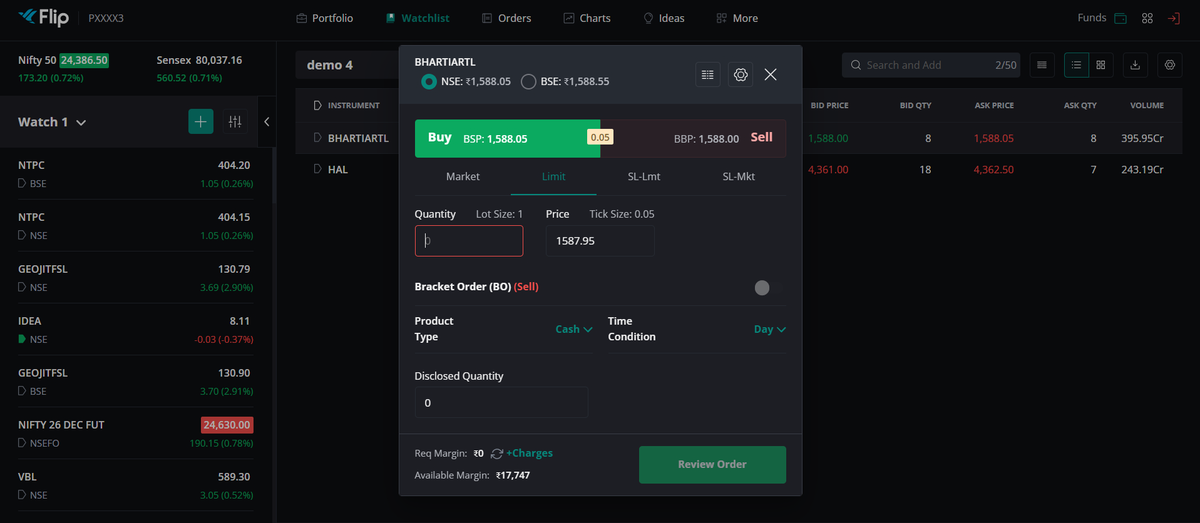
* The **"Order Placement Window"** will pop-up.
* Choose/ enter the **"Exchange", "Order Type", "Quantity", "Price", "Product Type",** and **"Time Condition".**
* Next, click the **"Review Order" Button.**

<figure><img src="https://4250648999-files.gitbook.io/~/files/v0/b/gitbook-x-prod.appspot.com/o/spaces%2FQUVvHauOEWZZorbZR584%2Fuploads%2FgNoSEvN9TJtYEPtV31wd%2Fimage.png?alt=media&#x26;token=4f34c5d5-4a69-4ace-902e-23e490c0d560" alt=""><figcaption></figcaption></figure>

* The **"Order Confirmation" Page** will be displayed, where you can re-check the details of your order.
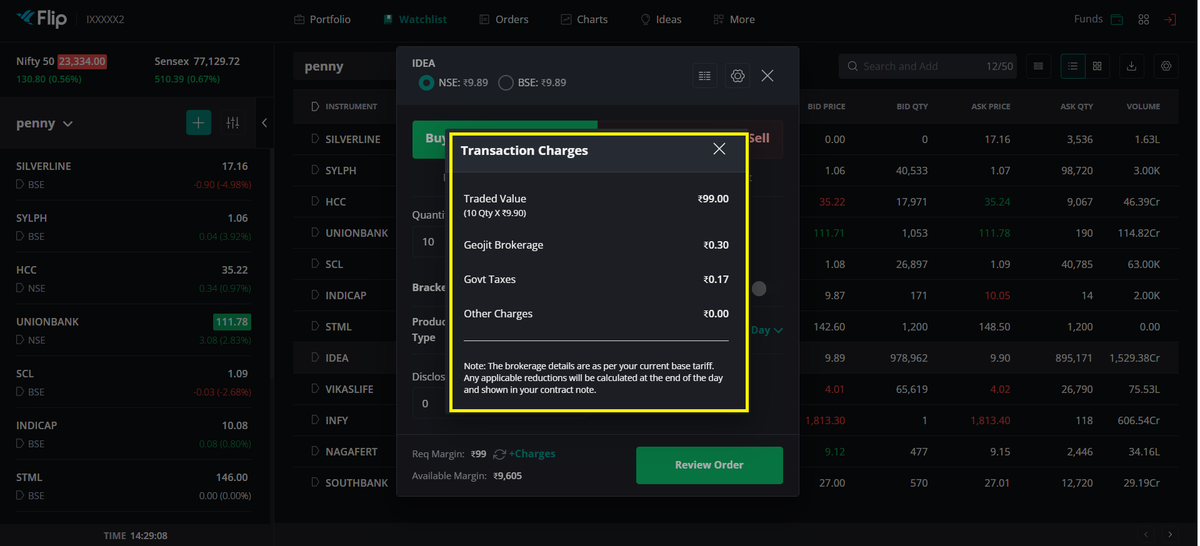
* Once you enter the '**Quantity**' and '**Order Type'**, you can see the **'Required Margin'** at the bottom of the order placement window.

<figure><img src="https://4250648999-files.gitbook.io/~/files/v0/b/gitbook-x-prod.appspot.com/o/spaces%2FQUVvHauOEWZZorbZR584%2Fuploads%2Fg1N7XeZEH1mwp41js1JY%2Fimage.png?alt=media&#x26;token=294da4b8-e0cc-4736-b39d-6663fde79c17" alt=""><figcaption></figcaption></figure>

Click on the **'Charges'** button, given **right next** to the **'Required Margin**' button, to view the detailed traded value, brokerage, taxes, and other charges.

<figure><img src="https://4250648999-files.gitbook.io/~/files/v0/b/gitbook-x-prod.appspot.com/o/spaces%2FQUVvHauOEWZZorbZR584%2Fuploads%2F0YtGBxsLCEn1guOztNrl%2Fimage.png?alt=media&#x26;token=0bacb57f-1f37-44cc-89ae-677e1d9c8ad6" alt=""><figcaption></figcaption></figure>

* If you do not wish to continue placing the order, Click the **"Cancel" Button.**
* After confirmation, click the **"Place Order" Button** at the bottom of the page.
* You will receive a **Confirmation Message** with the status of your Order Placement.

### How to Square Off Positions <a href="#how-to-square-off-positions" id="how-to-square-off-positions"></a>

**"Square Off"** is the process of closing your existing Position in the market, by taking an opposite Position.

This can be done from your **Portfolio:**

* You can **"Square Off"** an Open Trading Position from the **Positions** section.
* You can **"Square Off"** investments from the **Holdings** section.

<figure><img src="https://4250648999-files.gitbook.io/~/files/v0/b/gitbook-x-prod.appspot.com/o/spaces%2FQUVvHauOEWZZorbZR584%2Fuploads%2FDmUamtqUfuboifyyqejS%2Fimage.png?alt=media&#x26;token=96e10832-2716-4a82-b613-a39f40ae64f7" alt=""><figcaption></figcaption></figure>

To *square off* an **Order**, follow these steps:

* Go to the **"Portfolio" page.**
* Select the **"Holdings"** or **"Positions"** tab depending on which position you want to exit.
* **"Right Click"** on the symbol or click on the **"Three Green Dot"**![](https://flipwebmanual.geojit.com/~gitbook/image?url=https%3A%2F%2F42355363-files.gitbook.io%2F%7E%2Ffiles%2Fv0%2Fb%2Fgitbook-x-prod.appspot.com%2Fo%2Fspaces%252F8HyBnjhMAvNmNocnFrq5%252Fuploads%252FSDJ3jL06zhECUELILOiR%252Fthree%2520dots%2520icon.png%3Falt%3Dmedia%26token%3Dac8c324c-5333-4d0f-b7ea-1ff975b4f47e\&width=300\&dpr=4\&quality=100\&sign=4438764\&sv=2) **Icon** that appears when you hover over a symbol.
* A **"Select Box"** with multiple options appears.
* Click on the **"Square Off"** option from the **"Select Box".**
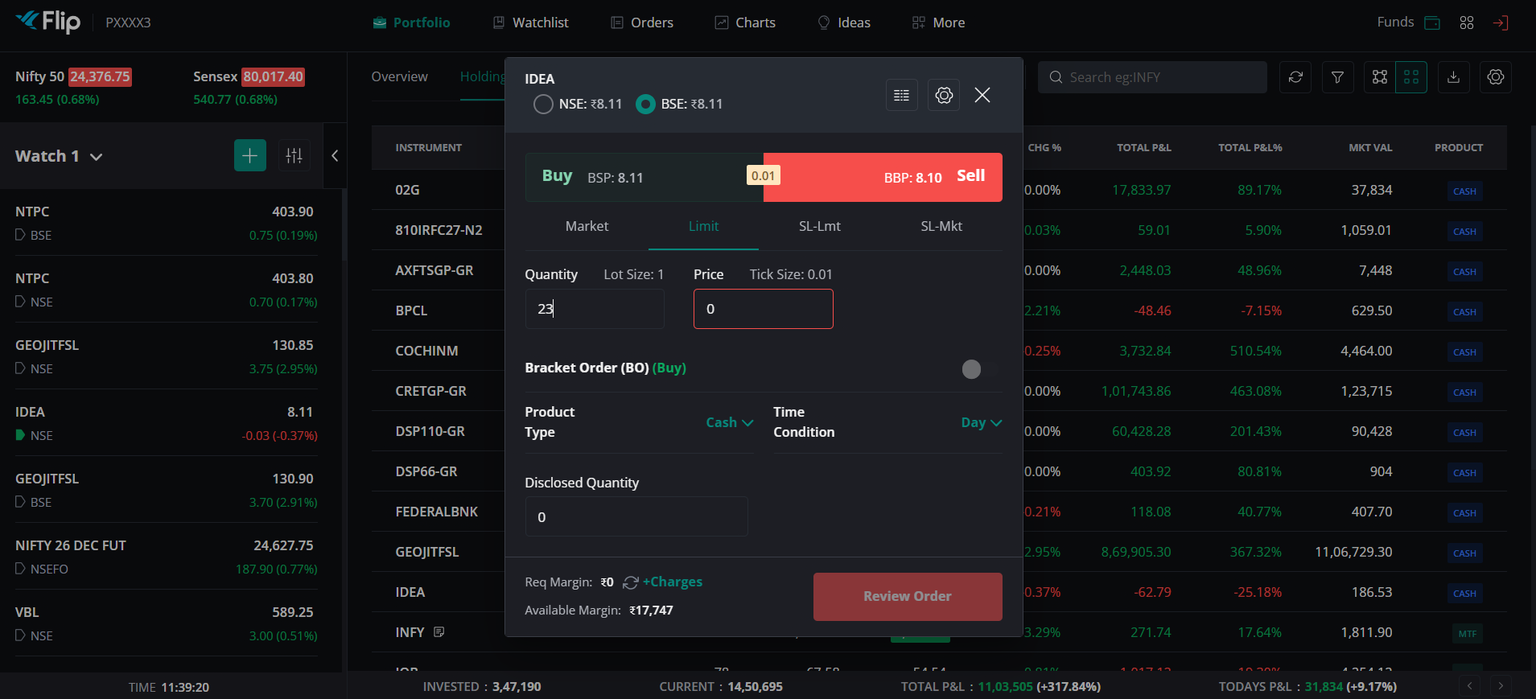
* The **"Order Placement" Page** will open with the appropriate **"Order Type" (Buy/Sell)** and **"Quantity"** pre-filled based on your **Current Position.**
* Other order details such as **"Exchange", "Order Type",** and **"Time Condition"** can be changed as needed.

<figure><img src="https://4250648999-files.gitbook.io/~/files/v0/b/gitbook-x-prod.appspot.com/o/spaces%2FQUVvHauOEWZZorbZR584%2Fuploads%2FvHgC6fQ1x7sfNoG3wyUo%2Fimage.png?alt=media&#x26;token=bfd572cf-ab27-42ed-ac46-7d448c2bddeb" alt=""><figcaption></figcaption></figure>

* Once you have entered all the details, click on the **"Review Order" Button** to re-check the details of your **Order**.
* After confirmation, click on the **"Place Order" Button** at the bottom of the page.
* You will receive a **Confirmation Message** with the status of your **Order Placement.**
* The trade will be executed in the market, and your **Position** will be **"Squared Off".**

**Please Note:** *Squaring Off* is typically done to realise any *profit or loss* on a Position.


---

# Agent Instructions: Querying This Documentation

If you need additional information that is not directly available in this page, you can query the documentation dynamically by asking a question.

Perform an HTTP GET request on the current page URL with the `ask` query parameter:

```
GET https://usermanuals.geojit.com/flip-web/orders.md?ask=<question>
```

The question should be specific, self-contained, and written in natural language.
The response will contain a direct answer to the question and relevant excerpts and sources from the documentation.

Use this mechanism when the answer is not explicitly present in the current page, you need clarification or additional context, or you want to retrieve related documentation sections.