# Profile

Your complete **"Profile"** details such as **Contact Details, Bank Details, Client Details, Power of Attorney status,** and **Active & Inactive Segments and Products.** You can also change the **Theme** and see **Security** details here.

#### This Section Contains : <a href="#this-section-contains" id="this-section-contains"></a>

* [How to open the Profile page?](#how-to-open-the-profile-page)
* [Inter-app functionality](#inter-app-functionality)
* [How to change the theme?](#how-to-change-theme)
* [How to change the current password?](#how-to-change-the-current-password)
* [How to enable the TOTP ?](#how-to-enable-the-totp)
* [How to disable the TOTP ?](#how-to-disable-the-totp)
* [How to clear app cache?](#how-to-clear-app-cache)

### How to open the Profile page ? <a href="#how-to-open-the-profile-page" id="how-to-open-the-profile-page"></a>

To *open* the **Profile** page, follow these steps:

<figure><img src="https://4250648999-files.gitbook.io/~/files/v0/b/gitbook-x-prod.appspot.com/o/spaces%2FQUVvHauOEWZZorbZR584%2Fuploads%2FQIglrLL2lhkNkj3HNhu0%2Fimage.png?alt=media&#x26;token=797fae1b-a973-4cf0-885a-6e802be0ccee" alt=""><figcaption></figcaption></figure>

<figure><img src="https://flipwebmanual.geojit.com/~gitbook/image?url=https%3A%2F%2F42355363-files.gitbook.io%2F%7E%2Ffiles%2Fv0%2Fb%2Fgitbook-x-prod.appspot.com%2Fo%2Fspaces%252F8HyBnjhMAvNmNocnFrq5%252Fuploads%252FKh7vB1jc394Egohaeljk%252Fprofile.png%3Falt%3Dmedia%26token%3D9ca05644-fee3-4dc5-a385-df0b76aead3a&#x26;width=768&#x26;dpr=4&#x26;quality=100&#x26;sign=abfd2b03&#x26;sv=2" alt=""><figcaption></figcaption></figure>

* Identify and click on the **"More" option.**
* You can see your **"Name" / "Arrow" Icon** at the left-hand side.
* This will redirect you to the **"Profile" page.**
* Here, you can see details such as **Client details, Account Info, Action Required, Active & Inactive Segments and Products, Theme and Security**
* You can also **access the profile page directly** by clicking on the profile icon ![](https://flipwebmanual.geojit.com/~gitbook/image?url=https%3A%2F%2F42355363-files.gitbook.io%2F%7E%2Ffiles%2Fv0%2Fb%2Fgitbook-x-prod.appspot.com%2Fo%2Fspaces%252F8HyBnjhMAvNmNocnFrq5%252Fuploads%252Fya6dkdjZFYPzOqcIBVQc%252Fprofile.PNG%3Falt%3Dmedia%26token%3D149bc1e9-2226-4d4f-9d0e-97857ab88c58\&width=41\&dpr=4\&quality=100\&sign=c3e82aa8\&sv=2)given towards the top-right end of the page.

<figure><img src="https://flipwebmanual.geojit.com/~gitbook/image?url=https%3A%2F%2F42355363-files.gitbook.io%2F%7E%2Ffiles%2Fv0%2Fb%2Fgitbook-x-prod.appspot.com%2Fo%2Fspaces%252F8HyBnjhMAvNmNocnFrq5%252Fuploads%252FqzID0mKJIML2ChQ1Sub8%252Fmore%2520new.png%3Falt%3Dmedia%26token%3D505a38de-9946-42a5-a885-a7a6545c792f&#x26;width=768&#x26;dpr=4&#x26;quality=100&#x26;sign=40575e4e&#x26;sv=2" alt=""><figcaption></figcaption></figure>

### Inter-app functionality <a href="#inter-app-functionality" id="inter-app-functionality"></a>

Flip gives you easy access to all other Geojit apps in one place. For this,

* Click on the '**More**' icon given towards the top-right end of the page.
* You will be provided with a set of apps like **TraderX, Smartfolios, FundsGenie, MyGeojit** and **StockWallet.**
* Click on any of the apps, and you will land directly inside the app without logging in.

<figure><img src="https://4250648999-files.gitbook.io/~/files/v0/b/gitbook-x-prod.appspot.com/o/spaces%2FQUVvHauOEWZZorbZR584%2Fuploads%2Fu3ZIOQIw4f3Hg1zDSNiy%2Fimage.png?alt=media&#x26;token=9e1665de-ac49-4cf9-9f56-640e8f56f637" alt=""><figcaption></figcaption></figure>

<figure><img src="https://flipwebmanual.geojit.com/~gitbook/image?url=https%3A%2F%2F42355363-files.gitbook.io%2F%7E%2Ffiles%2Fv0%2Fb%2Fgitbook-x-prod.appspot.com%2Fo%2Fspaces%252F8HyBnjhMAvNmNocnFrq5%252Fuploads%252FQs4gqr6nVf6wBR5Adzvr%252Fstock%2520wallet.png%3Falt%3Dmedia%26token%3De88ee53a-6de9-450a-8280-10e30c071caa&#x26;width=768&#x26;dpr=4&#x26;quality=100&#x26;sign=4e3a820c&#x26;sv=2" alt=""><figcaption></figcaption></figure>

### How to change theme ? <a href="#how-to-change-theme" id="how-to-change-theme"></a>

You can select one of the two **"Themes"** on the **Flip Web-** **Light Mode** and **Dark Mode.**

#### How to change the Flip color Theme <a href="#how-to-change-the-flip-color-theme" id="how-to-change-the-flip-color-theme"></a>

To *change* the colour **Theme**, follow these steps:

* Go to the **"More"**&#x70;age and then click on your **Name.**
* You can see the **"Theme"** option here.
* There is **Light Mode** and **Dark Mode.**
* Select the desired **Theme.**
* The **Theme** will be changed as soon as you select.

<figure><img src="https://4250648999-files.gitbook.io/~/files/v0/b/gitbook-x-prod.appspot.com/o/spaces%2FQUVvHauOEWZZorbZR584%2Fuploads%2FZITgSjtcJy3jB0qvjsCE%2Fimage.png?alt=media&#x26;token=9841c64f-29de-478d-afc9-2bb2bbfefe6f" alt=""><figcaption></figcaption></figure>

<figure><img src="https://flipwebmanual.geojit.com/~gitbook/image?url=https%3A%2F%2F42355363-files.gitbook.io%2F%7E%2Ffiles%2Fv0%2Fb%2Fgitbook-x-prod.appspot.com%2Fo%2Fspaces%252F8HyBnjhMAvNmNocnFrq5%252Fuploads%252FScEwi5cmPVLcyVZOD77f%252Ftheme.png%3Falt%3Dmedia%26token%3D20b57a0f-e119-4bbb-8fa3-1eefeea4a5b5&#x26;width=768&#x26;dpr=4&#x26;quality=100&#x26;sign=22b21f78&#x26;sv=2" alt=""><figcaption></figcaption></figure>

### Security <a href="#security" id="security"></a>

Under Security you have the Change Password option, see the current password validity and the TOTP option.

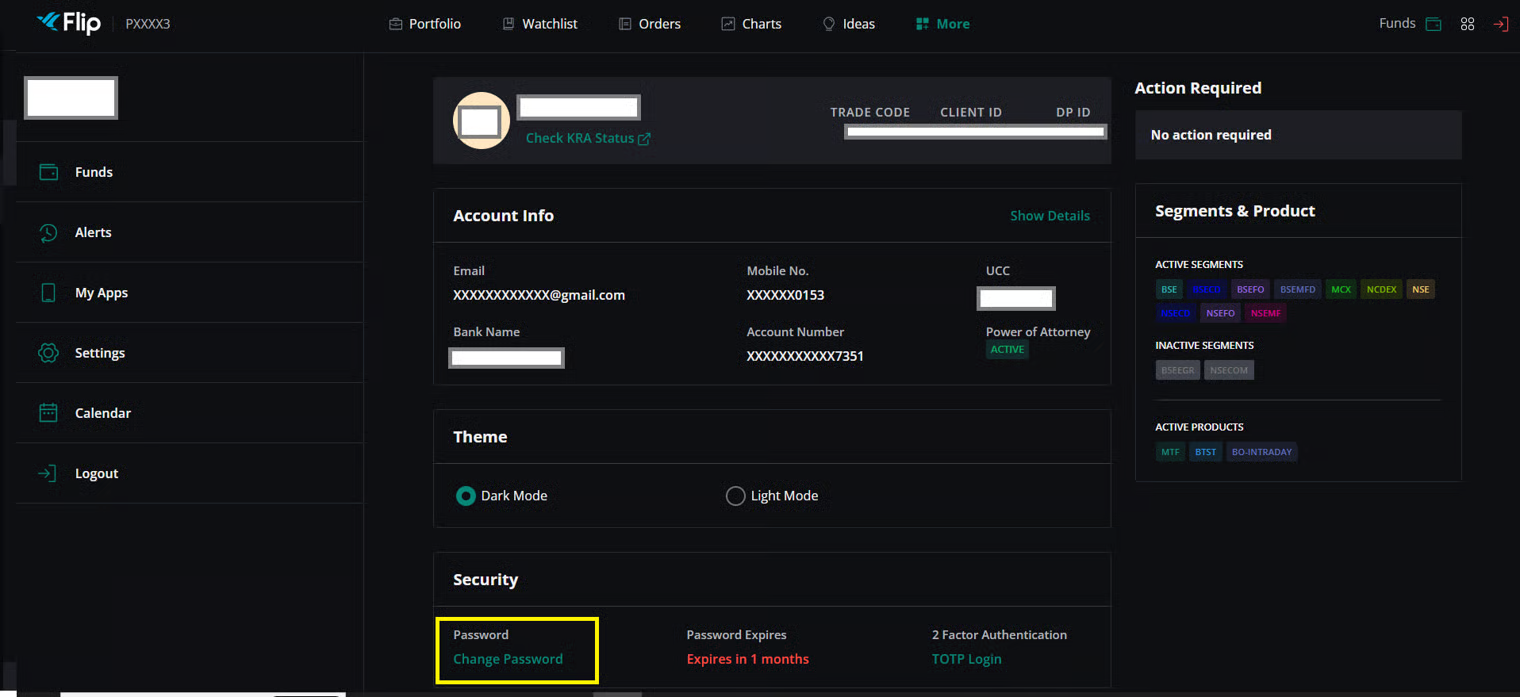
#### How to change the Current Password ? <a href="#how-to-change-the-current-password" id="how-to-change-the-current-password"></a>

To *change* the **Current Password**, follow these steps:

* Go to the **"More"**&#x70;age and then click on your **Name.**
* Then go to **Security** section.
* Here, you can see the option to **"Change Password".** Click on it.

<figure><img src="https://4250648999-files.gitbook.io/~/files/v0/b/gitbook-x-prod.appspot.com/o/spaces%2FQUVvHauOEWZZorbZR584%2Fuploads%2FR0Argpncitefo8SiY6JF%2Fimage.png?alt=media&#x26;token=7c003bab-9567-46c1-ad60-4cb269e000b5" alt=""><figcaption></figcaption></figure>

<figure><img src="https://flipwebmanual.geojit.com/~gitbook/image?url=https%3A%2F%2F42355363-files.gitbook.io%2F%7E%2Ffiles%2Fv0%2Fb%2Fgitbook-x-prod.appspot.com%2Fo%2Fspaces%252F8HyBnjhMAvNmNocnFrq5%252Fuploads%252F43ydrjRm8fHRUlne8ug1%252Fchange%2520pwd.png%3Falt%3Dmedia%26token%3Dedd765e7-26f6-4490-86b3-7561248b0154&#x26;width=768&#x26;dpr=4&#x26;quality=100&#x26;sign=1a5dfbc0&#x26;sv=2" alt=""><figcaption></figcaption></figure>

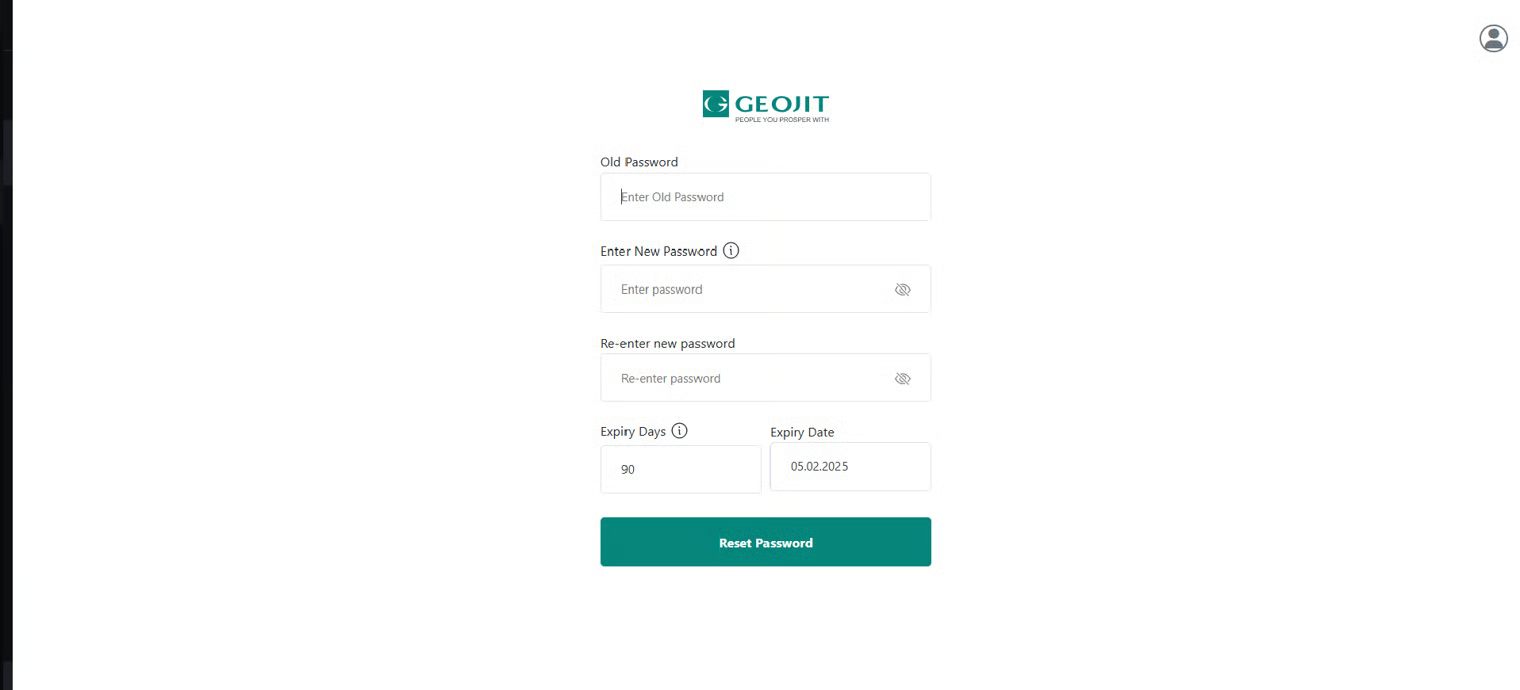
* **Change Password** page will appear.
* First, enter the **"Current Password".**
* Next, enter the **"New Password".**
* Again, **Retype** the **"New Password".**
* If you do not wish to make the changes then click **"Cancel" button.**
* Click on the **"Change Password"** **button** to change the password. Your password will be changed immediately.

**Please Note :** The Password must contain at least one number, one uppercase and lowercase letter, one special character and 8 to 13 characters.

<figure><img src="https://4250648999-files.gitbook.io/~/files/v0/b/gitbook-x-prod.appspot.com/o/spaces%2FQUVvHauOEWZZorbZR584%2Fuploads%2FGlYh1BlwezKpuvOvpgsY%2Fimage.png?alt=media&#x26;token=2801cec7-18e5-4236-8ded-e225fc1f3d67" alt=""><figcaption></figcaption></figure>

<figure><img src="https://flipwebmanual.geojit.com/~gitbook/image?url=https%3A%2F%2F42355363-files.gitbook.io%2F%7E%2Ffiles%2Fv0%2Fb%2Fgitbook-x-prod.appspot.com%2Fo%2Fspaces%252F8HyBnjhMAvNmNocnFrq5%252Fuploads%252FFw1mEX25tlGF6U0vtaGe%252Fpwd%2520reset.png%3Falt%3Dmedia%26token%3D7cf261b7-d16c-4e9f-866e-99349a7851ac&#x26;width=768&#x26;dpr=4&#x26;quality=100&#x26;sign=b9710e54&#x26;sv=2" alt=""><figcaption></figcaption></figure>

### TOTP <a href="#totp" id="totp"></a>

[How to use the TOTP as Two-factor authentication option](https://usermanuals.geojit.com/flip-web/flip-web-login#how-to-use-totp-as-two-factor-authentication-option)

#### How to enable the TOTP ? <a href="#how-to-enable-the-totp" id="how-to-enable-the-totp"></a>

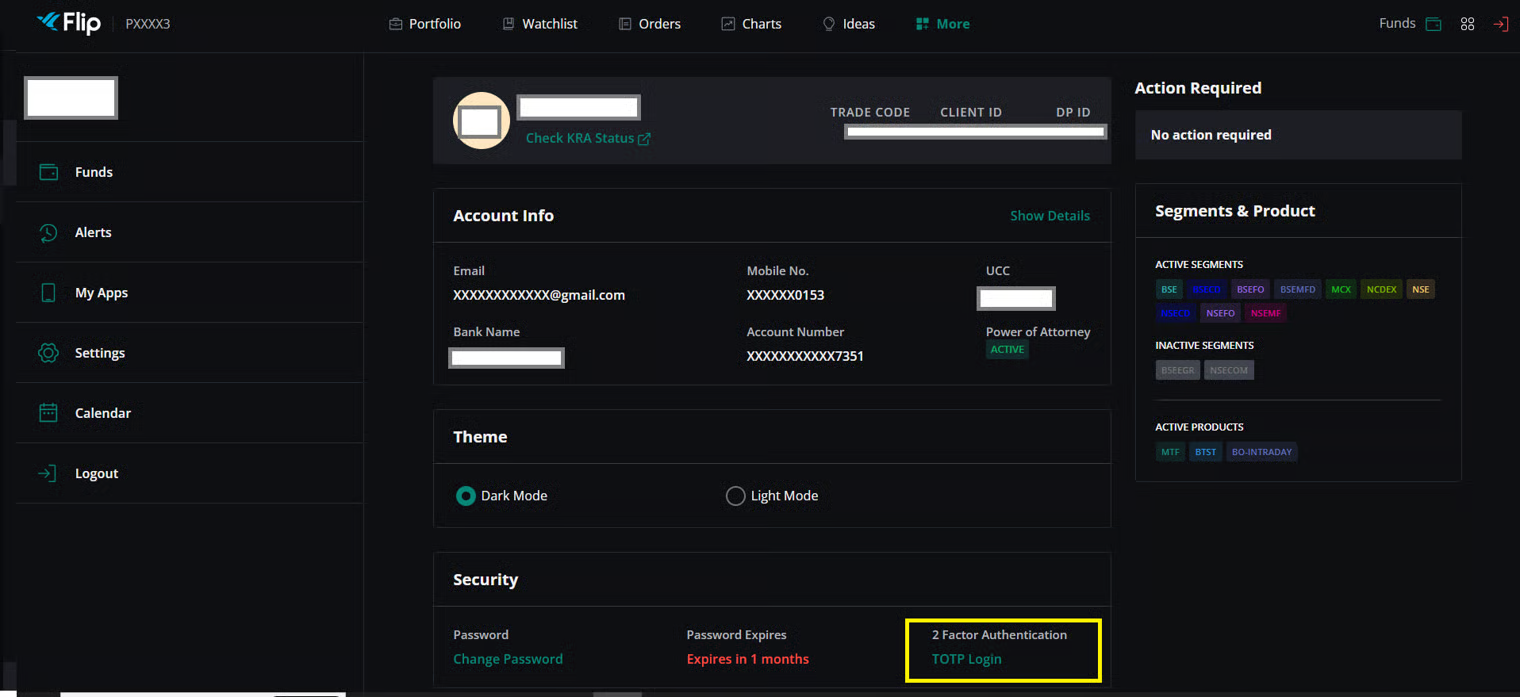
To *enable* the **TOTP**, follow these steps:

<figure><img src="https://4250648999-files.gitbook.io/~/files/v0/b/gitbook-x-prod.appspot.com/o/spaces%2FQUVvHauOEWZZorbZR584%2Fuploads%2F1kgmFbl7lE0VdUYn6A9d%2Fimage.png?alt=media&#x26;token=9cafad9f-1088-4f95-b6d0-061bf8860e30" alt=""><figcaption></figcaption></figure>

<figure><img src="https://flipwebmanual.geojit.com/~gitbook/image?url=https%3A%2F%2F42355363-files.gitbook.io%2F%7E%2Ffiles%2Fv0%2Fb%2Fgitbook-x-prod.appspot.com%2Fo%2Fspaces%252F8HyBnjhMAvNmNocnFrq5%252Fuploads%252F4jxZ2zBCMvSvVsUdugwK%252Ftotp.png%3Falt%3Dmedia%26token%3Db04c6407-4a86-45ae-a15d-335769cf4e5e&#x26;width=768&#x26;dpr=4&#x26;quality=100&#x26;sign=d038ae34&#x26;sv=2" alt=""><figcaption></figcaption></figure>

* Go to the **"More"**&#x70;age and then click on your **Name.**
* Go to the **"TOTP Login"** under Security.
* Click on **"Generate OTP"**, enter it and Submit.
* Enter your **"Current Password"** for Flip.
* Go to the **TOTP Authenticator App** *(Google Authenticator / Microsoft Authenticator)* and enter the **TOTP Code** shown on the page in the space.
* Once you have entered the **"TOTP",** click on the **"Enable" Button** and the **TOTP** option will enabled.

**Please Note:** One TOTP Code is valid only for one minute, and you need to enter TOTP and click the Submit Button before the TOTP expires.

#### How to disable the TOTP ? <a href="#how-to-disable-the-totp" id="how-to-disable-the-totp"></a>

To *disable* the **TOTP option**, follow these steps:

* Go to the **"More"**&#x70;age and then click on your **Name.**
* Go to the **"TOTP Login"** under Security.
* Click on **"Generate OTP"**, enter it and Submit.
* Enter your **"Current Password"** for Flip.
* Go to the **TOTP Authenticator App** *(Google Authenticator / Microsoft Authenticator)* and enter the **TOTP Code** shown on the page in the space.
* Once you have entered the **"TOTP",** click on the **"Disable" Button** and the **TOTP** option will enabled.

**Please Note:** One TOTP Code is valid only for one minute, and you need to enter TOTP and click the Submit Button before the TOTP expires.

#### How to clear app cache ? <a href="#how-to-clear-app-cache" id="how-to-clear-app-cache"></a>

* Identify and click on the **"More"**![](https://flipwebmanual.geojit.com/~gitbook/image?url=https%3A%2F%2F42355363-files.gitbook.io%2F%7E%2Ffiles%2Fv0%2Fb%2Fgitbook-x-prod.appspot.com%2Fo%2Fspaces%252F8HyBnjhMAvNmNocnFrq5%252Fuploads%252FxyuzGM4KlDaTq5VxQG7l%252Fmore%2520clicked.png%3Falt%3Dmedia%26token%3D760bee13-c520-425f-b87b-61b8c3ef795e\&width=300\&dpr=4\&quality=100\&sign=a0b319eb\&sv=2) **option.**
* You can see your **"Name" / "Arrow"**![](https://flipwebmanual.geojit.com/~gitbook/image?url=https%3A%2F%2F42355363-files.gitbook.io%2F%7E%2Ffiles%2Fv0%2Fb%2Fgitbook-x-prod.appspot.com%2Fo%2Fspaces%252F8HyBnjhMAvNmNocnFrq5%252Fuploads%252Fl14FVqoMkdPr2iQiZxoW%252Fright%2520facing%2520arrow.png%3Falt%3Dmedia%26token%3Ddf396073-4934-4a94-aac2-a88197811fa3\&width=300\&dpr=4\&quality=100\&sign=b93ebb4e\&sv=2) **Icon** at the left-hand side.
* This will redirect you to the **"Profile" page.**
* Scroll down towards the end of the page.
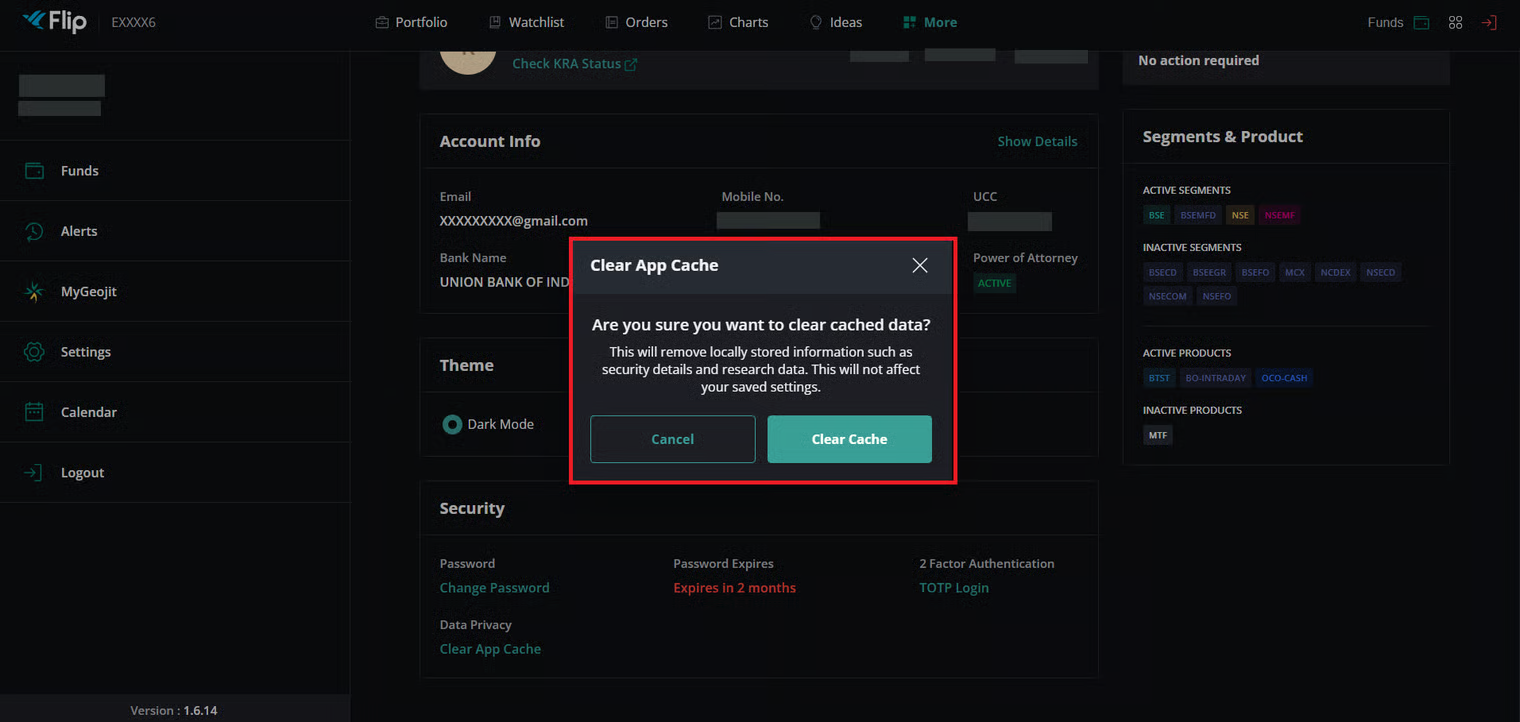
* Under the 'Security' section, you will find the '**Clear App Cache**' button.

<figure><img src="https://4250648999-files.gitbook.io/~/files/v0/b/gitbook-x-prod.appspot.com/o/spaces%2FQUVvHauOEWZZorbZR584%2Fuploads%2FBVh4o6dTVl9Zetltd5KJ%2Fimage.png?alt=media&#x26;token=580763d1-e64f-4b9f-9f73-b43c18c3dd0e" alt=""><figcaption></figcaption></figure>

<figure><img src="https://flipwebmanual.geojit.com/~gitbook/image?url=https%3A%2F%2F42355363-files.gitbook.io%2F%7E%2Ffiles%2Fv0%2Fb%2Fgitbook-x-prod.appspot.com%2Fo%2Fspaces%252F8HyBnjhMAvNmNocnFrq5%252Fuploads%252FtVkEQATrh0Hg7G3eCYHy%252Fcache.png%3Falt%3Dmedia%26token%3D215698a0-4ea4-481b-aa1c-9f5548b60eb7&#x26;width=768&#x26;dpr=4&#x26;quality=100&#x26;sign=badc4b8e&#x26;sv=2" alt=""><figcaption></figcaption></figure>

* Click on it and you will get a confirmation pop-up window.
* If you clear the cache, then it will remove locally stored information such as security details and research data. This will not affect your saved settings.
* If you want to proceed, click on '**Clear Cache**,' and the cache will be cleared successfully.

<figure><img src="https://4250648999-files.gitbook.io/~/files/v0/b/gitbook-x-prod.appspot.com/o/spaces%2FQUVvHauOEWZZorbZR584%2Fuploads%2FgqO5jYWqaQrnYMFkEBBc%2Fimage.png?alt=media&#x26;token=00454271-7cf7-4518-957e-188257203325" alt=""><figcaption></figcaption></figure>