> For the complete documentation index, see [llms.txt](https://usermanuals.geojit.com/llms.txt). Markdown versions of documentation pages are available by appending `.md` to page URLs; this page is available as [Markdown](https://usermanuals.geojit.com/flip-mobile/watchlist.md).
# Watchlist
Upon login, the user will land on the Watchlist page. Here, can monitor preset watchlists and create new Watchlists to suit the client's investment style.
### **This section contains:**
* [How to go to the All Watchlist page.](#id-1.-how-to-go-to-the-all-watchlist-page)
* [How to Create a Watchlist.](#id-2.-how-to-create-a-watchlist)
* [How to Add Symbol to Watchlist](#id-3.-how-to-add-symbol-to-watchlist)
* [How to add SLB contracts to your watchlist?](#how-to-add-slb-contracts-to-your-watchlist)
* [Buy/Sell a Security without adding to the Watchlist](#id-4.-how-to-buy-sell-a-security-without-adding-to-a-watchlist)
* [How to use color tags in a watchlist ?](#id-5.-using-color-tags-in-watchlist)
* [How to Sort Watchlist.](#id-6.-how-to-sort-watchlist)
* [How to Rearrange the Watchlist.](#id-7.-how-to-rearrange-the-watchlist)
* [How to Delete a Watchlist.](#id-8.-how-to-delete-the-watchlist)
* [How to Edit/Change Watchlist name.](#id-9.-how-to-edit-change-watchlist-name)
* [Swipe Right](#id-10.-swipe-right)
* [How to Delete Symbol from Watchlist.](#id-10.-how-to-delete-symbols-from-watchlist)
* [Heatmap](#id-11.-heat-map)
* [Index Watch Panel](#id-12.-index-watch-panel)
* [Watchlist Settings](#id-13.-watchlist-settings)
* [Compact View](#id-14.-compact-view)
* [How to add notes in your watchlist ?](#id-15.-notes)
A **Watchlist** is a useful tool for investors because it allows them to easily monitor the performance of specific securities in real-time. By creating a Watchlist, you can see **Live Prices** and **Changes in Price** for the securities you are interested in, which can help you make more informed investment decisions.
The **FLIP App** offers two types of watchlists: **"My Watchlist"** and **"Preset Watchlist”**
The **"My Watchlist"** tab displays a list of all the watchlists that you have *Created* or *Saved*. You can *create* a maximum of **25 Watchlists**, and each watchlist can contain up to "**50 securities"**.
The **"Preset Watchlist"** tab displays a selection of watchlists created by the platform. These Preset watchlists include a variety of *Indices* and *lists of Securities* forming part of these Indices. You can choose up to **"10 Watchlists"** from the available selection of 15 at any given time.
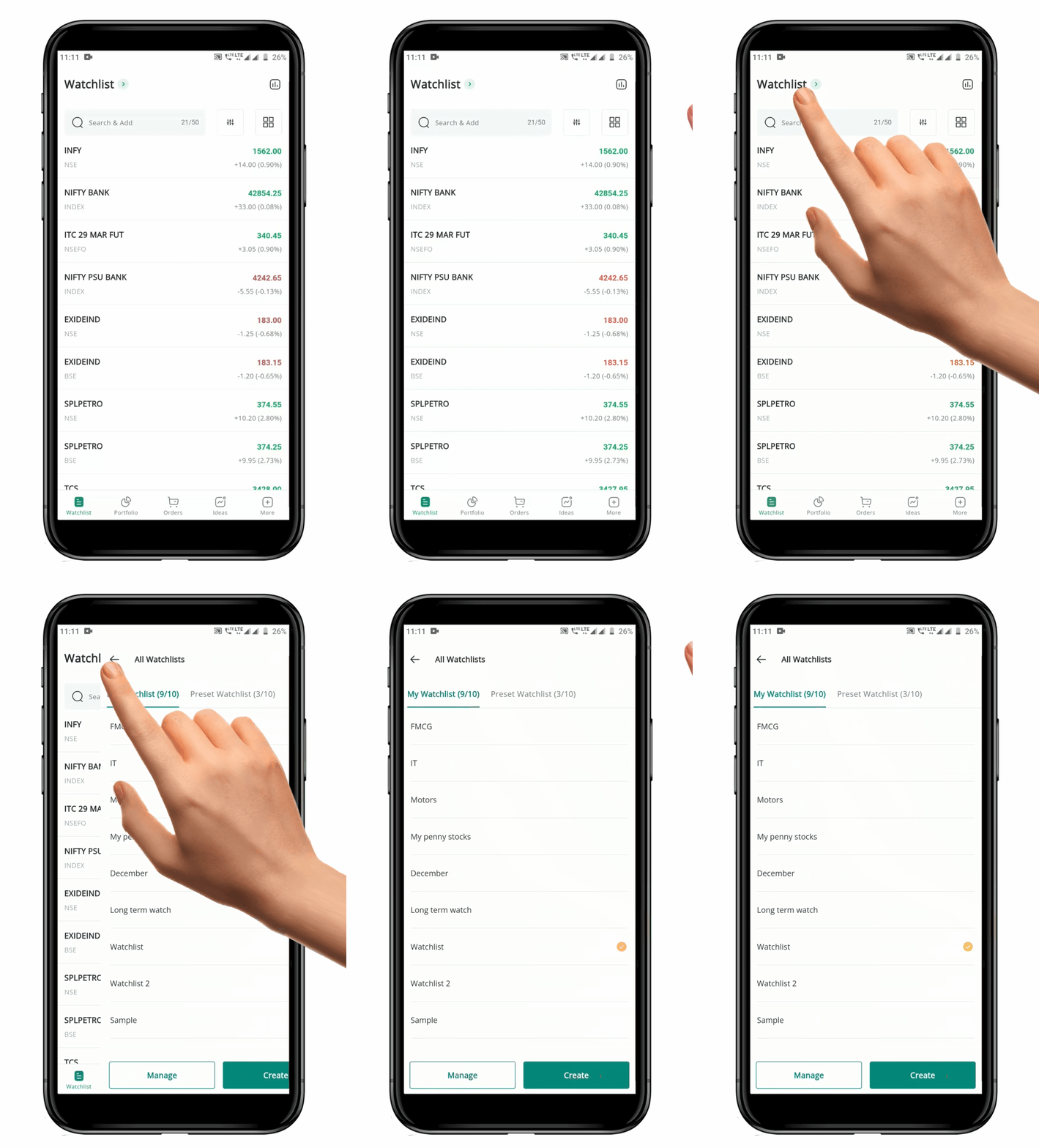
### How to go to the All Watchlist page?
* Find the "**Watchlist" Icon** at the bottom of the tab.
* Click on the "**Watchlist" Icon** to open the last **Watchlist** you have accessed or the default Watchlist provided by the Platform.
* Once you are on the **"Watchlist"** page, look for the **Watchlist Name** on the top left-hand side of the tab.
* Click on the **Watchlist Name/Arrow** to open the **"All Watchlist"** page.
* The Watchlist page contains two tabs: **"My Watchlist"** and **"Preset Watchlist".**
* You can click/ swipe between **"My Watchlist"** and **"Preset Watchlist"** to select it.
* By default, the **"My Watchlist"** tab will be open.
* **"My Watchlist"** tab shows a list of all the **Watchlists** that you have *created* or *saved*.
* The **"Preset Watchlist"** tab shows a list of *Predefined Watchlists* created by the platform for you.
* To open a specific **Watchlist**, tap on its *Name* in the list. This will take you to the selected **Watchlist,** where you can view the symbols that you are tracking.
* The selected **Watchlist** will have a "**Yellow Tick".**
* If you want to switch to a different **Watchlist**, go back to the **"All Watchlist"** page by clicking on the **Watchlist Name.**
* From there, select the desired **Watchlist** from the list.
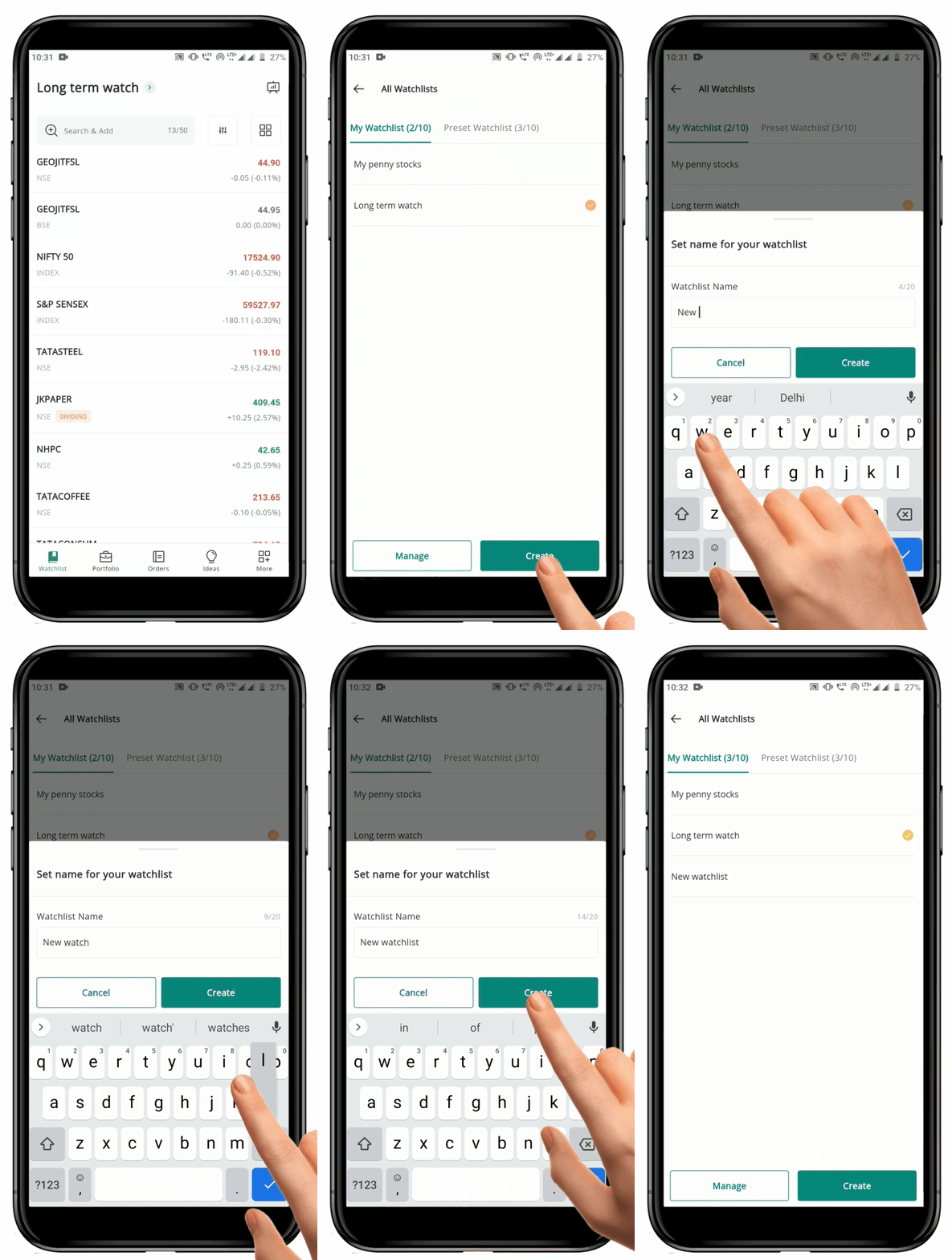
### How to Create a Watchlist?
You can *create* and *customize* your own **Watchlist** to suit your investment style.
* Go to the main **Watchlist"** **page**.
* Click on the name of the current "**Watchlist"** to access **“My Watchlist”** tab.
* Under **My Watchlist**, click on the "**Create" Button.**
* Set a Name for the **Watchlist** (*maximum 20 characters*).
* To discontinue the process, click on the "**Cancel" Button.**
* Click on the "**Create" Button** and the new Watchlist will be created.
* A pop up will appear confirming the changes.
* Click on the "**View Watchlist" Button** to open the new **Watchlist** and start adding securities to it.
* Click on the "**Done" Button** to go back to **“My Watchlist”** tab.
**Please Note:** You can create up to "*25 Watchlists"* and add up to "*50 Symbol"* to each one.
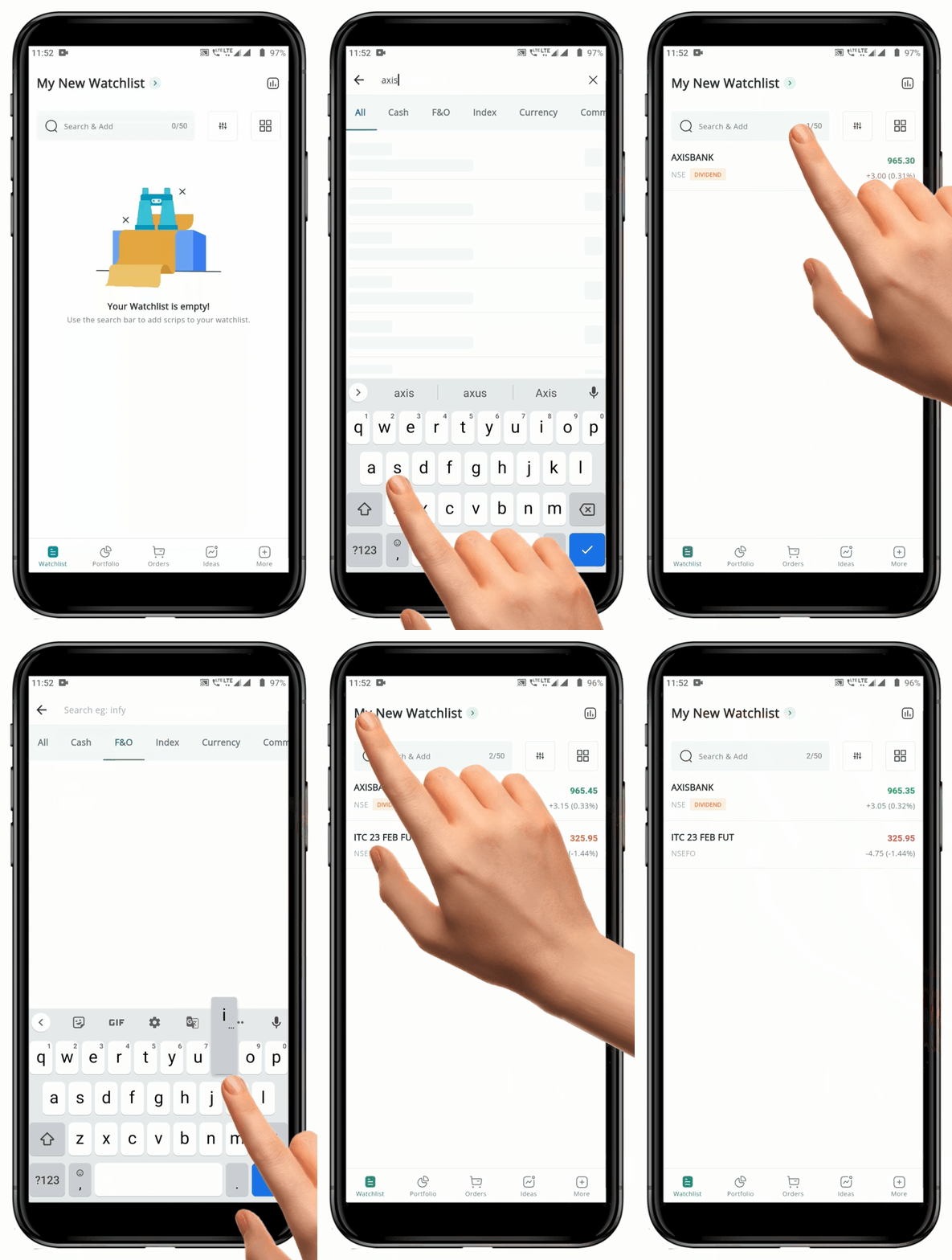
### How to Add Symbol to Watchlist?
To *add* desired *Symbols* to the **Watchlist,** follow these steps.
* Open the desired "**Watchlist"** to add the security.
* Click on the **"Search & Add bar"** :mag\_right:.
* You will be redirected to Search page, and **All Market Types** will be displayed.
* Choose the **"Market Type"** (All/ Cash, F\&O, Index, Currency or Commodity) and type at least *two characters* of the **Symbol Name** or **Security Name.**
* A list of **Symbols** will be displayed.
* Tap on the "**Add" Icon** :heavy\_plus\_sign: on the right-hand side of the symbol to add it to the **Watchlist.** (You can add multiple Securities at a time to the watchlist by selecting the desired ones)
* The "**Add" Icon** will change to a "**Tick Mark"** and **"Added"**  will appear next to the Tick.
* **"Added" &** "**Tick Mark"**  indicates that the symbol has been added to the **Watchlist**.
{% hint style="info" %}
**Please Note:** \
\
\* Maximum "*50 Symbols"* can be added to a Watchlist.\
\* [**What are the different index contracts traded in the Indian Stock Market ?**](https://support.geojit.com/support/solutions/articles/89000019673-what-are-the-different-index-contracts-traded-in-the-indian-stock-market-)
{% endhint %}
### How to add SLB contracts to your watchlist?
* Go to your preferred 'Watchlist'.
* Tap on the 'Search & Add' bar.
* Now swipe left and tap on the 'SLB' category.
* Enter any SLB contract.
* Tap on the add icon.
* Now go back to your watchlist, and you will see the freshly added contract.
* Tap on the contract and you will be navigated to the contract info page.
### How to Buy/Sell a Security without adding to a Watchlist?
You can *Buy/Sell* a Security from the search page without adding it to a **Watchlist**. To do so follow these steps:
* Go to **"Watchlist"** **.**
* Tap on the **"Search & Add bar"** :mag\_right: on the top.
* You will be redirected to the **"Search" page**.
* Here, type the name of the desired symbol you wish to **"Buy/Sell".**
* The **Symbol** will be displayed.
* Then, click on the name of the **Symbol** and a pop-up will appear towards the bottom of the page.
* You can see the **"Symbol Name", "Exchange", "Last Traded Price", the "Day's Change", "Percentage change"** along with the **"Buy"** and **"Sell" buttons.**
* To initiate a trade click on the **"Buy"** or **"Sell"** button.
* You will be redirected to the **Order Window** and you can **Place** the order as desired.
### Using Color Tags in Watchlist
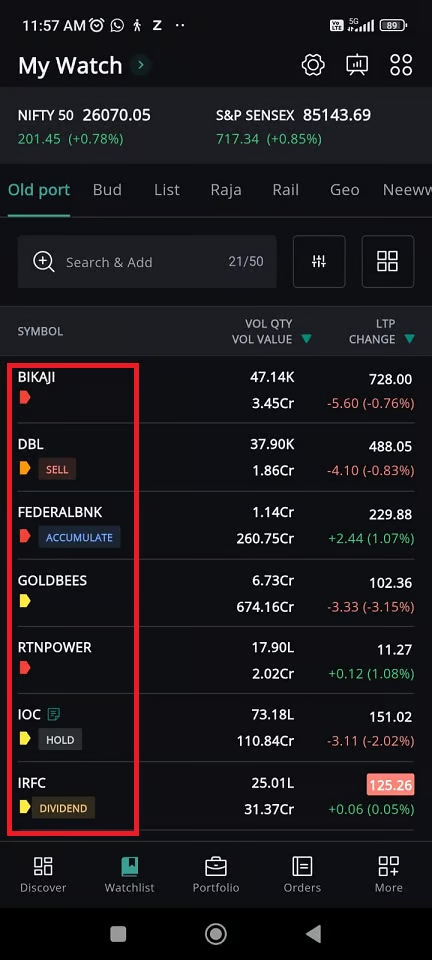
Colour Tags help you quickly organize and track stocks across all your watchlists. You can assign one of **seven colours** to any stock, giving each colour a meaning based on your trading style.
For example:
* **Green** – Stocks you plan to **buy**
* **Red** – Stocks you plan to **sell**
* Other colours – Define your own categories (e.g., “Long-Term Hold,” “High Risk,” “Track Later”)
Once tagged, you don’t need to search through individual watchlists. Simply open the **Colour Watchlist** (e.g., Green or Red) to instantly see all stocks with that tag across every watchlist you maintain.
**Why use Colour Tags?**
* **Save Time** – View all tagged stocks in one place
* **Stay Organised** – Separate buy, sell, or hold ideas visually
* **Flexible** – Customize each colour to match your personal strategy
#### How to Add a Colour Tag to a Stock ?
Follow these steps to assign a Colour Tag:
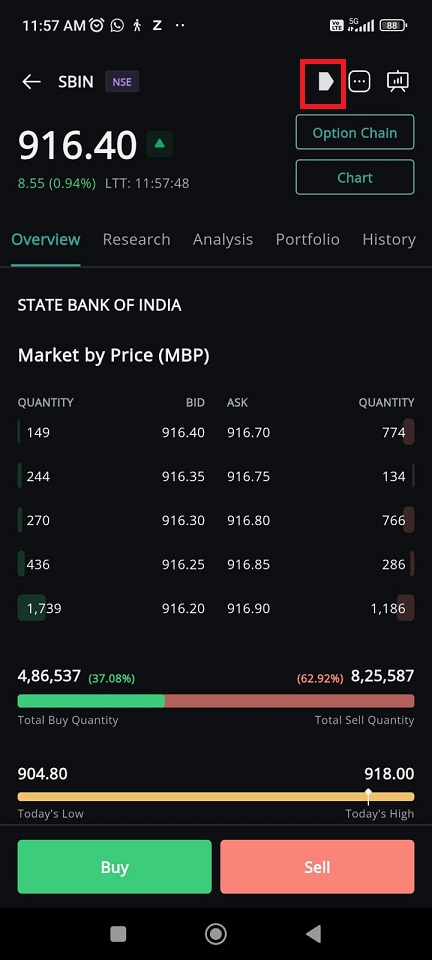
1. **Open the Stock Overview Page**
* From your watchlist, tap on the stock you want to tag. This opens the stock’s overview page.
2. **Locate the Colour Tag Icon**
* On the **top right corner** of the page, you will see a small icon.
* By default, no colour is assigned (icon will appear **grey**).
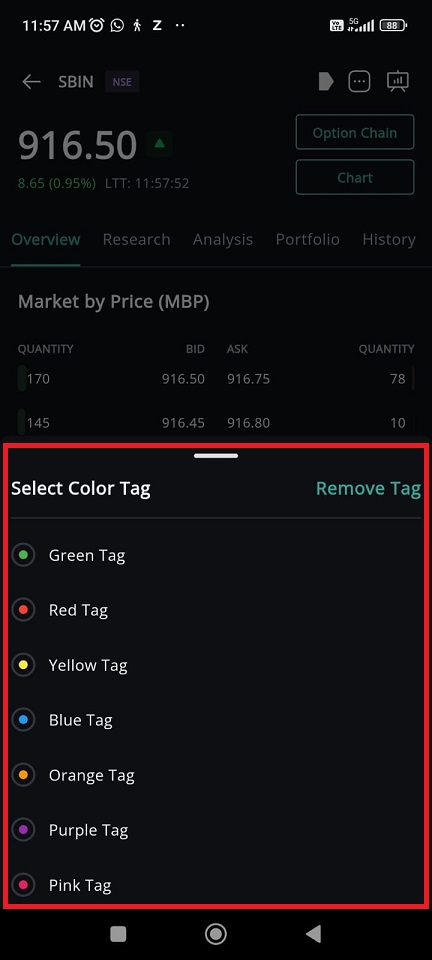
3. **Select a Colour Tag**
* Tap the grey icon.
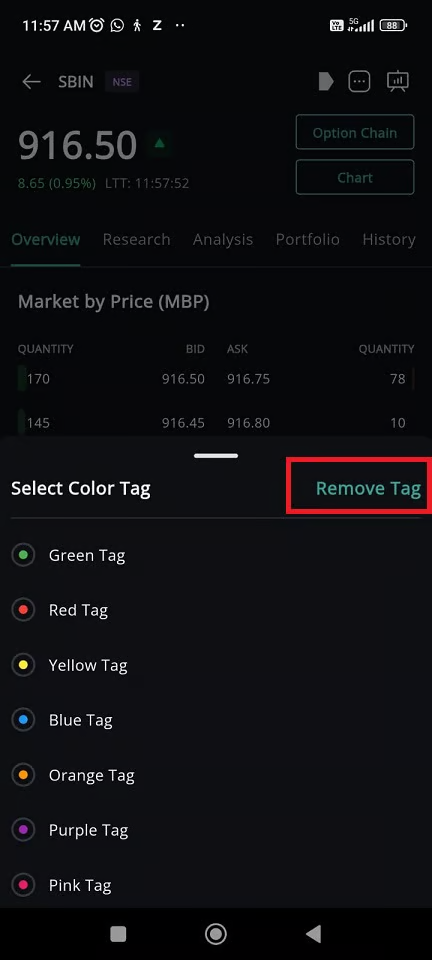
* A **bottom sheet** will appear showing **7 colour options**.
* Tap on your preferred colour.
4. **Confirmation of Selection**
* Once you select a colour, the bottom sheet will automatically close.
* The chosen colour will now appear on the icon at the **top of the overview page**.
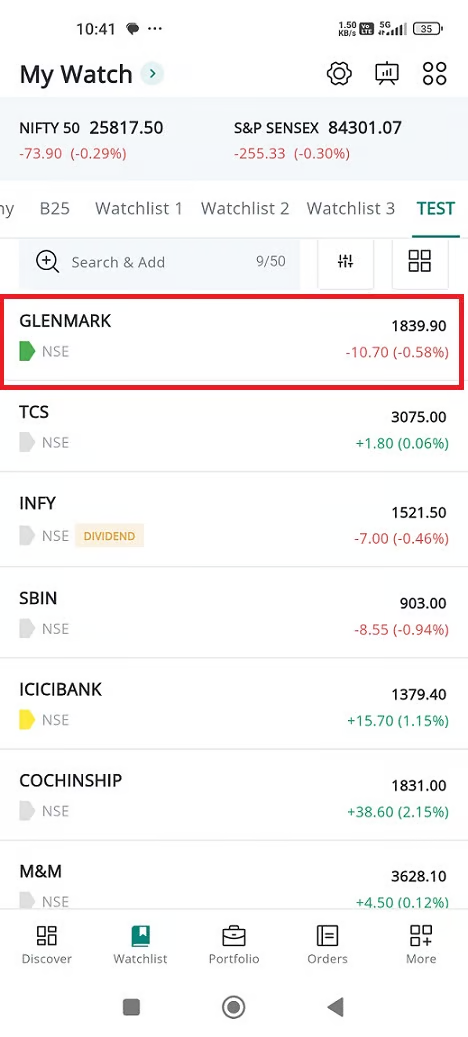
5. **View in Watchlist**
* Go back to your watchlist.
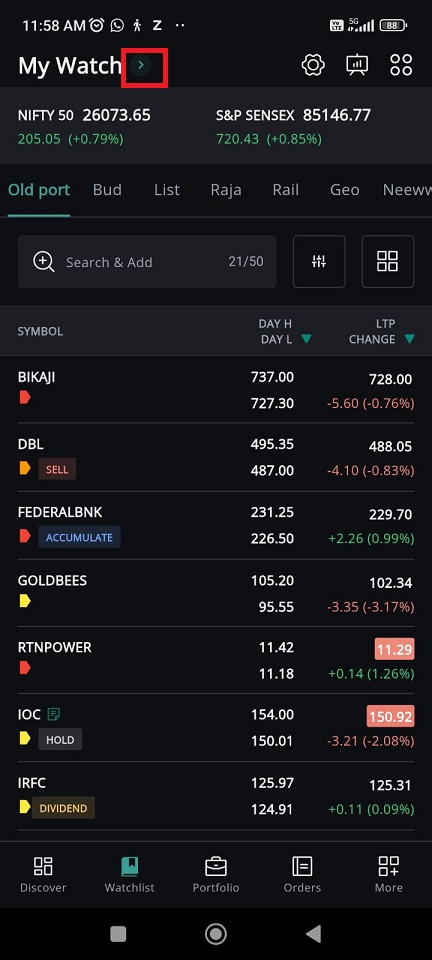
* The selected colour will now be displayed **below the stock name**, making it easy to identify.
#### How to Remove a Colour Tag ?
1. Open the stock’s **overview page**.
2. Tap the **colour tag icon** on the top right.
3. In the bottom sheet, tap **“Remove Tag”** (available on the **top right corner**).
4. The tag will be cleared, and the icon will return to its **default grey state**.
5. In your watchlist, the colour below the stock name will no longer be shown
#### How to View Colour Watchlists ?
**Open the Watchlist Menu**
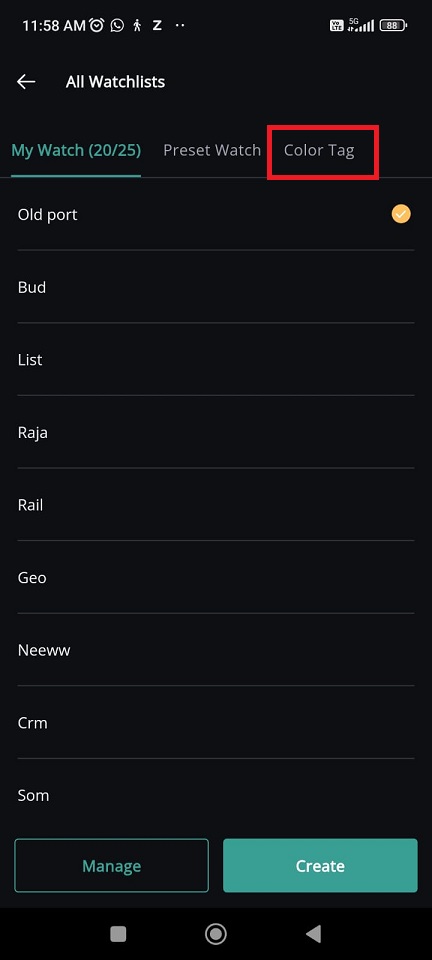
* On the **top left corner** of your watchlist page, tap **“My Watchlist”** or **“Preset Watch”**.
**Select the Colour Tag Tab**
* From the list of available watchlist types, you will now see a new option called **“Colour Tag”**.
* Tap on this to open all Colour Watchlists.
**Choose a Colour Watchlist**
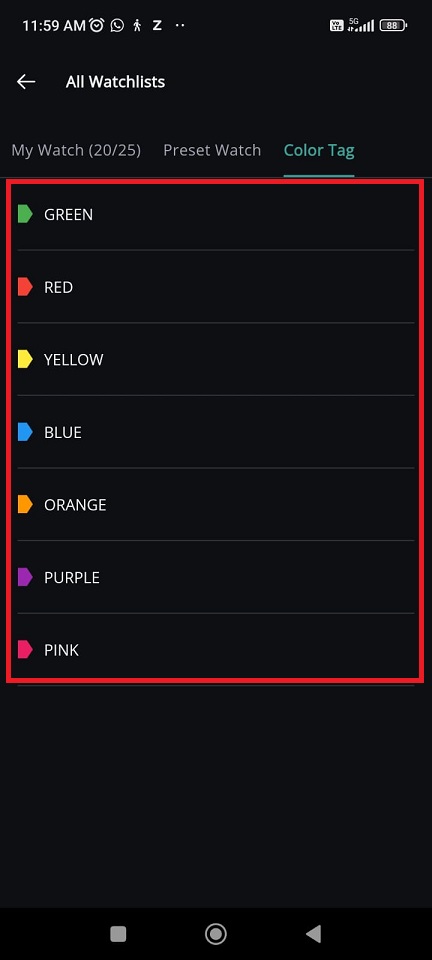
* You will see watchlists grouped by colour (e.g., **Green, Red, Yellow, Blue, etc.**).
* Tap on any colour where you have assigned stocks.
**View Tagged Stocks**
* You will be taken back to the **main watchlist page**, where all stocks tagged with the selected colour will be displayed together.
**Switch Between Colours**
* To view another colour, simply tap on a different **Colour Tab** within the same page.
* This allows you to switch quickly between, for example, your **Buy (Green)** and **Sell (Red)** lists.
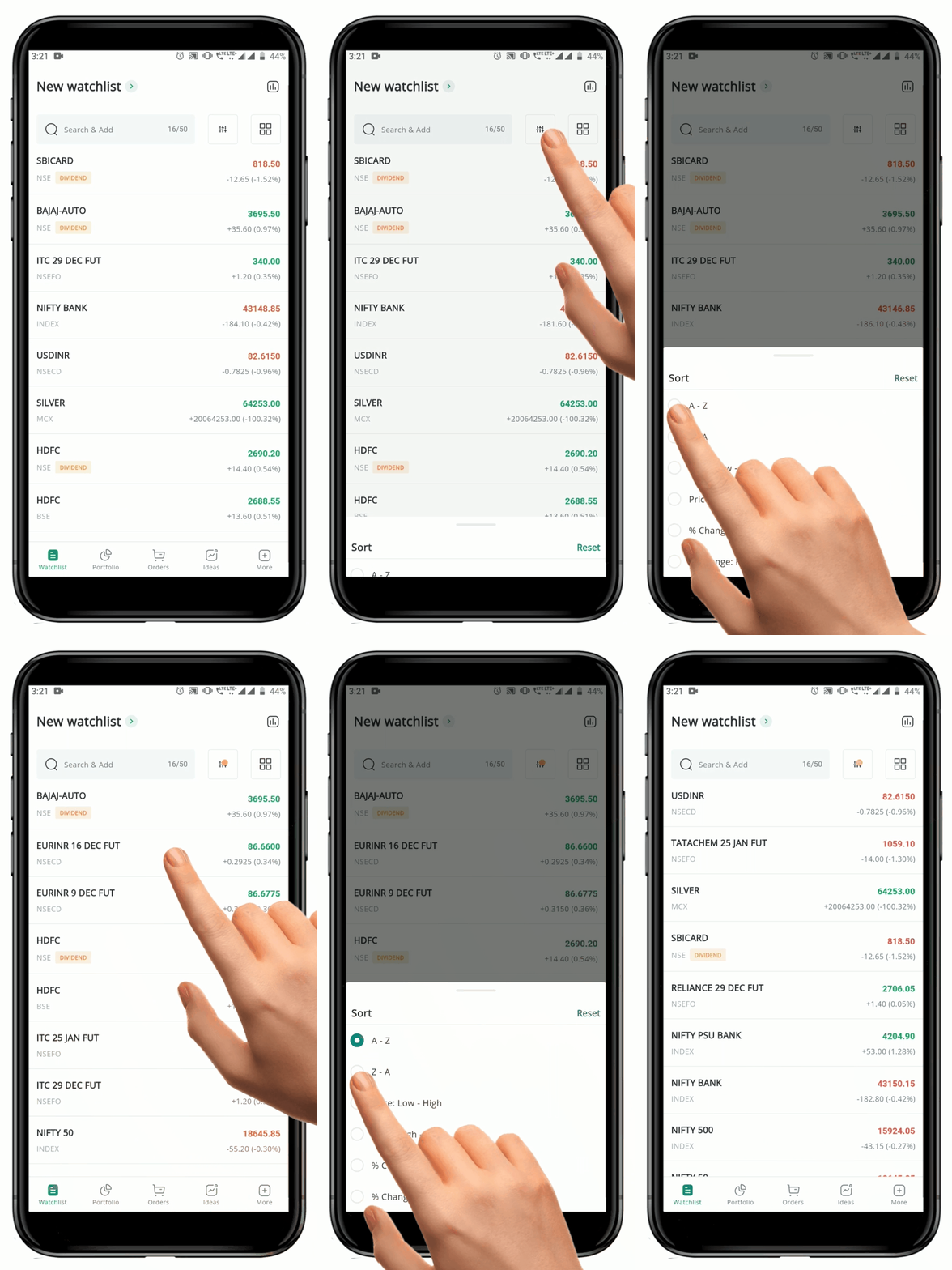
### How to Sort Watchlist?
You can *Sort* the **Watchlist** according to your preference. To use the *Sort* function in **Watchlist**, follow these steps:
#### **1) Sort using the Sort Function**
* Choose the desired "**Watchlist"** **.**
* Click on the "**Sort" Icon** on the top right-hand side of the screen.
* The "**Sort"** page will pop up, allowing you to *sort* according to **Alphabetical Order, Price,** and **Percentage Change.**
* If a filter is applied, the "**Sort" Icon** will have a "**Yellow Dot"** on it.
* To *reset* the filter, tap on the **"Reset" Button**.
* To *save* a filter, long press on any security in the **Watchlist** and press on the **"Save" Button**.
{% hint style="info" %}
* If you change the **sorting criteria** (e.g., by price, change %), the same sorting preference is applied across every watchlist tab.
* This helps maintain uniform data organization without needing to reconfigure each tab individually.
{% endhint %}
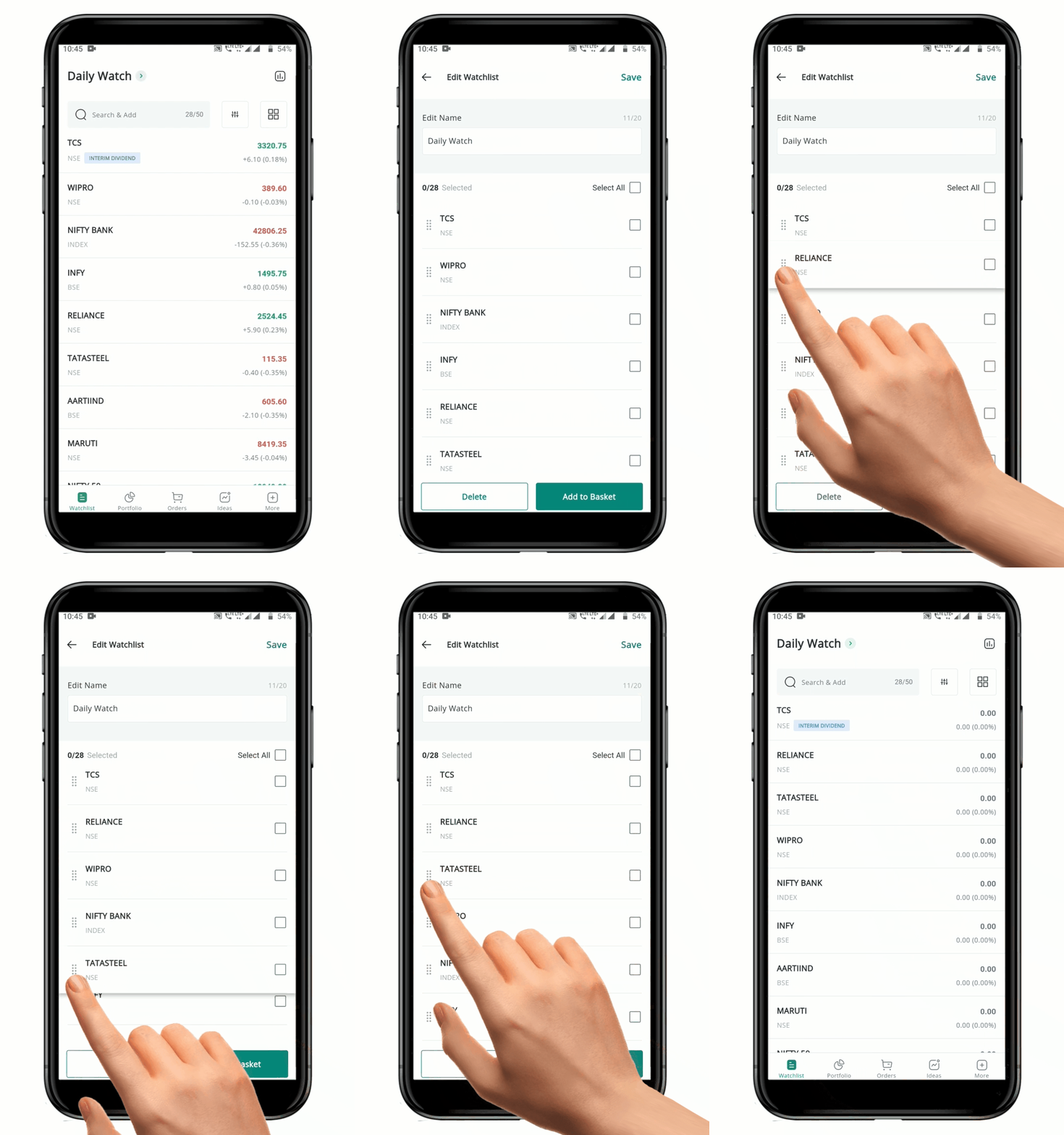
#### 2) Sort Manually from the Edit Page
In addition to the default sorting of the **Watchlist**, you are also provided with the option to manually *rearrange* the Securities in the order of your preference. To do this, follow these steps:
* Go to the **"Watchlist"** you want to *rearrange*.
* Long press on any **Symbol** to open the **Edit page.**
* Use the drag-and-drop feature to move the security to the desired position in the "**Watchlist"**.
* Repeat this process for each security you want to move.
* Once you have rearranged the **Watchlist** to your satisfaction.
* Click on the **"Back Arrow" Icon**  on top left-hand side to go back to the **Watchlist** page.
**Please Note:** The changes made by you will be *auto-saved* in the application.
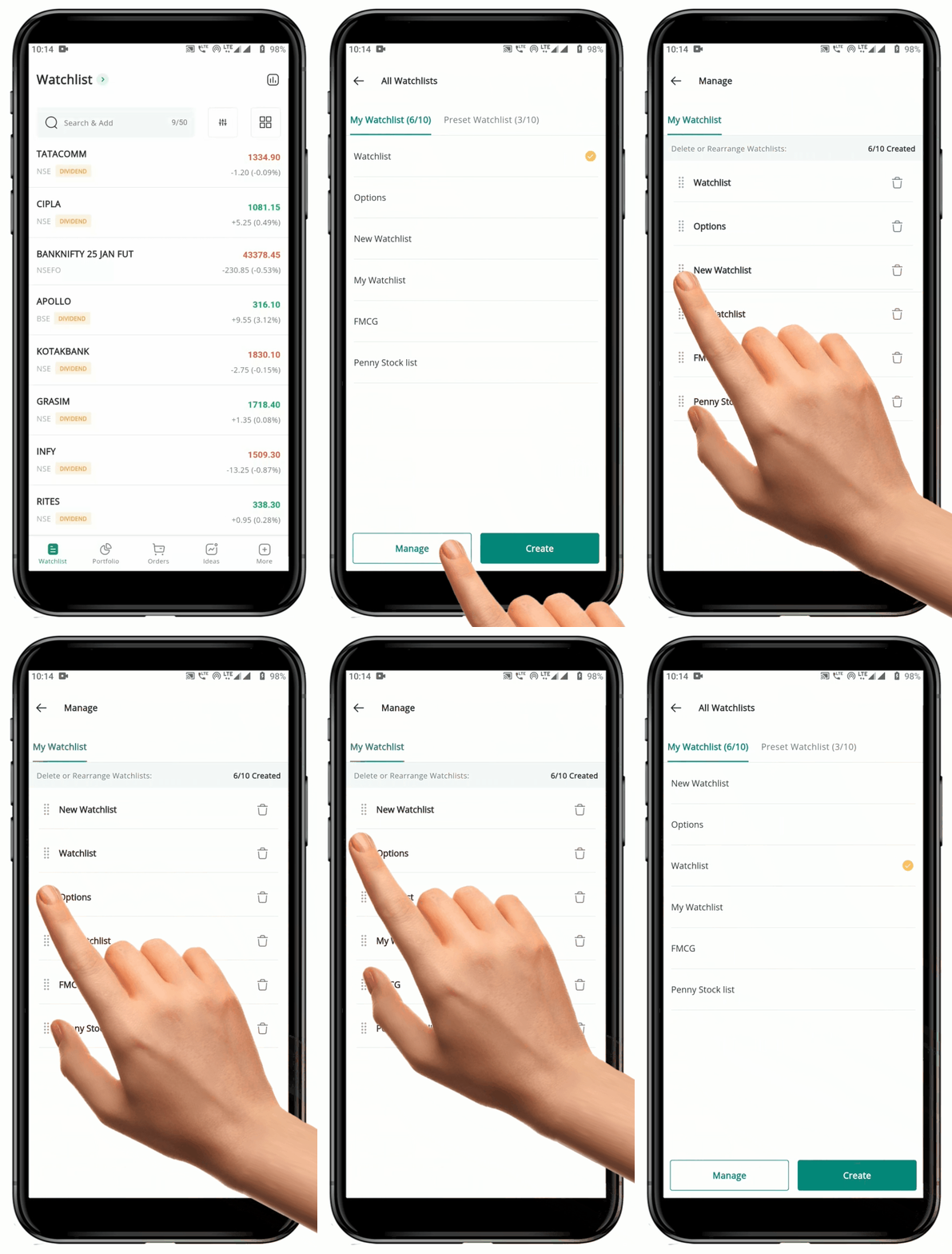
### How to rearrange the Watchlist?
To *rearrange* your Watchlist Order in **"My Watchlist",** follow these steps:
* Go to "**My Watchlist"** by clicking on the current Watchlist Name.
* Click on the "**Manage" Button** at the bottom of the page.
* On the **Manage** tab, use the drag-and-drop feature to *rearrange* your **Watchlist** in the desired Order.
**Please Note:** Any rearrangements you make will be *auto-saved.*
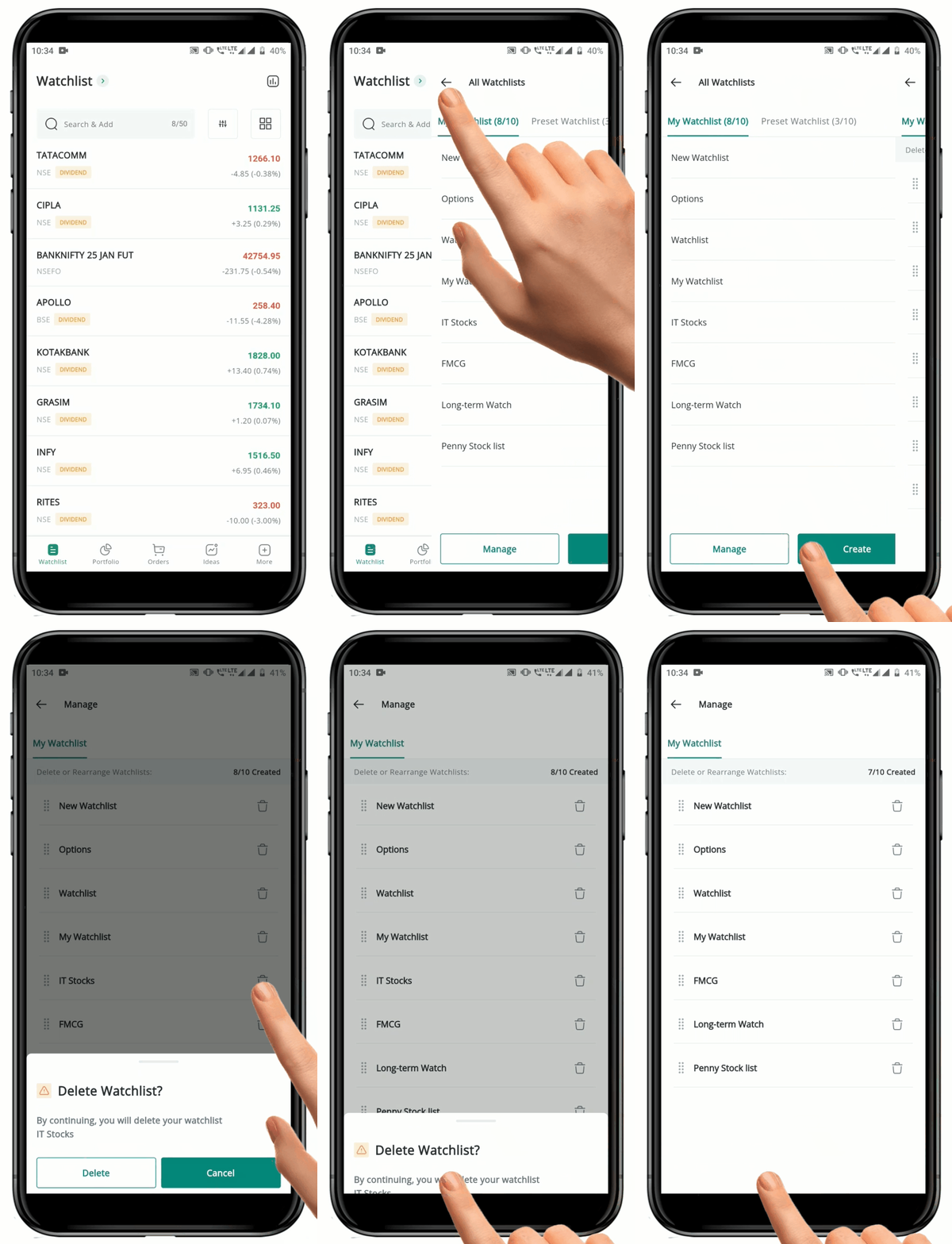
### How to delete the Watchlist?
To *delete* a watchlist from "**My Watchlist**," follow these steps:
* Go to **"My Watchlist"** by clicking on the current Watchlist Name.
* Click on the **"Manage" Button** at the bottom of the page.
* Click on the **"Delete" Icon** :wastebasket: shown against the Watchlist Name.
* Confirm the deletion by clicking on the **"Delete" Button** in the pop up that appears.
* If you don't want to *Delete* the watchlist, click on "**Cancel" Button** in the pop up.
* Once you have confirmed the deletion, the Watchlist will be permanently deleted.
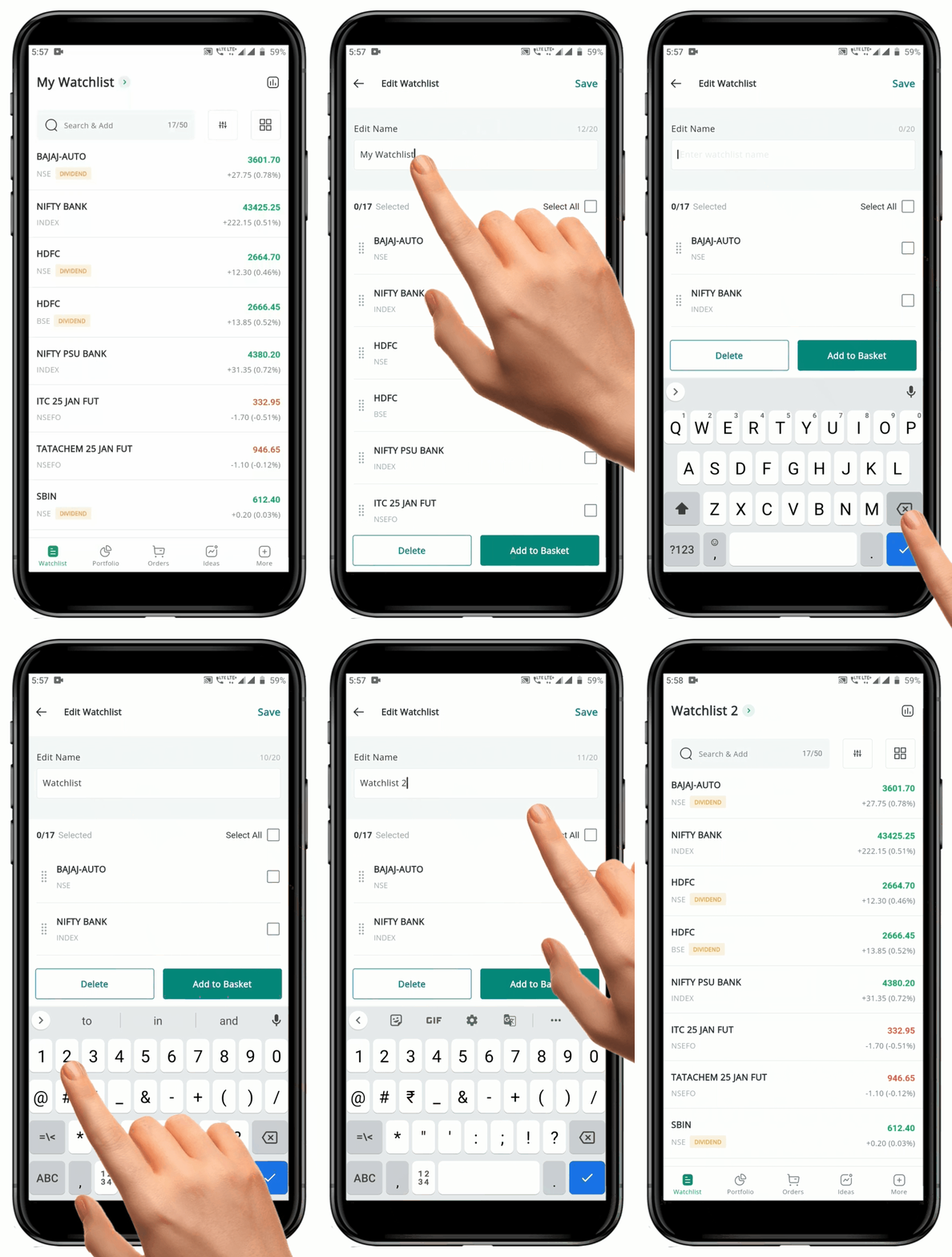
### How to Edit/Change Watchlist Name?
To *change* the name of your **Watchlist,** follow these steps:
* Open the "**Watchlist""** that you want to *Rename*.
* Long press on any Symbol to open the **Edit Page**.
* In the Edit page, you will see the current name of your Watchlist under the "**Edit Name**" section.
* Type in the desired new name for the watchlist in the "**Edit Name**" field.
* Once you have typed in the new name, click on the "**Save" Button** at the top of the page to save your changes.
* Your current watchlist name will be updated with the new name you have entered.
### Swipe Right :right:
A new ‘**Swipe Right**’ feature has been introduced, allowing users to quickly place an order, delete, add a color tag, access the chart, open option chain or set an alert for a specific scrip—simply by swiping right. This feature is available in both normal view and compact view.
**How to Use the Swipe Right Feature in Your Watchlist**
1. Go to your Watchlist.
2. **Swipe right on any scrip** in the list.
3. A set of default options will appear such as:
* **Trade**
* **Chart**
* **Delete**
4. **To customize more options,** go to the [**swipe settings**](#id-14.-compact-view) in the Watchlist Settings page. Here you can add more fields like :
* Add Tag
* Set Alert
* Option Chain
5. Tap on your preferred option to proceed to the corresponding page.
{% hint style="info" %}
The delete option **will not be available** in the preset watchlists and color tag watchlists.
{% endhint %}
### How to Delete Symbols from Watchlist?
To *delete* a Symbol from a **Watchlist**, follow these steps:
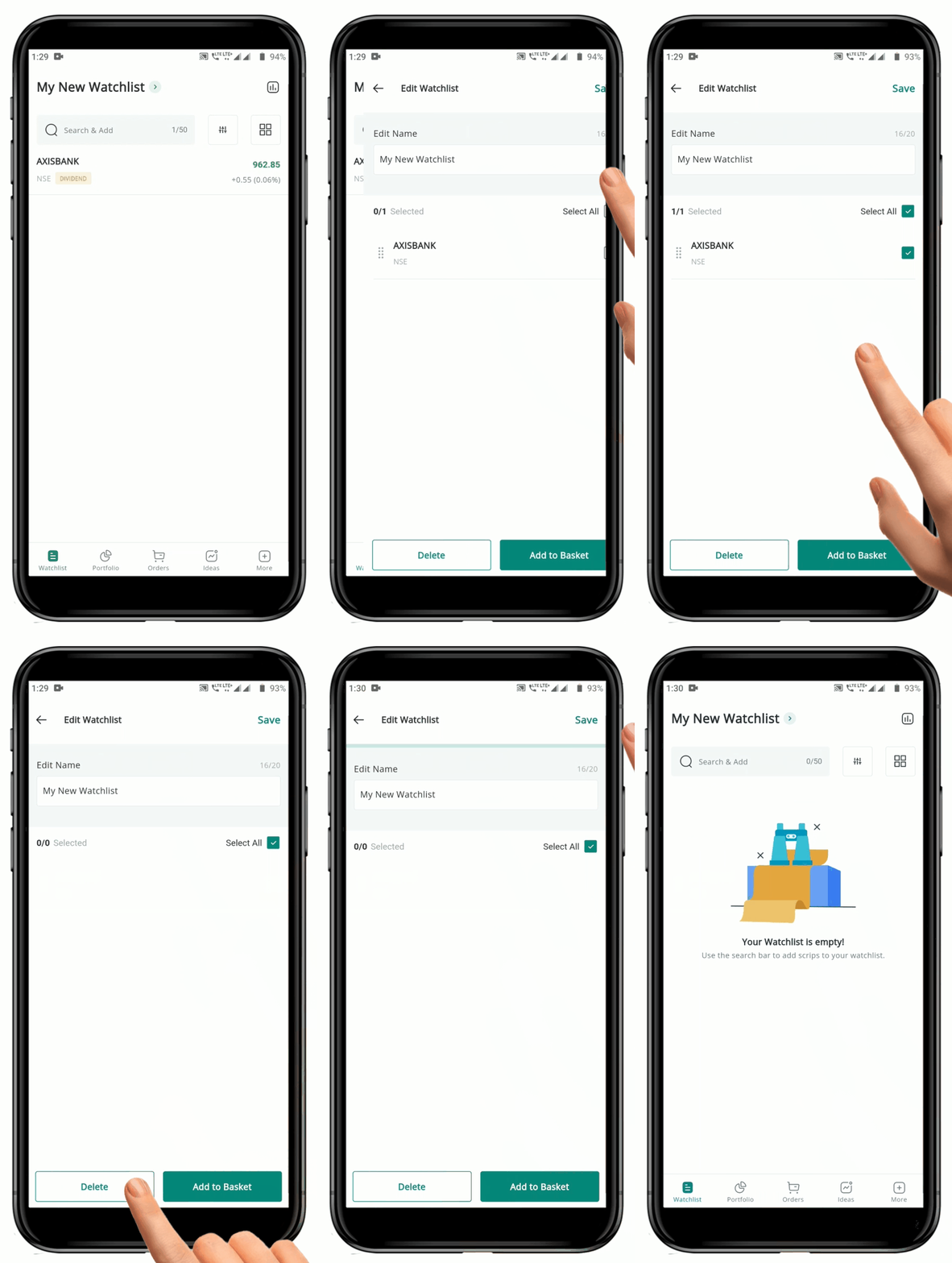
#### 1) Delete Multiple Symbols from the Watchlist
* Open the **"Watchlist"** you want to **Delete** Symbols from.
* Long press on any Symbol to open the **Edit page**.
* Select the Symbols you want to **Delete** by clicking on the "**Box Icon"** next to it.
* A "**Tick Mark"** will appear to indicate that the Symbol is selected.
* You can also use the "**Select All**" option if you want to *Delete all* the Symbols from the Watchlist.
* Once you have selected the Symbols you want to Delete, click on the "**Delete**" **Button**.
* This will remove the selected Symbols from the **Watchlist**.
* The platform will prompt you to *save* the changes to the **Watchlist**.
* Click on the **"Save" Button** to confirm the deletion, or click on the **"Discard" Button** to cancel the deletion.
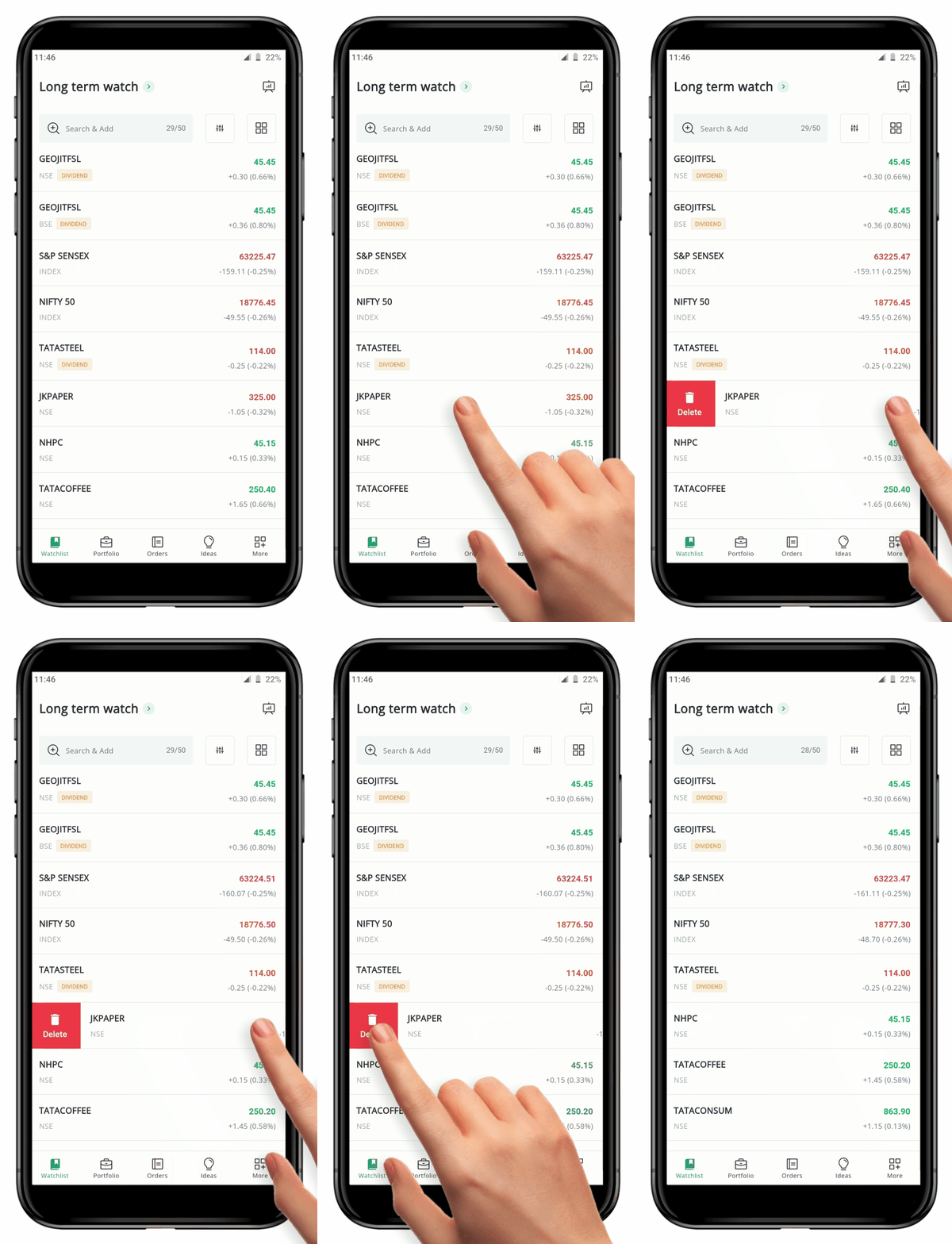
#### 2) Delete a Symbol from the Watchlist
In addition to deleting multiple symbol from edit page of the **Watchlist**, you can also delete a symbol by just swiping the symbol. To do this, follow these steps:
* Select the **"Watchlist"**you want to **Delete** a symbol from.
* Swipe right on the Symbol you wish to **Delete**.
* As you swipe, a Delete Icon will appear on the left side of the Symbol.
* Simple click on the **Delete icon** and the Symbol will be removed from the **Watchlist**.
**Please Note:** The changes are auto-saved and the deleted Symbol will be removed from that particular Watchlist permanently.
### Heat Map
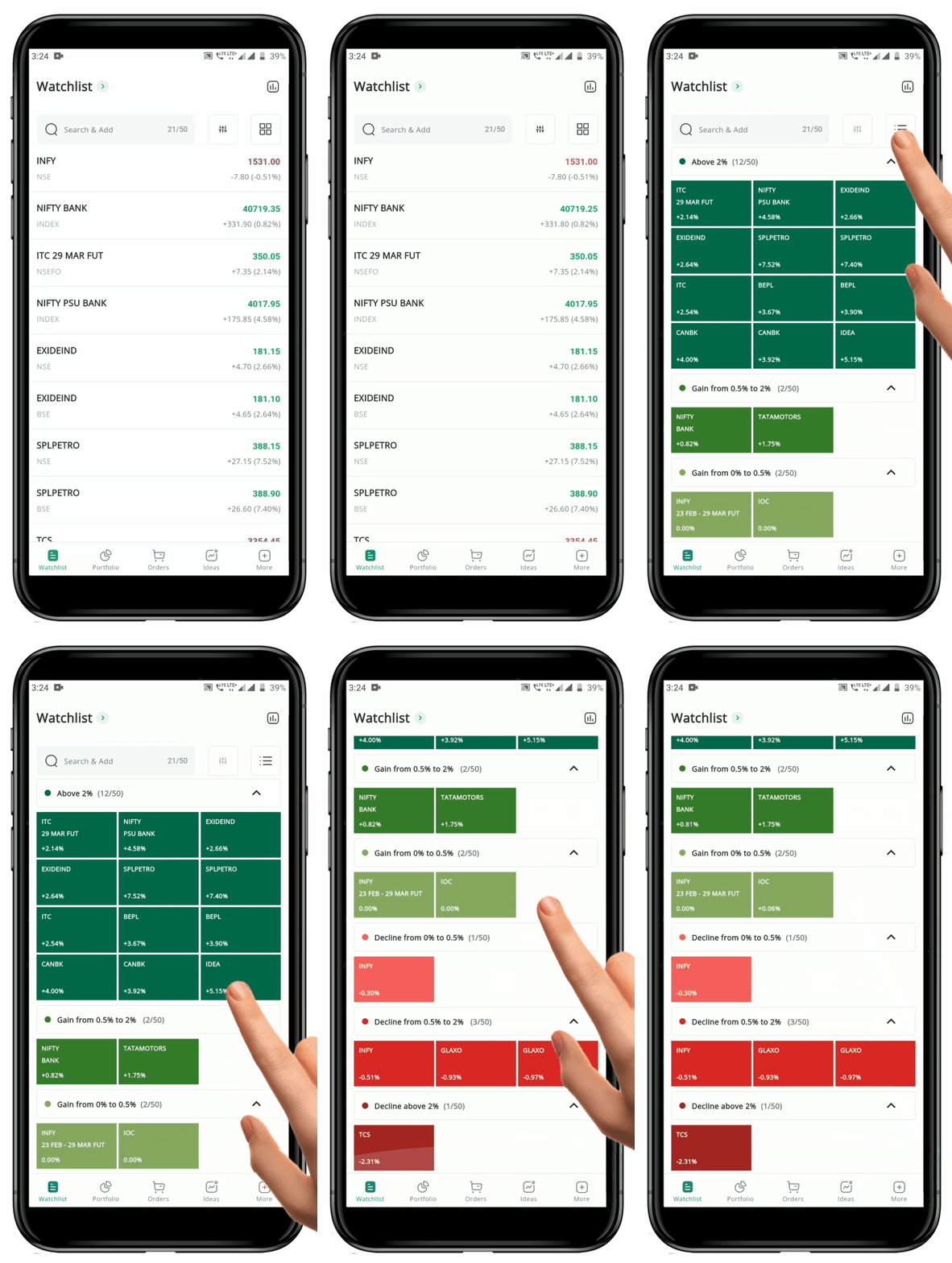
The default **"Watchlist"** is shown in a list format, but you can view the watchlist in a **"Heatmap View"**. The **"Heatmap View"** allows for a quick visual representation of the **Percentage Changes** in the symbols on the list. The Symbols are grouped according to their Percentage Changes, giving the user an idea about the performance of the Security. The "**Heatmap"** can also help identify trends and patterns in the movements of the securities on the **Watchlist**.
When you switch between List View and Heatmap View in any watchlist tab, the selected view becomes the **default for all tabs**. This ensures a consistent visual experience when navigating between different watchlists.
#### How to open Heatmap page
To access the "**Heatmap View"** of your watchlist, follow these steps:
* Open the **Watchlist** **page**.
* Click on the **"Heatmap" Icon**.
* The "**Heatmap"** tab will be open.
* Here, the Symbols are grouped based on their **"Percentage Changes"** for the day.
* The Symbols are *color-coded,* with shades of "**Green"** indicating a **Positive Change** and shades of "**Red"** indicating a **Negative Change.**
* Each group of securities can be minimized or expanded by clicking on the corresponding header. This allows you to focus on the Securities that are most relevant to you.
* Now to go back to the list view, click on the "**List View" Icon** **.**
**How to apply Sort ?**
* Click on the sort icon .
* Now a sort menu will be displayed.
* Choose from the given options :
* A-Z
* Z-A
* Price Low- High
* Price High-low
* % Change : Low- High
* % Change : High- Low
* If you want to reset the sort to the default view, click 'Reset'.
### Index Watch Panel
The "**Index Watch Panel"** is included in the **Watchlist** by default, but the user can choose to *enable* or *disable* it. The default **Symbols** displayed in the Index Watch Panel are the "**Nifty 50"** and "**Bank Nifty"**, but the user can select any **Index** or **Stock** they wish to view in the Index Watch panel.
#### **How to Show Index Watch in all my Watchlist**
* On the **Watchlist t** **page**, click on the "**Settings" Icon** on the top RHS.
* Inside the "**Settings"** page, click on the "**Watchlist Settings"** tab.
* You will be provided with a set of options.
* You will find the "**Index Visibility"** option with a "**Toggle" Button** to enable or disable it.
* Click on the "**Toggle" Button** to enable the **Index Watch** in all the Watchlists.
* Go back to the **Watchlist** page and you will now be able to view the **Index Watch** in all the **Watchlists.**
#### **How to change the Index displayed in Index Watch Panel**
You can *customize* the **Index Watch** **Panel** by replacing the displayed **Indices** with any other desired **Stock** or **Index**.
To add/change an **Index** displayed in the **Index Watch Panel,** follow these steps:
* Go to the **Watchlist.**
* **Tap on the index spot** you wish to change.
* You will provided with two options- **NSE** and **BSE**.
* A set of indices will be displayed under both NSE and BSE.
* Choose a preferred index.
* Now go back to the watchlist to see the change.
To add/change an **Index/Stock** displayed in the **Index Watch Panel,** follow these steps:
* From your **Watchlist**, click on the **Security** you want to add.
* The **Security Page** will open.
* Scroll to the bottom of the **Overview** tab**.**
* Find the option called **"Pin to Market Overview".**
* Click on **"Spot 1"** or **"Spot 2"** to add the Index or Stock to your **Index Watch panel.**
* Go back to the **Watchlist** to confirm that the Symbol has been added to the **Index Watch Panel.**
**Please Note:** To *add* a Stock/Index to the Market Overview page, click on *"Spot 3" or "Spot 4".*
### Watchlist Settings
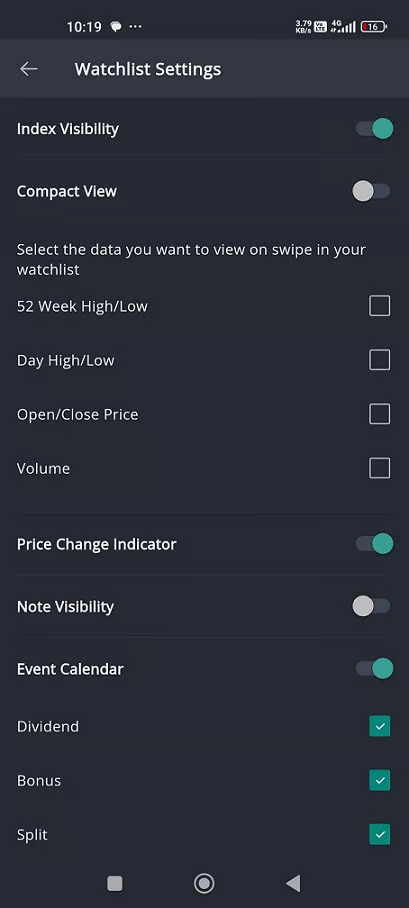
You can *add* more Fields such as **"52 Week High/Low", "Day High/Low", "Open/Close Price"** and **"Volume"** to your Watchlist by going to Watchlist Settings. To do so follow these steps:
* Go to **"Watchlist"** page**.**
* Locate the **"Settings"****Icon** on the top RHS and click on it.
* This will redirect you to the **"Watchlist Settings"** page.
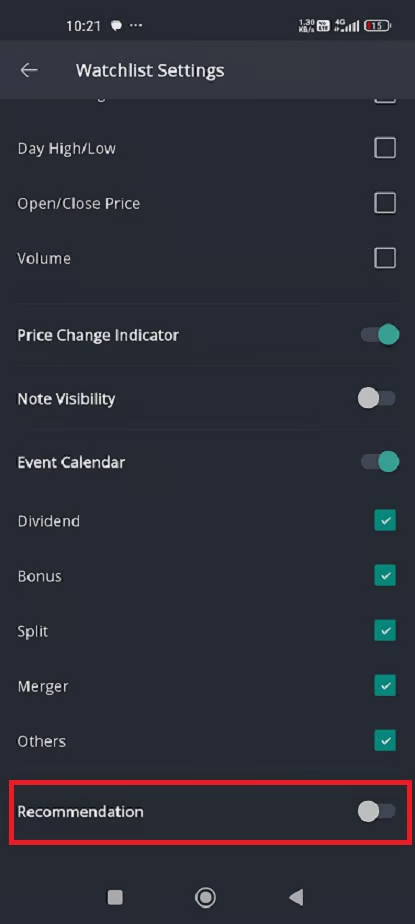
* Here by default you will be on the **"Display Fields"** page and can see a variety of data fields such as **"52 Weeks High/Low", "Day High/Low", "Open/Close Price",** **"Volume", "Price Change Indicator", Event Calendar, Recommendation** to add to your watchlist.
* To include any of these fields to your watchlist, click on the corresponding **Checkbox** **or toggle button** near each field.
* Please Note that you are not obligated to choose all the fields, can choose what is relevant for you.
* Once you have done the selection click on the **Back arrow** to go back to watchlist page.
* Choose any security on the **Watchlist** and swipe left on the **Price Column** and you will find the changes.
* If you haven't enabled the compact view, then you can swipe once to see the **"52 Weeks High/Low",** Swipe again to see the **"Day High/Low".** Subsequent swipes will reveal the **"Open and Close Prices"**, followed by the **"Trading Volume".** Furthermore, if you perform an additional swipe, you will be returned to the **"Price Data".**
The change in fields can only be accomplished through left swipe, enabling you to change through the different display fields.
* If compact view is enabled then you can view the relevant fields, by just enabling them in the settings page mentioned above.
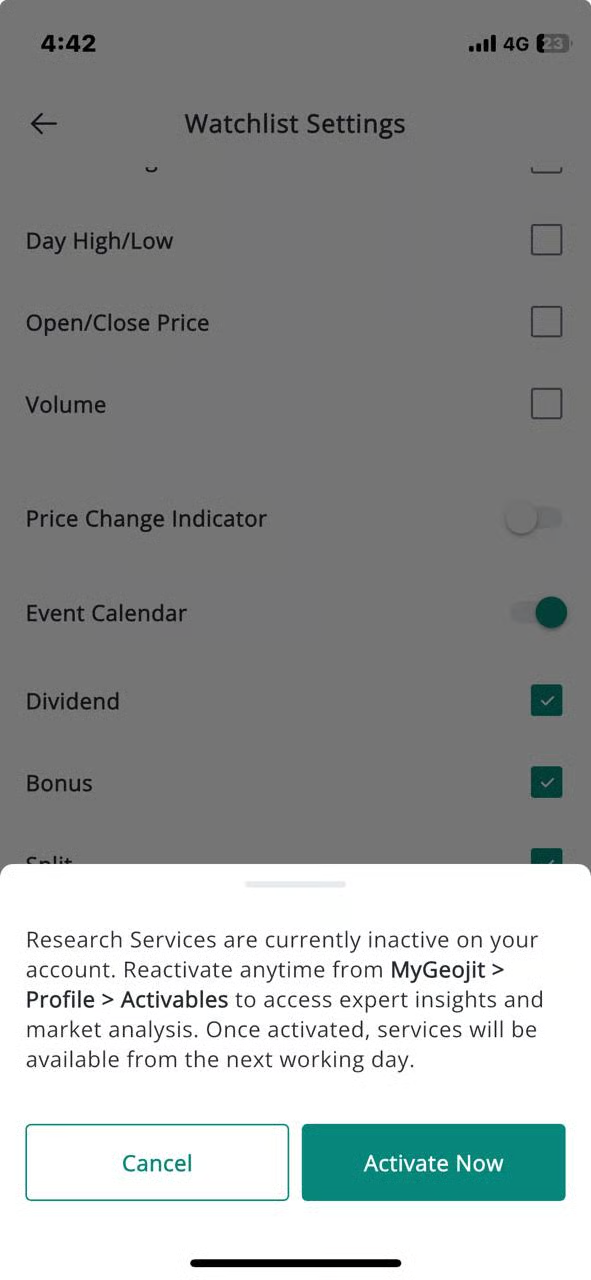
**Please Note: If you want to see Geojit's research recommendations in Flip, you need to subscribe to our research services first.** [***Follow these steps to activate 'Free Research Services.'***](https://usermanuals.geojit.com/mygeojit-web/my-account/profile#how-to-subscribe-unsubscribe-free-research-services)
The unsubscribed users will get a pop-up message stating 'Research services are currently inactive'. Once activated again, the services will be available from the next working day.
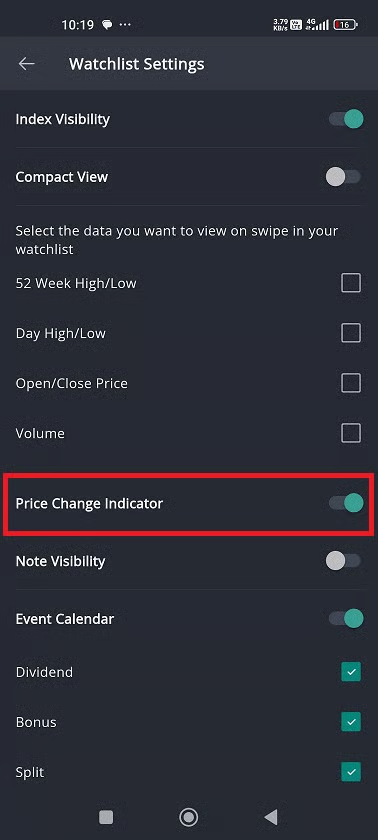
#### To turn on the **Price Change Indicator:**
* Go to the **Watchlist** page**.**
* Locate the **Settings** **Icon.**
* You will be landed on the **Watchlist Settings page**.
* Click on the '**Other**' tab.
* Find '**Price Change Indicator**' and switch it on using the **"Toggle"** **Button.**
* Go back to your watchlist, and you can see a **tiny blinking light** that flashes green when prices go up and red when they drop.
#### How to Configure Swipe Settings in Your Watchlist ?
* Open any Watchlist page.
* **Tap the Settings icon** at the top to navigate to the **Watchlist Settings** page.
* **Scroll down** to find the **Swipe Settings** section.
* By default, options like **Trade**, **Chart**, and **Delete** will be selected.
* You can select additional options such as:
* **Option Chain**
* **Set Alert**
* **Add/Remove Tag**
* **Rules:**
* Minimum **3 options** must be selected.
* Users can select **up to 4 options** only.
* Once you’ve made your selections, **go back to your Watchlist**.
* The new changes will be applied automatically.
### Compact View
To *access* the **Compact View,** follow these steps:
* Locate and navigate to the **"Watchlist"** **page.**
* If you wish to have a condensed view of the page, you need to switch to the **"Compact View".**
* For that, firstly click on the **"Settings"** **Icon** **n** located at the top right-hand side of the tab.
* Next, swipe/click to select the **"Others" tab.**
* Here, you can find the **"Compact View"** option**.**
* Click on the **"Toggle"** **Button** adjacent to it to activate the option.
* Now click on the **"Back Arrow"** at the top left-hand side to go back to the **"Watchlist"** **page.**
* You can now customise which data you would like to see.
* Click on the **"Drop-down Arrow"** a bottom pop-up option will appear.
* First row you can see options such as "**Volume Quantity & Volume Value", "Day High & Day Low", "Bid Price & Ask Price", "52 Week High & 52 Week Low",** and **"Open & Prev. Close Price".**
* Next row, you have the options such as **"LTP and LTP Change Percentage", "Volume Quantity & Volume Value", "Day High & Day Low", "Bid Price & Ask Price", "52 Week High & 52 Week Low",** and **"Open & Prev. Close Price".**
### Notes
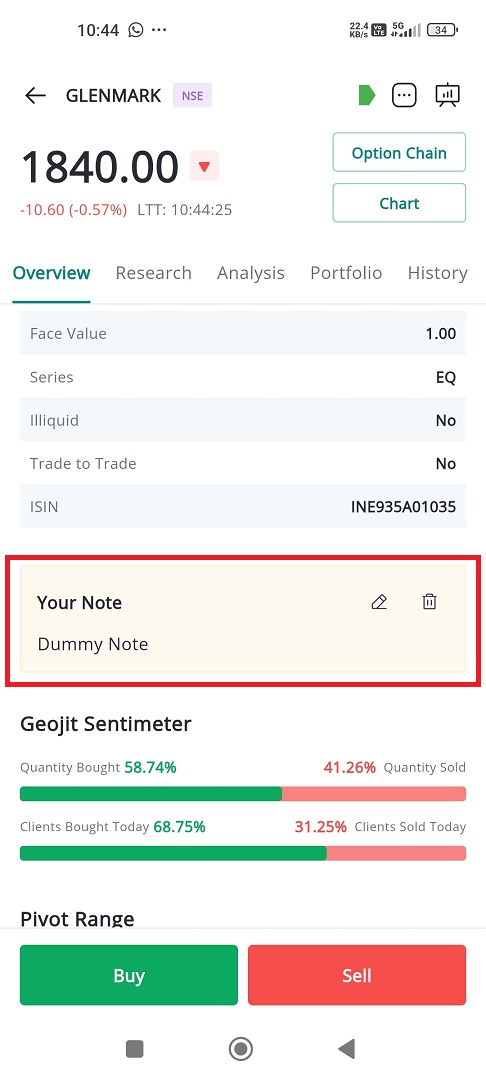
You can add personal notes to any stock to capture your thoughts, strategies, or reminders.
**How to add notes in your watchlist ?**
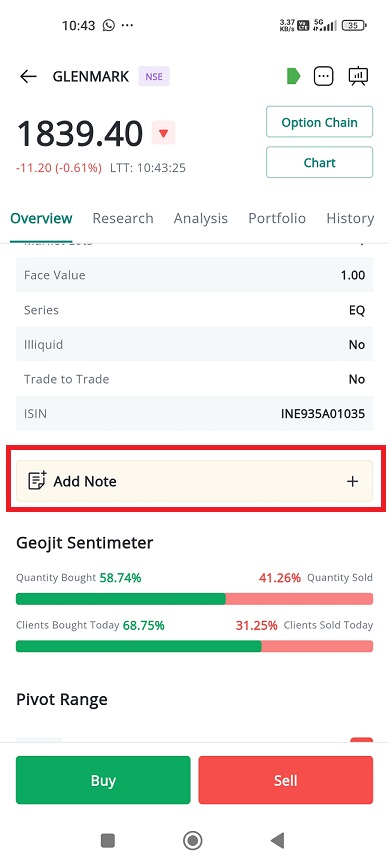
1. Tap the **stock name** in your watchlist to open its **overview page**.
2. Scroll down to the **“Add Note”** section (highlighted in yellow, above Geojit Sentimeter).
3. Tap the **“+” icon**.
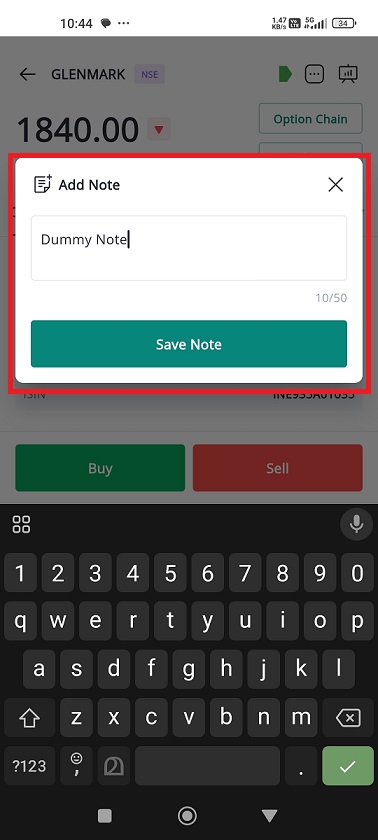
4. Enter your note (up to 50 characters).
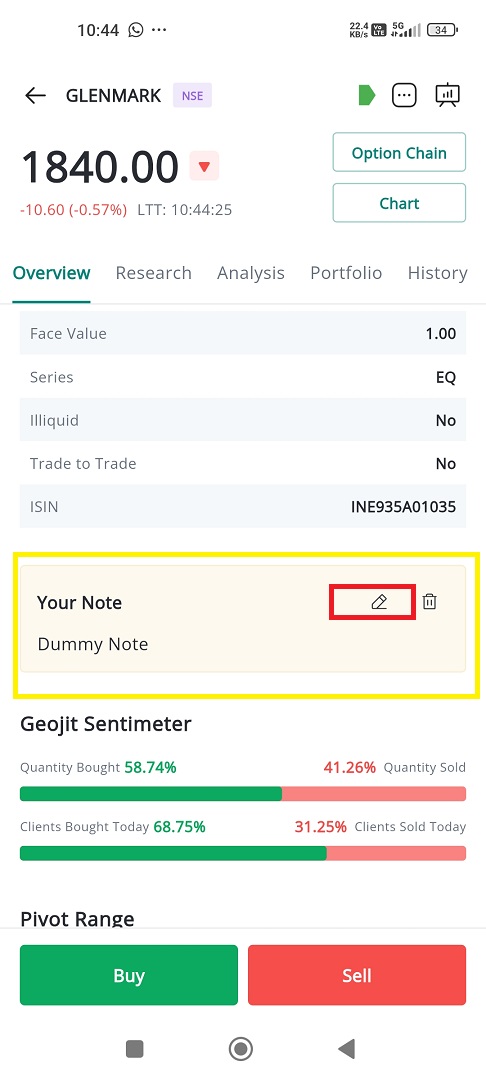
5. Tap **Save** → The note appears under “Your Note” and is also synced to your Holdings.
**How to edit notes in your watchlist ?**
1. Open the stock overview page.
2. Scroll down to find the notes section.
3. Tap the **Edit icon (✎)**.
4. Update your note and tap **Save** → The update reflects in both Watchlist and Holdings.
**How to delete notes ?**
1. Open the stock overview page.
2. Scroll down and find the note section and tap on the **Delete icon (🗑)**.
3. Confirm deletion in the bottom sheet pop-up.
4. Click on the 'delete' button.
5. Now, the note is removed from both Watchlist and Holdings.
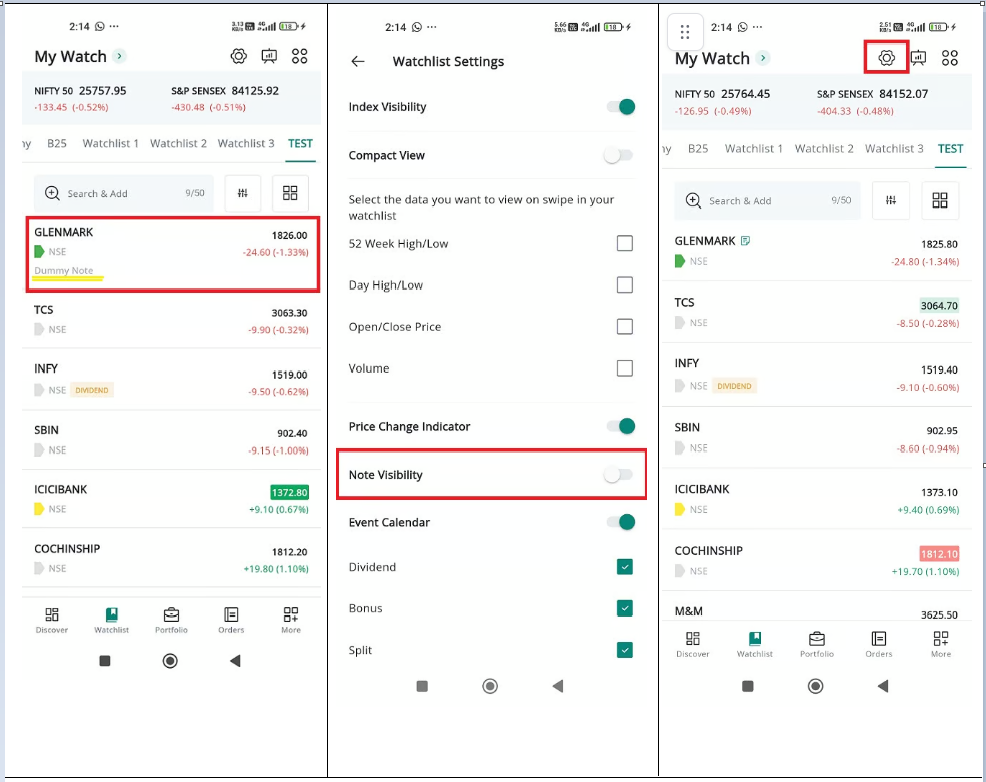
**How to view notes ?**
* When a stock has a note, a **Note icon** appears next to it in your watchlist.
* To display notes directly below stock names:
1. Tap the **Watchlist Settings icon** (top right).
2. Enable **Note Visibility by switching on the toggle button** .
3. Notes will now show under stock names where available.
**Important:** Notes are **common for each stock** — if you add, edit, or delete a note in **Watchlist**, the same change will also appear in **Holdings**, and vice versa.
 is a useful tool for investors because it allows them to easily monitor the performance of specific securities in real-time. By creating a Watchlist, you can see **Live Prices** and **Changes in Price** for the securities you are interested in, which can help you make more informed investment decisions.
The **FLIP App** offers two types of watchlists: **"My Watchlist"** and **"Preset Watchlist”**
The **"My Watchlist"** tab displays a list of all the watchlists that you have *Created* or *Saved*. You can *create* a maximum of **25 Watchlists**, and each watchlist can contain up to "**50 securities"**.
The **"Preset Watchlist"** tab displays a selection of watchlists created by the platform. These Preset watchlists include a variety of *Indices* and *lists of Securities* forming part of these Indices. You can choose up to **"10 Watchlists"** from the available selection of 15 at any given time.
### How to go to the All Watchlist page?
is a useful tool for investors because it allows them to easily monitor the performance of specific securities in real-time. By creating a Watchlist, you can see **Live Prices** and **Changes in Price** for the securities you are interested in, which can help you make more informed investment decisions.
The **FLIP App** offers two types of watchlists: **"My Watchlist"** and **"Preset Watchlist”**
The **"My Watchlist"** tab displays a list of all the watchlists that you have *Created* or *Saved*. You can *create* a maximum of **25 Watchlists**, and each watchlist can contain up to "**50 securities"**.
The **"Preset Watchlist"** tab displays a selection of watchlists created by the platform. These Preset watchlists include a variety of *Indices* and *lists of Securities* forming part of these Indices. You can choose up to **"10 Watchlists"** from the available selection of 15 at any given time.
### How to go to the All Watchlist page?
 on the top right-hand side of the screen.
* The "**Sort"** page will pop up, allowing you to *sort* according to **Alphabetical Order, Price,** and **Percentage Change.**
* If a filter is applied, the "**Sort" Icon**
on the top right-hand side of the screen.
* The "**Sort"** page will pop up, allowing you to *sort* according to **Alphabetical Order, Price,** and **Percentage Change.**
* If a filter is applied, the "**Sort" Icon**  on it.
* To *reset* the filter, tap on the **"Reset" Button**.
* To *save* a filter, long press on any security in the **Watchlist** and press on the **"Save" Button**.
{% hint style="info" %}
* If you change the **sorting criteria** (e.g., by price, change %), the same sorting preference is applied across every watchlist tab.
* This helps maintain uniform data organization without needing to reconfigure each tab individually.
{% endhint %}
#### 2) Sort Manually from the Edit Page
In addition to the default sorting of the **Watchlist**, you are also provided with the option to manually *rearrange* the Securities in the order of your preference. To do this, follow these steps:
on it.
* To *reset* the filter, tap on the **"Reset" Button**.
* To *save* a filter, long press on any security in the **Watchlist** and press on the **"Save" Button**.
{% hint style="info" %}
* If you change the **sorting criteria** (e.g., by price, change %), the same sorting preference is applied across every watchlist tab.
* This helps maintain uniform data organization without needing to reconfigure each tab individually.
{% endhint %}
#### 2) Sort Manually from the Edit Page
In addition to the default sorting of the **Watchlist**, you are also provided with the option to manually *rearrange* the Securities in the order of your preference. To do this, follow these steps:
 you want to *rearrange*.
* Long press on any **Symbol** to open the **Edit page.**
* Use the drag-and-drop feature to move the security to the desired position in the "**Watchlist"**.
* Repeat this process for each security you want to move.
* Once you have rearranged the **Watchlist** to your satisfaction.
* Click on the **"Back Arrow" Icon**  on top left-hand side to go back to the **Watchlist** page.
**Please Note:** The changes made by you will be *auto-saved* in the application.
### How to rearrange the Watchlist?
To *rearrange* your Watchlist Order in **"My Watchlist",** follow these steps:
you want to *rearrange*.
* Long press on any **Symbol** to open the **Edit page.**
* Use the drag-and-drop feature to move the security to the desired position in the "**Watchlist"**.
* Repeat this process for each security you want to move.
* Once you have rearranged the **Watchlist** to your satisfaction.
* Click on the **"Back Arrow" Icon**  on top left-hand side to go back to the **Watchlist** page.
**Please Note:** The changes made by you will be *auto-saved* in the application.
### How to rearrange the Watchlist?
To *rearrange* your Watchlist Order in **"My Watchlist",** follow these steps:
 that you want to *Rename*.
* Long press on any Symbol to open the **Edit Page**.
* In the Edit page, you will see the current name of your Watchlist under the "**Edit Name**" section.
* Type in the desired new name for the watchlist in the "**Edit Name**" field.
* Once you have typed in the new name, click on the "**Save" Button** at the top of the page to save your changes.
* Your current watchlist name will be updated with the new name you have entered.
### Swipe Right :right:
A new ‘**Swipe Right**’ feature has been introduced, allowing users to quickly place an order, delete, add a color tag, access the chart, open option chain or set an alert for a specific scrip—simply by swiping right. This feature is available in both normal view and compact view.
that you want to *Rename*.
* Long press on any Symbol to open the **Edit Page**.
* In the Edit page, you will see the current name of your Watchlist under the "**Edit Name**" section.
* Type in the desired new name for the watchlist in the "**Edit Name**" field.
* Once you have typed in the new name, click on the "**Save" Button** at the top of the page to save your changes.
* Your current watchlist name will be updated with the new name you have entered.
### Swipe Right :right:
A new ‘**Swipe Right**’ feature has been introduced, allowing users to quickly place an order, delete, add a color tag, access the chart, open option chain or set an alert for a specific scrip—simply by swiping right. This feature is available in both normal view and compact view.

 you want to **Delete** Symbols from.
* Long press on any Symbol to open the **Edit page**.
* Select the Symbols you want to **Delete** by clicking on the "**Box Icon"**
you want to **Delete** Symbols from.
* Long press on any Symbol to open the **Edit page**.
* Select the Symbols you want to **Delete** by clicking on the "**Box Icon"** next to it.
* A "**Tick Mark"**
next to it.
* A "**Tick Mark"** will appear to indicate that the Symbol is selected.
* You can also use the "**Select All**" option if you want to *Delete all* the Symbols from the Watchlist.
* Once you have selected the Symbols you want to Delete, click on the "**Delete**" **Button**.
* This will remove the selected Symbols from the **Watchlist**.
* The platform will prompt you to *save* the changes to the **Watchlist**.
* Click on the **"Save" Button** to confirm the deletion, or click on the **"Discard" Button** to cancel the deletion.
#### 2) Delete a Symbol from the Watchlist
In addition to deleting multiple symbol from edit page of the **Watchlist**, you can also delete a symbol by just swiping the symbol. To do this, follow these steps:
will appear to indicate that the Symbol is selected.
* You can also use the "**Select All**" option if you want to *Delete all* the Symbols from the Watchlist.
* Once you have selected the Symbols you want to Delete, click on the "**Delete**" **Button**.
* This will remove the selected Symbols from the **Watchlist**.
* The platform will prompt you to *save* the changes to the **Watchlist**.
* Click on the **"Save" Button** to confirm the deletion, or click on the **"Discard" Button** to cancel the deletion.
#### 2) Delete a Symbol from the Watchlist
In addition to deleting multiple symbol from edit page of the **Watchlist**, you can also delete a symbol by just swiping the symbol. To do this, follow these steps:
 and the Symbol will be removed from the **Watchlist**.
**Please Note:** The changes are auto-saved and the deleted Symbol will be removed from that particular Watchlist permanently.
### Heat Map
The default **"Watchlist"** is shown in a list format, but you can view the watchlist in a **"Heatmap View"**. The **"Heatmap View"** allows for a quick visual representation of the **Percentage Changes** in the symbols on the list. The Symbols are grouped according to their Percentage Changes, giving the user an idea about the performance of the Security. The "**Heatmap"** can also help identify trends and patterns in the movements of the securities on the **Watchlist**.
When you switch between List View and Heatmap View in any watchlist tab, the selected view becomes the **default for all tabs**. This ensures a consistent visual experience when navigating between different watchlists.
#### How to open Heatmap page
To access the "**Heatmap View"** of your watchlist, follow these steps:
and the Symbol will be removed from the **Watchlist**.
**Please Note:** The changes are auto-saved and the deleted Symbol will be removed from that particular Watchlist permanently.
### Heat Map
The default **"Watchlist"** is shown in a list format, but you can view the watchlist in a **"Heatmap View"**. The **"Heatmap View"** allows for a quick visual representation of the **Percentage Changes** in the symbols on the list. The Symbols are grouped according to their Percentage Changes, giving the user an idea about the performance of the Security. The "**Heatmap"** can also help identify trends and patterns in the movements of the securities on the **Watchlist**.
When you switch between List View and Heatmap View in any watchlist tab, the selected view becomes the **default for all tabs**. This ensures a consistent visual experience when navigating between different watchlists.
#### How to open Heatmap page
To access the "**Heatmap View"** of your watchlist, follow these steps:
 .
* Click on the **"Heatmap" Icon**
.
* Click on the **"Heatmap" Icon** .
* The "**Heatmap"** tab will be open.
* Here, the Symbols are grouped based on their **"Percentage Changes"** for the day.
* The Symbols are *color-coded,* with shades of "**Green"** indicating a **Positive Change** and shades of "**Red"** indicating a **Negative Change.**
* Each group of securities can be minimized or expanded by clicking on the corresponding header. This allows you to focus on the Securities that are most relevant to you.
* Now to go back to the list view, click on the "**List View" Icon**
.
* The "**Heatmap"** tab will be open.
* Here, the Symbols are grouped based on their **"Percentage Changes"** for the day.
* The Symbols are *color-coded,* with shades of "**Green"** indicating a **Positive Change** and shades of "**Red"** indicating a **Negative Change.**
* Each group of securities can be minimized or expanded by clicking on the corresponding header. This allows you to focus on the Securities that are most relevant to you.
* Now to go back to the list view, click on the "**List View" Icon**  **.**
**How to apply Sort ?**
**.**
**How to apply Sort ?**


 **page**, click on the "**Settings" Icon**
 on the top RHS.
* Inside the "**Settings"** page, click on the "**Watchlist Settings"** tab.
* You will be provided with a set of options.
* You will find the "**Index Visibility"** option with a "**Toggle" Button**
on the top RHS.
* Inside the "**Settings"** page, click on the "**Watchlist Settings"** tab.
* You will be provided with a set of options.
* You will find the "**Index Visibility"** option with a "**Toggle" Button** to enable or disable it.
* Click on the "**Toggle" Button**
to enable or disable it.
* Click on the "**Toggle" Button**  to enable the **Index Watch** in all the Watchlists.
* Go back to the **Watchlist**
to enable the **Index Watch** in all the Watchlists.
* Go back to the **Watchlist**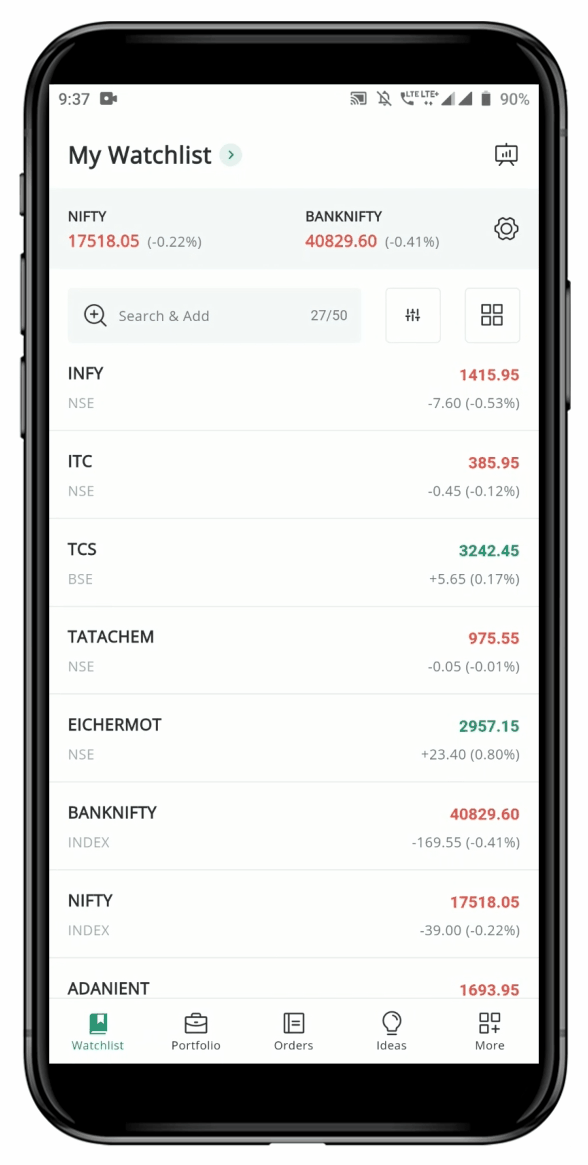
 page**.**
* Locate the **"Settings"**
page**.**
* Locate the **"Settings"** **Icon** on the top RHS and click on it.
* This will redirect you to the **"Watchlist Settings"** page.
* Here by default you will be on the **"Display Fields"** page and can see a variety of data fields such as **"52 Weeks High/Low", "Day High/Low", "Open/Close Price",** **"Volume", "Price Change Indicator", Event Calendar, Recommendation** to add to your watchlist.
**Icon** on the top RHS and click on it.
* This will redirect you to the **"Watchlist Settings"** page.
* Here by default you will be on the **"Display Fields"** page and can see a variety of data fields such as **"52 Weeks High/Low", "Day High/Low", "Open/Close Price",** **"Volume", "Price Change Indicator", Event Calendar, Recommendation** to add to your watchlist.
 **or toggle button**
  near each field.
* Please Note that you are not obligated to choose all the fields, can choose what is relevant for you.
* Once you have done the selection click on the **Back arrow**
near each field.
* Please Note that you are not obligated to choose all the fields, can choose what is relevant for you.
* Once you have done the selection click on the **Back arrow** to go back to watchlist page.
* Choose any security on the **Watchlist** and swipe left on the **Price Column** and you will find the changes.
* If you haven't enabled the compact view, then you can swipe once to see the **"52 Weeks High/Low",** Swipe again to see the **"Day High/Low".** Subsequent swipes will reveal the **"Open and Close Prices"**, followed by the **"Trading Volume".** Furthermore, if you perform an additional swipe, you will be returned to the **"Price Data".**
The change in fields can only be accomplished through left swipe, enabling you to change through the different display fields.
* If compact view is enabled then you can view the relevant fields, by just enabling them in the settings page mentioned above.
**Please Note: If you want to see Geojit's research recommendations in Flip, you need to subscribe to our research services first.** [***Follow these steps to activate 'Free Research Services.'***](https://usermanuals.geojit.com/mygeojit-web/my-account/profile#how-to-subscribe-unsubscribe-free-research-services)
The unsubscribed users will get a pop-up message stating 'Research services are currently inactive'. Once activated again, the services will be available from the next working day.
to go back to watchlist page.
* Choose any security on the **Watchlist** and swipe left on the **Price Column** and you will find the changes.
* If you haven't enabled the compact view, then you can swipe once to see the **"52 Weeks High/Low",** Swipe again to see the **"Day High/Low".** Subsequent swipes will reveal the **"Open and Close Prices"**, followed by the **"Trading Volume".** Furthermore, if you perform an additional swipe, you will be returned to the **"Price Data".**
The change in fields can only be accomplished through left swipe, enabling you to change through the different display fields.
* If compact view is enabled then you can view the relevant fields, by just enabling them in the settings page mentioned above.
**Please Note: If you want to see Geojit's research recommendations in Flip, you need to subscribe to our research services first.** [***Follow these steps to activate 'Free Research Services.'***](https://usermanuals.geojit.com/mygeojit-web/my-account/profile#how-to-subscribe-unsubscribe-free-research-services)
The unsubscribed users will get a pop-up message stating 'Research services are currently inactive'. Once activated again, the services will be available from the next working day.
 **Button.**
* Go back to your watchlist, and you can see a **tiny blinking light** that flashes green when prices go up and red when they drop.
**Button.**
* Go back to your watchlist, and you can see a **tiny blinking light** that flashes green when prices go up and red when they drop.

 at the top to navigate to the **Watchlist Settings** page.
* **Scroll down** to find the **Swipe Settings** section.
* By default, options like **Trade**, **Chart**, and **Delete** will be selected.
* You can select additional options such as:
* **Option Chain**
* **Set Alert**
* **Add/Remove Tag**
* **Rules:**
* Minimum **3 options** must be selected.
* Users can select **up to 4 options** only.
* Once you’ve made your selections, **go back to your Watchlist**.
* The new changes will be applied automatically.
### Compact View
To *access* the **Compact View,** follow these steps:
* Locate and navigate to the **"Watchlist"** **page.**
* If you wish to have a condensed view of the page, you need to switch to the **"Compact View".**
* For that, firstly click on the **"Settings"** **Icon** **n** located at the top right-hand side of the tab.
* Next, swipe/click to select the **"Others" tab.**
* Here, you can find the **"Compact View"** option**.**
* Click on the **"Toggle"** **Button** adjacent to it to activate the option.
* Now click on the **"Back Arrow"** at the top left-hand side to go back to the **"Watchlist"** **page.**
* You can now customise which data you would like to see.
* Click on the **"Drop-down Arrow"** a bottom pop-up option will appear.
* First row you can see options such as "**Volume Quantity & Volume Value", "Day High & Day Low", "Bid Price & Ask Price", "52 Week High & 52 Week Low",** and **"Open & Prev. Close Price".**
* Next row, you have the options such as **"LTP and LTP Change Percentage", "Volume Quantity & Volume Value", "Day High & Day Low", "Bid Price & Ask Price", "52 Week High & 52 Week Low",** and **"Open & Prev. Close Price".**
### Notes
You can add personal notes to any stock to capture your thoughts, strategies, or reminders.
**How to add notes in your watchlist ?**
1. Tap the **stock name** in your watchlist to open its **overview page**.
2. Scroll down to the **“Add Note”** section (highlighted in yellow, above Geojit Sentimeter).
3. Tap the **“+” icon**.
4. Enter your note (up to 50 characters).
5. Tap **Save** → The note appears under “Your Note” and is also synced to your Holdings.
at the top to navigate to the **Watchlist Settings** page.
* **Scroll down** to find the **Swipe Settings** section.
* By default, options like **Trade**, **Chart**, and **Delete** will be selected.
* You can select additional options such as:
* **Option Chain**
* **Set Alert**
* **Add/Remove Tag**
* **Rules:**
* Minimum **3 options** must be selected.
* Users can select **up to 4 options** only.
* Once you’ve made your selections, **go back to your Watchlist**.
* The new changes will be applied automatically.
### Compact View
To *access* the **Compact View,** follow these steps:
* Locate and navigate to the **"Watchlist"** **page.**
* If you wish to have a condensed view of the page, you need to switch to the **"Compact View".**
* For that, firstly click on the **"Settings"** **Icon** **n** located at the top right-hand side of the tab.
* Next, swipe/click to select the **"Others" tab.**
* Here, you can find the **"Compact View"** option**.**
* Click on the **"Toggle"** **Button** adjacent to it to activate the option.
* Now click on the **"Back Arrow"** at the top left-hand side to go back to the **"Watchlist"** **page.**
* You can now customise which data you would like to see.
* Click on the **"Drop-down Arrow"** a bottom pop-up option will appear.
* First row you can see options such as "**Volume Quantity & Volume Value", "Day High & Day Low", "Bid Price & Ask Price", "52 Week High & 52 Week Low",** and **"Open & Prev. Close Price".**
* Next row, you have the options such as **"LTP and LTP Change Percentage", "Volume Quantity & Volume Value", "Day High & Day Low", "Bid Price & Ask Price", "52 Week High & 52 Week Low",** and **"Open & Prev. Close Price".**
### Notes
You can add personal notes to any stock to capture your thoughts, strategies, or reminders.
**How to add notes in your watchlist ?**
1. Tap the **stock name** in your watchlist to open its **overview page**.
2. Scroll down to the **“Add Note”** section (highlighted in yellow, above Geojit Sentimeter).
3. Tap the **“+” icon**.
4. Enter your note (up to 50 characters).
5. Tap **Save** → The note appears under “Your Note” and is also synced to your Holdings.
 .
3. Notes will now show under stock names where available.
.
3. Notes will now show under stock names where available.