> For the complete documentation index, see [llms.txt](https://usermanuals.geojit.com/llms.txt). Markdown versions of documentation pages are available by appending `.md` to page URLs; this page is available as [Markdown](https://usermanuals.geojit.com/flip-mobile/security-page/option-chain.md).
# Option Chain
### This section contains:
1. [How to view Option Chain for a Symbol](#id-1.-how-to-view-option-chain-for-a-symbol)
2. [How to increase number of Visible Expiry for Option Chain](#id-2.-how-to-increase-number-of-visible-expiry-for-option-chain)
3. [How to choose/change another expiry in Option Chain](#id-3.-how-to-choose-change-another-expiry-in-option-chain)
4. [How to increase or decrease the number of visible strikes in Option Chain](#id-4.-how-to-increase-or-decrease-the-number-of-visible-strikes-in-an-option-chain)
5. [How is ATM, ITM, and OTM option displayed in an Option Chain](#id-5.-how-is-atm-itm-and-otm-options-displayed-in-an-option-chain)
6. [Placing a Multi-leg order from the Option Chain](#id-6.-placing-a-multi-leg-order-from-the-option-chain)
**"Option Chain"** is a listing of all options for a specific Security that provides information on **Price, Volatility and Other Metrics** to help investors and traders make informed decisions.
### **1. How to view Option Chain for a Symbol**
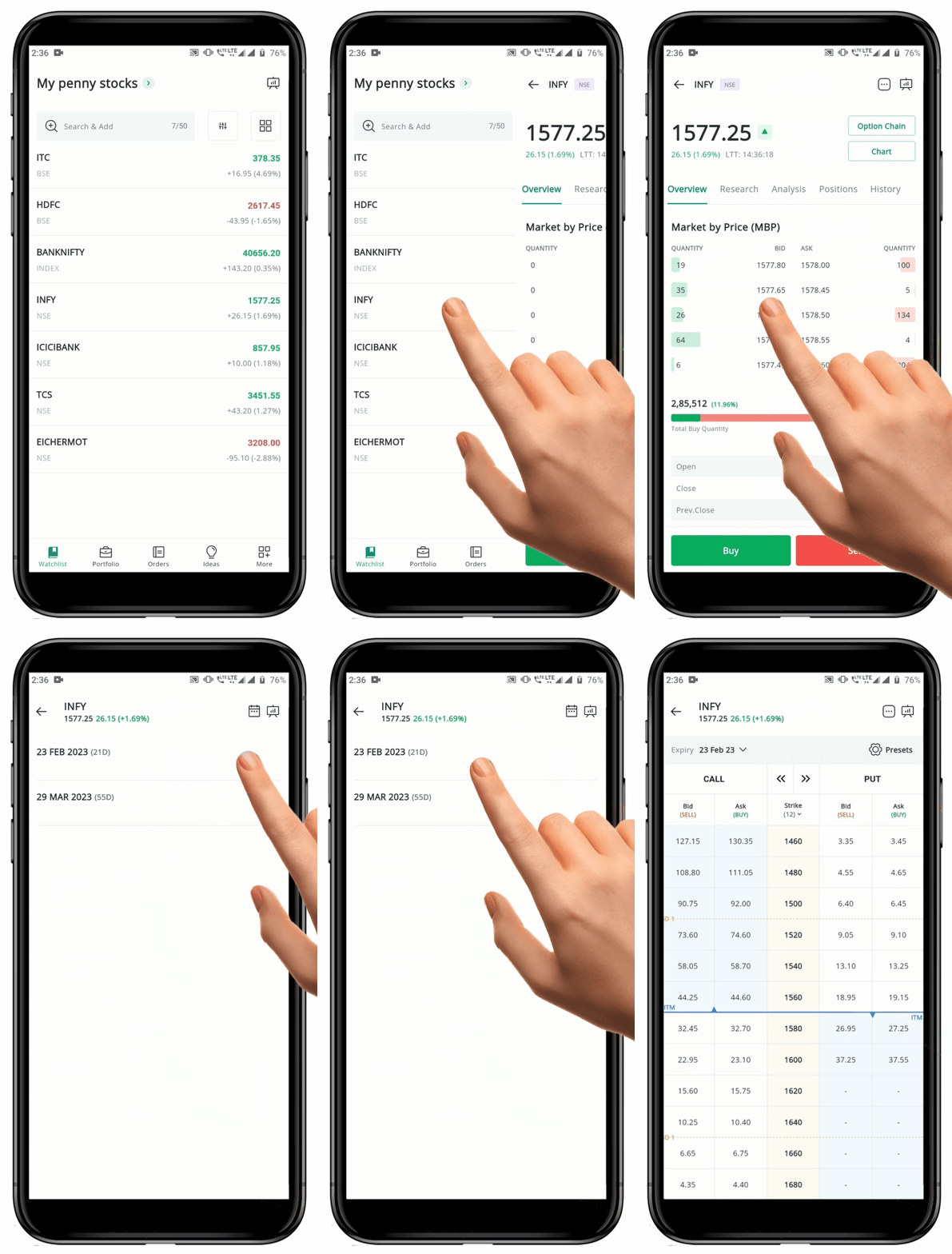
To view **"Option Chain"** for any symbol with F\&O, follow these steps:
* Open your **Watchlist** and select an underlying security that is part of the F\&O segment.
* Click on the **Security Name** to access the Security Page.
* On the top right corner of the **Security page**, locate the **"Option Chain" Button.**
* Click on the **"Option Chain" Button** to view the different expiry contracts available, along with their respective expiration dates.
* Select the desired **Expiry Date** to view the **"Option Chain".**
### 2. How to Increase Number of Visible Expiry for Option Chain
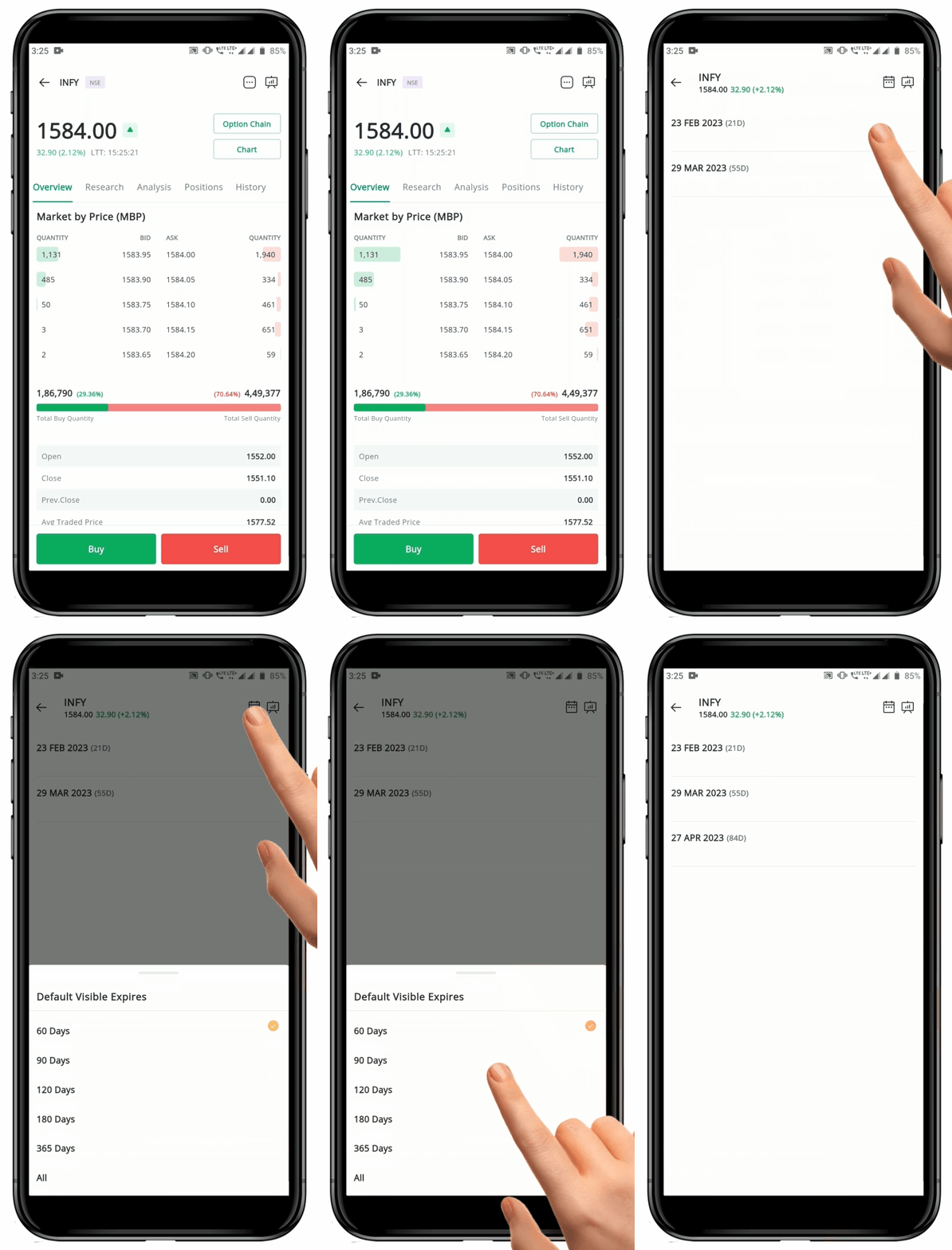
To increase **"Number of Visible Expiry"** for **Option Chain**, follow these steps:
* Click on the **"Option Chain" Button** on the **Security Page.**
* This will redirect you to the page that lists **Open Expiries** for the underlying.
* By default, only contracts that are expiring in the next **60 Days** will be visible.
* To increase the number of **Visible Expiry**, click on the **"Calendar" Icon** on the top.
* This will open a pop-up where you can choose the **Number of Days.**
* Once you have selected the number of days, it will show all **Open Expiries** for the next selected **Number of Days.**
### 3. How to Choose/Change Another Expiry in Option Chain
To choose/change another **"Expiry"** in **Option Chain**, there are two options:
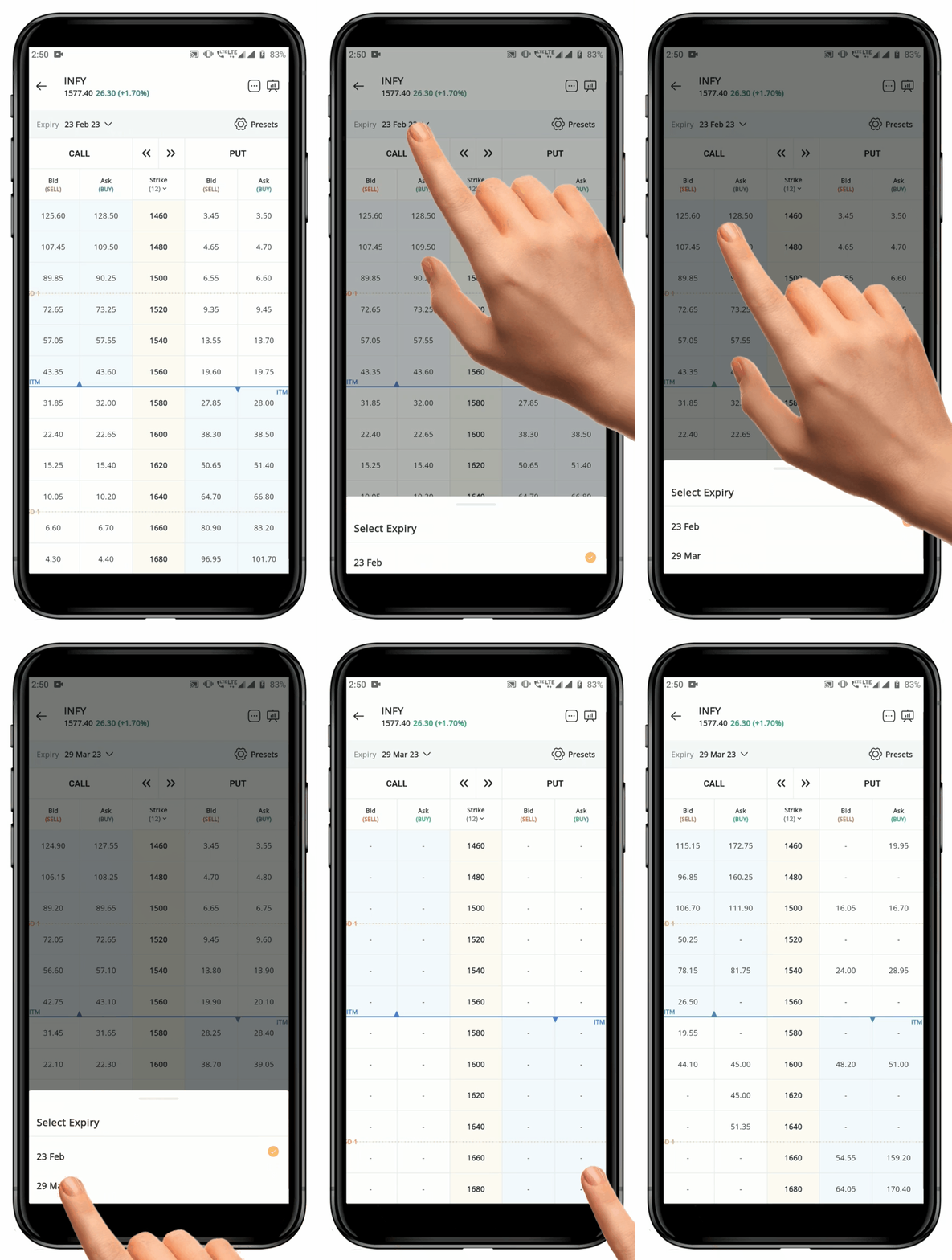
#### Option 1
* Find the **"Expiry Date"** above the **Option Chain** and click on the **Date**.
* This will open a pop-up with all **Open Expiries.**
* Click on the desired **"Expiry"** to open the **Option Chain** for that particular expiry.
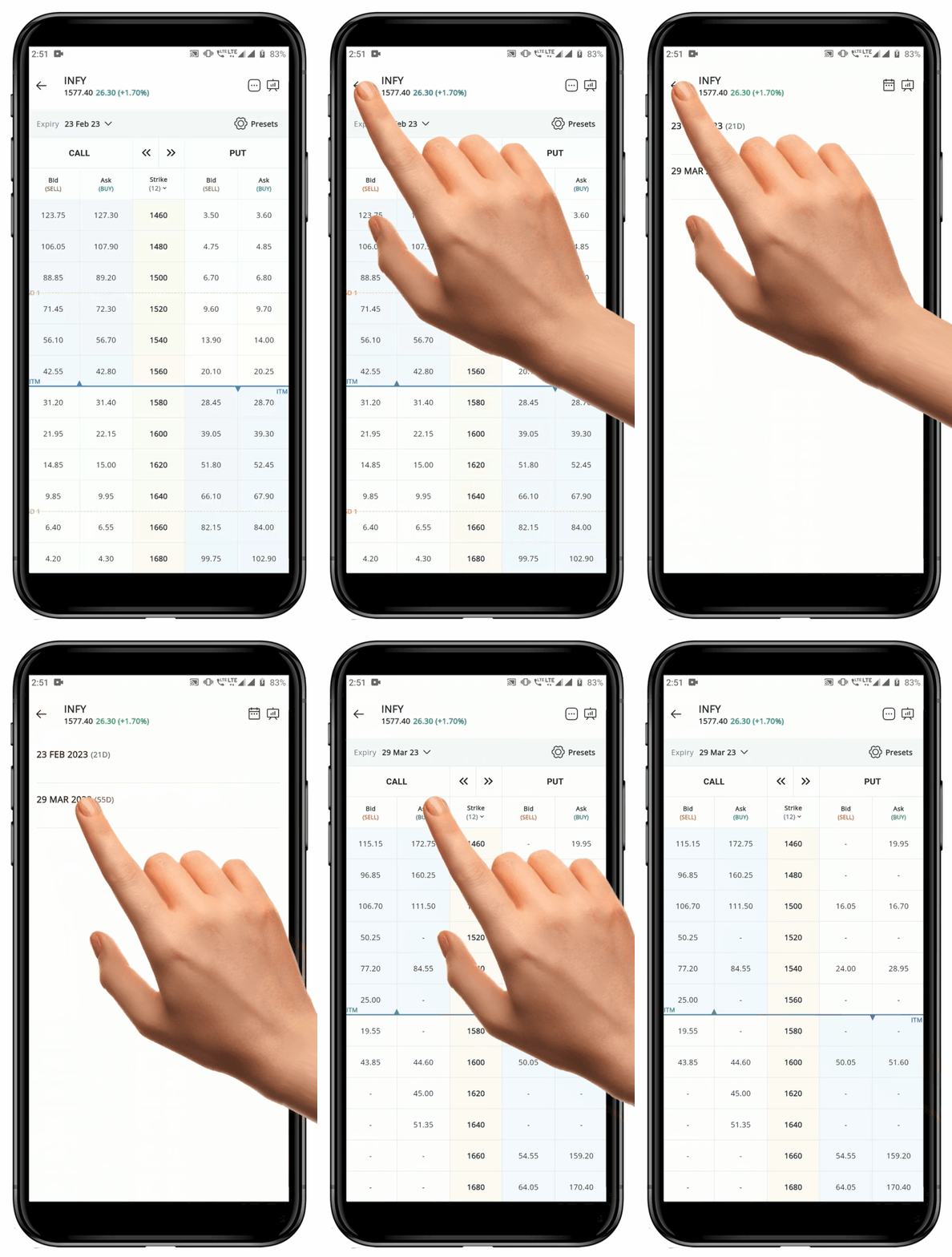
#### Option 2
* Click on the **"Back Arrow"** on the top of the option chain page.
* This will take you back to the **Expiry Date page.**
* From here, click again on the desired **Expiry Date** to open the **Option Chain** for that expiry.
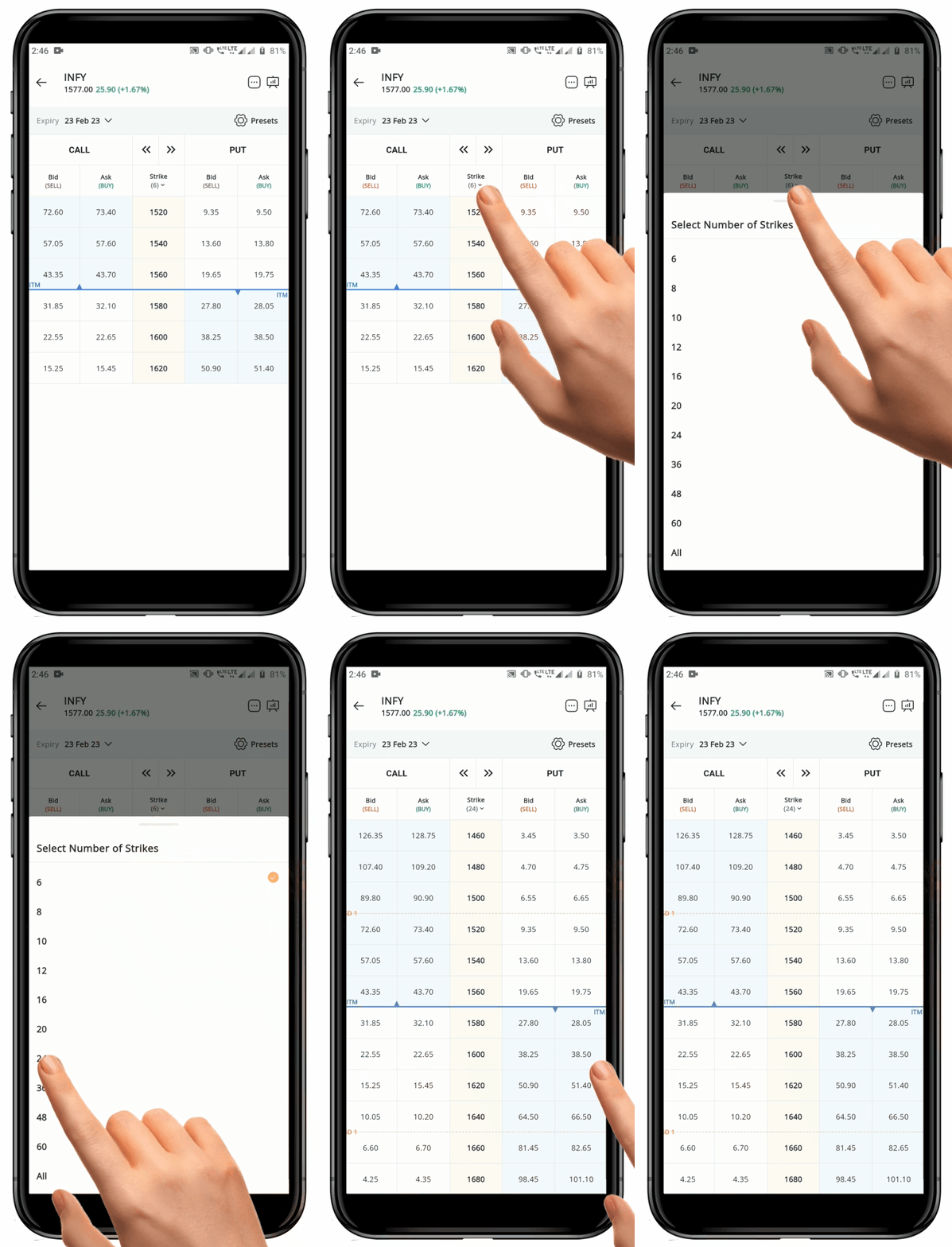
### 4. How to Increase or Decrease the Number of Visible Strikes in an Option Chain
To increase or decrease the number of **"Visible Strikes"** in an **Option Chain**, follow these steps:
* Open the **Option Chain** for the desired Security.
* Locate the **"Strike"** heading on the top row of the **Option Chain.**
* The current number of **"Visible Strikes"** is always displayed below the **"Strike"** heading.
* Click on the **Strike** to access a pop-up menu.
* Select the desired **Number of Strikes** to view.
* The number of **Visible Strikes** will automatically increase or decrease.
**Please Note:** The default *Number of Visible Strikes* provided on the platform is *12*. For optimal performance, it is recommended to keep the *Number of Visible Strikes* at a lower number.
### 5. How is ATM, ITM, and OTM options displayed in an Option Chain
#### At-The-Money(ATM)
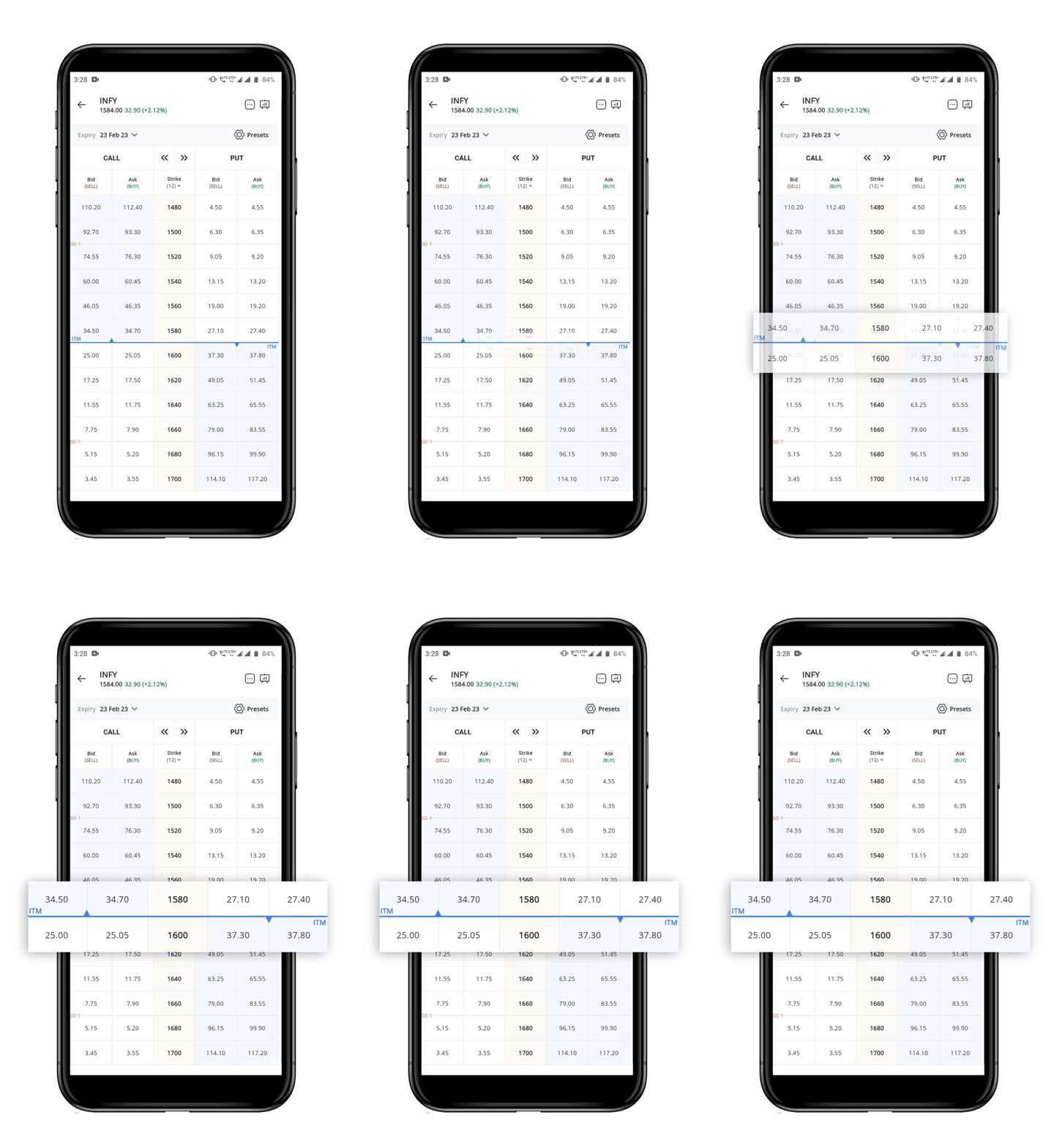
* **"At-The-Money" (ATM)** options are options with a [**Strike Price**](https://support.geojit.com/support/solutions/articles/89000011268-what-is-a-strike-price-) that is equal to or nearly equal to the **Current Price** of the underlying asset.
* These options are displayed with a **"Blue Line"** in the platform.
#### I**n-The-Money (ITM)**
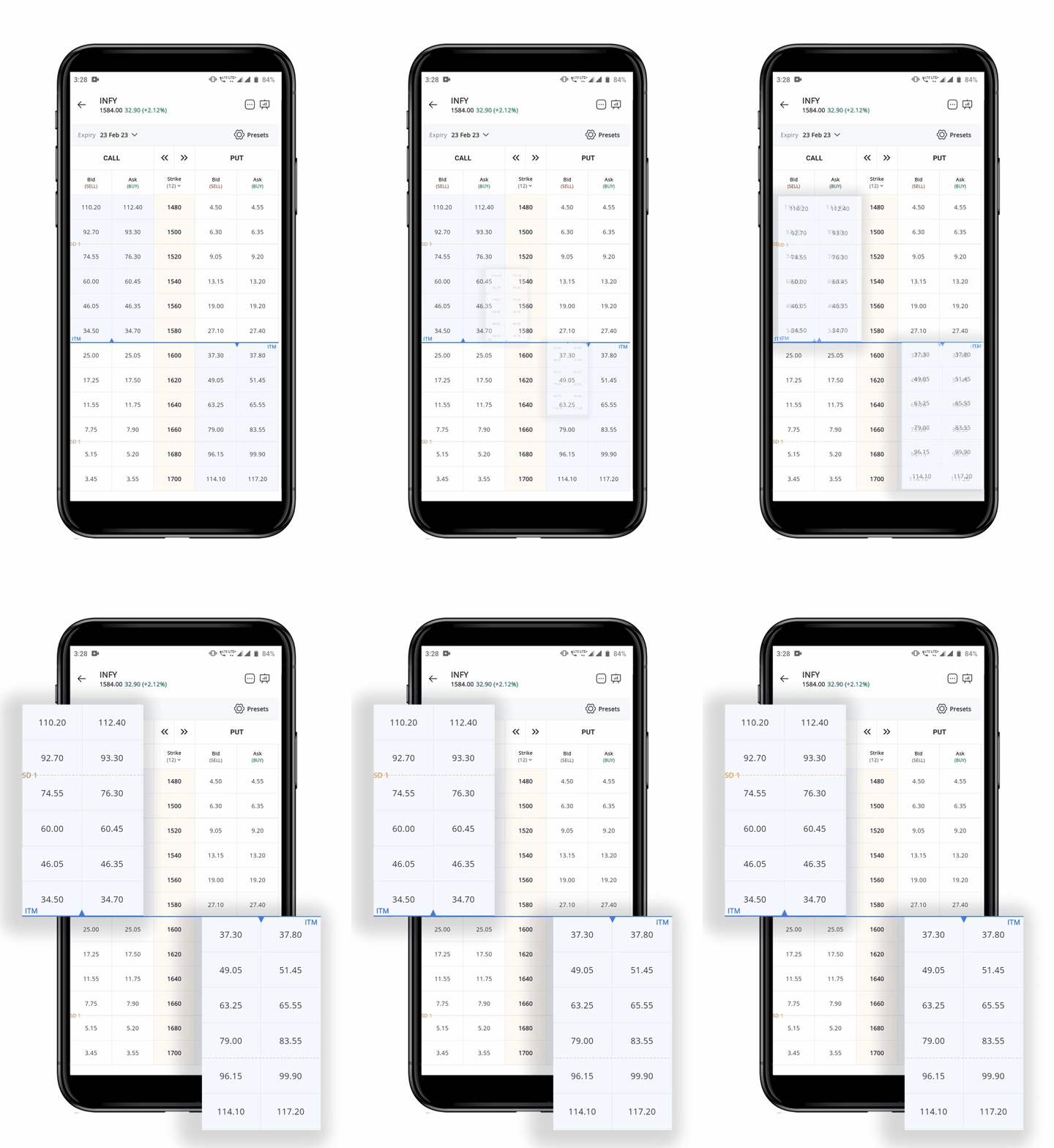
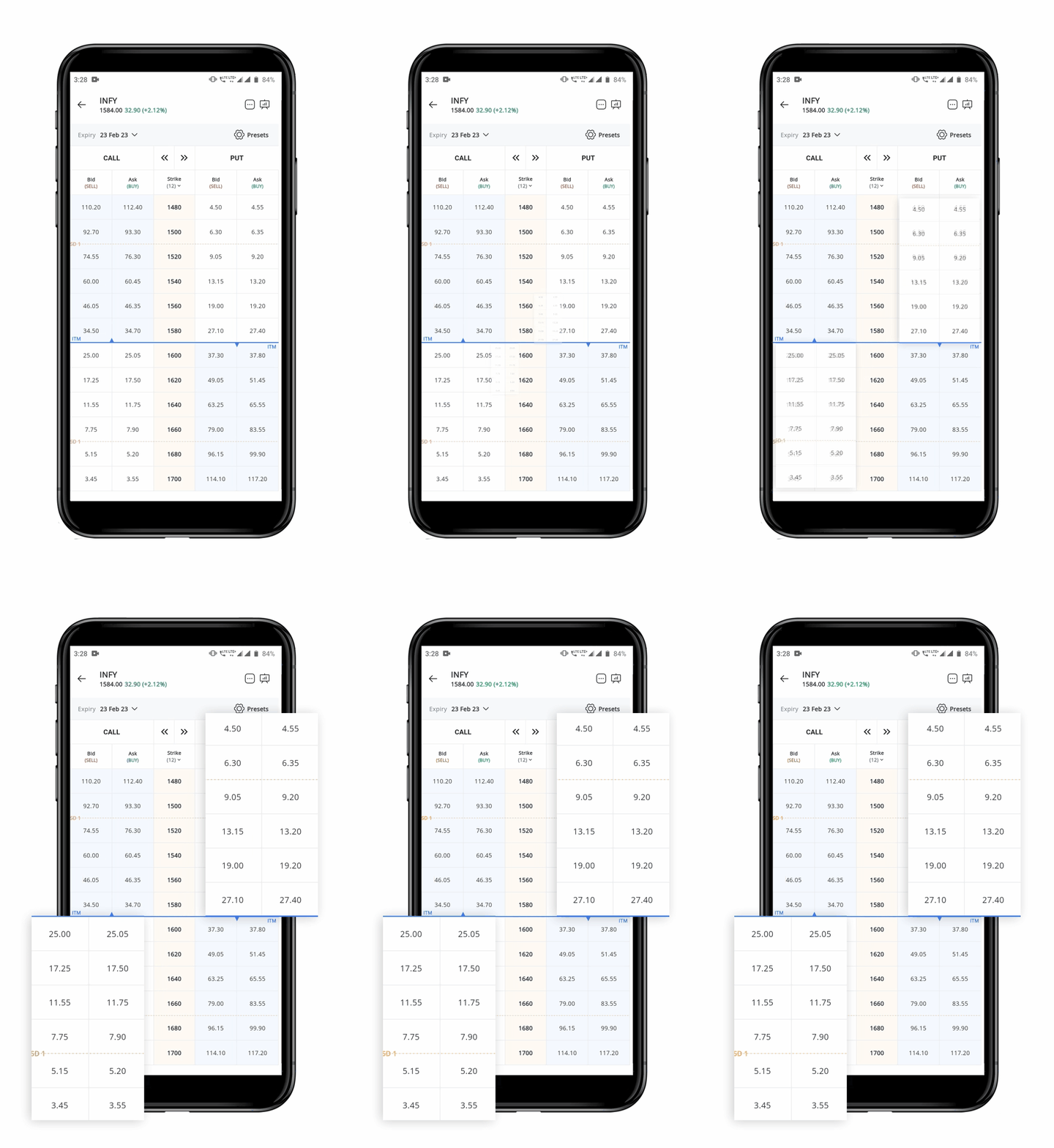
* "**In-The-Money" (ITM)** options have a favorable **Strike Price** compared to the **Current Price** of the underlying asset.
* A favorable Strike Price for **Call Options** is *lower* than the current price of the underlying asset, while a favorable strike price for **Put Options** is *higher*.
* These options are displayed with **"Blue Shading"** in the platform.
#### Out-of-The-Money (OTM)
* **"Out-of-The-Money" (OTM)** options have an unfavorable **Strike Price** compared to the **Current Price** of the underlying asset.
* An unfavorable Strike Price for **Call Options** is higher than the Current Price of the underlying asset, while an unfavorable Strike Price for **Put Options** is lower.
* These options are displayed **"Without Shading"** in the platform.
### 6. Placing a Multi-leg Order from the Option Chain
To place a **"**[**Multi-leg Order**](https://support.geojit.com/support/solutions/articles/89000014373-what-is-a-multi-leg-order-)**"** from the **Option Chain**, follow these steps:
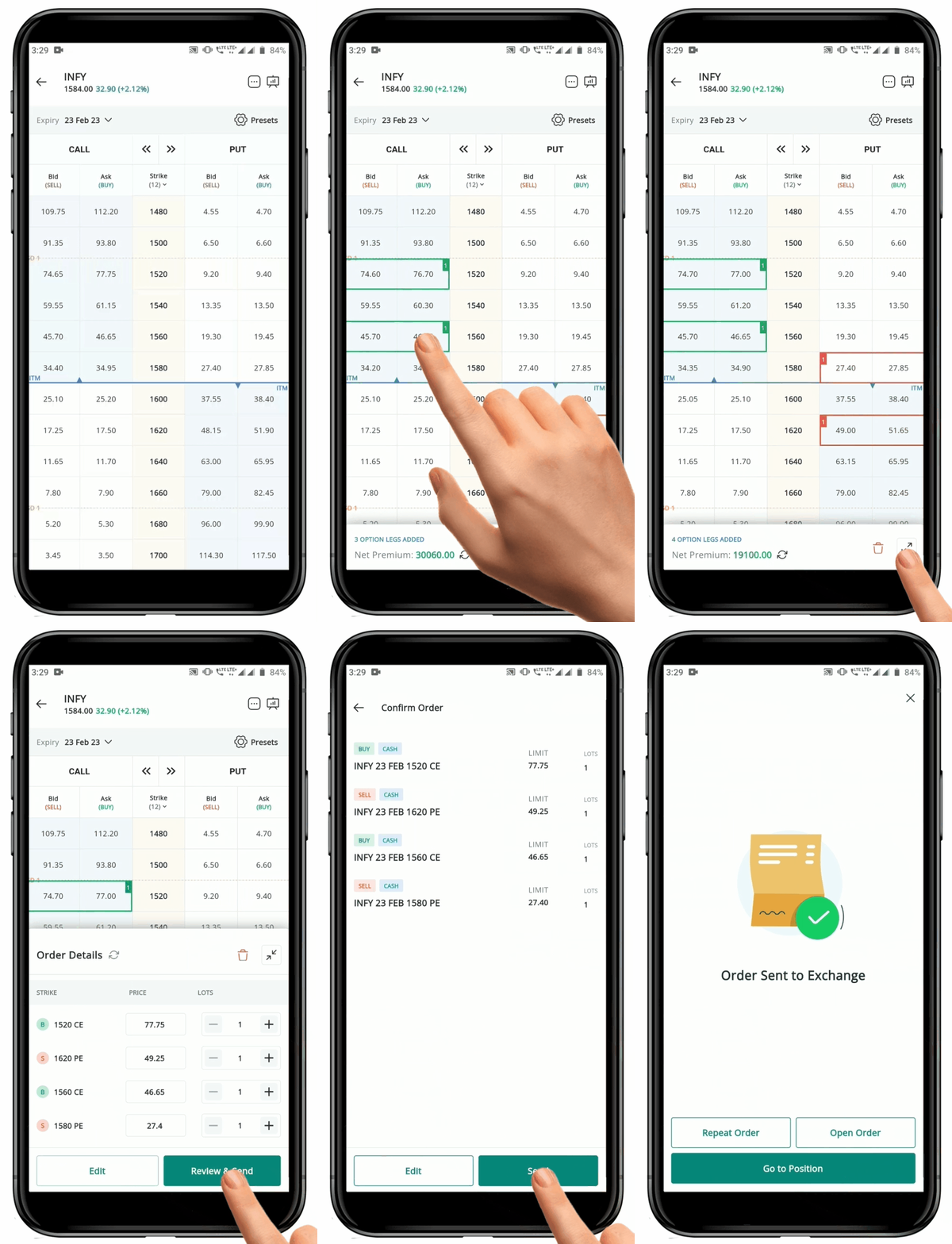
* To place a **"Multi-leg Order"**, navigate to the **Option Chain**.
* Click on the **Bid or Ask Price** of a strike on either the **Call or Put** side. This will open the Sell or Buy order page for that **Strike**.
* You can place up to **"Four Orders"** with this open page.
* The default Order Quantity is **"One Lot",** and the net premium for the **Multi-leg Order** is displayed.
* A **Positive or Green Net Premium** indicates that you will pay the premium to execute the trade, while a **Negative or Red Net Premium** represents the premium you will collect when the trade is executed.
* To **Remove** only **"One Selected Strike"**, simply click on the **Selected Strike** on the **Option Chain** to remove it from the Order Book.
* To remove **"All Selected Strikes",** click on the **"Delete" Icon** on the order screen.
* You can click on the **"Maximize Arrow" Icon** to see more order details, including the option to change the **Order Quantity and Price.**
* This will automatically update the **Net Premium Figure** and **Quantity** displayed in the **Option Chain**.
* To **Edit** the Order Type and Product Type, click on the **"Edit" Button** on the **Order page**.
* This will redirect you to the **"Multi-leg Order"** details page.
* Make necessary changes and click on **"Review"** and **"Send".**
* This will take you to the **Confirmation Page** where you can **"Review"** all the details before sending the order to the Exchange.
**Please Note:** You can check the *Execution Status* of the order in the *Order Book.*
on the order screen.
* You can click on the **"Maximize Arrow" Icon** to see more order details, including the option to change the **Order Quantity and Price.**
* This will automatically update the **Net Premium Figure** and **Quantity** displayed in the **Option Chain**.
* To **Edit** the Order Type and Product Type, click on the **"Edit" Button** on the **Order page**.
* This will redirect you to the **"Multi-leg Order"** details page.
* Make necessary changes and click on **"Review"** and **"Send".**
* This will take you to the **Confirmation Page** where you can **"Review"** all the details before sending the order to the Exchange.
**Please Note:** You can check the *Execution Status* of the order in the *Order Book.*