> For the complete documentation index, see [llms.txt](https://usermanuals.geojit.com/llms.txt). Markdown versions of documentation pages are available by appending `.md` to page URLs; this page is available as [Markdown](https://usermanuals.geojit.com/flip-mobile/security-page/chart.md).
# Chart
### This section contains:
1. [How to open the Chart of a Security](#how-to-open-the-chart-of-a-security)
2. [Symbol](#symbol)
3. [How to change the Time Frame](#how-to-change-the-time-frame)
4. [How to change Chart Type](#how-to-change-chart-type)
5. [How to view Multiple Charts](#how-to-view-multiple-charts)
6. [Indicators](#indicators)
7. [How to Buy/Sell from Chart page](#how-to-buy-sell-from-chart-page)
### How to open the Chart of a Security
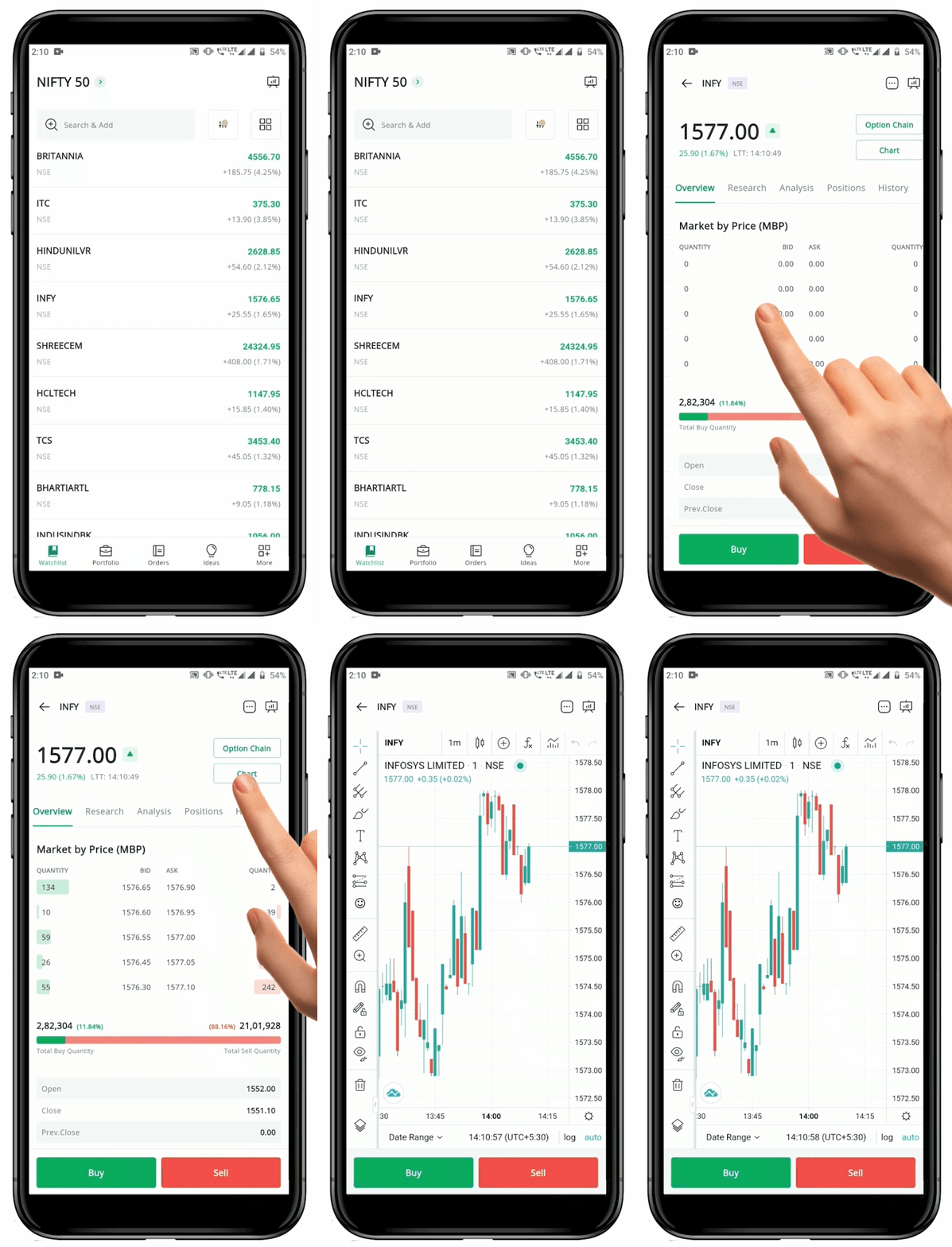
To *open* **"Chart"** of a security, follow these steps:
* Click on the **Security Name** you want to open from your **Watchlist.**
* This will take you to the **Security Page.**
* On the top of the page, locate the **"Chart" Button.**
* Click on the **"Chart" Button** to open the chart of the selected Security.
### Symbol
You can see the **"Symbol"** of the Security you are looking at the top left-hand side. Next to the **Symbol** you can see the **Exchange**.
### How to change the Time Frame
This feature helps you change your **Chart's Time Scale** from *monthly* to *one-sec* intervals.
To change the Time Frame, follow these steps:
* Open the **"Chart"** of the desired Security.
* By default, **"One Day"** Time Frame is set.
* Locate and click on **"D"** **Icon** on top left-hand side of the **Chart**.
* A **"Select Box"** will appear
* Next, select the desired **Time Frame** by clicking on it.
**Please Note:** Once you log out of the Flip App the Time Frame will be back to the default option.
### How to change Chart Type
You have the flexibility to choose the **"Charts"** in various formats and change the *Type* to suit your preferences. There are a wide-range of options available from the simple **"Bar"** and **"Candlesticks"** to more complicated type such as **"Renko", "Point & Figures"** and even **"Kagi".**
To *change* **Chart Type**, follow these steps:
* Go to the **"Chart" page** of the desired **Security**.
* Click on the **"Candlesticks"** **Icon** at the top left-hand side.
* By default, the **"Chart Type"** would be **Candlesticks.**
* Once you click on the **"Candlestick"** **Icon** a drop-down menu will appear with multiple options.
* Click on the desired option and the **Chart Type** will be changed immediately.
**Please Note:** The Icon on top right-hand side keeps changing according to the option you choose. For Example: If you select **"Lines"** the **Icon** will change to **"Lines"** **Icon.**
### How to view Multiple Charts
This menu will allow you to select the number of Charts
To *view* multiple **Charts**, follow these steps:
* Click on the **"Layout"** **Icon** at the top right-hand side of the page.
* Select the the desired **Layout**.
* Enter the New Chart **"Layout Name".**
* Click **"Cancel" Button** if you do not wish to continue.
* Or Click **"Save" Button** to save the new name.
### Indicators
#### How to open Indicators
**"Indicators"** play an important role in **Technical Analysis** and **Trading**. There are a wide range of Indicators available in the **Flip Mobile App.**
To *access* the **Indicators**, follow these steps:
* Open the **"Chart"** page of the desired security.
* Locate and click on the **"Indicator"** **Icon** at the top left-hand side.
* You will be redirected another tab with a wide range of **"Indicators".**
* Choose and Click on the **"Indicator"** you wish to apply.
* To search for a particular **"Indicator"** tap on the **"Search Bar"** and enter the name or first letter.
* Once you click on the **"Indicator"** it will be applied automatically.
* Click on the **"Close"** **Icon** to close the page and you will go back to the **"Charts" page**.
* Now you can the **"Charts" page** with the applied **"Indicator".**
**Please Note:** You can add any number of Indicator at once.
#### How to Remove an Indicator
To *remove* an **Indicator**, follow these steps:
* Once you have applied an **Indicator**, it becomes visible on the **"Chart".**
* Now to remove a selected **"Indicator",** locate the **"Undo" Icon** on the top left-hand side.
* Next, click on the **"Undo" Icon** and the **"Indicator"** will be promptly removed from the "**Chart" page.**
* If you have added multiple **"Indicator"**, continue clicking the **"Undo" Icon** until the specific indicator you want removed is no longer displayed on the **Chart**.
#### How to Save Indicator Template
To *save* an **Indicator template**, follow these steps:
* First open the **"Chart" page.**
* Add **"Indicators"** of your choice. (You can add one or more Indicators at a time).
* Locate and click on the **Icon** at the top right-hand side.
* A bottom pop-up will appear. Click on **"Save Indicator Template".**
* You will be redirected to the **"Save Indicator Template"** page.
* Enter the **"Name"** of your choice for your template.
* If you do not wish to Save the name press the **"Cancel" Button.**
* However, if you wish to continue click the **"Save" Button.** The template will be saved and you be redirected to the **"Chart" page.**
#### How to open the Saved Indicator Template
To *open* the **Saved Indicator Templates,** follow these steps:
* Open the desired **"Chart".**
* Locate and click on the  **Icon** on top left-hand side of the **Chart**.
* A bottom pop-up will appear and you can see all the **"Saved Indicator Templates"**.
* Now click on the **"Name of the Template"** you wish to open.
* You will be redirected to that particular page.
### How to Buy/Sell from Chart page
To *buy/sell* from **Chart page**, follow these steps:
* Open the **Chart page.**
* You can see the **"Buy/Sell" Button** at the top right-hand side of the tab.
* Click on the **"Buy/Sell" Button** to open the respective **"Order Placement"** page.
* Enter the required data in the **"Order Placement"** page and submit the order.