> For the complete documentation index, see [llms.txt](https://usermanuals.geojit.com/llms.txt). Markdown versions of documentation pages are available by appending `.md` to page URLs; this page is available as [Markdown](https://usermanuals.geojit.com/flip-mobile/portfolio/today.md).
# Today
View details of trading on that particular day
### **This section contains:**
1. [How to see your Positions](#id-1.-how-to-see-your-positions)
2. [Position Summary](#id-2.-position-summary)
3. [Square off multiple position in one click](#id-3.-square-off-multiple-position-in-one-click)
The **"Today"** Page is where you can view all your equity shares that has been bought and sold during the day on the Stock Market. In addition to this, it displays your **Intraday** and **Carry Forward Futures and Options Positions** in the equity, currency, and commodity segments.
### 1. How to see your Positions
To see your **"Position",** follow these steps:
* Tap on **"Today"** on the **Portfolio** page**.**
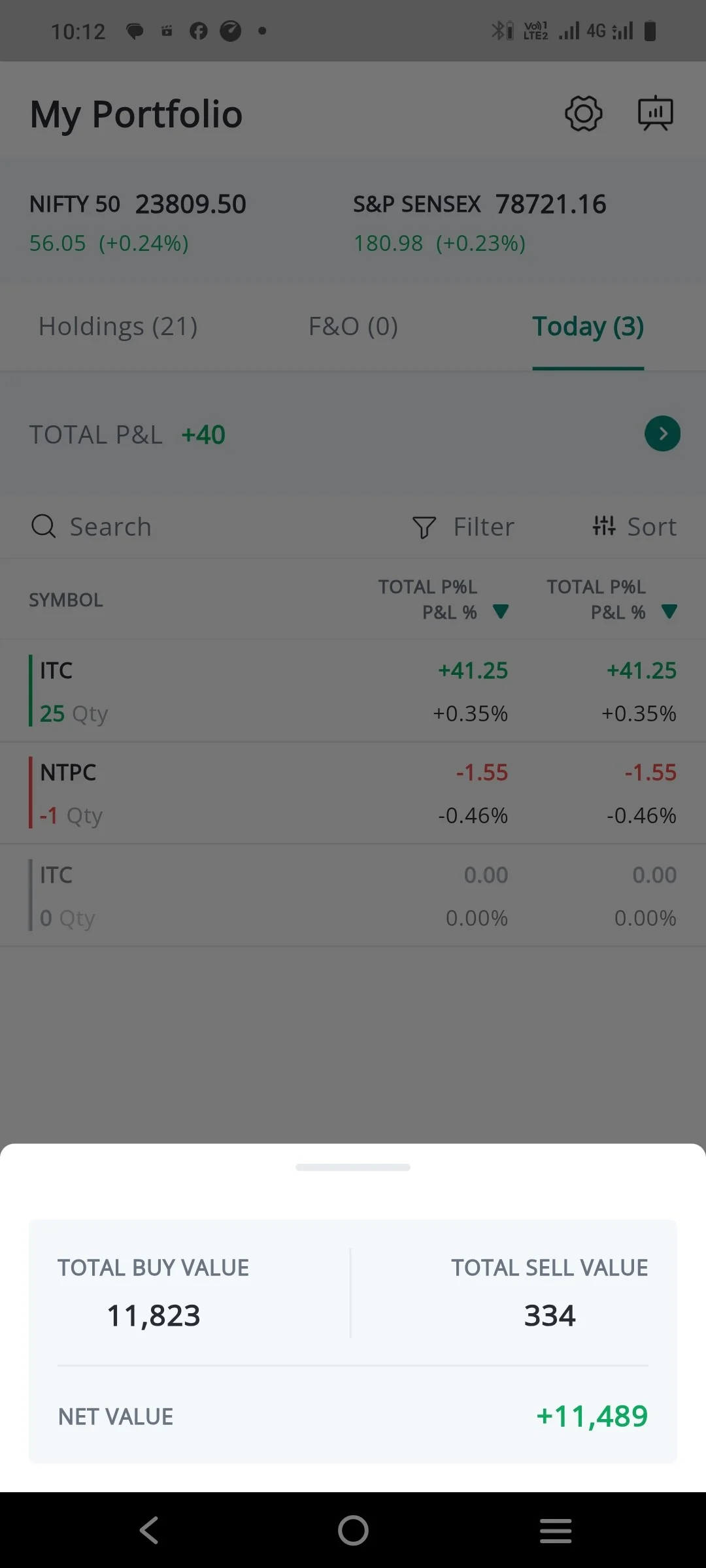
* **"Open & Closed Positions"** will be displayed under the **Today Tab.**
* **Total P\&L** and **Today’s P\&L** for all Positions combined will be shown at the top.
* **Total Buy Value**, **Total Sell Value** and **Net Value** will be shown at the bottom.
* You can search your **"Position** with the help of the **"Search Bar"** on top.
* Under each **Position** you can see **Quantity, Average Rate, Today's P\&L** and **LTP.**
* Tap on any scrip to view the **"Position Summary".**
* Under Position you can **"Add More", "Square Off"** or **"Place an OCO order".**
* Long press on Open position to **"Square off"** or **"Add to Basket"**.
### 2. Position Summary
#### **Accessing the Position Summary Page**
To access the **"Position Summary" page**, follow these steps:
* Click on the **"Portfolio""** **Icon** located at the bottom of the screen.
* Go to the **"Today" page.**
* Click on any Symbol and the **"Position Summary" page** will pop-up.
#### **Information displayed on the Position Summary page**
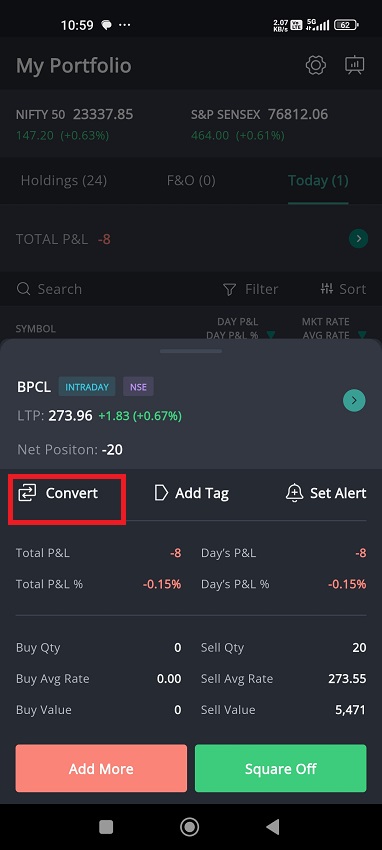
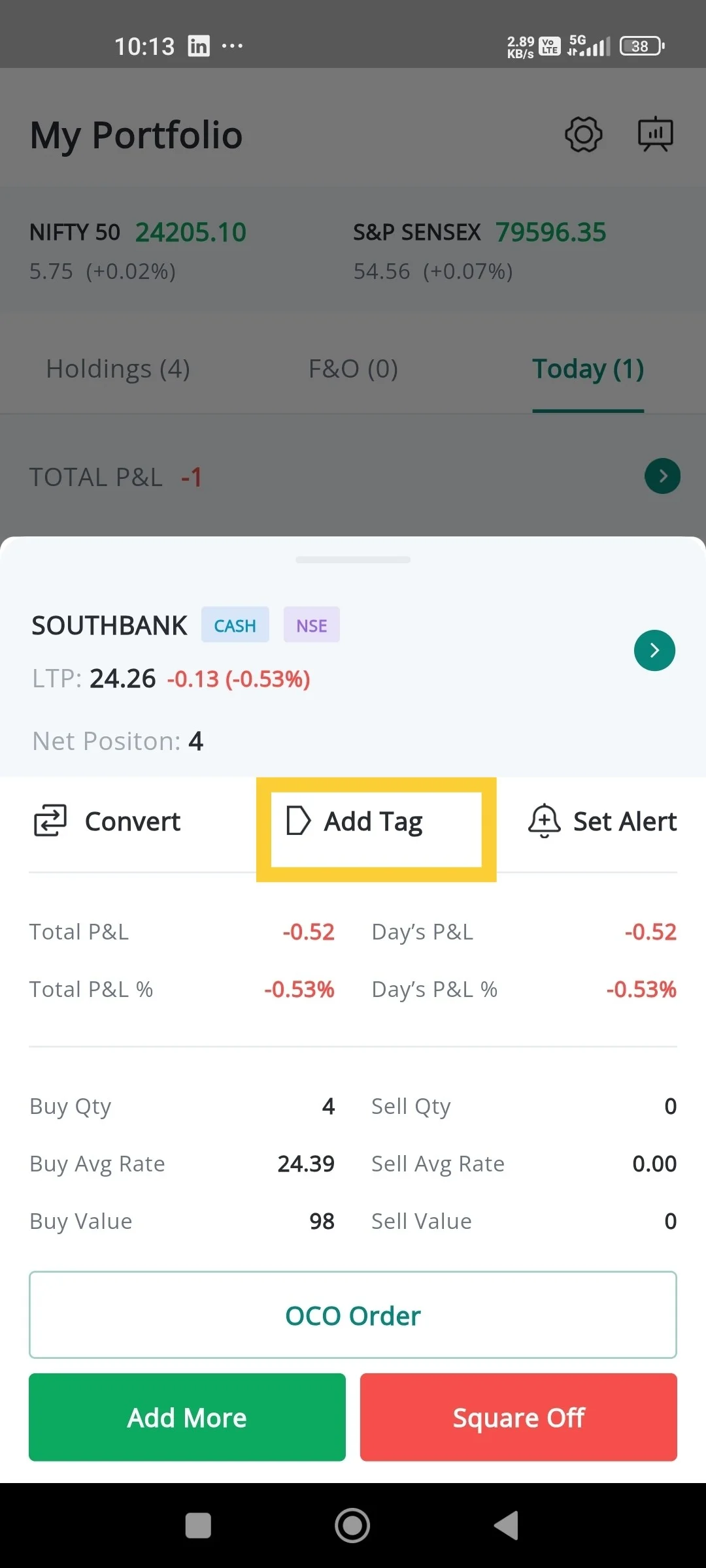
Once on the **"Position Summary" page**, you will be able to view the following information about the selected symbol:
* Long Position open quantity as a positive figure.
* Short Position open quantity as a negative figure.
* Total and Day P\&L
* Total and Day P\&L Percentage (calculated based on investment value)
* Buy and Sell Qty Rate and Value details
#### **Available options on the Position Summary page**
In addition to the information provided, the **"Position Summary" page** also offers the following options:
*
* **Convert**
* **Add Color Tag** for the Position
* **Set Alerts** for the security
* Open an Order page to **Add or Square Off existing Position** or **Add an OCO Order** to the Net Position.
#### Convert a Position
The **"Convert"** feature allows flexibility for managing **Positions** by changing Intraday to delivery or vice versa. It only applies to **Positions** taken on the same trading day. For Example it helps with **Margin Management** by switching **Positions**. By converting a position from **Cash to an MTF Product,** traders can free up margin which can be used to take on additional **Positions**.
**How to use the convert Feature**
* Open the **"Today" page** on the **Portfolio** page.
* Click on the **Symbol Name** of the product you want to **"Convert"**. This will open the **"Position Summary" page.**
* Locate the **"Convert"** option at the bottom of the page and click on it.
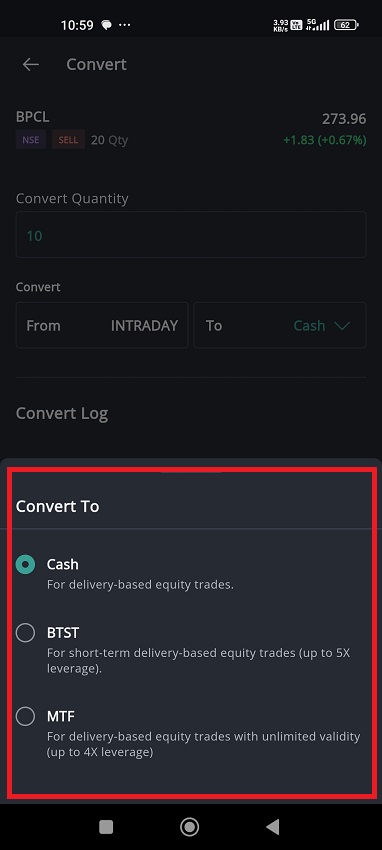
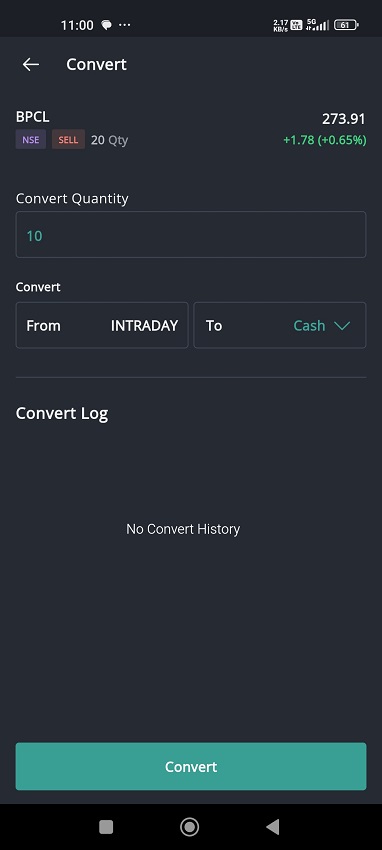
* This will redirect you to the **"Convert" page.**
* The **"Convert" page** will display the details of your **Current Position** that you have selected to **Convert**.
* To **"Convert",** change the quantity you want to Convert.
* The **Default Quantity** will be automatically filled with your Open Quantity.
* The platform will display the **Current Product Type.**
* From the **"Drop-down" Menu**, pick the product to which you want to **"Convert."** (The drop-down menu will only show the possible convert options available for that segment.)
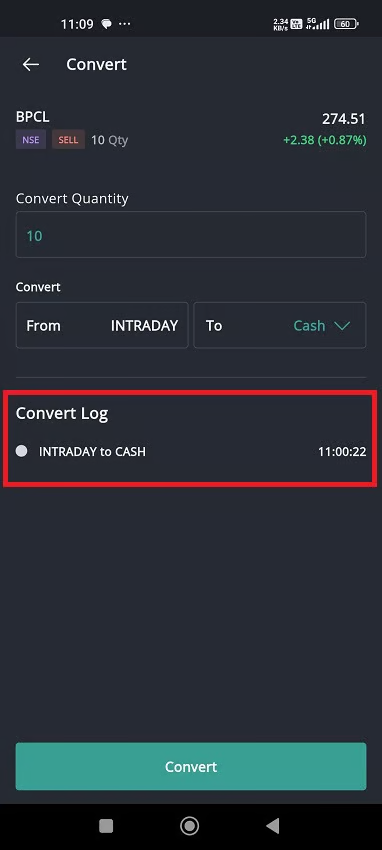
* Click on the **"Convert" Button** at the bottom of the page to **Save** the changes.
* A pop-up will appear indicating that the **"Conversion is Successful"**.
* Click on the **"Done" Button** to go back to the **"Today" page.**
* Follow the path **Today < Symbol \
**How to use the Add Tag feature**
To **"Add Tag",** follow these steps:
* Go to the **"Today"** tab on the **"Portfolio"** page.
* Click on the desired Position to open the **"Positions Summary"** page.
* Here, you can see the **"Add Tag"** option at the top of the Positions Summary.
* Click on the **"Add Tag"** option and a pop-up with color option will appear.
* You can find **Red, Green, Yellow** and **Blue** colors.
* Click the desired color and the Position will be tagged automatically with the chosen color.
**How to remove the Tag**
To remove the "Tag", follow these steps:
* Go to the **"Today"** tab on the **"Portfolio"** page.
* Click on the desired Position to open the **"Positions Summary"** page.
* There will be a colored tag written **"Remove".**
* Click on it and the colored tag will be removed.
**How to filter Positions according to Tags**
To filter position according to tag, follow these steps:
* Go to the '**Today'** tab.
* **Click on the filter icon** :filter:.
* A filter page will appear.
* Towards the bottom of the page, you can see the various categories and subcategories.
* Choose a preferred category and the filter will be applied accordingly.
#### Set Alert
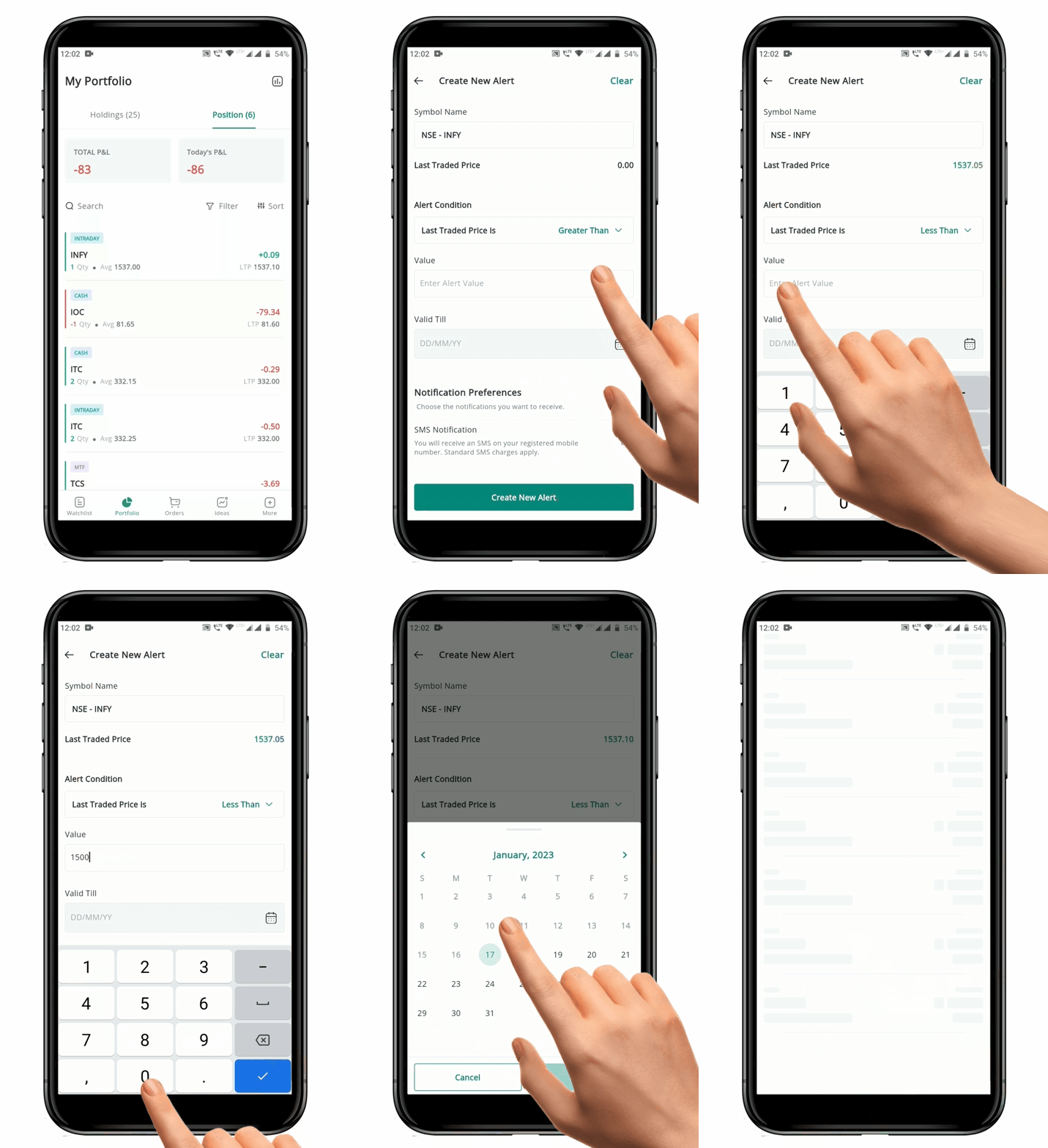
To **"Set Alert",** follow these steps:
* From the **"Positions Summary"** pop-up page, click on the **"Set Alert" Icon****.**
* This will redirect you to the **"Create an Alert" page.**
* On **Create an Alert page**, select the **Price Alert Condition** from the **"Drop-down" Menu**. This will specify the type of alert you want to set, such as **"Greater Than"** or **"Less Than."**
* Enter the **"Alert Trigger Value"** in the designated field. This is the Price at which you want the alert to be triggered.
* Update the **"Time"** until which the alert is **Valid**. This is the time period during which the alert will be **Active** and will trigger if the specified price is reached.
* Click on the **"Create New Alert" Button.**
* A new alert has been created and you will receive a pop-up **Notification** when the alert price is triggered.
**Please Note:** Once you create an "Alert" there will be a "Yellow Dot" on the "Set Alert" Icon.
### 3. Square Off Multiple Position in One Click
Three benefits of having a feature that allows you to close **"Multiple Positions in One Click"**:
1\) It can save time by allowing you to close all of your **Positions** in a **"Single Click"**, instead of closing them individually.
2\) It can help you exit your **Positions** quickly, which can be especially useful in emergency situations or if you need to react to a change in **Market Conditions.**
3\) It can help you **Manage your Risk** by allowing you to quickly close all of your **Positions**, which can limit your potential losses.
#### **How to Square off multiple position in One click?**
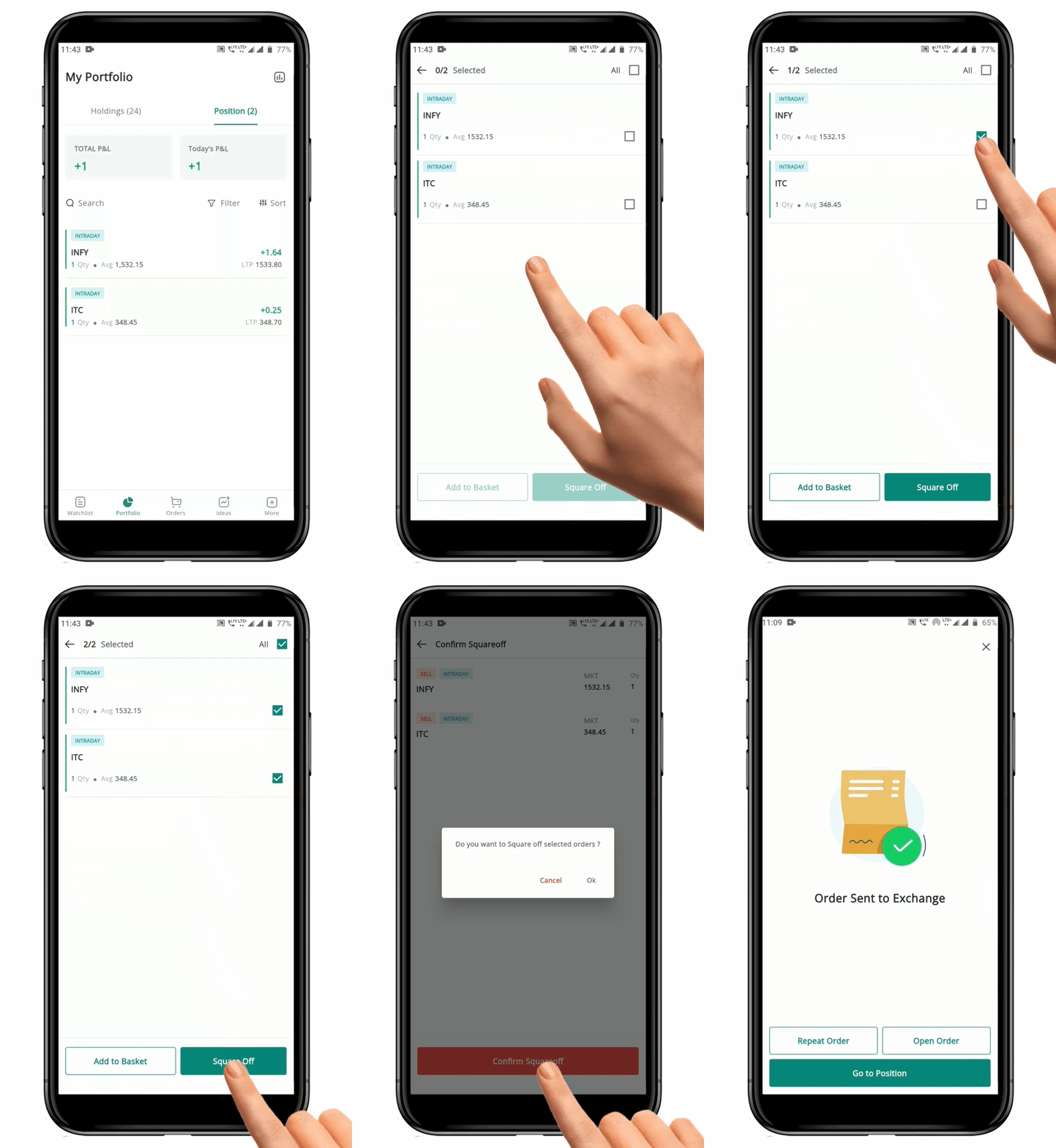
* Long press on any **position** to open a new tab.
* At the bottom of the page, you will see a **"Square Off"** and **"Add to Basket"** **button.**
* To select **multiple** or **all positions,** tap the **"Check Box"** on the right-hand side (RHS) of each **position.**
* Tap the **"Square Off"** **button** at the bottom of the page.
* A **confirmation message** will pop up.
* To proceed with closing the **positions,** click the **"Ok" button.**
* To cancel, click the **"Cancel" button.**

 page**.**
* **"Open & Closed Positions"** will be displayed under the **Today Tab.**
* **Total P\&L** and **Today’s P\&L** for all Positions combined will be shown at the top.
* **Total Buy Value**, **Total Sell Value** and **Net Value** will be shown at the bottom.
page**.**
* **"Open & Closed Positions"** will be displayed under the **Today Tab.**
* **Total P\&L** and **Today’s P\&L** for all Positions combined will be shown at the top.
* **Total Buy Value**, **Total Sell Value** and **Net Value** will be shown at the bottom.
 on top.
* Under each **Position** you can see **Quantity, Average Rate, Today's P\&L** and **LTP.**
* Tap on any scrip to view the **"Position Summary".**
* Under Position you can **"Add More", "Square Off"** or **"Place an OCO order".**
* Long press on Open position to **"Square off"** or **"Add to Basket"**.
### 2. Position Summary
#### **Accessing the Position Summary Page**
To access the **"Position Summary" page**, follow these steps:
on top.
* Under each **Position** you can see **Quantity, Average Rate, Today's P\&L** and **LTP.**
* Tap on any scrip to view the **"Position Summary".**
* Under Position you can **"Add More", "Square Off"** or **"Place an OCO order".**
* Long press on Open position to **"Square off"** or **"Add to Basket"**.
### 2. Position Summary
#### **Accessing the Position Summary Page**
To access the **"Position Summary" page**, follow these steps:

 * **Add Color Tag**
 for the Position
* **Set Alerts**
for the Position
* **Set Alerts** for the security
* Open an Order page to **Add or Square Off existing Position** or **Add an OCO Order** to the Net Position.
#### Convert a Position
The **"Convert"**
for the security
* Open an Order page to **Add or Square Off existing Position** or **Add an OCO Order** to the Net Position.
#### Convert a Position
The **"Convert"**