> For the complete documentation index, see [llms.txt](https://usermanuals.geojit.com/llms.txt). Markdown versions of documentation pages are available by appending `.md` to page URLs; this page is available as [Markdown](https://usermanuals.geojit.com/flip-mobile/portfolio/holdings.md).
# Holdings
Summary of all your Investment
### This section contains:
1. [How to see your Holdings](#id-1.-how-to-see-your-holdings)
2. [Total P\&L](#id-2.-total-p-and-l)
3. [Holdings Overview](#id-3.-holdings-overview)
4. [Holdings Summary](#id-4.-holdings-summary)
5. [Square off a Position](#id-5.-square-off-a-position)
6. [Portfolio Insights](#id-6.-portfolio-insights)
7. [How to access the mojo analysis?](#how-to-access-the-mojo-analysis)
8. [How to add a note to holdings ?](#how-to-add-a-note)
9. [How to know transaction history ?](#how-to-know-transaction-history)
A **"Holding"** page is a summary of all of your investments, including **Individual Stocks,** [**Bonds**](https://support.geojit.com/support/solutions/articles/89000006782-what-are-the-different-types-of-bonds-)**,** [**Exchange-Traded Funds** ](https://support.geojit.com/support/solutions/articles/89000007824-what-is-an-exchange-traded-fund-etf-)**(ETFs),** and **Mutual Funds*****.*** It typically includes the name of the investment, the quantity you own, the purchase price, the current value, and the profitability of each investment. It may also include a **Summary of the Profitability** of all of your investments combined.
This information can be helpful in tracking the *performance* of your investments and making informed decisions about your **Portfolio**. It's important to regularly review your **"Holding"** page to ensure that your investments are aligned with your financial goals and risk tolerance.
### **1. How to see your Holdings**
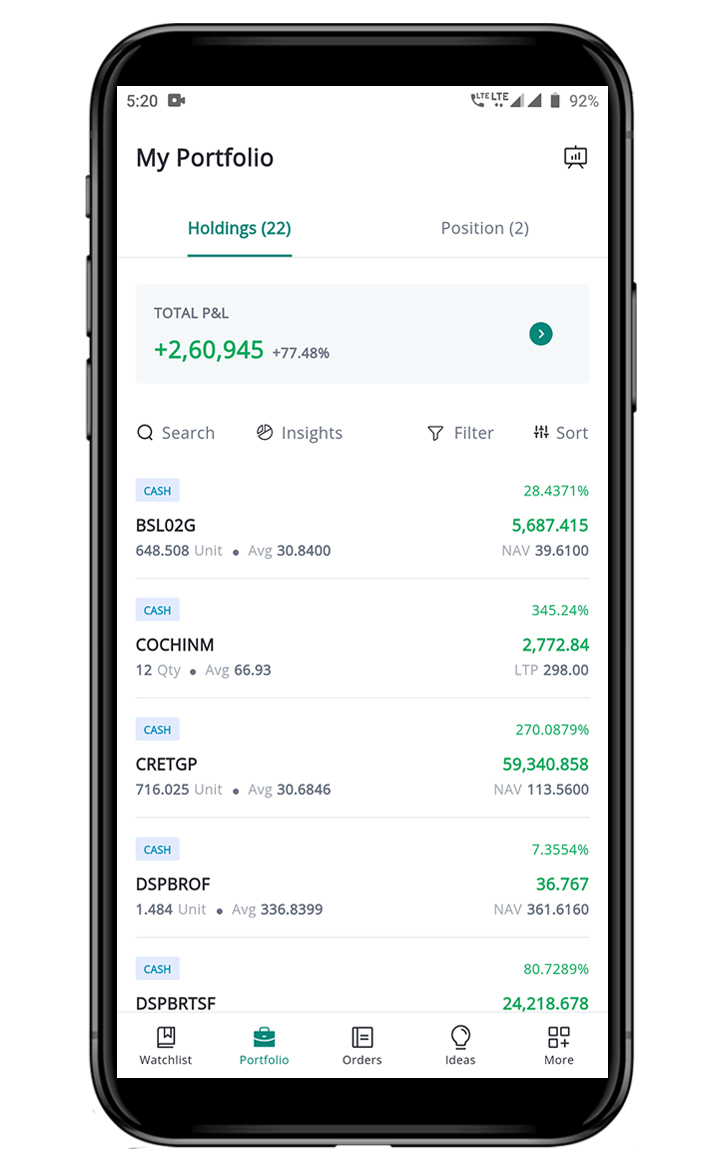
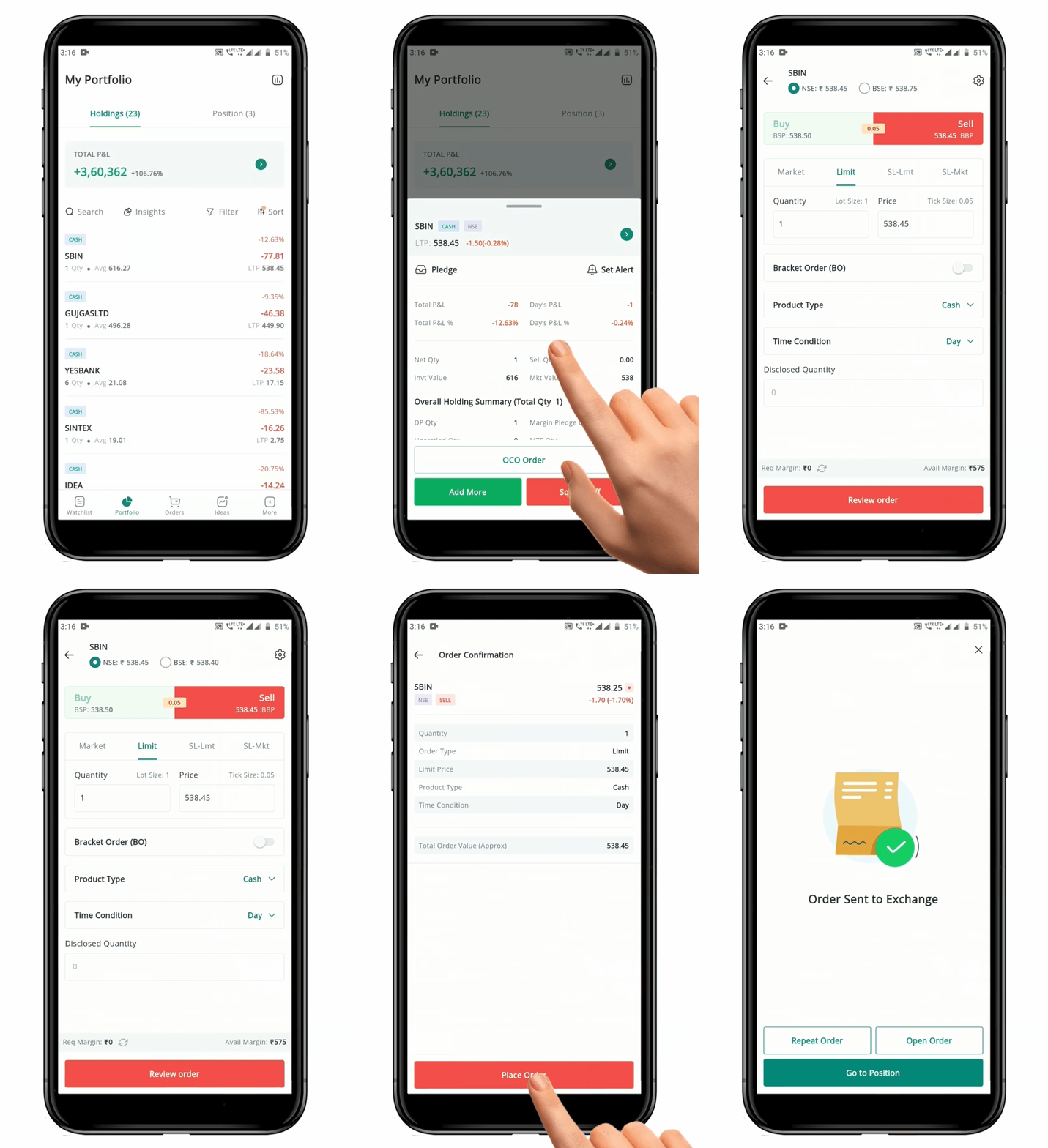
To open the **"Holdings"** page, follow these steps:
* Tap on **"Holdings"** on the **Portfolio** page.
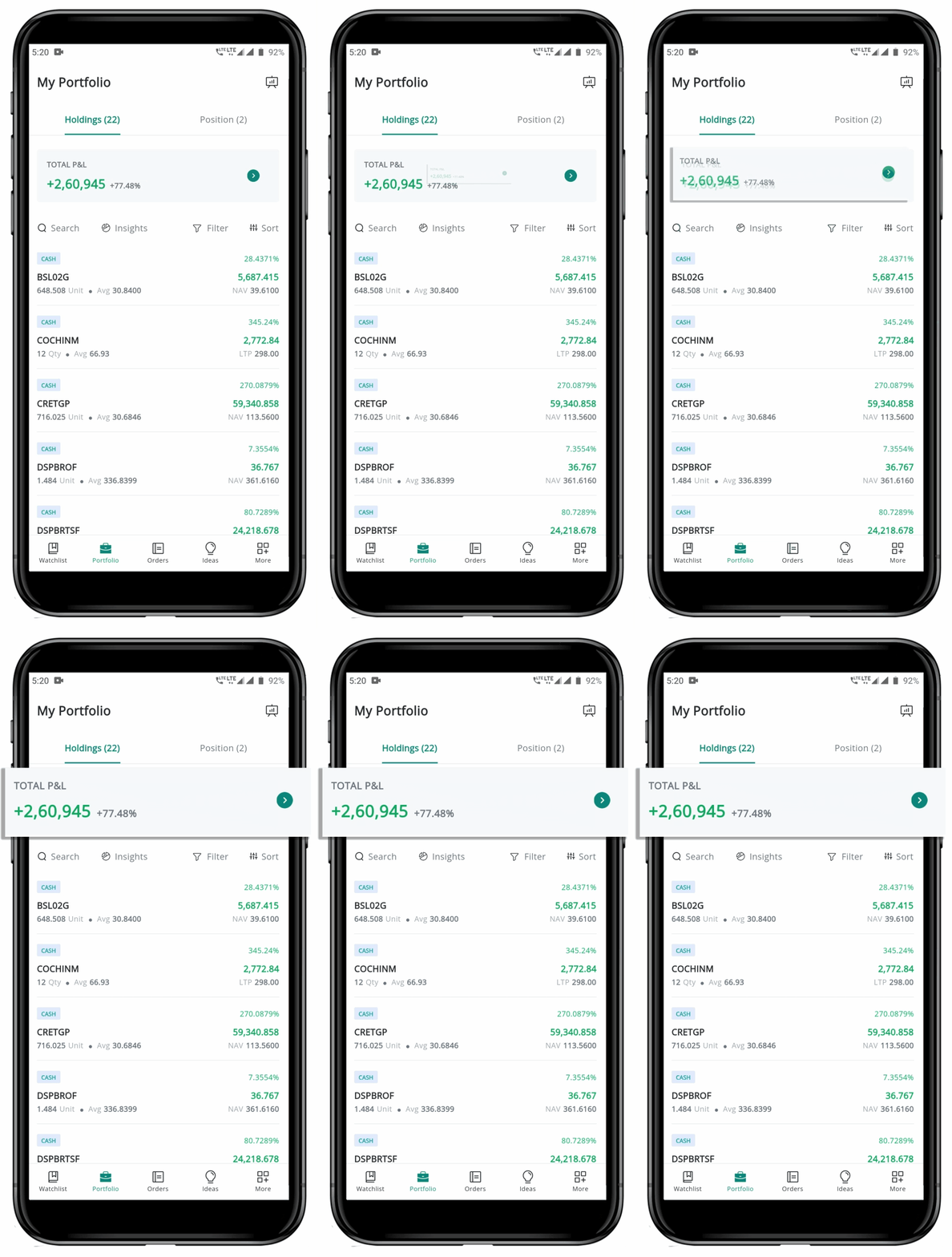
* At the top of the tab, you can see the **Total P\&L.**
* Click on the Total P\&L, the **"Holdings Overview"** will open.
* You can search your **"Holdings"** with the help of the **Search Bar** on top.
* **"Filter" Icon** and **"Sort"** **Icons** can be seen adjacent to the **Search Bar****.**
* Below that, you can see various **"Holdings"** listed.
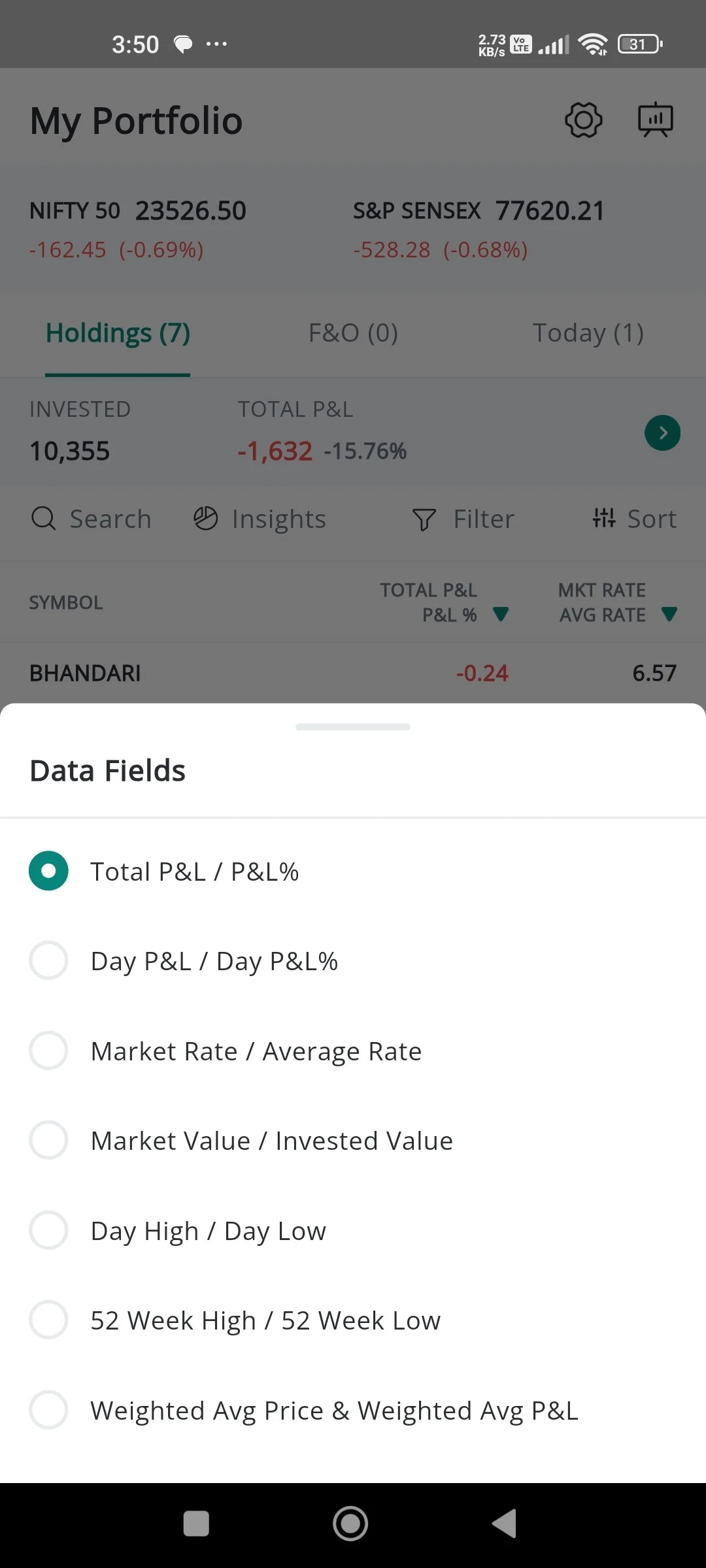
* Each item in the list will have **Symbol, Product Tag, Quantity,** [**Average Rate**](https://support.geojit.com/support/solutions/articles/89000007336-how-is-my-average-rate-calculated-for-equity-)**,** [**Percentage Changes, Today's P\&L**](https://support.geojit.com/support/solutions/articles/89000008062-how-is-day-p-l-and-day-p-l-calculated-in-a-trading-portfolio-)**, LTP, Weighted average price** and **weighted average P\&L.** [**Weighted average price**](https://support.geojit.com/support/solutions/articles/89000019750-what-is-weighted-average-price-wap-) can be viewed by clicking the **drop down arrow** given **below** the **filter** option.
* Options like **Investment Value, Market Value, Total P\&L, Today's P\&L** is also included in compact view, to add different portfolio metrics.
### 2. Total P\&L
The **"Total P\&L"** (*Profit and Loss*) is the **Summary** of the performance of all your investments, showing the overall *gain or loss* based on the **Current Market Price** of the assets in which you have invested.
This can be useful for tracking the Overall performance of your **"Portfolio".** The **P\&L** is usually calculated by taking the **Current Market Value** of your investments and subtracting the cost of those investments. If the result is *positive*, it means you have made a **Profit**, and if it is *negative*, it means you have incurred a **Loss**.
The **P\&L** is either shown in **"Green"** *(for a gain)* or **"Red"** *(for a loss)* to make it easier to understand at a glance.
### **3. Holdings Overview**
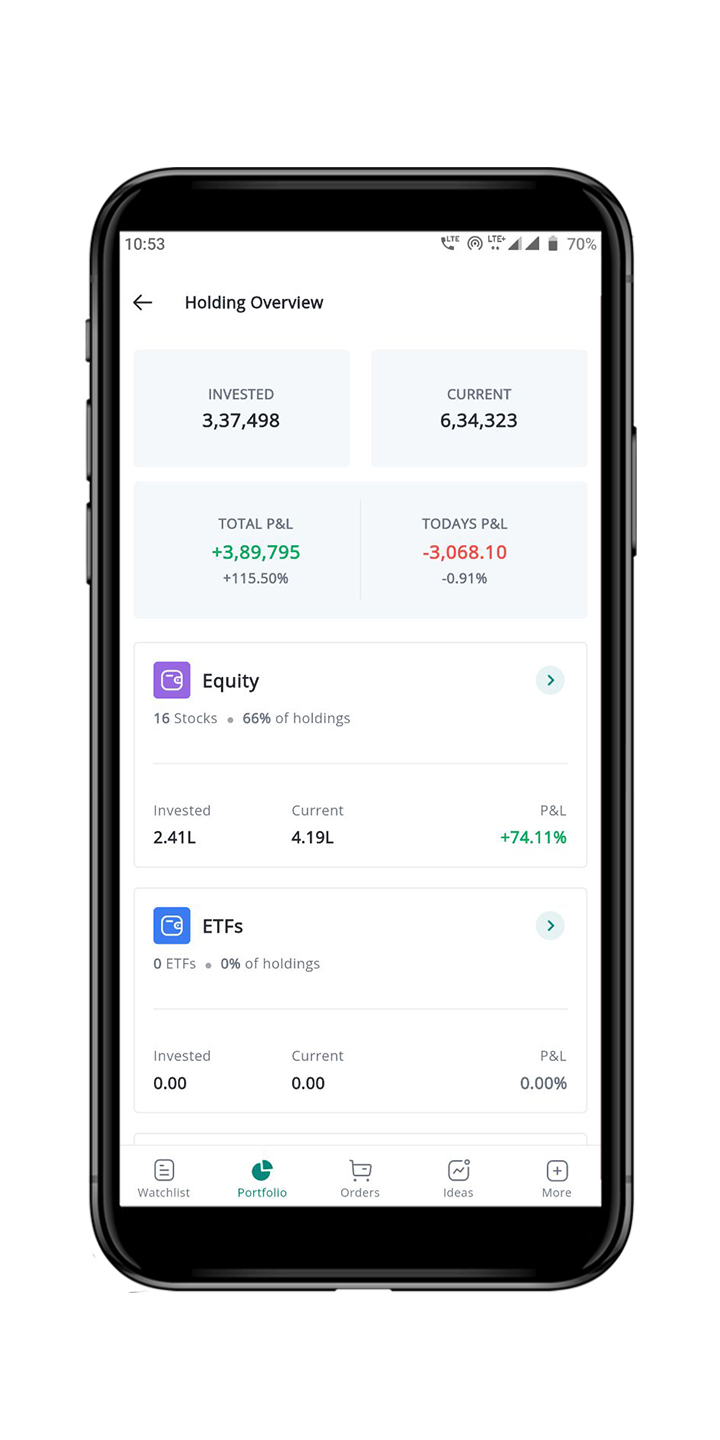
The **"Holdings Overview"** page is a feature that allows you to *view a* *summary* of their investments. This Summary includes the **"Total Invested Amount",** **"Current Value",** and **"Profit and loss".**
The Investments are usually organized into *four categories:*
**Equity**
**ETFs**
**Bonds**
**Mutual Funds**
On the **"Holdings Overview"** page, you can see the **Total Investment Value, Current Market Value,** and **P\&L** for each category. It shows the allocation of investments to each category and allows you to *review* the individual performance of your **Holdings** by clicking on the Name of the Category. This will open a list of individual **Holdings** in that category.
In addition to viewing your Investments, you can also initiate *Buy or Sell* actions from the **"Holdings Overview page"** by clicking on the security you wish to trade. The page displays the **Name of the Security, Net Position, Average Price, Last Traded Price,** and **P\&L** based on the Last Traded Price. It also shows the Product Type, such as **Cash, BTST, or MTF.**
To move between categories, you can *swipe or click* on the category name. To return to the **"Holdings Overview"** or **"Holdings tab"**, you can click on the **"Back Arrow" Icon** located on the top left-hand side of the page.
### 4. Holdings Summary
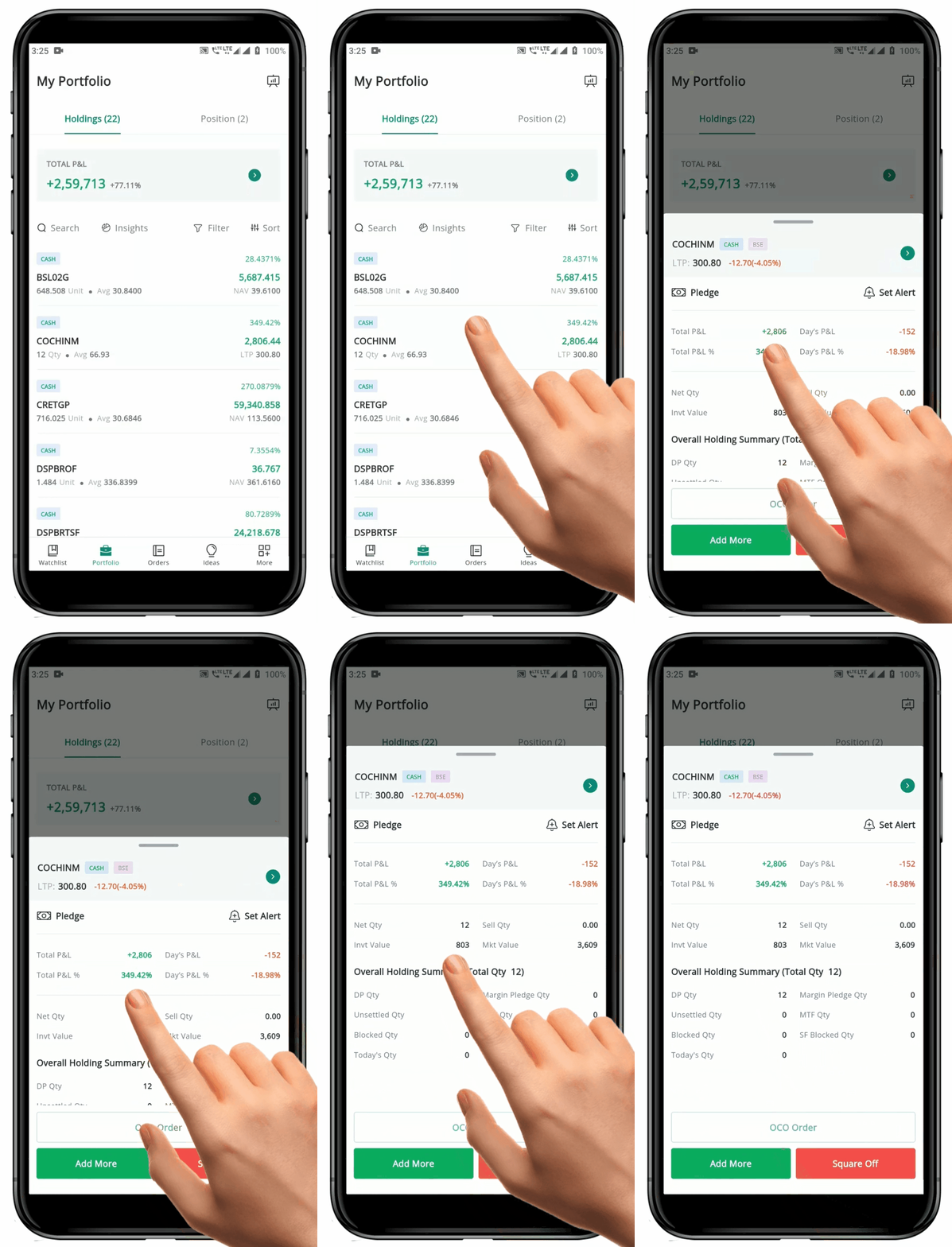
* **"Holding Summary"** can be accessed by clicking on the name of an individual **Holding.**
* The **"Holding Summary"** page displays details of your **"Net Position"** for a particular **Symbol** and **Product**.
* You can also see the **Total and Day P\&L**, as well as the **Total and Day P\&L Percentage** (calculated based on investment value).
* The **"Holding Summary"** page provides information on the **Invested Value** and **Current Market Value** of your investment.
* The **"Overall Holding Summary"** displays your Net Position in a particular security across all Products, including **Cash/MTF/BTST/Intraday**.
* The **Summary** page offers the following options:
* **Pledge**
* **EDIS**(for Non POA and Non DDPI clients)
* Setting **Alerts** for the security
* Opening an Order page to **Add or Square Off** your existing Position or **Add an OCO Order** to your Net Position.
#### **EDIS**
The **"**[**EDIS**](https://support.geojit.com/support/solutions/articles/89000007698-what-is-e-dis-)**"** (*Electronic-Delivery Instruction Slip*) is an online tool that allows you to *authorize sell trades* in your account without the need to use a *Physical DIS booklet*. If you have not given [**Power of Attorney**](https://support.geojit.com/support/solutions/articles/89000007721-what-is-a-power-of-attorney-poa-authorisation-) **(PoA) or** [**Depository Participant Identification** ](https://support.geojit.com/support/solutions/articles/89000007730-how-can-i-register-a-ddpi-)**(DDPI)** authorization to **Geojit**, you will need to use either the [**DIS Booklet** ](https://support.geojit.com/support/solutions/articles/89000007709-how-can-i-apply-for-a-new-dis-book-)or the **EDIS** facility to authorize each sell trade in your account.
**How to Unblock using EDIS ?**
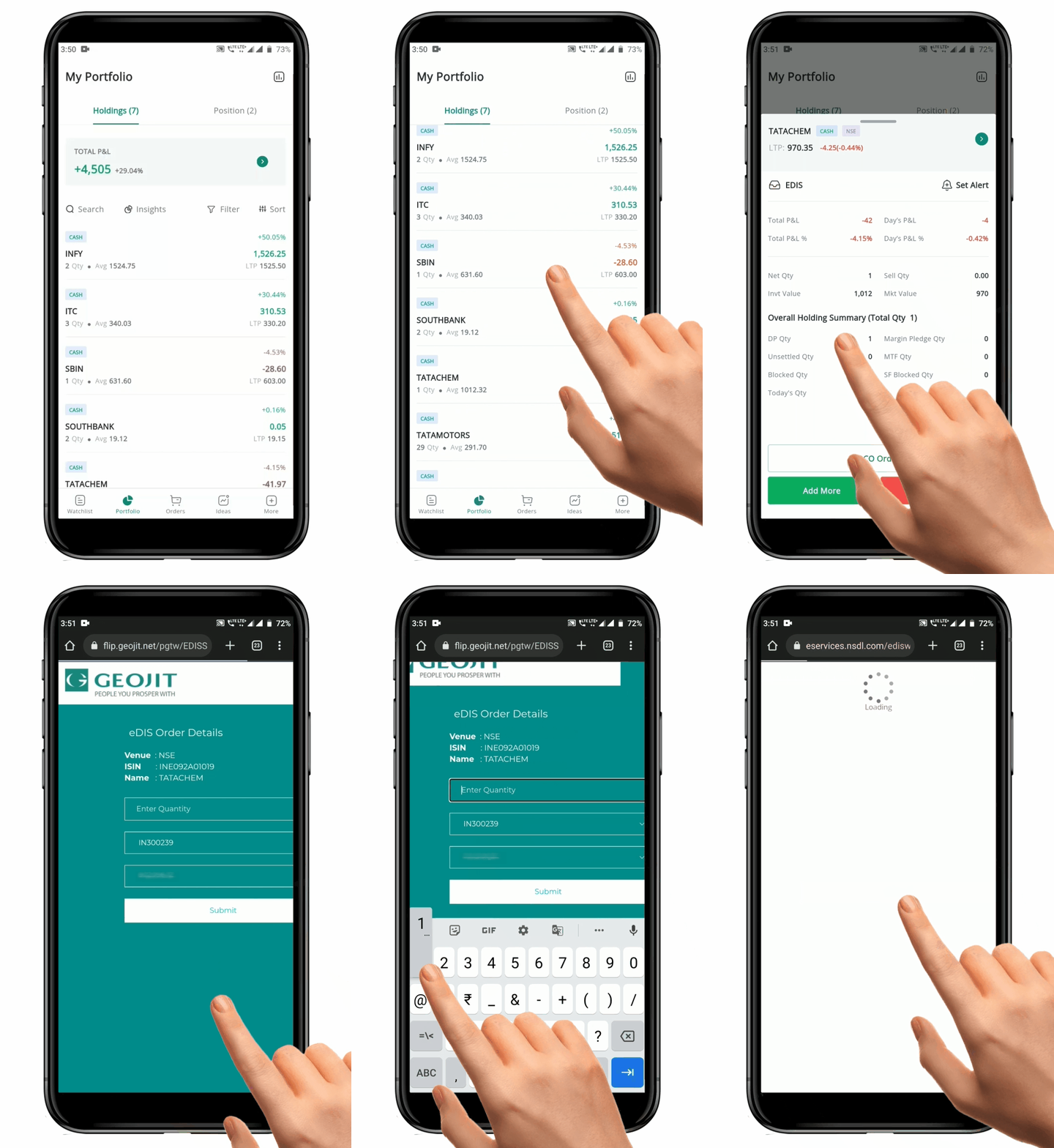
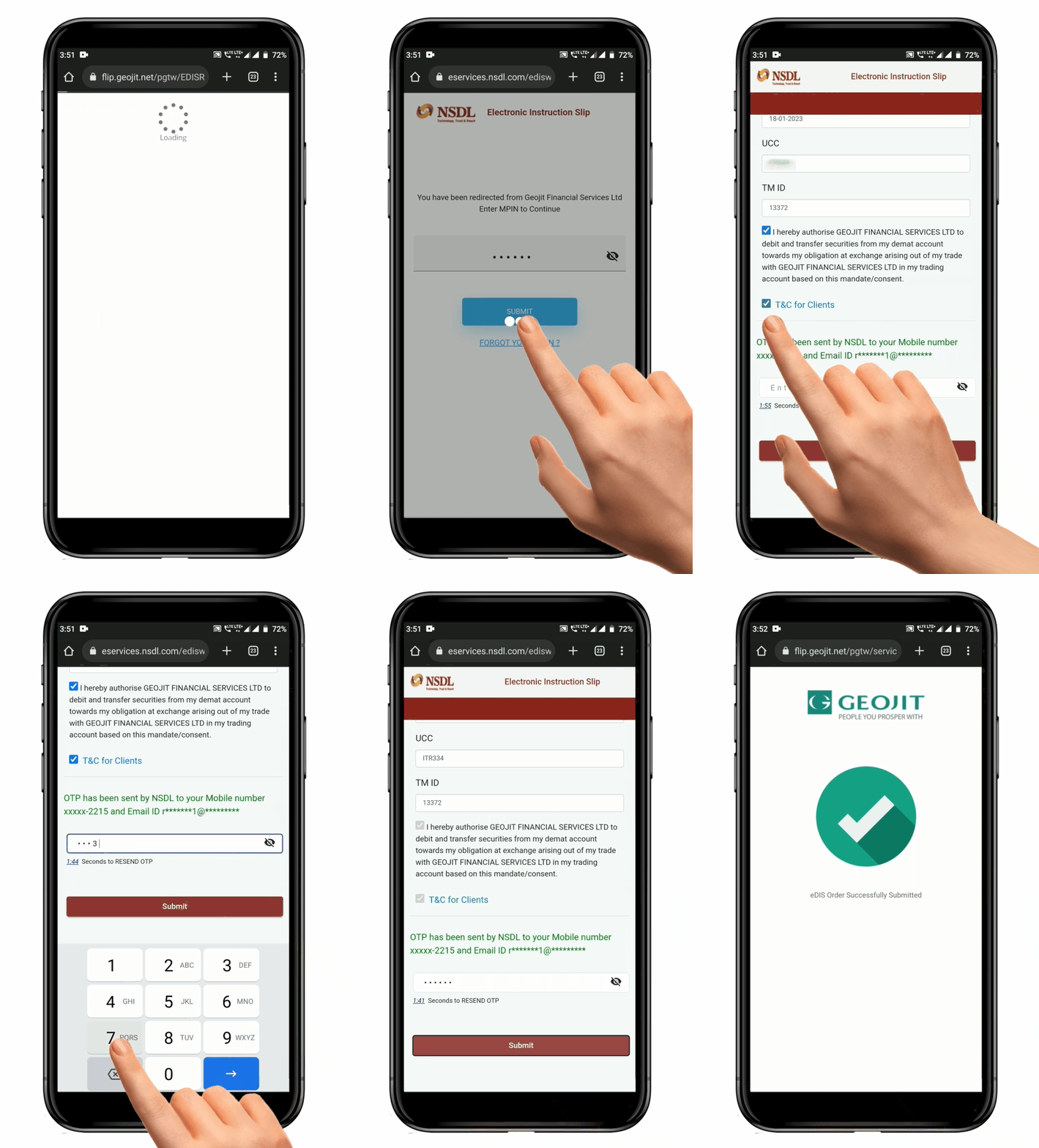
To unblock using **"EDIS"**, follow these steps:
* From the **"Holding Summary"** pop-up page, click on the **"EDIS" Button.**
* This will open a separate webpage from **Geojit** showing the **"EDIS Order Details"**.
* Update the Quantity you wish to **"Unblock"**.
* After submitting, you will be redirected to **NDSL.**
* Enter your **MPIN** to access the **NSDL** page and click **Submit**.
* Check the **Unblocking** details on the **NSDL** site.
* Enter the **OTP** received on your registered **Mobile Number** and **Submit.**
* Your shares will now be **Unblocked** and you can re-open the **FLIP** application to sell the shares in your **Holdings**.
**Please Note:** Unblocking is only *valid* for *one day.*
#### Pledge
For *POA clients* the **"Pledge"** **option** will be available.
You can use your shares held in your **Demat Account** as collateral by **Pledging** them with **Geojit**. The shares will remain in your account, and the **"Pledge"** will be marked. **Geojit** will then **Pledge** these shares with the exchange. The value of the pledged shares, after a fixed haircut, can be used as **Margin** to take on additional Positions, such as **"Intraday"**, **"BTST"**, and **"MTF Positions"**, without the need for any cash.
**How to Pledge a Security**
To **"Pledge"** a Security, follow these steps :
* From the **"Holding Summary"** pop-up page, click on the **"Pledge" Button.**
* This will open a separate webpage from **Geojit** showing the Details of Security that can be **"Pledged"**, **"Security already pledged"**, and a **"Pledge History".**
* From the list of **Pledge** able scrip, enter the Quantity of Security you would like to **Pledge** to obtain the Margin.
* Click on the **"Save" Button.**
* You will receive a **Pledge** request link from **NSDL** which must be accepted by you.
* Once the **Pledge** request from **NSDL** is accepted, the pledge is created and Geojit will **"Repledge"** and provide the Margin for the same by the next day.
**Please Note:** The *Margin Amount* will be the Market Value of the Pledge less the hair cut amount as prescribed by Geojit.
**FAQ**
1. How can I fill [Pledge/Unpledge form?](https://support.geojit.com/support/search/solutions?term=Pledge)
2. How can[ Pledge Margins ](https://support.geojit.com/support/solutions/articles/89000011106-how-can-pledge-margins-be-used-)be used?
3. What are the [Pledge charges?](https://support.geojit.com/support/solutions/articles/89000015115-what-are-the-pledge-charges-)
4. How do I [pledge shares to get collateral margin?](https://support.geojit.com/support/solutions/articles/89000008003-how-do-i-pledge-shares-to-get-collateral-margins-)
5. Can I sell the [pledged shares?](https://support.geojit.com/support/solutions/articles/89000011071-can-i-sell-pledged-shares-)
6. What is [Repledging?](https://support.geojit.com/support/solutions/articles/89000008001-what-is-repledging-)
7. For how long can I [maintain a Pledge?](https://support.geojit.com/support/solutions/articles/89000011070-for-how-long-can-i-maintain-a-pledge-)
8. What securities can be [Pledged to get margins?](https://support.geojit.com/support/solutions/articles/89000008000-what-securities-can-be-pledged-to-get-margins-)
#### Set Alert
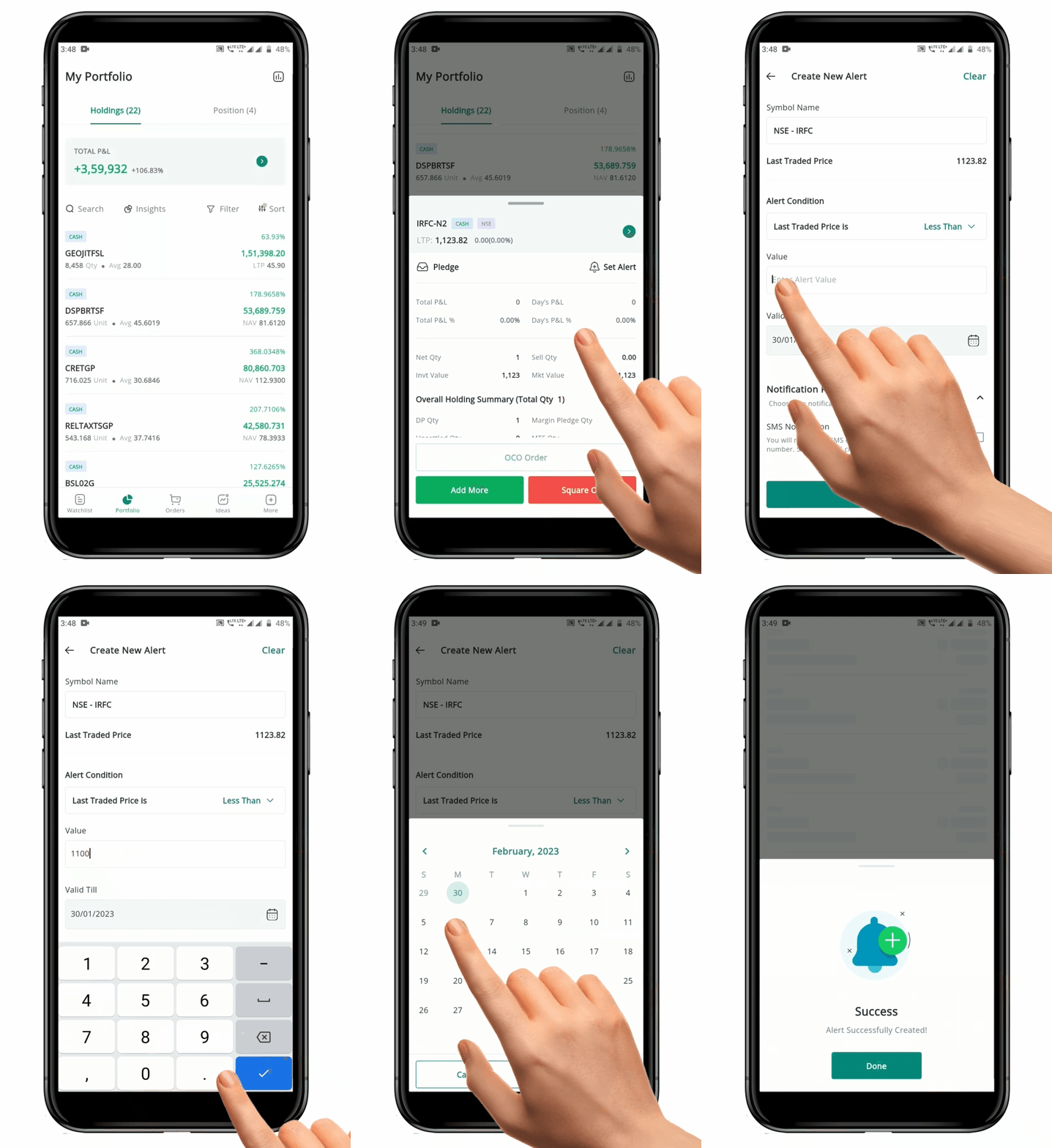
To **"Set Alert"**, follow these steps:
* From the **"Holding Summary"** pop-up page, click on the **"Set Alert" Icon**.
* This will redirect you to the **"Create an Alert" page**.
* On the **Create an Alert** page, select the **Price Alert Condition** from the **"Drop Down"** **menu**.
* This will specify the **Type of Alert** you want to set, such as **"Greater Than"** or **"Less Than."**
* Enter the **"Alert Trigger Value"** in the designated field. This is the price at which you want the Alert to be Triggered.
* Update the **"Time"** until which the alert is valid. This is the time period during which the **Alert** will be **Active** and will trigger if the *specified price* is reached.
* Click on the **"Create New Alert" Button.**
* A new **Alert** will be created and you will receive a pop-up "**Notification"** when the **Alert Price** is triggered.
**Please Note:** Once you create an "Alert" there will be a "Yellow Dot" on the "Set Alert" Icon.
#### OCO Order
How to place an [**OCO Order?**](https://support.geojit.com/support/solutions/articles/89000007776-what-is-a-one-cancel-other-oco-order-)
#### Add More
*Add more* Security to the existing **Quantity.**
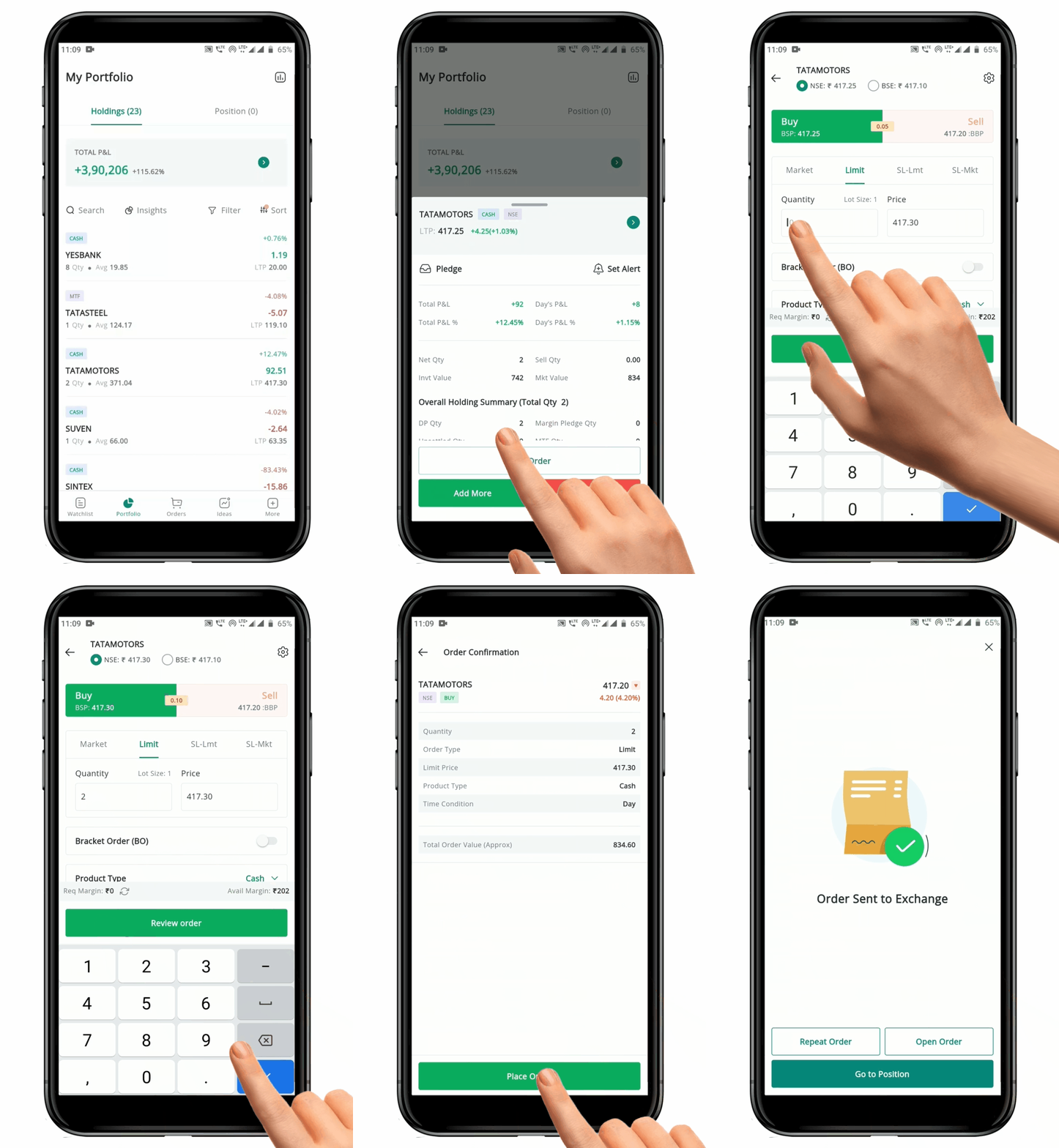
To **"Add More"** security, follow these steps:
* Tap on the **"Add More" Button.**
* You will be redirected to the **Order Placement Page.**
* Choose the desired **Conditions.**
* **Review** and **Place** the Order.
### 5. Square Off a Position
**"Square Off"** is a feature that allows you to exit an **Open Position** in your **Portfolio**. By using the **Square Off feature**, you can quickly and easily close out your **Position** . This can be useful if you want to *exit a position* that is not performing well, or if you want to take profits on a Position that has done well.
#### How to Square Off a Position
To **"Square Off"** a Position, follow these steps:
* Go to the **Holding Overview** page and click on the **"Square Off" Button.**
* You will be redirected to the **Order Page**, which will be for the opposite side of your **Open Position** (e.g. if your open position is a Buy, then, the Order Page will be for a sell).
* The **Order Page** will be automatically filled with the **Quantity** and **Product type** of your existing Open Position.
* You can edit the **Quantity**, but it cannot be more than your **"Net Position"** if you are selling for delivery.
* Fill in the required **Order Conditions.**
* **Review** and **Place** the order.
### 6. Portfolio Insights
**"**[**Portfolio Insights**](https://support.geojit.com/support/solutions/articles/89000007556-what-is-portfolio-insights-analyse-portfolio-where-can-i-access-it-)**"** is a tool that help check your portfolio based on seven parameters such as:
* Quality
* Valuation
* Financial Trend
* Risk
* Return
* Liquidity
* Diversification
The **Portfolio Insights** has two sections, the **"Overview"** and **"Deep Dive".** You can see an "**Overview of the Holdings**" and the detailed view of the *Securities performance under **"*****Deep Dive".**
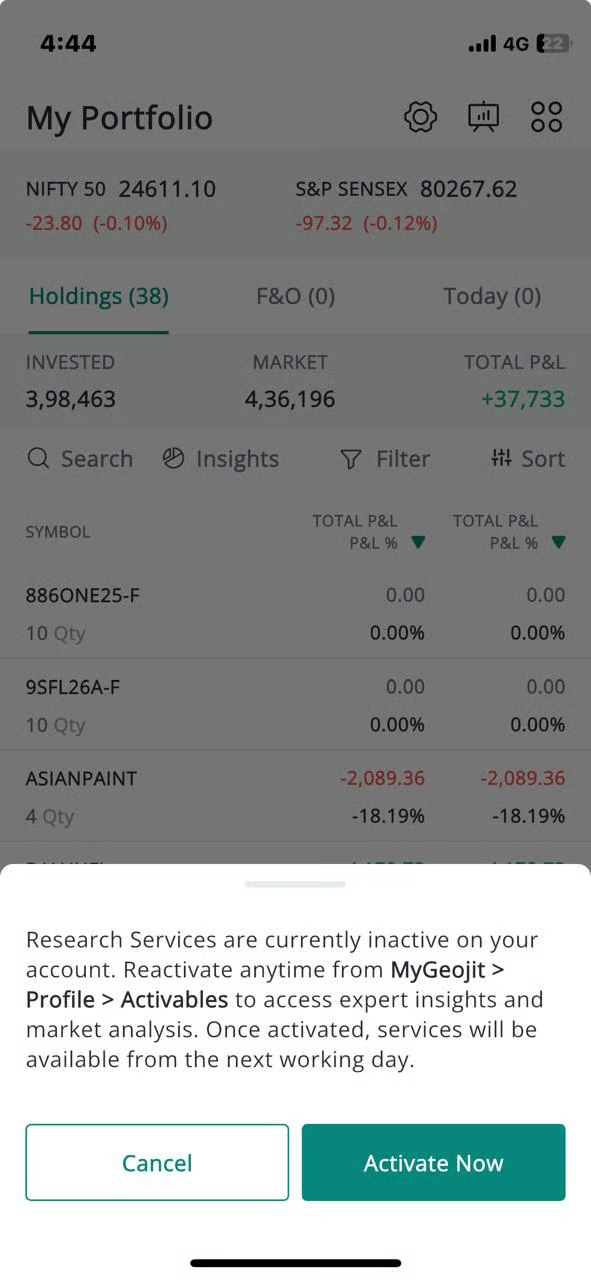
Please Note: If you want to see Geojit's research recommendations in Flip, you need to **subscribe to our research services** first. [***Follow these steps to activate 'Free Research Services.'***](/mygeojit-web/ideas.md#how-do-i-access-research-data)
The unsubscribed users will get a pop-up message stating 'Research services are currently inactive'. Once activated again, the services will be available from the next working day.
#### How to view Portfolio Insight
To view "**Portfolio Insights"**, follow these steps:
* Navigate to the **"Portfolio"** page.
* Locate the **"Portfolio Insights"** **Icon** at the top of the page.
* Click on the **"Portfolio Insights"** **Icon** to get redirected to the **"Portfolio Insights"** tab.
* Here, you can see that the **Portfolio Insights** has two sections: **"Overview"** and **"Deep Dive".**
* By default, you will be on the **"Overview"** page.
* You can swipe/click to choose between **"Overview"** and **"Deep Dive".**
#### Overview
You can see an "**Overview"** of your **Holdings.**
* At the top you can see "**Key Factor"** which includes, **Returns, Risks, Liquidity, Diversification, Quality, Valuation,** and **Financial Trend.**
* Below that you can see **"Deep Dive"** at the right-hand side. Click on that if you want to go to the **"Deep Dive"** page.
* Next you can see brief *Summary* of your **Holdings** under "**Portfolio Summary".**
* Under **"Portfolio Summary"** there is **Performance Today,** **Open, Day High & Low,** and **More Stocks Gaining.**
#### **Deep Dive**
**"Deep Dive"** gives you a detailed idea about the performance of securities in your Holdings. You get an idea about the **Returns, Risk, Diversification, Quality Summary, Valuation, Liquidity Analysis,** and **Financial Trends.**
* At the top of the page you can see the Returns.
* Below that is the Risk. You can click on the Detailed Risk Analysis at the left-hand side. This will redirect you to another tab. Here, you can view the risk level of your Portfolio. Click on the Back Arrow to go back to the Deep Dive page.
* Next is the Diversification, in which you can view the Portfolio Construct.
* Quality Summary gives you can an overall picture about how your Holdings are performing. It is represented in a graphical form and the securities having Average Quality and Excellent Quality will be given under the graph.
* Valuation of the Securities are shown next. This is also represented in graphical form. Securities with Expensive and Attractive Valuation is given below the graph.
* Liquidity Analysis is represented in a graphical form. Here you will get to know if any security in your Holdings have liquidity issues.
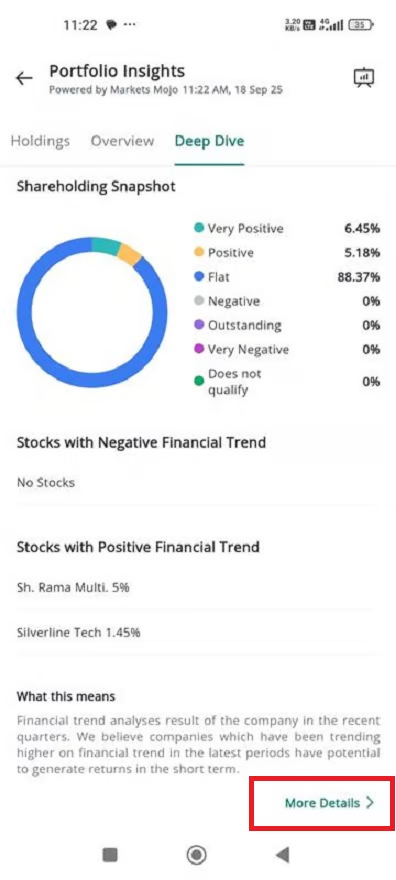
* Financial Trend shows whether the Positive and Negative Financial trends in your Portfolio. This is represented in graphical format.
* Bottom of the page there is More details. Click on that and you will be redirected to another tab.
Corporate actions (such as bonus, split, or consolidation) may impact the average rate, as existing positions get adjusted with purchase or sale quantities. While most corporate actions are updated, such changes are done on a best-effort basis; hence, investors are advised to exercise due caution while placing trades. This is applicable for both equity and Equity derivatives. Any discrepancies may be reported to ****.
#### How to access the mojo analysis?
Mojo analysis is done by a third party named Mojo Markets Pvt. Ltd. to offer the '**Markets Mojo**' product to the users. Mojo analysis is exclusively for equity stocks, and it will not include bonds, debentures, mutual funds, or ETFs. Mojo provides you a detailed analysis of your portfolio—holdings, dividend, return percentage, etc.
* Go to your '**Portfolio**.'
* You will land on your '**Holdings**' page.
* Find the '[**Insights**](https://support.geojit.com/support/solutions/articles/89000007556-what-is-portfolio-insights-analyse-portfolio-where-can-i-access-it-)' tab just below it and click on it.
* Under the 'Insights' section, click on the '**Deep Dive**' button.
* Scroll down towards the end of the page, and you will see the '**More Details**' button. Click on it.
* Now you will be navigated to the Mojo analysis page -
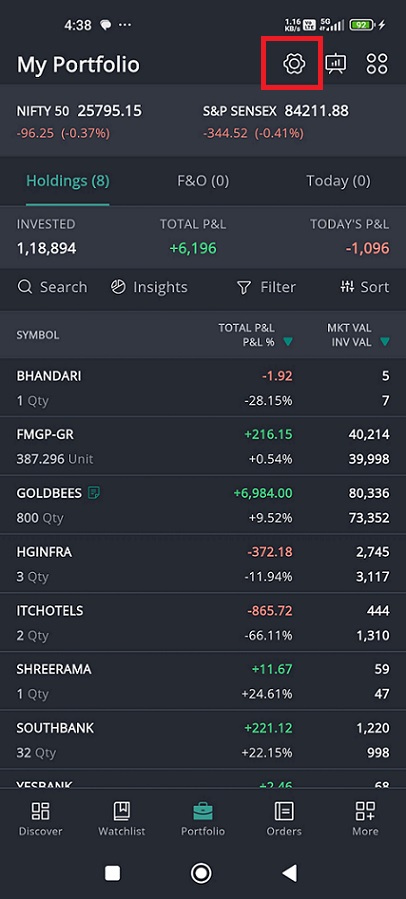
### **How to 'Add a Note' ?**
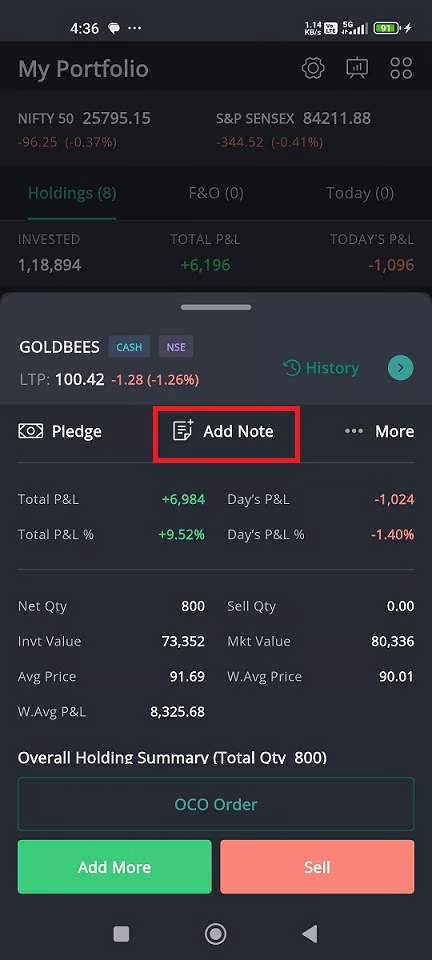
1. Open your **Portfolio Holdings page**.
2. Tap on a holding → The **Portfolio Summary bottom sheet** opens.
3. If no note exists, tap **“Add Note”**.
4. Enter your note (up to 50 characters) and tap **Save** → The note is also synced to your Watchlist.
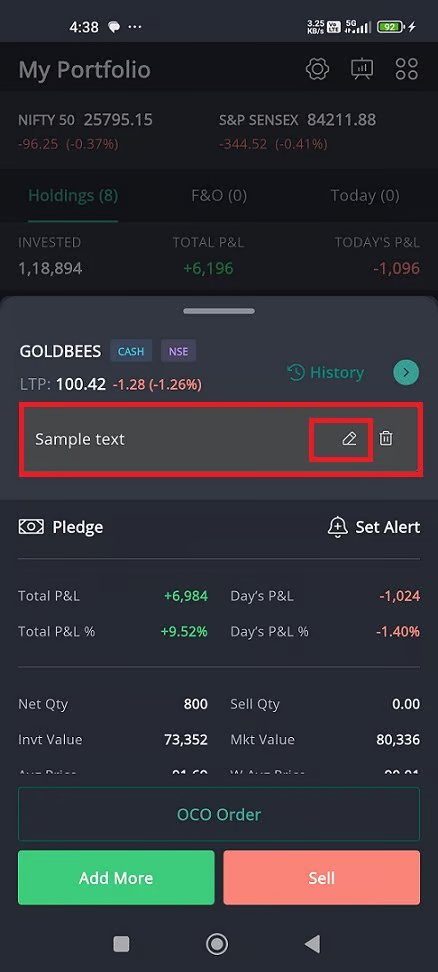
**View & Edit a Note**
1. In **Portfolio Holdings**, tap on a holding → The summary opens.
2. If a note exists, it is shown here.
3. Tap the **Edit icon (✎)** to update the note.
4. Tap **Save** → The updated note reflects in both Holdings and Watchlist.
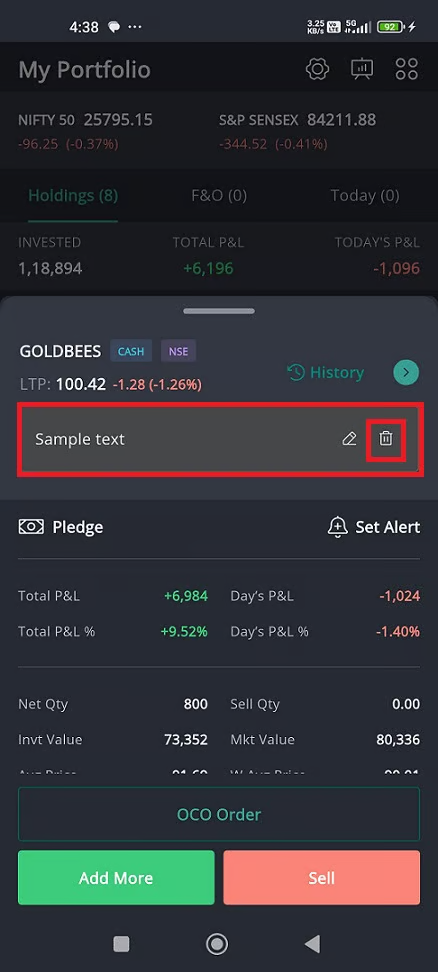
**Delete a Note**
1. In **Portfolio Holdings**, tap on a holding → The summary opens.
2. Tap the **Delete icon (🗑)**.
3. Confirm deletion in the pop-up.
4. The note is removed from both Holdings and Watchlist.
**Viewing Notes**
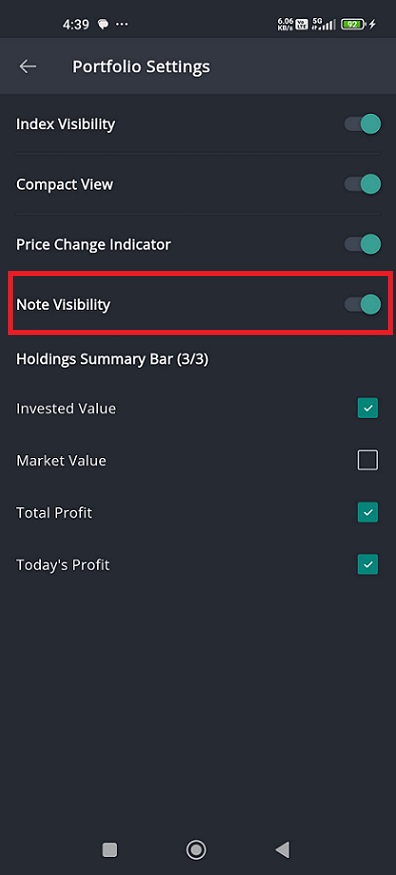
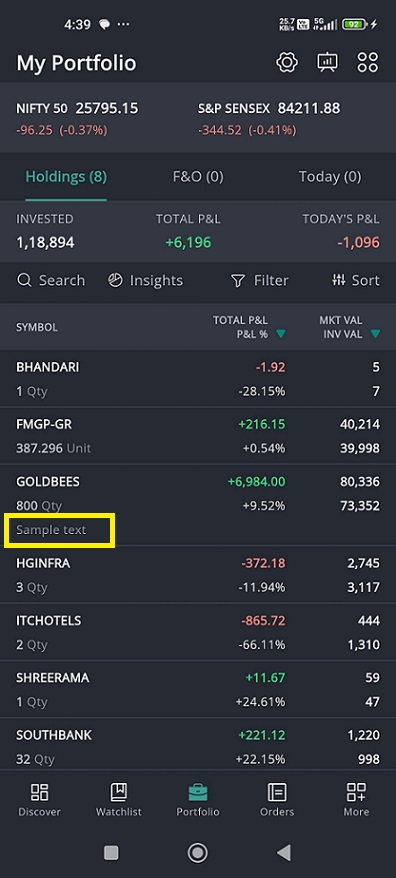
* To display notes directly below your holdings list:
1. Tap the **Portfolio Settings icon**.
2. Enable **Note Visibility**.
3. Notes will now show under holding names.
### How to know transaction history ?
To access the history of your past transaction of a particular security,
* Go to your '**Holdings**' page.
* Click on the scrip you wish to see the past transaction details.
* The holding summary page slides in.
* Towards the right side find the '**History**' button. Click on it.
* Now you will be navigated to the '[**History**](https://usermanuals.geojit.com/flip-mobile/security-page/history)' page of that Security.
 page.
* At the top of the tab, you can see the **Total P\&L.**
* Click on the Total P\&L, the **"Holdings Overview"** will open.
* You can search your **"Holdings"** with the help of the **Search Bar**
page.
* At the top of the tab, you can see the **Total P\&L.**
* Click on the Total P\&L, the **"Holdings Overview"** will open.
* You can search your **"Holdings"** with the help of the **Search Bar** on top.
* **"Filter" Icon**
on top.
* **"Filter" Icon** and **"Sort"** **Icons**
 can be seen adjacent to the **Search Bar**
 **.**
* Below that, you can see various **"Holdings"** listed.
* Each item in the list will have **Symbol, Product Tag, Quantity,** [**Average Rate**](https://support.geojit.com/support/solutions/articles/89000007336-how-is-my-average-rate-calculated-for-equity-)**,** [**Percentage Changes, Today's P\&L**](https://support.geojit.com/support/solutions/articles/89000008062-how-is-day-p-l-and-day-p-l-calculated-in-a-trading-portfolio-)**, LTP, Weighted average price** and **weighted average P\&L.** [**Weighted average price**](https://support.geojit.com/support/solutions/articles/89000019750-what-is-weighted-average-price-wap-) can be viewed by clicking the **drop down arrow** given **below** the **filter** option.
* Options like **Investment Value, Market Value, Total P\&L, Today's P\&L** is also included in compact view, to add different portfolio metrics.
**.**
* Below that, you can see various **"Holdings"** listed.
* Each item in the list will have **Symbol, Product Tag, Quantity,** [**Average Rate**](https://support.geojit.com/support/solutions/articles/89000007336-how-is-my-average-rate-calculated-for-equity-)**,** [**Percentage Changes, Today's P\&L**](https://support.geojit.com/support/solutions/articles/89000008062-how-is-day-p-l-and-day-p-l-calculated-in-a-trading-portfolio-)**, LTP, Weighted average price** and **weighted average P\&L.** [**Weighted average price**](https://support.geojit.com/support/solutions/articles/89000019750-what-is-weighted-average-price-wap-) can be viewed by clicking the **drop down arrow** given **below** the **filter** option.
* Options like **Investment Value, Market Value, Total P\&L, Today's P\&L** is also included in compact view, to add different portfolio metrics.
 (*Electronic-Delivery Instruction Slip*) is an online tool that allows you to *authorize sell trades* in your account without the need to use a *Physical DIS booklet*. If you have not given [**Power of Attorney**](https://support.geojit.com/support/solutions/articles/89000007721-what-is-a-power-of-attorney-poa-authorisation-) **(PoA) or** [**Depository Participant Identification** ](https://support.geojit.com/support/solutions/articles/89000007730-how-can-i-register-a-ddpi-)**(DDPI)** authorization to **Geojit**, you will need to use either the [**DIS Booklet** ](https://support.geojit.com/support/solutions/articles/89000007709-how-can-i-apply-for-a-new-dis-book-)or the **EDIS** facility to authorize each sell trade in your account.
**How to Unblock using EDIS ?**
To unblock using **"EDIS"**, follow these steps:
* From the **"Holding Summary"** pop-up page, click on the **"EDIS" Button.**
* This will open a separate webpage from **Geojit** showing the **"EDIS Order Details"**.
* Update the Quantity you wish to **"Unblock"**.
(*Electronic-Delivery Instruction Slip*) is an online tool that allows you to *authorize sell trades* in your account without the need to use a *Physical DIS booklet*. If you have not given [**Power of Attorney**](https://support.geojit.com/support/solutions/articles/89000007721-what-is-a-power-of-attorney-poa-authorisation-) **(PoA) or** [**Depository Participant Identification** ](https://support.geojit.com/support/solutions/articles/89000007730-how-can-i-register-a-ddpi-)**(DDPI)** authorization to **Geojit**, you will need to use either the [**DIS Booklet** ](https://support.geojit.com/support/solutions/articles/89000007709-how-can-i-apply-for-a-new-dis-book-)or the **EDIS** facility to authorize each sell trade in your account.
**How to Unblock using EDIS ?**
To unblock using **"EDIS"**, follow these steps:
* From the **"Holding Summary"** pop-up page, click on the **"EDIS" Button.**
* This will open a separate webpage from **Geojit** showing the **"EDIS Order Details"**.
* Update the Quantity you wish to **"Unblock"**.
 **option** will be available.
You can use your shares held in your **Demat Account** as collateral by **Pledging** them with **Geojit**. The shares will remain in your account, and the **"Pledge"** will be marked. **Geojit** will then **Pledge** these shares with the exchange. The value of the pledged shares, after a fixed haircut, can be used as **Margin** to take on additional Positions, such as **"Intraday"**, **"BTST"**, and **"MTF Positions"**, without the need for any cash.
**How to Pledge a Security**
To **"Pledge"** a Security, follow these steps :
* From the **"Holding Summary"** pop-up page, click on the **"Pledge" Button.**
* This will open a separate webpage from **Geojit** showing the Details of Security that can be **"Pledged"**, **"Security already pledged"**, and a **"Pledge History".**
* From the list of **Pledge** able scrip, enter the Quantity of Security you would like to **Pledge** to obtain the Margin.
* Click on the **"Save" Button.**
* You will receive a **Pledge** request link from **NSDL** which must be accepted by you.
* Once the **Pledge** request from **NSDL** is accepted, the pledge is created and Geojit will **"Repledge"** and provide the Margin for the same by the next day.
**Please Note:** The *Margin Amount* will be the Market Value of the Pledge less the hair cut amount as prescribed by Geojit.
**FAQ**
1. How can I fill [Pledge/Unpledge form?](https://support.geojit.com/support/search/solutions?term=Pledge)
2. How can[ Pledge Margins ](https://support.geojit.com/support/solutions/articles/89000011106-how-can-pledge-margins-be-used-)be used?
3. What are the [Pledge charges?](https://support.geojit.com/support/solutions/articles/89000015115-what-are-the-pledge-charges-)
4. How do I [pledge shares to get collateral margin?](https://support.geojit.com/support/solutions/articles/89000008003-how-do-i-pledge-shares-to-get-collateral-margins-)
5. Can I sell the [pledged shares?](https://support.geojit.com/support/solutions/articles/89000011071-can-i-sell-pledged-shares-)
6. What is [Repledging?](https://support.geojit.com/support/solutions/articles/89000008001-what-is-repledging-)
7. For how long can I [maintain a Pledge?](https://support.geojit.com/support/solutions/articles/89000011070-for-how-long-can-i-maintain-a-pledge-)
8. What securities can be [Pledged to get margins?](https://support.geojit.com/support/solutions/articles/89000008000-what-securities-can-be-pledged-to-get-margins-)
#### Set Alert
To **"Set Alert"**, follow these steps:
**option** will be available.
You can use your shares held in your **Demat Account** as collateral by **Pledging** them with **Geojit**. The shares will remain in your account, and the **"Pledge"** will be marked. **Geojit** will then **Pledge** these shares with the exchange. The value of the pledged shares, after a fixed haircut, can be used as **Margin** to take on additional Positions, such as **"Intraday"**, **"BTST"**, and **"MTF Positions"**, without the need for any cash.
**How to Pledge a Security**
To **"Pledge"** a Security, follow these steps :
* From the **"Holding Summary"** pop-up page, click on the **"Pledge" Button.**
* This will open a separate webpage from **Geojit** showing the Details of Security that can be **"Pledged"**, **"Security already pledged"**, and a **"Pledge History".**
* From the list of **Pledge** able scrip, enter the Quantity of Security you would like to **Pledge** to obtain the Margin.
* Click on the **"Save" Button.**
* You will receive a **Pledge** request link from **NSDL** which must be accepted by you.
* Once the **Pledge** request from **NSDL** is accepted, the pledge is created and Geojit will **"Repledge"** and provide the Margin for the same by the next day.
**Please Note:** The *Margin Amount* will be the Market Value of the Pledge less the hair cut amount as prescribed by Geojit.
**FAQ**
1. How can I fill [Pledge/Unpledge form?](https://support.geojit.com/support/search/solutions?term=Pledge)
2. How can[ Pledge Margins ](https://support.geojit.com/support/solutions/articles/89000011106-how-can-pledge-margins-be-used-)be used?
3. What are the [Pledge charges?](https://support.geojit.com/support/solutions/articles/89000015115-what-are-the-pledge-charges-)
4. How do I [pledge shares to get collateral margin?](https://support.geojit.com/support/solutions/articles/89000008003-how-do-i-pledge-shares-to-get-collateral-margins-)
5. Can I sell the [pledged shares?](https://support.geojit.com/support/solutions/articles/89000011071-can-i-sell-pledged-shares-)
6. What is [Repledging?](https://support.geojit.com/support/solutions/articles/89000008001-what-is-repledging-)
7. For how long can I [maintain a Pledge?](https://support.geojit.com/support/solutions/articles/89000011070-for-how-long-can-i-maintain-a-pledge-)
8. What securities can be [Pledged to get margins?](https://support.geojit.com/support/solutions/articles/89000008000-what-securities-can-be-pledged-to-get-margins-)
#### Set Alert
To **"Set Alert"**, follow these steps:
 **Icon** at the top of the page.
* Click on the **"Portfolio Insights"**
**Icon** at the top of the page.
* Click on the **"Portfolio Insights"**