> For the complete documentation index, see [llms.txt](https://usermanuals.geojit.com/llms.txt). Markdown versions of documentation pages are available by appending `.md` to page URLs; this page is available as [Markdown](https://usermanuals.geojit.com/flip-mobile/portfolio.md).
# Portfolio
### This section contains:
1. [How to Open Portfolio page](#id-1.-how-to-open-portfolio-page)
2. [Search for Security in Portfolio](#id-2.-search-for-security-in-portfolio)
3. [Portfolio Settings](#id-3.-portfolio-settings)
4. [Compact View](#compact-view)
Under **"Portfolio",** you can view all of your **Investment Details, Trading Position Details**, and a snapshot of your investments made through **Smartfolio.** This is the *one-stop destination* to stay up-to-date and informed about your financial investments.
### **1. How to open Portfolio Page**
To open the **"Portfolio"** page, follow these steps:
* Locate the **"Portfolio" Icon** on the navigation menu.
* Click on the **"Portfolio" Icon**
on the navigation menu.
* Click on the **"Portfolio" Icon** to open the Portfolio page.
* The **"Portfolio"** page have *multiple tabs or sections*, such as **Holdings, Positions,** and **Smartfolio.**
* To switch between these sections, you can click on the tab name or use a swipe function.
### 2. Search for Security in Portfolio
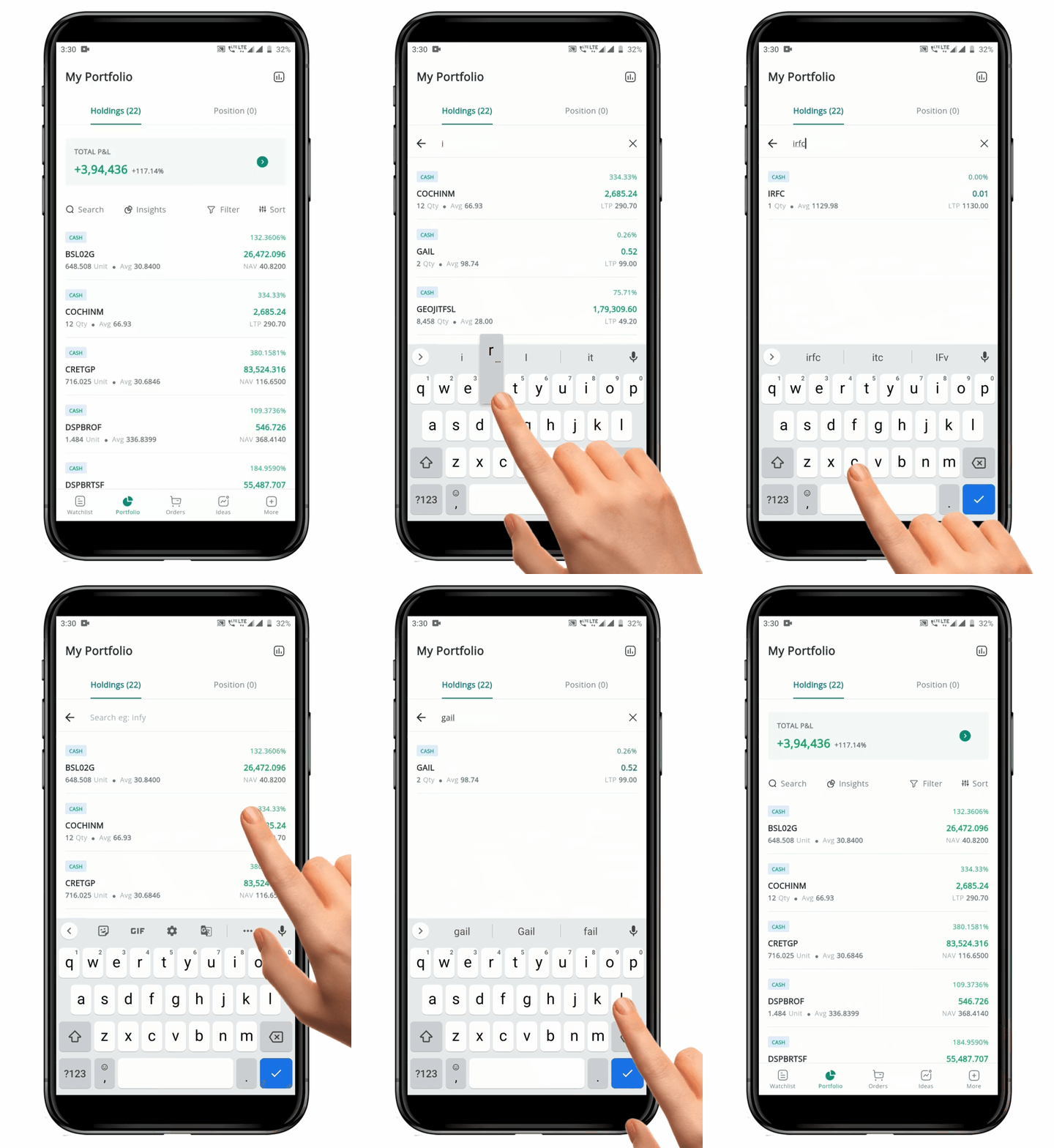
A **"Search"** feature is usually offered on a **Portfolio** page to help you find specific securities in your **Portfolio** quickly and easily. This feature can be beneficial if you have a significant number of **Holdings**, as it allows them to quickly access the information they need *without manually* scrolling through the entire list of **Holdings**.
#### How to search for a security
To *search* for any security, follow these steps:
* Click on the **"Portfolio" Icon**
to open the Portfolio page.
* The **"Portfolio"** page have *multiple tabs or sections*, such as **Holdings, Positions,** and **Smartfolio.**
* To switch between these sections, you can click on the tab name or use a swipe function.
### 2. Search for Security in Portfolio
A **"Search"** feature is usually offered on a **Portfolio** page to help you find specific securities in your **Portfolio** quickly and easily. This feature can be beneficial if you have a significant number of **Holdings**, as it allows them to quickly access the information they need *without manually* scrolling through the entire list of **Holdings**.
#### How to search for a security
To *search* for any security, follow these steps:
* Click on the **"Portfolio" Icon** at the bottom of the tab to access the **Holdings/Positions** page.
* Select the **Holdings or Positions** tab by clicking on it.
* Locate and click on the **"Search Bar"**
at the bottom of the tab to access the **Holdings/Positions** page.
* Select the **Holdings or Positions** tab by clicking on it.
* Locate and click on the **"Search Bar"** at the top left-hand side of the tab.
* Type the **Name of the Security** you wish to find.
* If the searched symbol is part of your **Holdings or Positions**, it will be filtered and displayed.
* To clear the search and remove the filter, click the **"x" Icon**
at the top left-hand side of the tab.
* Type the **Name of the Security** you wish to find.
* If the searched symbol is part of your **Holdings or Positions**, it will be filtered and displayed.
* To clear the search and remove the filter, click the **"x" Icon** on the **"Search Bar"** or click on the **"Back Arrow" Icon**
 on the top left-hand side.
**Please Note:** This feature is provided in both the *Holdings and Positions* page to allow you to easily find securities information in both pages.
**Read More:** [**Why does a dollar symbol appear next to the name of some shares?**](https://support.geojit.com/support/solutions/articles/89000020239-why-does-a-dollar-symbol-appear-next-to-the-name-of-some-shares-)
### 3. Portfolio Settings
* Go to your 'Portfolio' page.
* Click on the 'settings' button given towards the top.
* Click on it, and you will be navigated to the 'Portfolio Settings' page.
If you set a customization on your device, it will be applied across all trade codes accessed on that device. Previously, the settings were user-specific (or trade code–specific); it is now device-specific.
#### Index watch panel
You can make changes in the index watch panel easily.
* **Tap on the index watch panel.**
* You will be provided with a set of indices in both NSE and BSE.
* **Select the preferred index** and **go back to the portfolio page** to see the changes made.
#### Data Fields
You can *add* more Fields such as **"Day P\&L and Day P\&L%", "Invested Amount and Market Value",** and **"Weighted Average and Average P\&L"** and **Price change indicator** to your Portfolio by going to Portfolio Settings. To do so follow these steps:
* Go to **"Portfolio"**
on the top left-hand side.
**Please Note:** This feature is provided in both the *Holdings and Positions* page to allow you to easily find securities information in both pages.
**Read More:** [**Why does a dollar symbol appear next to the name of some shares?**](https://support.geojit.com/support/solutions/articles/89000020239-why-does-a-dollar-symbol-appear-next-to-the-name-of-some-shares-)
### 3. Portfolio Settings
* Go to your 'Portfolio' page.
* Click on the 'settings' button given towards the top.
* Click on it, and you will be navigated to the 'Portfolio Settings' page.
If you set a customization on your device, it will be applied across all trade codes accessed on that device. Previously, the settings were user-specific (or trade code–specific); it is now device-specific.
#### Index watch panel
You can make changes in the index watch panel easily.
* **Tap on the index watch panel.**
* You will be provided with a set of indices in both NSE and BSE.
* **Select the preferred index** and **go back to the portfolio page** to see the changes made.
#### Data Fields
You can *add* more Fields such as **"Day P\&L and Day P\&L%", "Invested Amount and Market Value",** and **"Weighted Average and Average P\&L"** and **Price change indicator** to your Portfolio by going to Portfolio Settings. To do so follow these steps:
* Go to **"Portfolio"** page**.**
* Locate the **"Settings"**
page**.**
* Locate the **"Settings"** **Icon** on the top RHS and click on it.
* This will redirect you to the **"Portfolio Settings"** page.
* Here by default, you will be on the **"Portfolio Data"** page and can see a variety of data fields such as **"Day P\&L and Day P\&L%", "Invested Amount and Market Value",** and **"Weighted Average and Average P\&L"** to add to your Portfolio.
* To include any of these fields to your **Portfolio**, click on the corresponding **"Checkbox"**
**Icon** on the top RHS and click on it.
* This will redirect you to the **"Portfolio Settings"** page.
* Here by default, you will be on the **"Portfolio Data"** page and can see a variety of data fields such as **"Day P\&L and Day P\&L%", "Invested Amount and Market Value",** and **"Weighted Average and Average P\&L"** to add to your Portfolio.
* To include any of these fields to your **Portfolio**, click on the corresponding **"Checkbox"** near each field.
**Please Note:** You are not obligated to choose all the fields, can choose what is relevant for you.
* Once you have done the selection click on the **"Back arrow"**
near each field.
**Please Note:** You are not obligated to choose all the fields, can choose what is relevant for you.
* Once you have done the selection click on the **"Back arrow"** to go back to **Portfolio** page.
* Choose any security on the **Portfolio**
to go back to **Portfolio** page.
* Choose any security on the **Portfolio** page and swipe left on the **Price Column** and you will find the changes.
* Swipe once to see the **"Day P\&L and Day P\&L%".**
* Swipe again to see the **"Invested Amount and Market Value".**
* Subsequent swipes will reveal the **"Weighted Average and Average P\&L".**
* Furthermore, if you perform an additional swipe, you will be returned to the **"Price Data".**
**Please Note:** The change in fields can only be accomplished through left swipe, enabling you to change through the different portfolio data.
#### To turn on the **Price Change Indicator:**
* Go to the **Portfolio** page**.**
* Locate the **Settings** **Icon.**
* You will be landed on the **Portfolio Settings page**.
* Click on the '**Other**' tab.
* Find '**Price Change Indicator**' and switch it on using the **"Toggle"**
page and swipe left on the **Price Column** and you will find the changes.
* Swipe once to see the **"Day P\&L and Day P\&L%".**
* Swipe again to see the **"Invested Amount and Market Value".**
* Subsequent swipes will reveal the **"Weighted Average and Average P\&L".**
* Furthermore, if you perform an additional swipe, you will be returned to the **"Price Data".**
**Please Note:** The change in fields can only be accomplished through left swipe, enabling you to change through the different portfolio data.
#### To turn on the **Price Change Indicator:**
* Go to the **Portfolio** page**.**
* Locate the **Settings** **Icon.**
* You will be landed on the **Portfolio Settings page**.
* Click on the '**Other**' tab.
* Find '**Price Change Indicator**' and switch it on using the **"Toggle"** **Button.**
* Go back to your portfolio, and you can see a **tiny blinking light** that flashes green when prices go up and red when they drop.
### How to enable Events & Research Recommendations ?
* Go to the **Portfolio** page**.**
* Locate the **Settings** **Icon.**
* You will be landed on the **Portfolio Settings page**.
* Scroll down to find **Events** and **Recommendations**.
* Tap on the **toggle button**
**Button.**
* Go back to your portfolio, and you can see a **tiny blinking light** that flashes green when prices go up and red when they drop.
### How to enable Events & Research Recommendations ?
* Go to the **Portfolio** page**.**
* Locate the **Settings** **Icon.**
* You will be landed on the **Portfolio Settings page**.
* Scroll down to find **Events** and **Recommendations**.
* Tap on the **toggle button**  to enable/disable the option.
* Now, go back to your portfolio page.
* There you will see events/recommendations adjacent to consecutive scrips.
#### Compact View
To *access* the **Compact View,** follow these steps:
* Locate and navigate to the **"Portfolio"**
to enable/disable the option.
* Now, go back to your portfolio page.
* There you will see events/recommendations adjacent to consecutive scrips.
#### Compact View
To *access* the **Compact View,** follow these steps:
* Locate and navigate to the **"Portfolio"** page.
* By default you will be on the **"Holdings"** page.
* If you wish to have a condensed view of the page, you need to switch to the **"Compact View".**
* For that, firstly click on the **"Settings"**
page.
* By default you will be on the **"Holdings"** page.
* If you wish to have a condensed view of the page, you need to switch to the **"Compact View".**
* For that, firstly click on the **"Settings"** **Icon** located at the top right-hand side of the tab.
* Next, swipe/click to select the **"Others"** tab.
* Here, you will find the **"Compact View"** option.
* Click on the **"Toggle"** **Button** adjacent to it to activate the option.
* Now click on the **"Back Arrow"** at the top left-hand side to go back to the **Portfolio** page.
* You can now customise which data you would like to see.
* Click on the **"Drop-down Arrow"**
**Icon** located at the top right-hand side of the tab.
* Next, swipe/click to select the **"Others"** tab.
* Here, you will find the **"Compact View"** option.
* Click on the **"Toggle"** **Button** adjacent to it to activate the option.
* Now click on the **"Back Arrow"** at the top left-hand side to go back to the **Portfolio** page.
* You can now customise which data you would like to see.
* Click on the **"Drop-down Arrow"** a bottom pop-up options will appear.
* First row you can see options such as **"Market Rate and Average Buy or Sell Rate", "Day High and Low",** and **"52 Week High and Low".**
* Next row you have options such as **"Total P\&L and P\&L%", "Day P\&L and P\&L%,** and **"Market Value and Invested Value".**
**Please Note:** Once Compact View is activated, it is available for both Holdings and Positions.
a bottom pop-up options will appear.
* First row you can see options such as **"Market Rate and Average Buy or Sell Rate", "Day High and Low",** and **"52 Week High and Low".**
* Next row you have options such as **"Total P\&L and P\&L%", "Day P\&L and P\&L%,** and **"Market Value and Invested Value".**
**Please Note:** Once Compact View is activated, it is available for both Holdings and Positions.