> For the complete documentation index, see [llms.txt](https://usermanuals.geojit.com/llms.txt). Markdown versions of documentation pages are available by appending `.md` to page URLs; this page is available as [Markdown](https://usermanuals.geojit.com/flip-mobile/orders/other-orders.md).
# Other Orders
The following are the Other Order Types available in the FLIP App.
### This section contains
1. [Bracket Order (BO)](#id-1.-bracket-order-bo)
2. [After Market Order (AMO)](#id-2.-after-market-order-amo)
3. [One Cancels Other Order (OCO)](#id-3.-one-cancel-other-order-oco)
4. [How to place an OCO order for derivatives ?](#split-order)
5. [Split Order](#split-order)
6. [How to apply Rollover ?](#how-to-apply-rollover)
7. [What is spread order ?](#what-is-a-spread-order)
### 1. Bracket Order (BO)
**"**[**Bracket Orders**](https://support.geojit.com/support/solutions/articles/89000007757-what-is-a-bracket-order-bo-)**"** are a type of **Intraday Order** that allows traders to set a *Stop-Loss Order* and a *Target Order* simultaneously when entering a Position. It is designed to **“Bracket”** your Initial Order. Hence, there will be two (opposite side) orders placed with the initial order. The Stop-Loss Order is designed to limit potential losses in the event that the market moves against your Position, while the Target Order represents your profit-taking level.
Using a **Bracket Order**, you can set both the **Stop-Loss** and **Target Price** levels in advance, which helps manage risks and potentially increase the chances of success of trades. Since **Bracket Orders** are an Intraday Product, they are auto squared-off at the end of the day and cannot be carried forward.
#### How to place Bracket Order
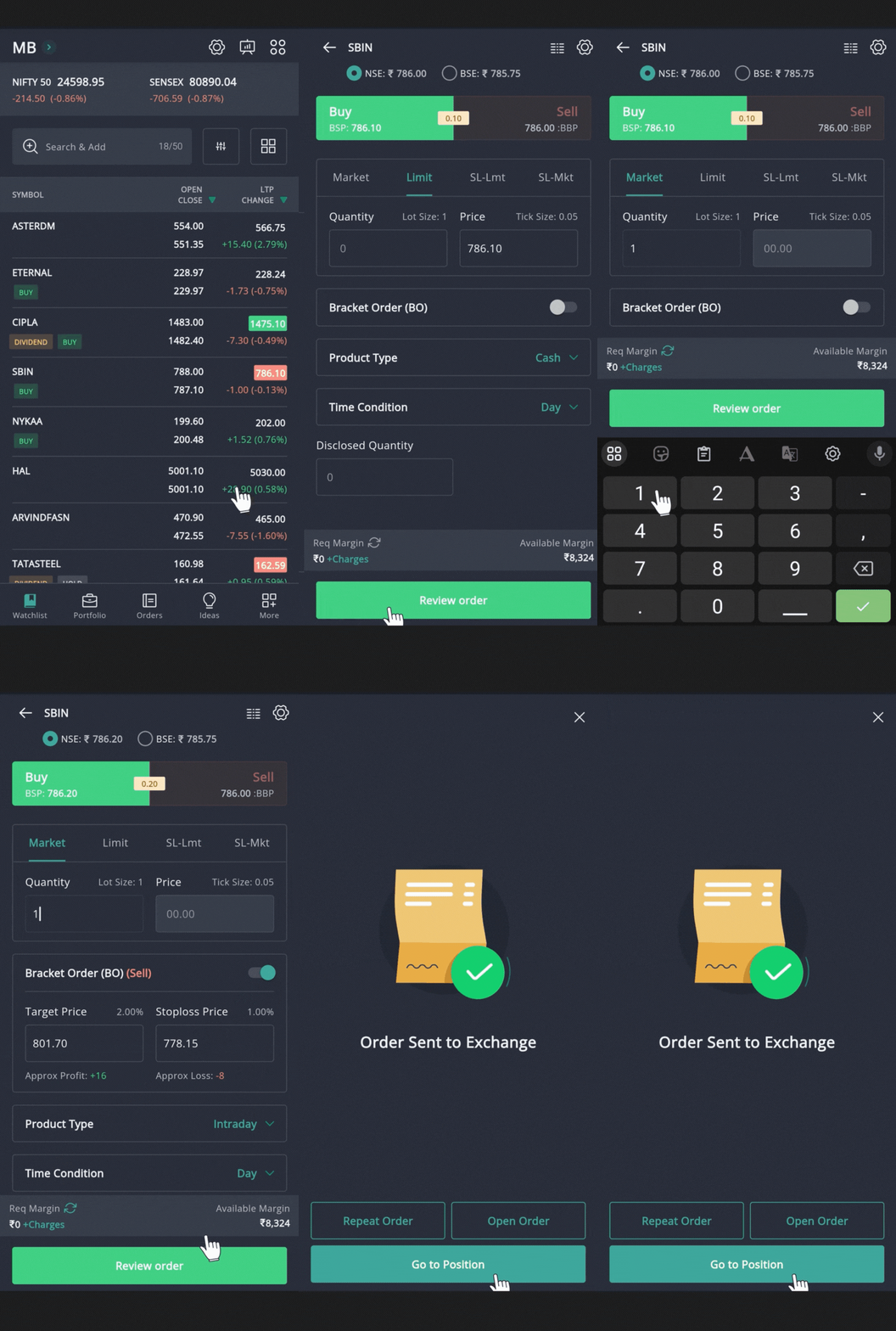
To place a **BO Order,** follow these steps:
* Open the **Order Placement Page** for the security you wish to buy or sell.
* Choose/enter the **"Exchange", "Order Type as Market", and Quantity.**
* Enable the **"Bracket Order (BO) Toggle "** .
* Enter your **"Target Price"** and **"Stop-loss Price."** Ensure that they are within the **daily price range.** Also, 0.25% of LTP is maintained for the target and stop-loss price.
* Select the **Time Condition** as **"Day".**
* Click the **"Review Order" Button** to re-check your order details.
* After confirmation, click the **"Place Order" Button.** Your order will be sent to the exchange.
**Please Note:** Bracket Orders are Day orders and cannot be placed as GTD (Good Till Date) orders.
#### How to Modify Bracket Order
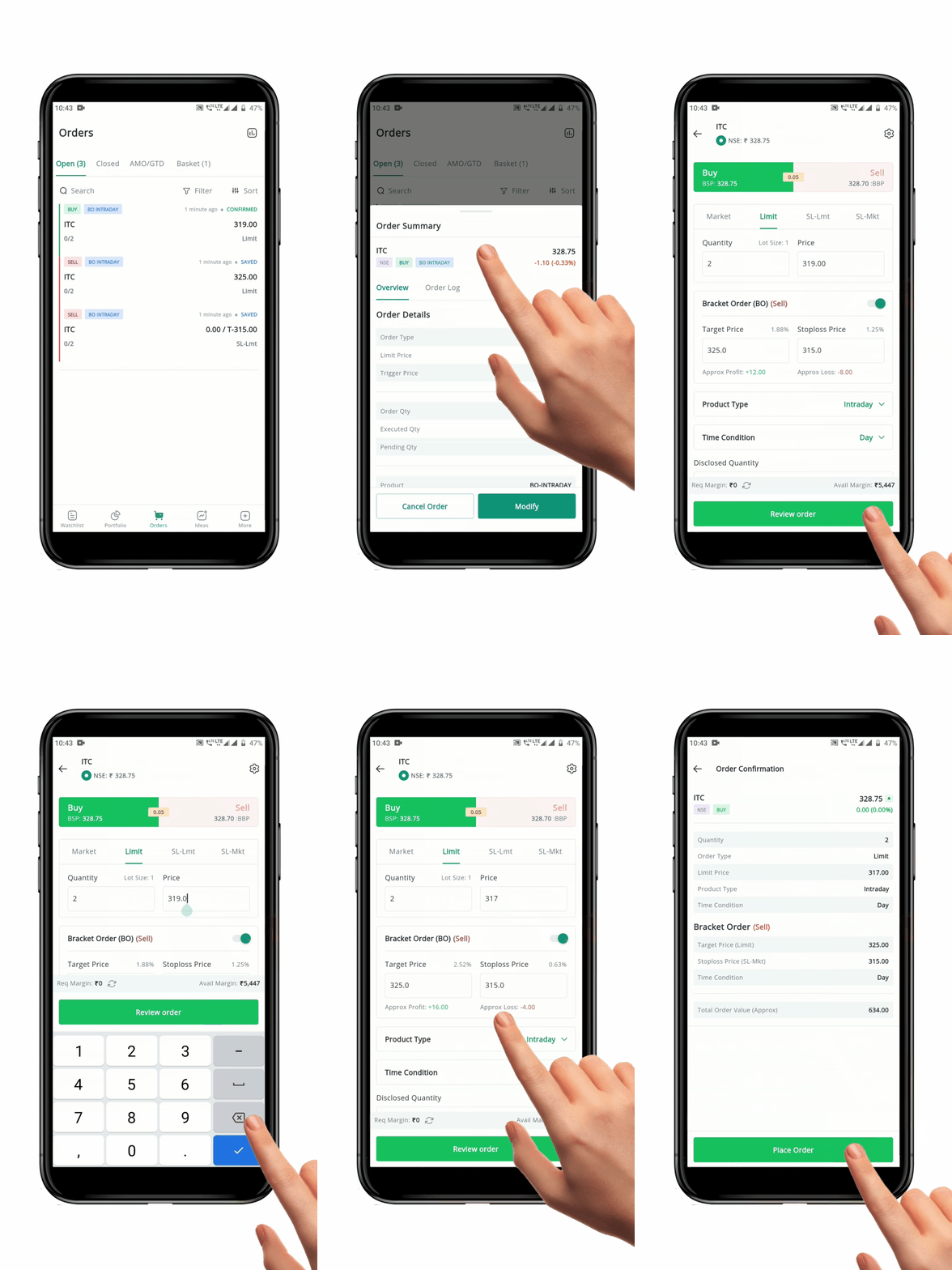
**1) Modification of Bracket Order before the Initial leg is Executed.**
* Go to the **"Open Order Book".**
* Find the group of **Three Open Bracket Order Legs**.
* Click on any of the legs to open the **Order Summary.**
* Click the **"Modify" Button** at the bottom of the screen.
* Make the desired changes to any or all of the legs of the **Bracket Order** in the initial order page.
* Click the **"Review Order" Button** and then **"Place order".**
* You will receive a confirmation of your **Modified Order.**
* The modification is complete once you receive the **Confirmation.**
* You can also go to the **"Order Log",** which is part of the **Order Summary Page**, to confirm the modification.
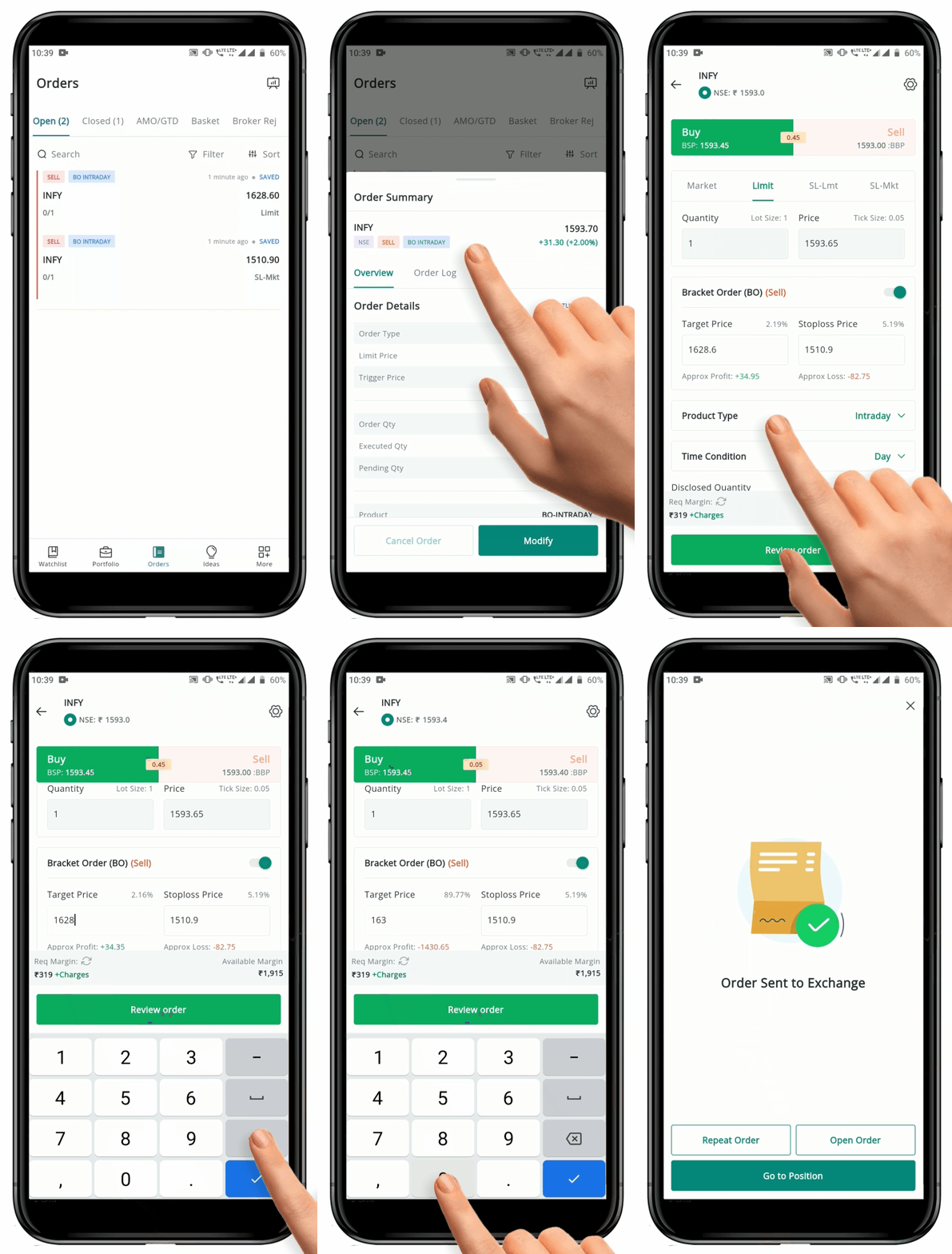
**2) To modify the take profit or stop loss order of a bracket order after the main order has been executed.**
* Go to the **"Open Order Book".**
* Find the group of T**wo Open take Profit or Stop-loss Orders.**
* Click on any of the legs to open the **Order Summary.**
* Click the **"Modify" Button** at the bottom of the screen.
* Make the desired changes to either both or one of the take **Profit or Stop-loss Orders** in the initial order page.
* Click the **"Review Order" Button** and then **"Place order"**.
* You will receive a confirmation of your **Modified Order.**
* The modification is complete once you receive the **Confirmation**
* You can also go to the **"Order Log",** which is part of the **Order Summary Page,** to confirm the modification.
#### How to Cancel Bracket Order
A **"Bracket Order"** can only be **Canceled** before the Initial Order of the Bracket Order is executed. Once the initial order is executed, there is no option to *cancel* the **Take Profit** and **Stop-loss Orders.** However, the trader will have the option to *modify* these orders. If the trader closes the Open Position of the executed leg, the take Profit and Stop-loss orders will automatically be **"Canceled"**.
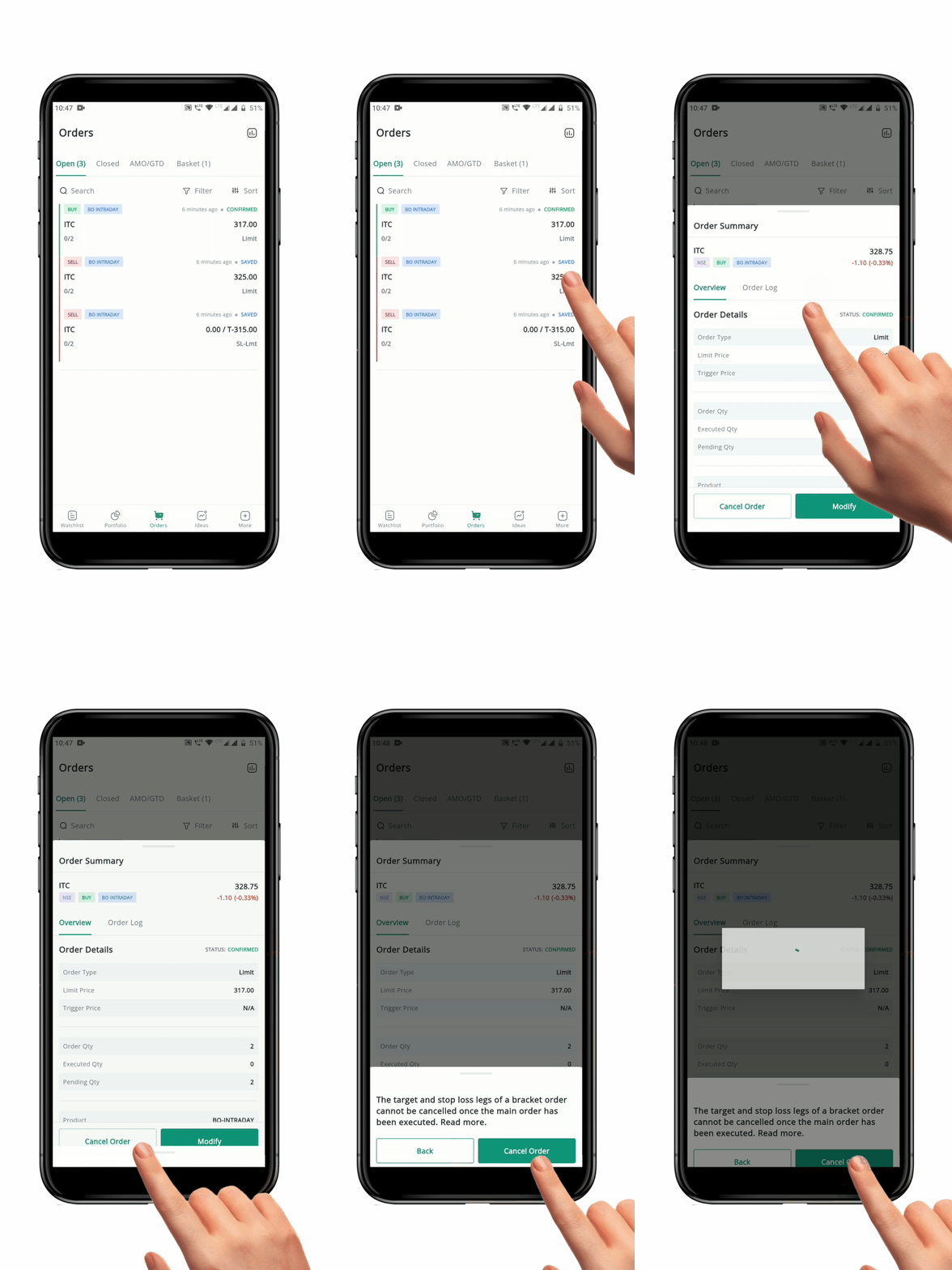
To **Cancel** a Bracket Order, Follow these steps:
1. Go to the **"Open Order Book"**.
2. Locate the group of **Three Bracket Order Legs** that you want to **Cancel**.
3. Click on any of the legs to open the **Order Summary.**
4. Click the **"Cancel Order" Button** at the bottom of the screen
5. Confirm that you want to "**Cancel"** all legs of the **Bracket Order** in the **Confirmation page**.
6. The entire **Bracket Order** will be canceled and you can view the **Canceled Order** in the closed order section with a status of **"Canceled".**
**Please Note:** It's important to note that you can only *Cancel* all legs of the Bracket Order or *Modify* the order, you cannot cancel individual legs.
#### **How to Cancel BO Take profit & SL leg by Squaring off the Open BO Position**
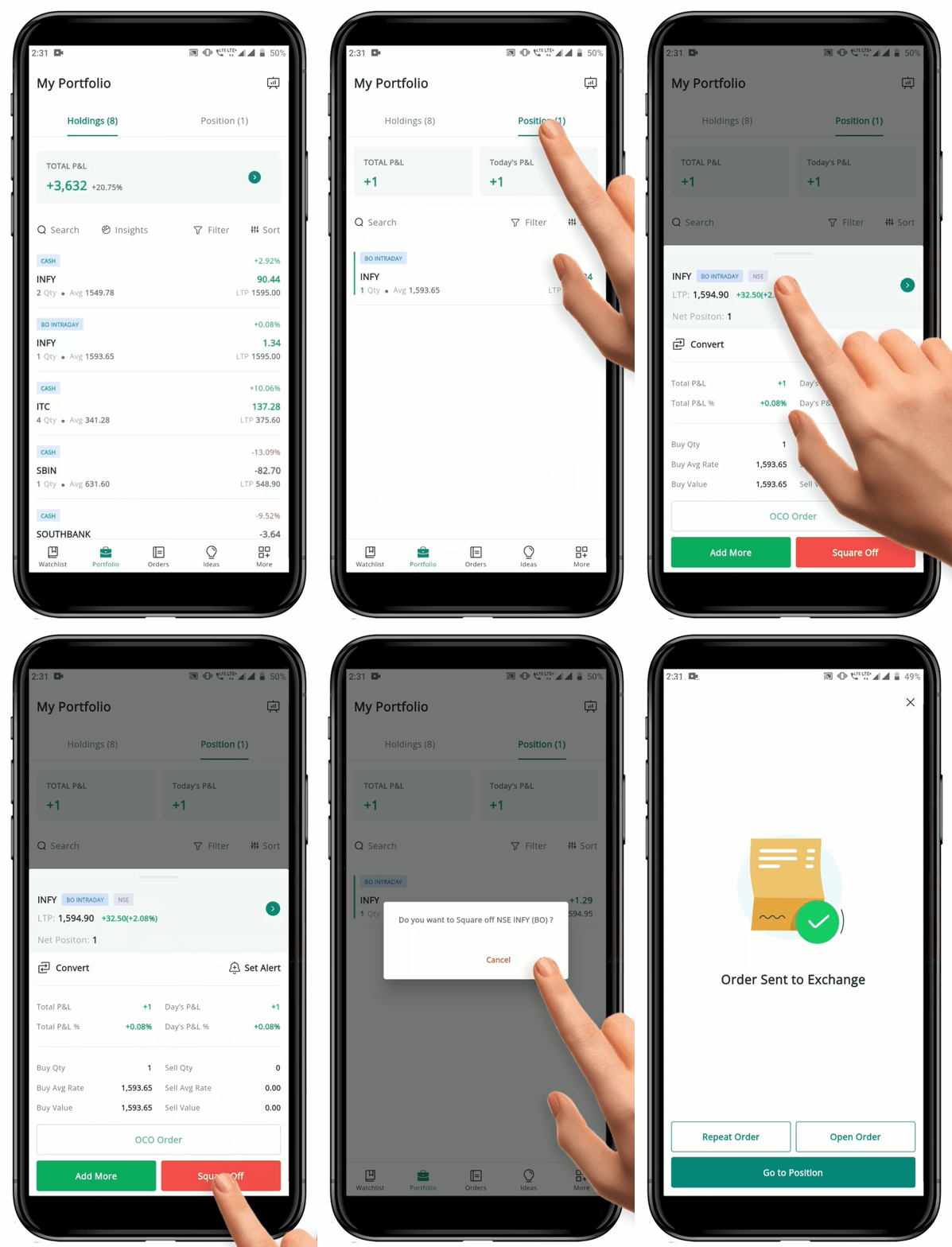
If you have an executed **"Bracket Order"** and want to cancel the **Take Profit and Stop-loss Orders,** the only option is to **Square Off** the **Open Position**. To do this, follow these steps:
* Go to the **"Position"** page from the **"Portfolio"** tab.
* Click on the security you want to **Square Off** to open the **Position Summary.**
* Click on the **"Square Off" Button**.
* Confirm the **Square Off**.
* Once you **Confirm** the Order, one leg of the **Bracket Order** will be modified to a **Market Order** and will be executed immediately, while the other leg will be **Canceled**.
* You can view the status of both orders in the **"Closed Order Book."**
Please Note: All Square Off orders will be Market Orders.
#### FAQ
1. How can I activate the [BO facility?](https://support.geojit.com/support/solutions/articles/89000007483-how-can-i-activate-the-oco-bracket-order-facility-)
2. What happens if my [Main Order/ Initial Order gets partially executed in the case of BO?](https://support.geojit.com/support/solutions/articles/89000007758-what-happens-if-my-main-order-initial-order-gets-partially-executed-in-the-case-of-bracket-orders-)
### 2. After Market Order (AMO)
**"**[**After Market Orders**](https://support.geojit.com/support/solutions/articles/89000007778-what-is-an-after-market-order-amo-how-can-i-place-an-amo-)**" (AMO)** are used to place Orders *post-market hours,* to trade on the next trading day. The order placement time varies segment-wise.
| SEGMENT | TIMING |
| ----------------------- | -------------------------------- |
| Equity Cash (NSE & BSE) | 4:15 pm to 8:45 am |
| Equity F\&O | 4:15 pm to 8:45 am |
| NSE MF | 4:15 pm to 8:45 am |
| Currency (NSE) |
5:15 pm to 8:45 am
|
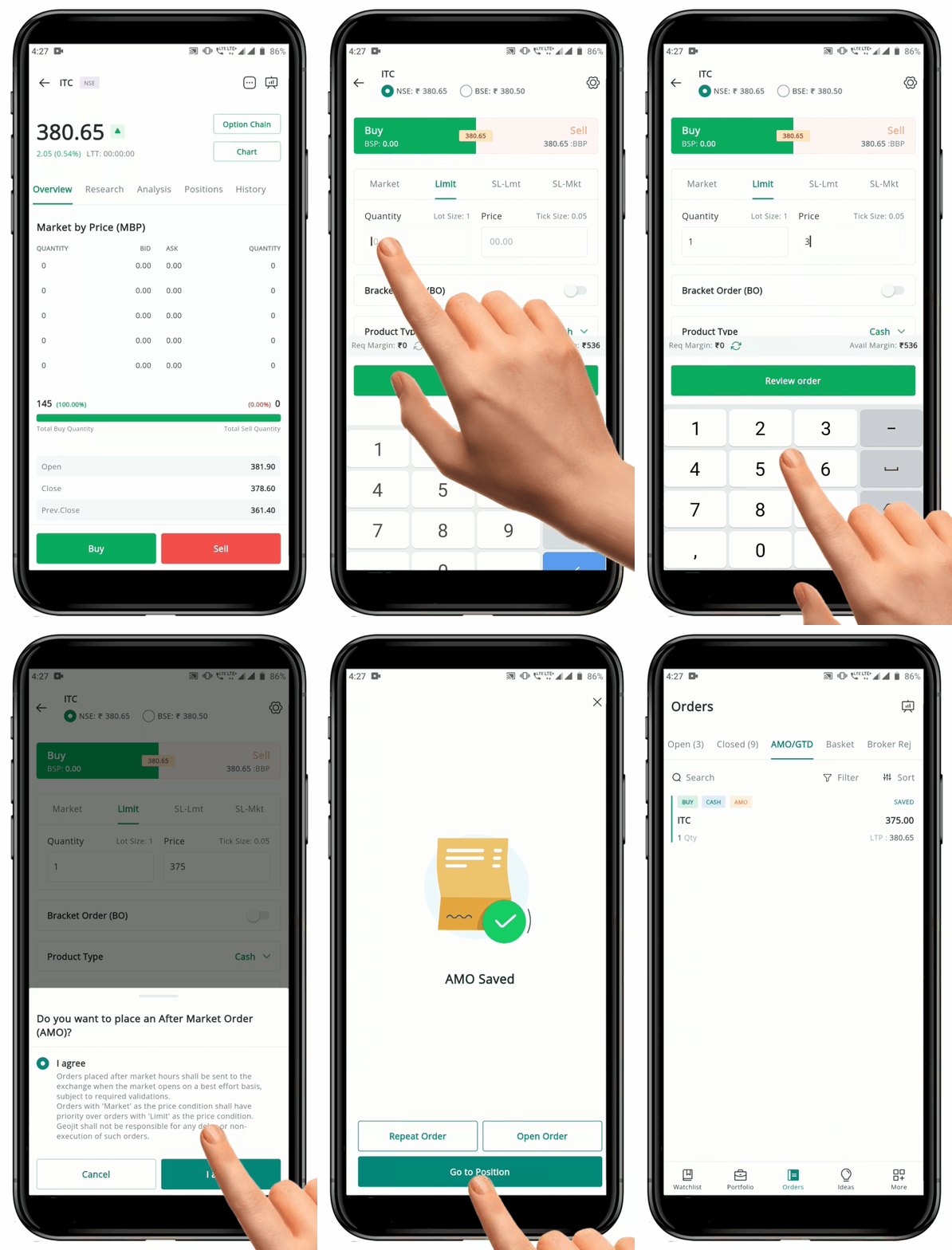
#### How to Place an AMO Order
To place **AMO Order**, follow these steps:
* Open the **Order Placement Page** for the security you wish to buy or sell.
* Choose/enter the **"Exchange", "Order Type", "Quantity, Price", "Product Type"** and **"Time Condition".**
* Click the **"Review Order" Button** to re-check your order details
* After confirmation, click the **"Place Order" Button**. Your order will be sent to the exchange.
**Please Note:** It is advisable to place *AMOs* as a limit order closer to the previous day's closing price, instead of as a Market Order.
#### FAQ
1. On which [Exchanges can I place AMO orders? ](https://support.geojit.com/support/solutions/articles/89000007780-on-which-exchanges-can-i-place-amos-)
2. What do I need to be [cautious about while placing an AMO order?](https://support.geojit.com/support/solutions/articles/89000007781-what-do-i-need-to-be-cautious-about-while-placing-an-amo-order-)
### 3. One Cancel Other Order(OCO)
A **"**[**One Cancel Other (OCO) Order**](https://support.geojit.com/support/solutions/articles/89000007776-what-is-a-one-cancel-other-oco-order-)**"** is a combination of two separate orders: a **Limit Order** and a **Stop-loss Order**. It allows you to set both a **Target Price** and **Stop-loss Price** for a trade. If either of the two orders is executed, the other order is automatically canceled. **OCO Orders** are commonly used to manage risk and can be placed against **Open Positions** and **Holdings.**
#### How to place OCO Order
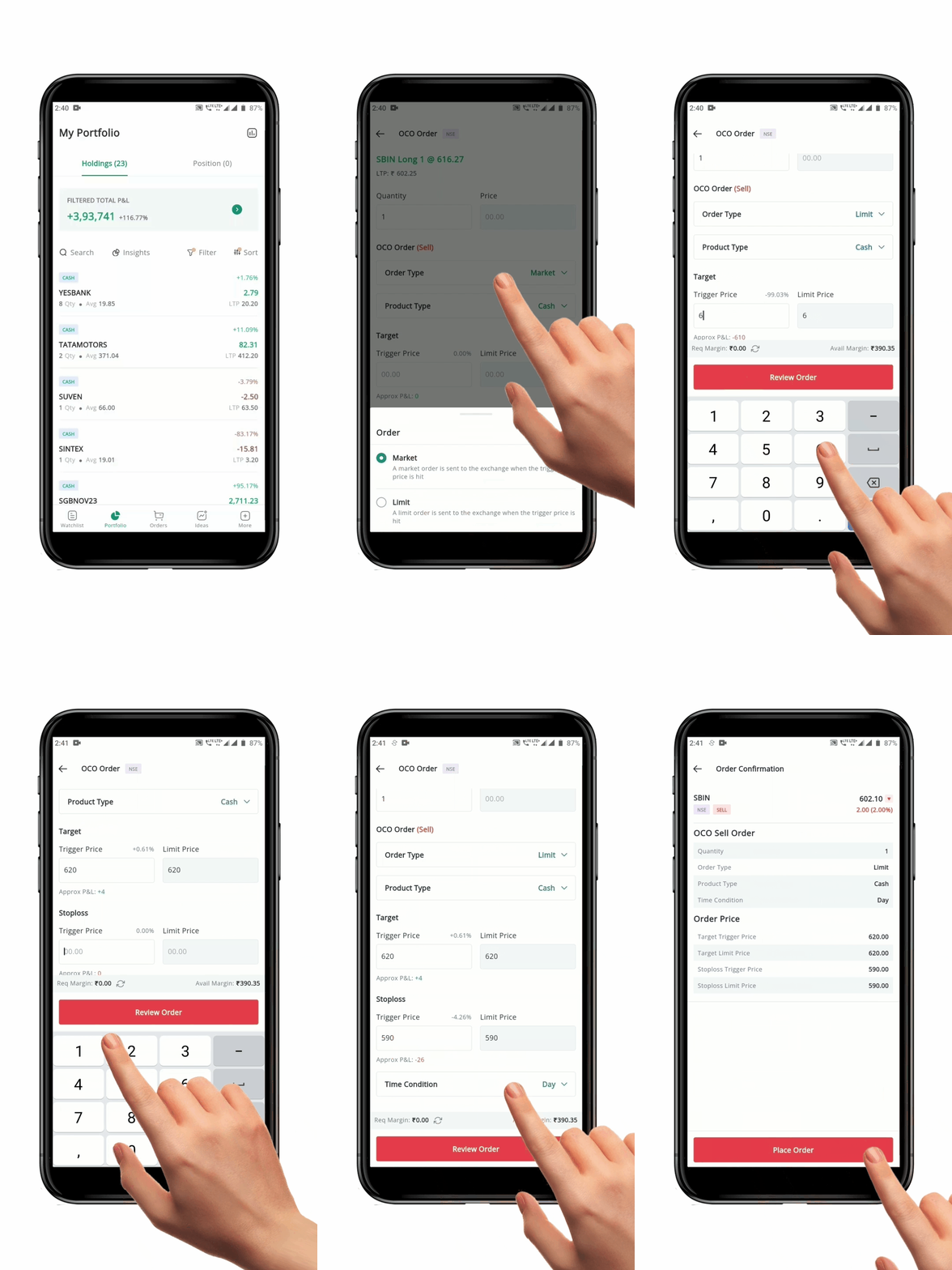
To place an **OCO Order**, follow these steps:
* Go to the **Holdings** or **Positions** section in your **Portfolio**.
* Select the desired Security.
* Click the **"OCO Order" Button**.
* You will be redirected to the **Order Placement Page** with details of your **"Holding Quantity"**, **"Average Price"** and the **"Last Traded Price".**
* The **"Quantity"** field is auto-filled based on your **Holdings**. Orders can be place for Quantities less than or equal to your existing Holding Quantity.
* Select the **"Order Type- Market / Limit":**
**"Market"-** You will have to specify a **Trigger Price** for both legs of the **OCO Order.** The orders are saved with **Geojit** and monitored until either of the trigger prices are hit. When the market reaches one of the *set trigger prices,* the saved order is sent to the exchange as a **Market Order** and the other leg is **Canceled.**
**"Limit" -** You will have to specify a **Trigger Price** for both legs of the **OCO Order**. The Trigger Prices will be taken as the **Limit Price** for each leg. The Orders are saved with Geojit and monitored until either of the Trigger Prices are hit. When the Market reaches one of the set trigger prices, the saved order is sent to the exchange as a **Limit Order** at the specified price, and the other leg is **Canceled**.
* Select the **Time Condition** as **"Day / GTD"**:
**"Day" -** The *Prices* will have to be within the Daily Price Range.
**"GTD" -** The *Prices* can be outside the Daily Price Range.
* Click the **"Review Order" Button** to re-check your order details.
* After confirmation, click the **"Place Order" Button**. Your order will be sent to the exchange.
**Please Note:** *OCO Orders* can be viewed in your Open Order Book under the Saved status. If it is placed as a *GTD order*, it can be viewed in both the *Open and AMO/GTD Order Book*. The *Trigger Price* set for *GTD orders* is valid only once. In the case an *OCO GTD Order* is triggered and sent to the exchange, but does not get executed, you will have to place the order again.
#### How to Cancel/Delete an OCO Order
**"OCO Orders"** are orders that are saved and monitored at the Geojit server and are only sent to the exchange when the **Price Condition** is met. These orders will always be in a *saved status* and can be *viewed and canceled* from the **Open** and **AMO/GTD Order Book**.
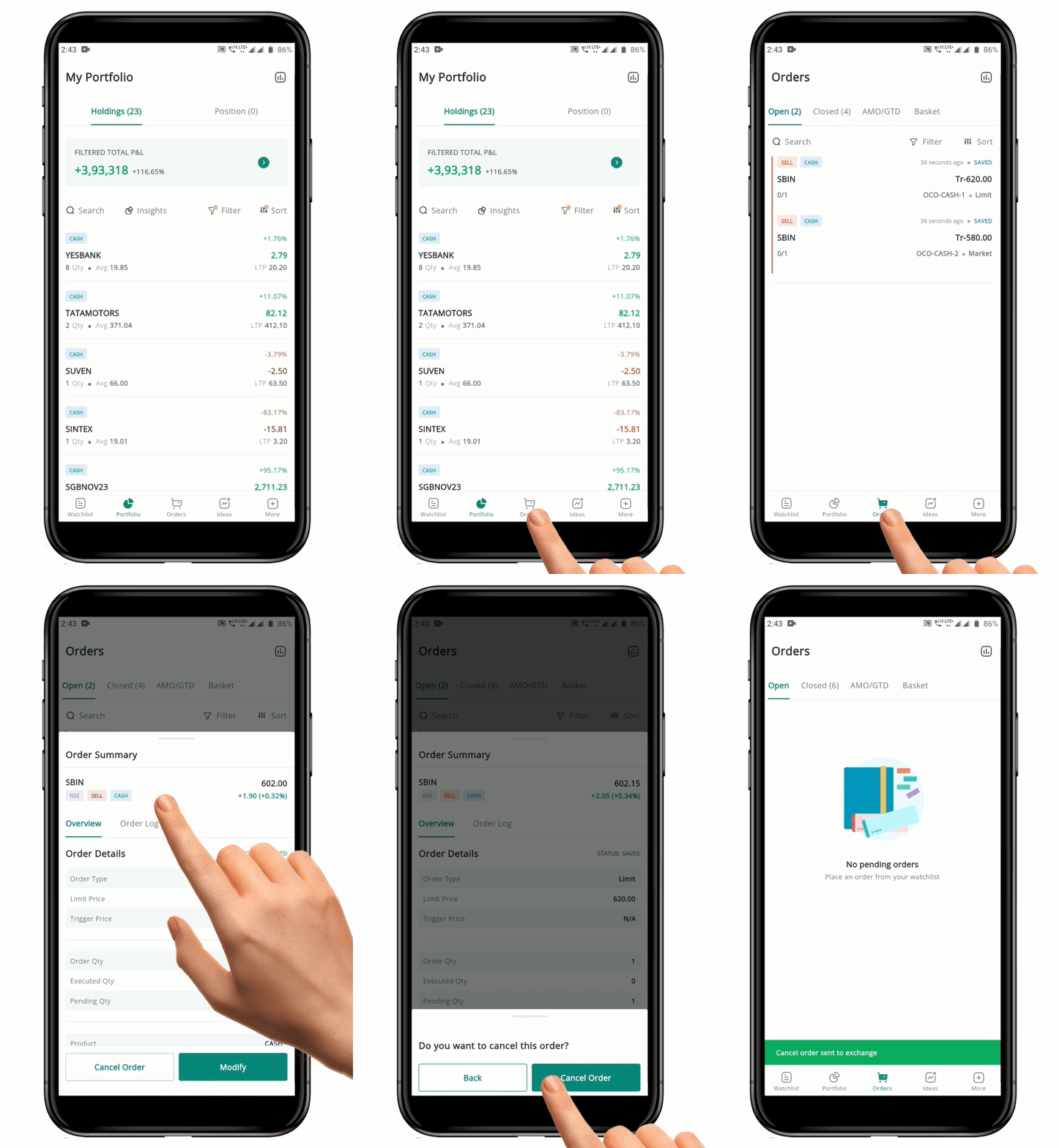
To Cancel an **OCO Orders**, follow these steps:
* Open the **Open Order Book** or the **Open** and **AMO/GTD Order Book.**
* Locate the **OCO Group Order** that you want to **Cancel**.
* Click on any of the legs to open the **Order Summary.**
* Click the **"Cancel Order" Button** at the bottom of the screen.
* Confirm that you want to *cancel* both legs of the **OCO Order** in the **Confirmation** pop-up Page.
* Both legs of the **OCO Order** will be *deleted* and you can view the **Deleted OCO Order** in the **Closed & AMO/GTD Order** section with a status of **"DELETED."**
#### How to Modify an OCO Orders ?
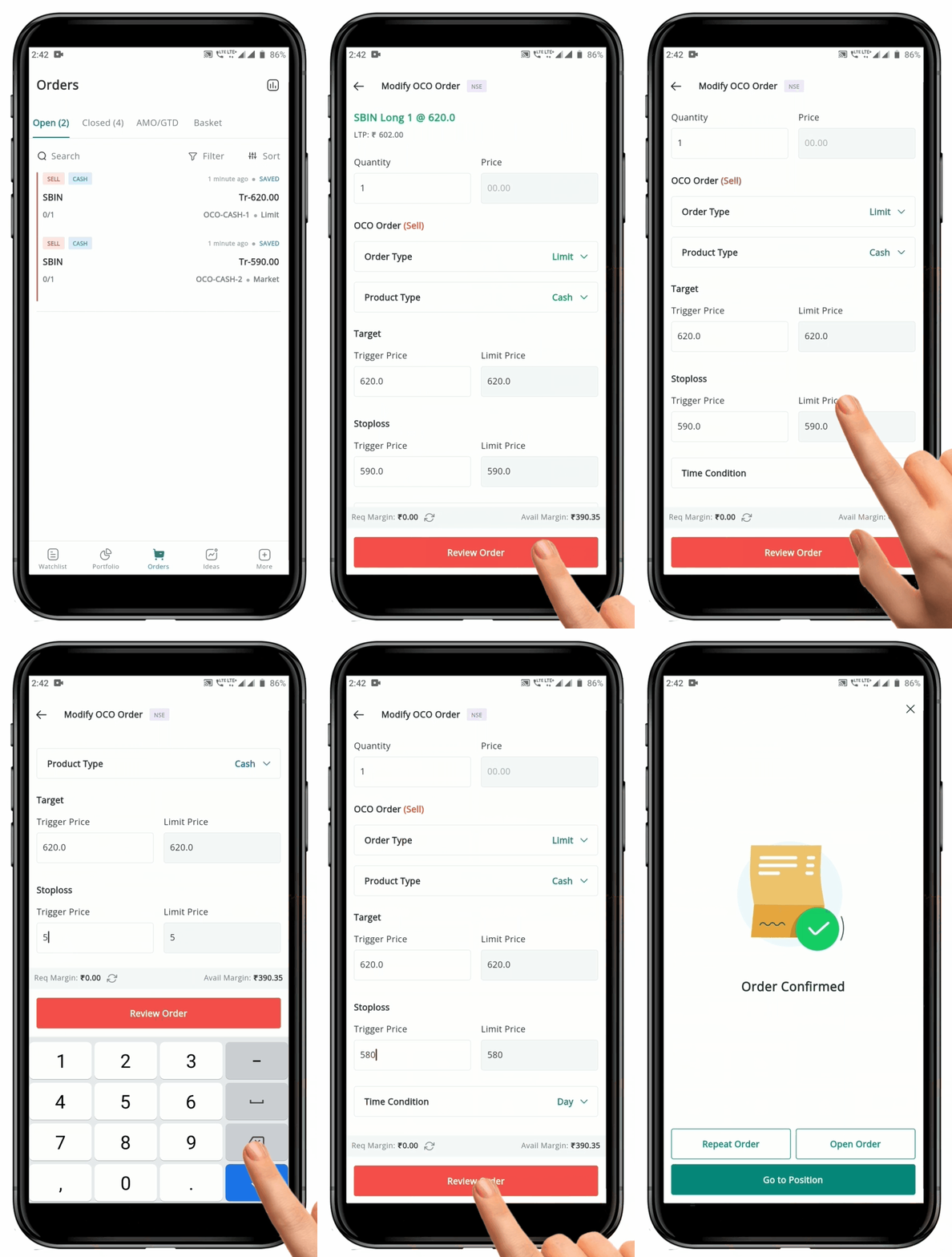
To Modify an **OCO Order,** follow these steps:
1. Open the **Open Order Book** or the **Open** and **AMO/GTD Order Book**.
2. Locate the **OCO Group Order** that you want to Modify.
3. Click on any of the legs to open the **Order Summary.**
4. Click the **"Modify" Button** at the bottom of the screen to open the **"Modify OCO Order"** page.
5. Make changes to either *one or both legs* of the **OCO order.**
6. Click the **"Review" Button** at the bottom of the page to open a **Confirmation page.**
7. Click the **"Place Order" Button** to *save* the changes and *modify* the **Order**.
**Please Note:** The changes made to the OCO Order will be updated in both the Open and AMO/GTD Order Book. It is important to check the Order Book to ensure that the modification has been successful.
#### FAQ
1. How can I [activate OCO order?](https://support.geojit.com/support/solutions/articles/89000007483-how-can-i-activate-the-oco-bracket-order-facility-)
### How to place OCO order for derivatives ?
* Go to the **F\&O tab** in the **Portfolio**.
* Tap on the desired contract.
* Click the **"OCO Order" Button**.
* You will be redirected to the **Order Placement Page.**
* The **"Quantity"** field is auto-filled based on your **Holdings**. Orders can be place for Quantities less than or equal to your existing Holding Quantity.
* **Order Type will be set as 'Limit' by default.**
* Now let's set the price :
* In case of sell order,
* Target trigger price should be greater than last traded price.
* The target limit price should be less than the trigger price and greater than LTP.
* The stop loss trigger price should be less than last traded price.
* The stop-loss limit price should be less than Trigger price and less than LTP.
*These conditions apply in reverse for buy order.* [*Click here to read more on* Limit Price Protection.](https://support.geojit.com/support/solutions/articles/89000011273-why-does-a-pre-trade-control-pop-up-appear-when-i-try-to-place-an-order-)
* The default **Time Condition** will be 'Day'.
* After confirmation, click the "**Review Order**" Button.
* Next tap on '**Place Order**'. Your order will be sent to the exchange.
### Split Order
**Split Order** is a tool for traders who deal with large lot sizes. [***F\&O Order has a limit for the number of lots per order***](https://support.geojit.com/support/solutions/articles/89000011252-why-was-my-order-rejected-with-the-reason-order-value-is-greater-than-maximum-what-is-the-quantity-freeze-limit-maximum-order-quantity-for-f-o-). The split order feature helps you enter the lots above this limit wherein the orders are split as per the given limit for the contract concerned and sent to the exchange. This saves time and reduces errors compared to manually entering multiple trades. Earlier, the split order feature was only applicable to **Nifty and Bank Nifty** contracts. But now, this feature is live for **BSE FO** contracts too.
**For Example :** The limit for a contract is 30 lots. When a user places an order for 100 lots, the order is split into 4 orders of- 30, 30, 30 and 10 and sent to the exchange.
#### Split Order for Single Leg Order
To place **Split Order** for *Single Leg Order*, follow these steps:
* Login to **Flip Mobile App.**
* Locate the **More Icon** and click on it to navigate to the **More page****.**
* Click on **Settings** to get redirected to the **"Settings" page.**
* In the **"Settings" page** locate and select **"Default Order Settings".**
* Now click on the **"Futures"** tab to activate the **"Split Order for Futures".**
* Within the **"Futures"** tab, enable the "Advanced Preset" toggle to access "Advanced Settings" Option.
* Then, click the **Checkbox** near **"Allow Split Order".**
* A **Tick Mark** will appear, indicating that **Split Order feature** for **Futures Contract** is now activated.
* Repeat the same for the **"Options"** by going to the **Options** tab for activating **Split Order feature** for **Options Contract.**
* Confirm and Save the **"Settings"** before you return to the **"Watchlist"**.
**Please Note :** The ***Split Order*** is not enabled by default, as this feature may not be utilized by all traders.
* From **Watchlist** select the **Futures or Options (Nifty, Bank Nifty, Sensex) contract** for which you would like to place the order.
* Click **"Buy"** to proceed with placing the **Order**.
* Once you are on the **Order Window**, choose the **"Order Type".**
* Next enter the **"Quantity".** For example enter 100 quantities.
* Leave the **"Product Type"** and **"Time Condition"** as it is.
* Now, click the **"Review Order" Button** at the bottom of the page.
* You will be redirected to the **Order Confirmation** window, where you can see all the Order details including the **Order Split.**
* Here, you can see that Order one and two are for 36 lots each and Order three is for 28 lots, making the total of 100 lots.
* However, the **"Place Order" Button** will not be activated now. To activate the button you need to Check the **Checkbox** near **Split Order.**
* Once the **"Place Order" Button** is active, click on it to send the order to the exchange.
* Along with the **"Place Order" Button**, you can find **"Edit" Button**. Click on it if you wish to make any changes in the **Order**.
**Please Note:** Due to liquidity issues, currently, Split Order is only available for **Nifty, Bank Nifty and Sensex** contracts.
### Split Order for Multi-leg Order
To place **Split Order** for *Multi-Leg Order*, follow these steps:
Here, let's see how to place **100-lot Ironfly Order**
* Go to **Watchlist** **page** and choose the desired **"Futures or Options (Nifty, Bank Nifty, Sensex) contract".**
* You will be redirected to the **"Security Page".**
* Locate and Click the **"Option Chain" Button** on the top of the page and select the desired **"Expiry".**
* Once the **Option Chain** opens, click the "**Bid Price"** for both the **"Call"** and **"Put"** options to create a **Straddle.**
* After that click on the "**Ask Price"** to buy the protection wings, which must be 200 points away to complete the **Ironfly Strategy.**
* You may notice that lot size is already displayed as 100, as it has been set as the default lot size.
* However, when you open the order, the default order lot size provided by the platform will be 1.
* To **Review** and **Modify** the **Price** and **Quantity**, use the **Expand Icon****.**
* Then click the **"Review"** **Button** and you will get redirected to the **Order Confirmation page.**
* Here, each of your leg will be split into three orders.
* Check the order details again and click the **Checkbox** next to the **Split Order** to activate the **"Place Order" Button.**
* Click the **"Place Order" Button** to send the order to the exchange.
**Please Note:** Before clicking the **Place Order button** you have the option to **Edit** the Order by clicking the **Edit Order button.**
* [x] **Read More** : [**How can I modify or cancel split order ?**](https://support.geojit.com/support/solutions/articles/89000020789-how-can-i-modify-or-cancel-split-order-)
#### How to apply Rollover ?
A [**Rollover**](https://support.geojit.com/support/solutions/articles/89000011257-what-is-a-rollover-) is when a trader moves his position from the front month contract that is close to expiry to another contract further in the future. When rolling forward, a trader will close his current position and open a new position in the next/further contract months. In other words, it is the process of carrying forward an open position from one month to another month.
* Go to **Portfolio**.
* Find **F\&O tab**.
* You will find your Future Open positions.
* Click on it and **holding overview window will pop-up**.
* You can spot '**Roll Order**' button towards the end.
* Click on it and an **order window** will pop-up.
* Once the order is reviewed, click on **'Review**'.
## What is a spread order ?
The Spread Order facility on trading platforms is a specialized feature designed for rolling over futures and options positions from one expiry to another by combining orders into a single transaction. Spread orders are especially useful for traders managing strategies that need synchronized entry and exit across different contract months, allowing them to avoid the risks of price fluctuation between separate order placemesnts.
For example, suppose Mr. Shah has a long position in a BANKNIFTY futures contract expiring at the end of the month. To carry his position forward to the next month, he would normally need to place two separate orders: one to close the current contract and another to open the next month’s contract. With the Spread Order facility, Mr. Shah can submit both these orders together as a single order, simplifying the rollover process.
> [**What are the key features of spread order ?**](https://support.geojit.com/support/solutions/articles/89000007794-what-is-the-spread-order-facility-on-flip-)
**Step 1.** Log in to [*Flip*](https://login.geojit.com/authorize?redirect_uri=https%3A%2F%2Fflip.geojit.com%2Fsso_response\&client_id=01ee939f-4bb6-1b25-9e0a-1418857bd4d9\&response_type=code).
**Step 2.** Click the **S*****earch bar*** on the ***Watchlist** page*.
**Step 3.** A window will open up with different categories. Select **'Spread'**.
**Step 4.** Search for the desired future contract and ***add*** it to the watchlist.
**Step 5.** Now, ***tap*** on the add button :plus-large: right next to the future contract and *proceed to **buy***.
 .
* Enter your **"Target Price"** and **"Stop-loss Price."** Ensure that they are within the **daily price range.** Also, 0.25% of LTP is maintained for the target and stop-loss price.
* Select the **Time Condition** as **"Day".**
* Click the **"Review Order" Button** to re-check your order details.
* After confirmation, click the **"Place Order" Button.** Your order will be sent to the exchange.
**Please Note:** Bracket Orders are Day orders and cannot be placed as GTD (Good Till Date) orders.
#### How to Modify Bracket Order
**1) Modification of Bracket Order before the Initial leg is Executed.**
.
* Enter your **"Target Price"** and **"Stop-loss Price."** Ensure that they are within the **daily price range.** Also, 0.25% of LTP is maintained for the target and stop-loss price.
* Select the **Time Condition** as **"Day".**
* Click the **"Review Order" Button** to re-check your order details.
* After confirmation, click the **"Place Order" Button.** Your order will be sent to the exchange.
**Please Note:** Bracket Orders are Day orders and cannot be placed as GTD (Good Till Date) orders.
#### How to Modify Bracket Order
**1) Modification of Bracket Order before the Initial leg is Executed.**