> For the complete documentation index, see [llms.txt](https://usermanuals.geojit.com/llms.txt). Markdown versions of documentation pages are available by appending `.md` to page URLs; this page is available as [Markdown](https://usermanuals.geojit.com/flip-mobile/orders/order-types.md).
# Order Types
The following are the Order Types available in the FLIP App.
### **This section contains:**
1. [Market Order and How to place it.](#id-1.-market-order)
2. [Limit Order and How to place it.](#how-to-place-market-order)
3. [Stop-loss Limit Order and How to place it.](#id-3.-stop-loss-limit-order)
4. [Stop-loss Market Order and How to place it.](#id-4.-stop-loss-market-order)
### Various Order Types Available in FLIP App
### 1. Market Order
A **"**[**Market Order**](https://support.geojit.com/support/solutions/articles/89000007679-what-is-a-market-order-)**"** is an **Order Price Condition** used to executed at the best available *ask/bid price.* The Price at which a **Market Order** is executed is not guaranteed.
#### How to Place Market Order
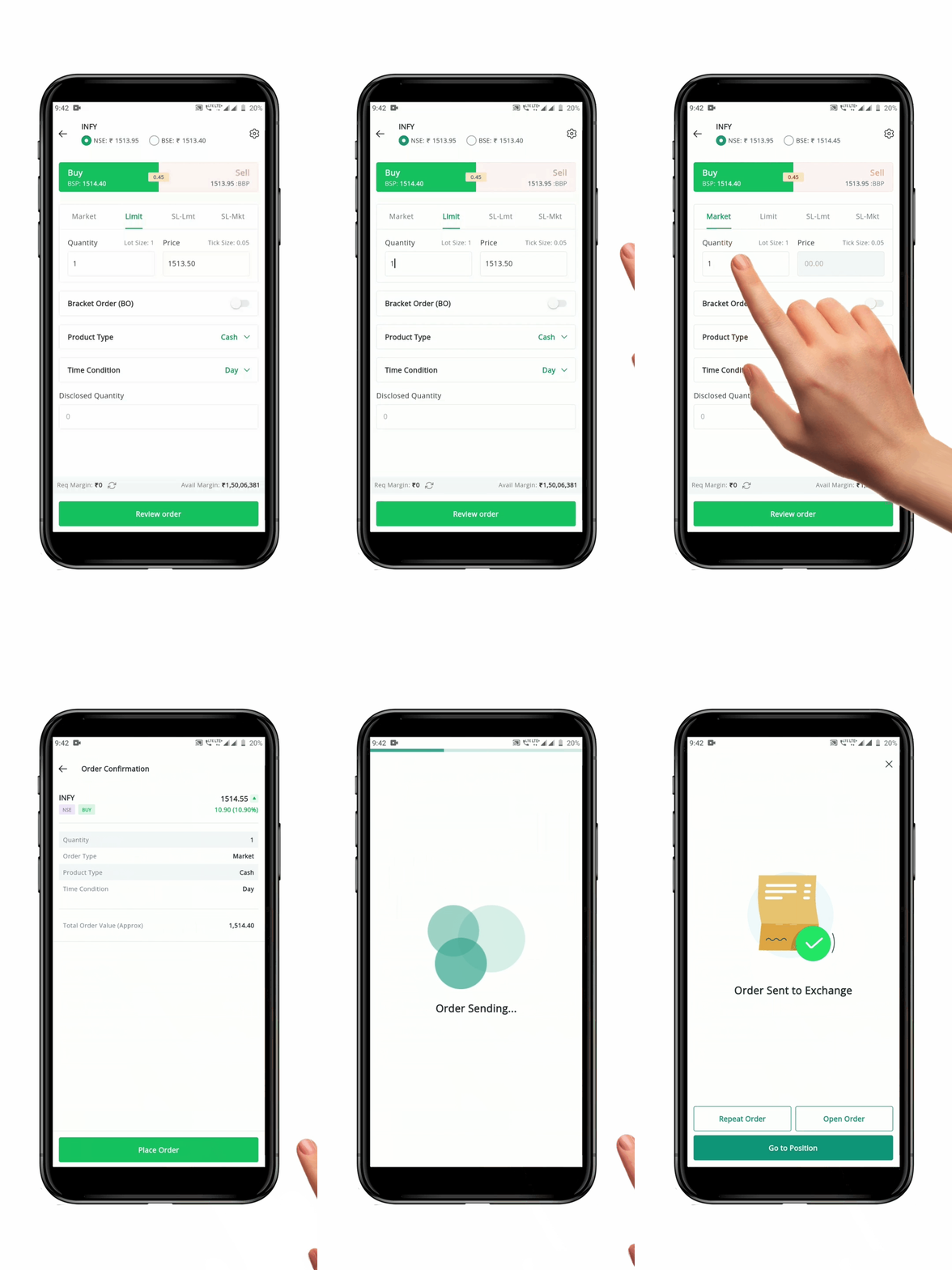
To place a **Market Order**, follow these steps:
* Open the **Order Placement Page** for the security you wish to buy or sell.
* Select **"Market"** as the order type.
* Choose/enter the **"Exchange", "Quantity", "Product Type",** and **"Time Condition" .**
* Click the **"Review Order" Button** to re-check your order details
* After confirmation, click the **"Place Order" Button**. Your order will be sent to the exchange.
**Please Note:** The price field will be disabled when placing a Market Order.
### 2. Limit Order
A **"**[**Limit Order**](https://support.geojit.com/support/solutions/articles/89000007684-what-is-a-limit-order-)**"** is an **Order Price Condition** used to buy or sell a security at a *specific price or better.* For example, if you place a **Limit Order** to buy a security at 20 INR, your Order will only be executed at 20 INR or less. This type of Order allows you to specify the price at which you are willing to trade, which can be useful if you want to buy or sell a security at a certain price.
#### How to Place Limit Order
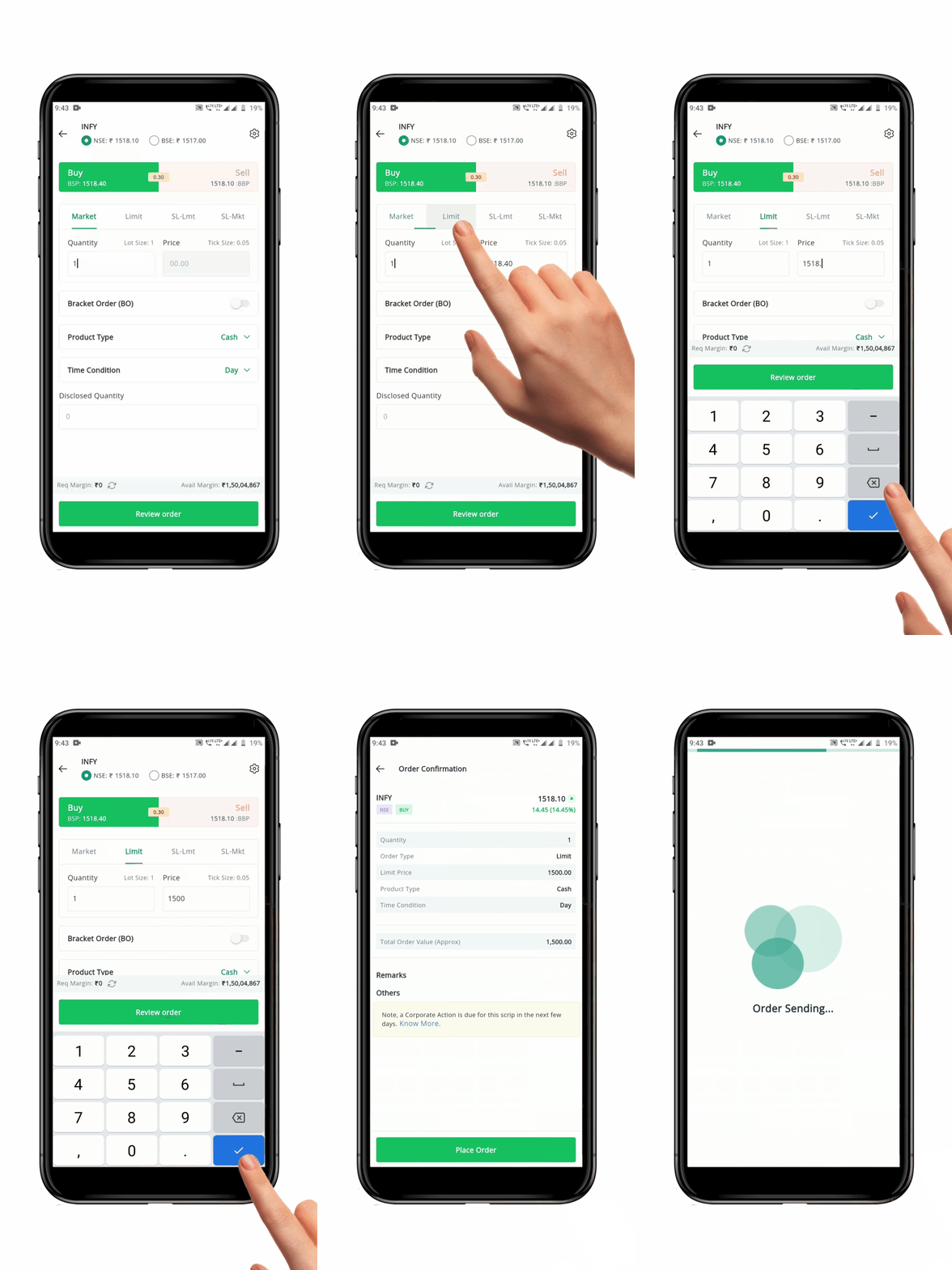
To place a **Limit Order**, follow these steps:
* Open the **Order Placement Page** for the security you wish to buy or sell.
* Select **"Limit"** as the order type.
* Choose the "Exchange" and enter the desired "Quantity".
* Enter the **"Price"**- the maximum price you want to pay for a buy order, or the minimum price you want to receive for a sell order. This is the price at which your order will be executed, or better.
* Choose the **"Product Type"** and **"Time Condition".**
* Click the **"Review Order" Button** to re-check your order details
* After confirmation, click the **"Place Order" Button**. Your order will be sent to the exchange and will remain pending until the **Limit Price Conditions** are met.
* Your order will be executed at the specified\` **Limit Price**, or a better.
**Please Note:** A Limit Order may not be filled if the security's price does not reach the specified limit price.
### 3. Stop-Loss Limit Order
A **"**[**Stop-loss Limit Order**](https://support.geojit.com/support/solutions/articles/89000007772-what-is-a-stoploss-order-)**"** is an **Order Price Condition** that helps investors limit losses on a Position, by buying a security as its price rises and hits a specified Trigger Price, or selling a security as its price declines and reaches a specified Trigger Price.
A **"Stop-loss Limit Order"** is placed with a **"Trigger Price"** and a **"Limit Price".** The **Limit Order** is activated when the Trigger Price is hit. The trade is executed only when the **Limit Price** is reached.
**Buy Orders:** The *Limit Price* and *Trigger Price* must be *above* the Current Market Price.
**Sell Orders:** The *Limit Price* and *Trigger Price* must be *below* the Current Market Price.
#### How to place Stop-Loss Limit Order
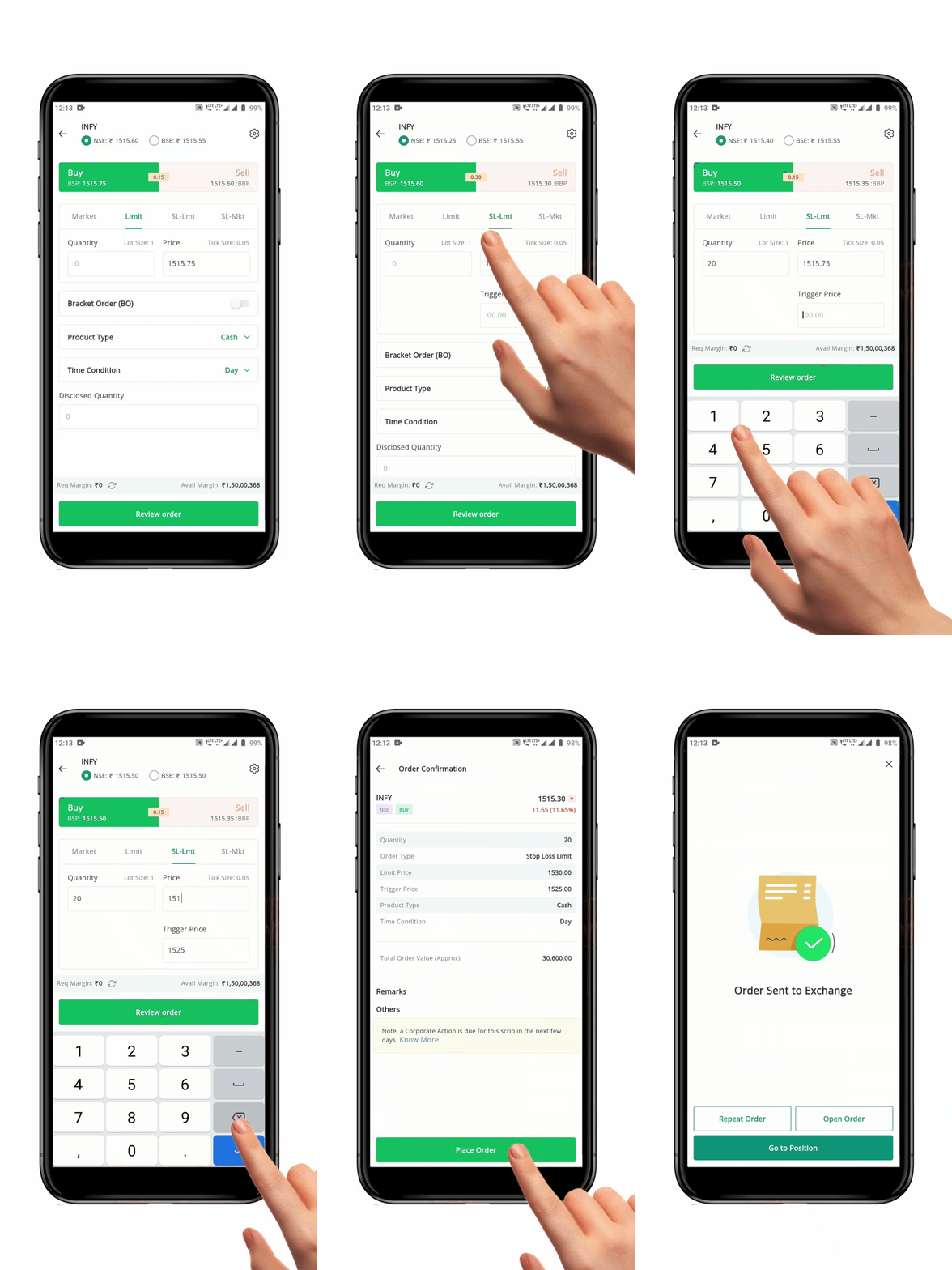
To place a **Stop-loss Limit Order**, follow these steps:
* Open the **Order Placement Page** for the security you wish to buy or sell.
* Select **"SL-Lmt"** as the order type.
* Choose the **"Exchange"** and enter the desired **"Quantity"**.
* Enter the **"Trigger Price"** :
* For **Buy Orders**, the Trigger Price must be higher than the Current Market Price and lower than the desired Limit Price.
* For **Sell Orders**, the Trigger Price must be lower than the Current Market Price and higher than the desired Limit Price.
* Enter the **"Limit Price" :**
* For **Buy Order**, the Limit Price must be higher than the Trigger Price.
* For **Sell Orders**, the Limit Price must be lower than the Trigger Price.
* Choose the **"Product Type"** and **"Time Condition".**
* Click the **"Review Order" Button** to re-check your Order details.
* After confirmation, click the **"Place Order" Button**. Your order will be sent to the exchange. When the Trigger Price is reached, the Limit Order will be activated.
**Please Note:** Once your order hits the Trigger Price, it will be executed at the available Market Price.
### 4. Stop-Loss Market Order
A **"**[**Stop-loss Market Order**](https://support.geojit.com/support/solutions/articles/89000007772-what-is-a-stoploss-order-)**"** is an **Order Price Condition** that helps investors limit losses on a Position, by buying a security as its price rises and hits a specified Trigger Price, or selling a security as its price declines and reaches a specified Trigger Price.
A **Stop-loss Market Order** is placed with a Trigger Price. When the Market Price reaches the set Trigger Price, a **Market Order** is sent to the exchange (at the prevailing Market Price).
**Buy Orders:** The *Trigger Price* must be above the Current Market Price.
**Sell Orders:** The *Trigger Price* must be below the Current Market Price.
#### How to Place Stop-Loss Market Order
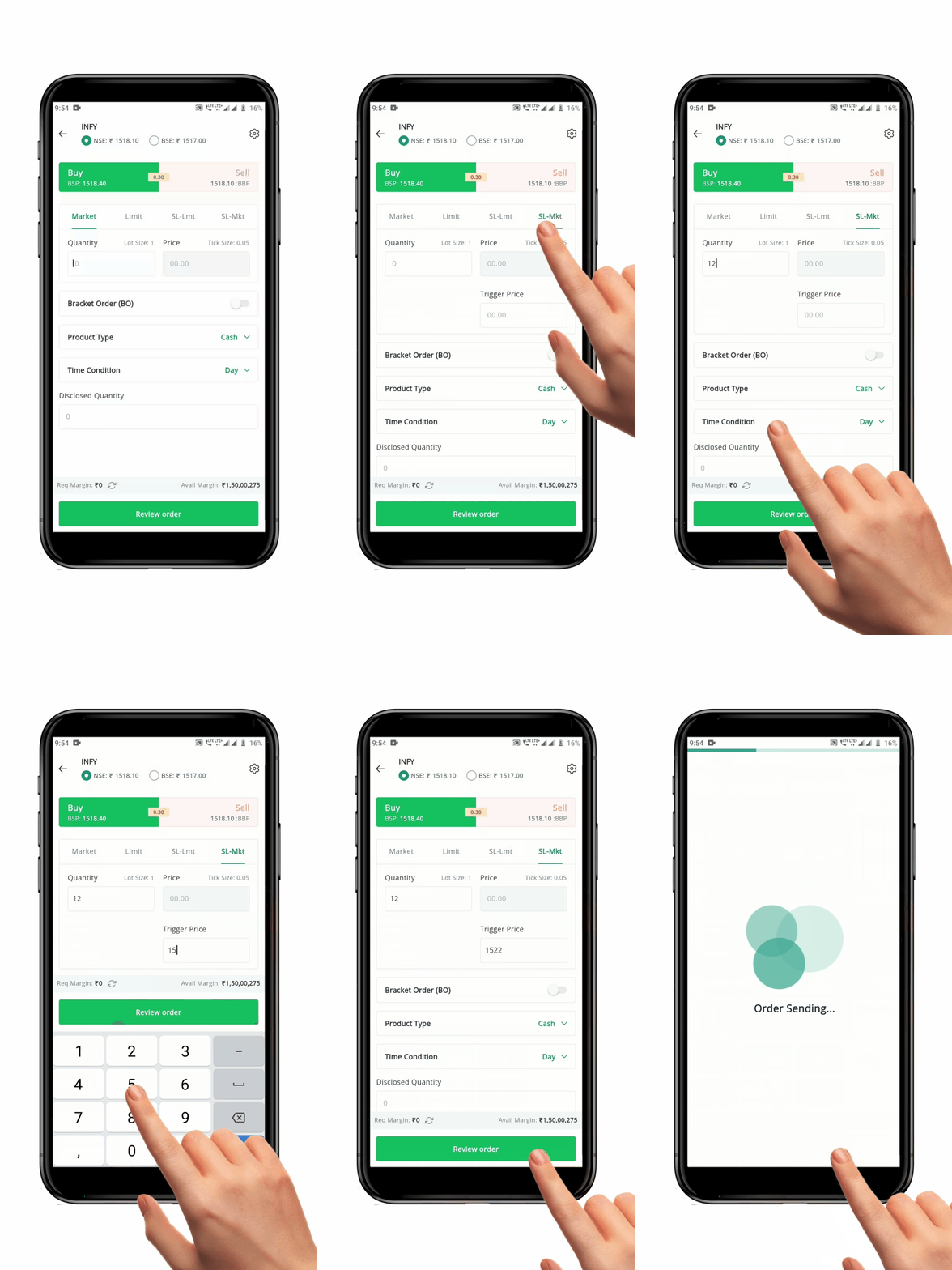
To place a **Stop-loss Market Order**, follow these steps:
* Open the **Order Placement Page** for the security you wish to buy or sell.
* Select **"SL-Mkt"** as the order type.
* Choose the **"Exchange"** and enter the desired **"Quantity".**
* Enter the **"Trigger Price".**
* For **Buy Orders**, the Trigger Price must be higher than the Current Market Price.
* For **Sell Orders**, the Limit Price must be lower than the Current Market Price.
* Choose the **"Product Type"** and **"Time Condition".**
* Click the **"Review Order" Button** to re-check your order details.
* After confirmation, click the **"Place Order" Button**. Your order will be sent to the exchange. When the Trigger Price is reached, a Market Order will be activated.
**Please Note:** Once the Order is activated, it will be executed at the next or better Market Price.sd