> For the complete documentation index, see [llms.txt](https://usermanuals.geojit.com/llms.txt). Markdown versions of documentation pages are available by appending `.md` to page URLs; this page is available as [Markdown](https://usermanuals.geojit.com/flip-mobile/orders/order-confirmation.md).
# Order Confirmation
### This section contains:
1. [Steps for Order Confirmation](#id-1.-steps-for-order-confirmation)
2. [How to select the option between Placing an order after reviewing or without reviewing.](#id-2.-how-to-select-the-option-between-placing-an-order-after-reviewing-and-without-reviewing)
3. [Order Confirmation Page](#id-3.-order-confirmation-page)
### 1. Steps for Order Confirmation
It's generally a good idea to have a **"Confirmation"** step when placing Orders, especially if they involve significant amounts of money or have the potential to significantly impact a **Portfolio**. This can help prevent mistakes or unintended consequences from occurring.
Having a **"Confirmation Step"** allows you to *review* your Order before it is sent to the exchange and ensure that all the details are correct. This can be especially important in fast-moving and volatile markets, where mistakes can have significant consequences. We also have the option to place order without the confirmation step if you are confident in decision-making and want to be able to place orders quickly.
Hence, there are two options for **Order Placement**:
1. Sending the Order to the exchange *after reviewing* the order details in the Order Confirmation page. This is the default and recommended option on the platform.
2. Sending the Order to the exchange *without an additional Review* and *Confirmation step*.
### 2. How to select the Option between Placing an Order after **Reviewing and Without Reviewing**
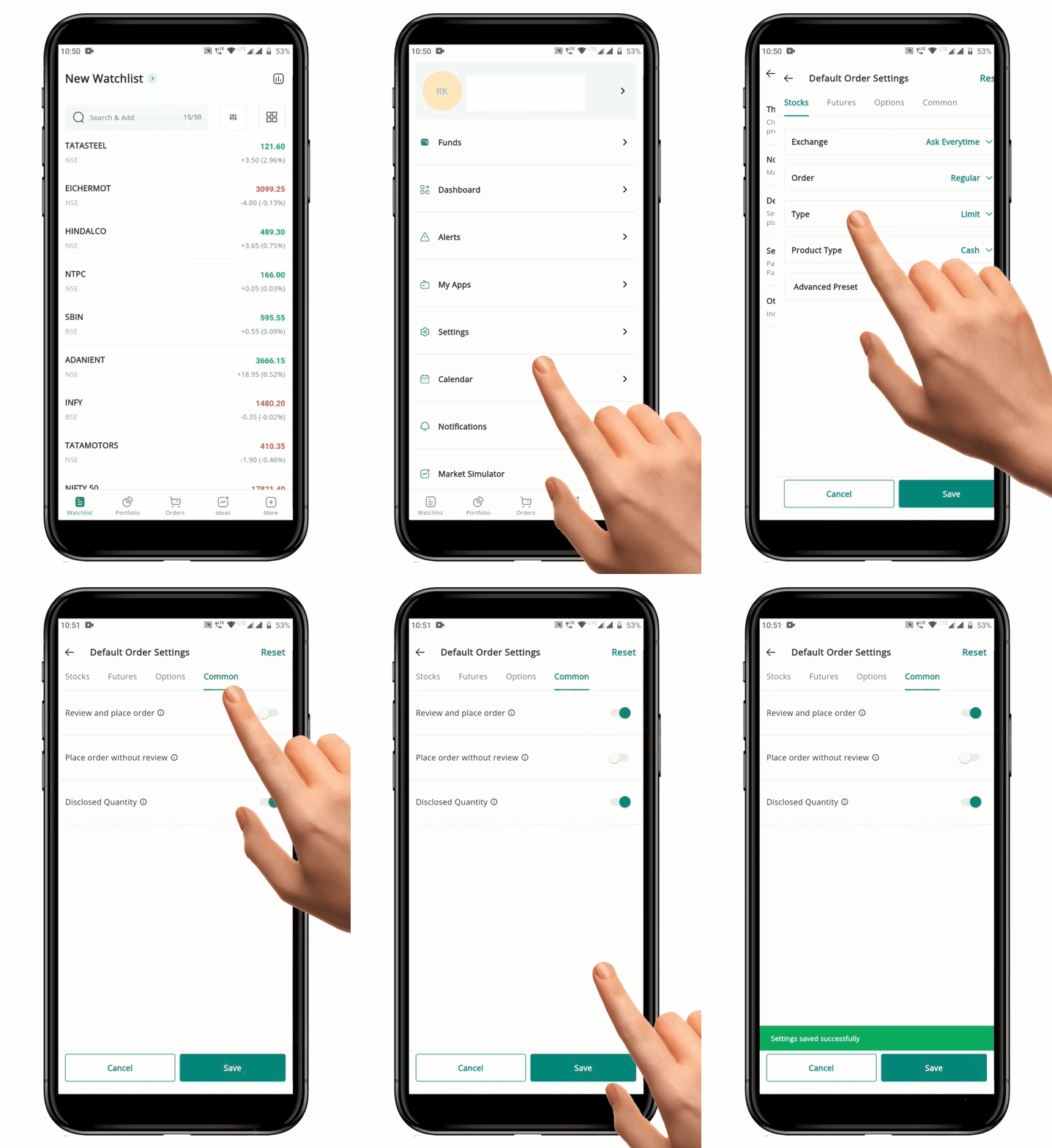
* Click the **“More”** **Icon** and locate the **“Settings”**
 section.
* In the settings menu, select **"Default Order Settings".**
* Navigate to the **Common Settings** section.
* Here, you will see two options: **"Review and Place Order"** and **"Place Order Without Review."**
* Select and save the desired option.
* The setting will be made **Active** immediately.
**Please Note:** Selecting one of these options will automatically deactivate the other.
### 3. Order Confirmation Page
**"Order Confirmation"** is an important step while trading as it gives you the opportunity to *review* and *confirm* your order details before it is sent to the Exchange. It's a good idea to carefully review the order details on the confirmation page to make sure that everything is correct.
If you notice any errors or discrepancies, you can go back to the **Order Placement Page** and make the necessary corrections.
The following details are displayed on the **Order Confirmation page:**
* Order Type- Market / Limit / Stop-loss Limit / Stop-loss Market
* Price
* Product Type- Cash / Intraday / BTST / MTF
* Time Condition- Day / IOC / GTD / EOD
* Additional details for Bracket orders, One Cancel Other orders and Multi-leg Options orders.
section.
* In the settings menu, select **"Default Order Settings".**
* Navigate to the **Common Settings** section.
* Here, you will see two options: **"Review and Place Order"** and **"Place Order Without Review."**
* Select and save the desired option.
* The setting will be made **Active** immediately.
**Please Note:** Selecting one of these options will automatically deactivate the other.
### 3. Order Confirmation Page
**"Order Confirmation"** is an important step while trading as it gives you the opportunity to *review* and *confirm* your order details before it is sent to the Exchange. It's a good idea to carefully review the order details on the confirmation page to make sure that everything is correct.
If you notice any errors or discrepancies, you can go back to the **Order Placement Page** and make the necessary corrections.
The following details are displayed on the **Order Confirmation page:**
* Order Type- Market / Limit / Stop-loss Limit / Stop-loss Market
* Price
* Product Type- Cash / Intraday / BTST / MTF
* Time Condition- Day / IOC / GTD / EOD
* Additional details for Bracket orders, One Cancel Other orders and Multi-leg Options orders.