> For the complete documentation index, see [llms.txt](https://usermanuals.geojit.com/llms.txt). Markdown versions of documentation pages are available by appending `.md` to page URLs; this page is available as [Markdown](https://usermanuals.geojit.com/flip-mobile/orders.md).
# Orders
Click any security in the watchlist to initiate a buy/sell order.
### This section contains:
1. [How to Place an Order?](#id-1.-how-to-place-an-order)
2. [How to Square Off an Order?](#id-2.-how-to-square-off-positions)
3. [Order Status](#id-2.-order-status)
### 1. How to Place an Order
To place *Buy or Sell* orders using the **FLIP App**, follow these steps:
* Click the **"Watchlist" Icon** to open the **Watchlist** page.
* Click the name of the **"Current Watchlist"/ "Green Arrow" Icon**
to open the **Watchlist** page.
* Click the name of the **"Current Watchlist"/ "Green Arrow" Icon** at the top left-hand side to go to **"All Watchlist".**
* Select the desired **Watchlist**.
* Tap any symbol to open the **Security Page.**
* Click the **"Buy/Sell"** **Button.**
* You can also buy bonds/ETFs/mutual funds by searching the preferred symbol and clicking on the name.
* A buy/sell pop-up appears. Tap on Buy or Sell.
* You will be redirected to the **Order Placement Page.**
* Choose/enter the **Exchange, Order Type, Quantity, Price, Product Type,** and **Time Condition.**
* Next, click the **"Review Order" Button.**
* The **Order Confirmation Page** will be displayed where you can re-check the details of your order.
* After confirmation, click the **"Place Order" Button** at the bottom of the page.
* You will receive a **Confirmation Message** with the status of your order placement.
* There are **"Repeat Order", "Open Order", and "Go to Position" Buttons .**
* Use **"Repeat Order"** to repeat the same order.
* Use **"Go to Position”** to go to the **"Positions"** tab in your Portfolio.
* Use **"Open Order"** to go to your Open Order Book
{% hint style="info" %}
[**How can I invest in bonds/NCDs?**](https://support.geojit.com/support/solutions/articles/89000006780-how-can-i-invest-in-bonds-ncds-)
{% endhint %}
### **2. How to Square Off Positions?**
**"**[**Squaring Off**](https://support.geojit.com/support/solutions/articles/89000007079-what-is-meant-by-a-square-off-)**"** is the process of closing your existing Position in the market, by taking an opposite Position.
This can be done from your **Portfolio**
at the top left-hand side to go to **"All Watchlist".**
* Select the desired **Watchlist**.
* Tap any symbol to open the **Security Page.**
* Click the **"Buy/Sell"** **Button.**
* You can also buy bonds/ETFs/mutual funds by searching the preferred symbol and clicking on the name.
* A buy/sell pop-up appears. Tap on Buy or Sell.
* You will be redirected to the **Order Placement Page.**
* Choose/enter the **Exchange, Order Type, Quantity, Price, Product Type,** and **Time Condition.**
* Next, click the **"Review Order" Button.**
* The **Order Confirmation Page** will be displayed where you can re-check the details of your order.
* After confirmation, click the **"Place Order" Button** at the bottom of the page.
* You will receive a **Confirmation Message** with the status of your order placement.
* There are **"Repeat Order", "Open Order", and "Go to Position" Buttons .**
* Use **"Repeat Order"** to repeat the same order.
* Use **"Go to Position”** to go to the **"Positions"** tab in your Portfolio.
* Use **"Open Order"** to go to your Open Order Book
{% hint style="info" %}
[**How can I invest in bonds/NCDs?**](https://support.geojit.com/support/solutions/articles/89000006780-how-can-i-invest-in-bonds-ncds-)
{% endhint %}
### **2. How to Square Off Positions?**
**"**[**Squaring Off**](https://support.geojit.com/support/solutions/articles/89000007079-what-is-meant-by-a-square-off-)**"** is the process of closing your existing Position in the market, by taking an opposite Position.
This can be done from your **Portfolio** :
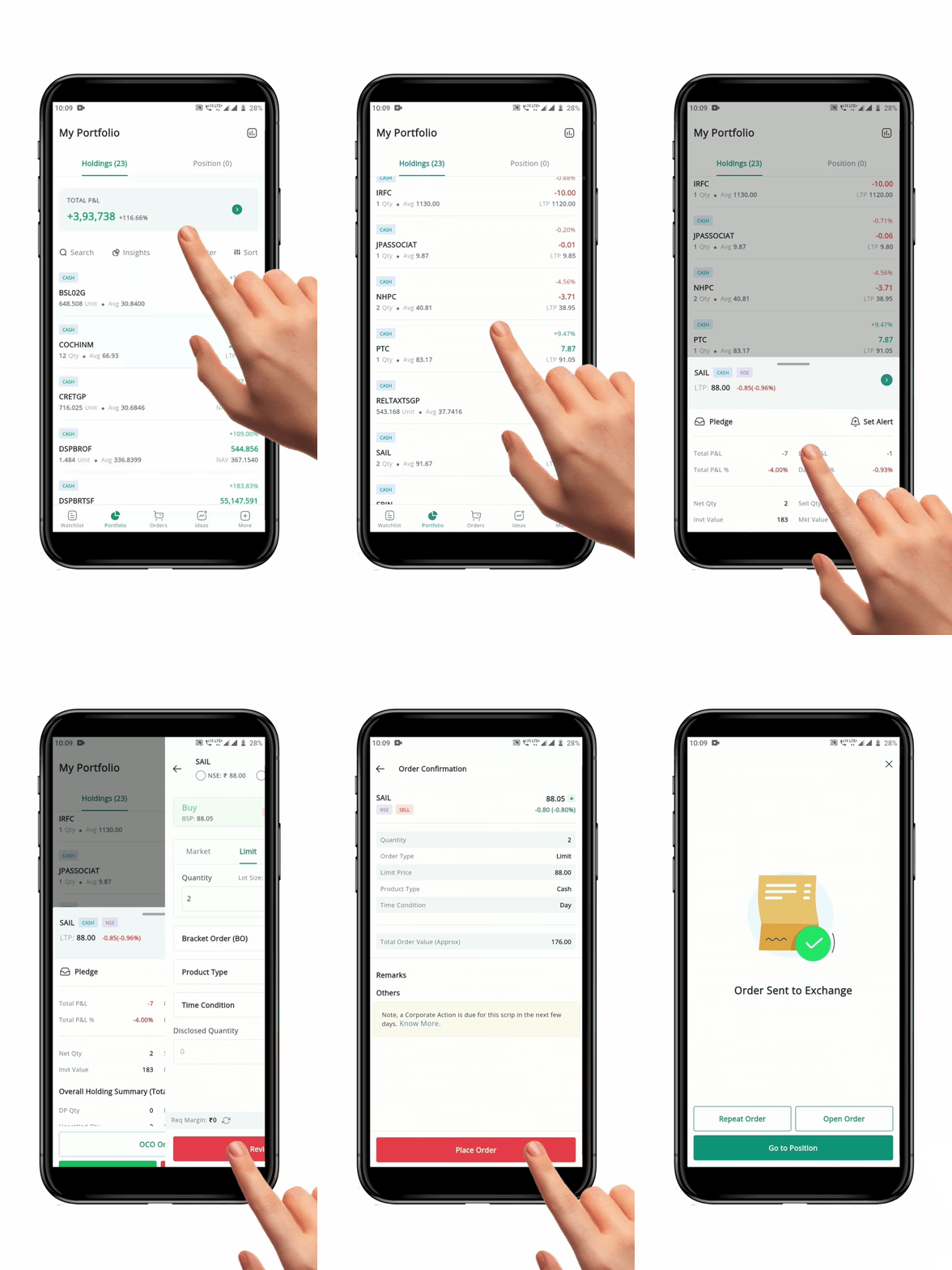
* You can **"Square Off"** an Open Trading Position from the **Positions** section.
* You can **"Square Off"** investments from the **Holdings** section.
To **"Square Off"** an Order, follow these steps:
* Click on the **"Portfolio" Icon**
:
* You can **"Square Off"** an Open Trading Position from the **Positions** section.
* You can **"Square Off"** investments from the **Holdings** section.
To **"Square Off"** an Order, follow these steps:
* Click on the **"Portfolio" Icon** to open the page.
* Select the **"Holdings"** or **"Positions"** tab depending on which position you want to exit.
* Select the desired **Position**.
* This will open a **Position Summary** including details such as the **"Current Market Price",** your **"Average Rate"**, and **"Profit/Loss"** on the **Position**.
* Click on the **"Square Off" Button** at the bottom of the page.
* The **Order Placement Page** will open with the appropriate **Order Type** (buy or sell) and **Quantity** pre-filled based on your **Current Position.**
* Other **Order** details such as the **"Exchange", "Order Type"** and **"Time Condition"** can be changed as needed.
* Once you have entered all the details, click on the **"Review Order" Button** to re-check the details of your order.
* After confirmation, click on the **"Place Order" Button** at the bottom of the page.
* You will receive a **Confirmation Message** with the status of your order placement.
* The trade will be executed in the market, and your **Position** will be **"Squared Off".**
**Please Note:** *Squaring Off* is typically done to realize any *profit or loss* on a Position.
### 3. Order Status
Once you have placed an order, be it buy or sell, an 'Order Status' window appears stating whether your order is placed or rejected.
* If your order is placed successfully, then the order status window displays the message "**order was placed successfully."**
* If the order is not placed due to any reason, then the order status page shows '**order rejected**.'
* Towards the bottom of this page you will find two options—**Watchlist** and **Open Orders**.
* If you want to see the **details of the order** you have just placed, click on the [**'Open Orders'** ](https://usermanuals.geojit.com/flip-mobile/order-book/open-orders)button, and you will be navigated to the respective page.
* Click on the 'Watchlist' button to go to the watchlist from the order status page.
to open the page.
* Select the **"Holdings"** or **"Positions"** tab depending on which position you want to exit.
* Select the desired **Position**.
* This will open a **Position Summary** including details such as the **"Current Market Price",** your **"Average Rate"**, and **"Profit/Loss"** on the **Position**.
* Click on the **"Square Off" Button** at the bottom of the page.
* The **Order Placement Page** will open with the appropriate **Order Type** (buy or sell) and **Quantity** pre-filled based on your **Current Position.**
* Other **Order** details such as the **"Exchange", "Order Type"** and **"Time Condition"** can be changed as needed.
* Once you have entered all the details, click on the **"Review Order" Button** to re-check the details of your order.
* After confirmation, click on the **"Place Order" Button** at the bottom of the page.
* You will receive a **Confirmation Message** with the status of your order placement.
* The trade will be executed in the market, and your **Position** will be **"Squared Off".**
**Please Note:** *Squaring Off* is typically done to realize any *profit or loss* on a Position.
### 3. Order Status
Once you have placed an order, be it buy or sell, an 'Order Status' window appears stating whether your order is placed or rejected.
* If your order is placed successfully, then the order status window displays the message "**order was placed successfully."**
* If the order is not placed due to any reason, then the order status page shows '**order rejected**.'
* Towards the bottom of this page you will find two options—**Watchlist** and **Open Orders**.
* If you want to see the **details of the order** you have just placed, click on the [**'Open Orders'** ](https://usermanuals.geojit.com/flip-mobile/order-book/open-orders)button, and you will be navigated to the respective page.
* Click on the 'Watchlist' button to go to the watchlist from the order status page.