> For the complete documentation index, see [llms.txt](https://usermanuals.geojit.com/llms.txt). Markdown versions of documentation pages are available by appending `.md` to page URLs; this page is available as [Markdown](https://usermanuals.geojit.com/flip-mobile/order-book/closed-orders.md).
# Closed Orders
View list of Orders that was completed
### This Section Contains:
1. [How to view Closed Order Book](#id-1.-how-to-view-closed-order)
2. [Repeat or Re-order](#id-2.-repeat-or-re-order)
3. [Sorting Closed Order](#id-3.-sorting-closed-orders)
4. [Filter Closed Order](#id-4.-filter-closed-orders)
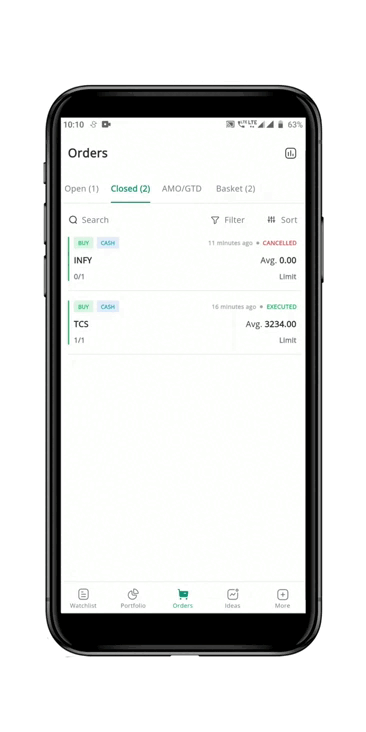
In the **"Closed Order Book"** tab on the Order Book, users can view a list of Orders that have been completed, including those that were **Executed, Partially Executed, Canceled,** and **Rejected.**
### 1. How to View Closed Order
To view **"Closed Order",** follow these steps:
* Go to the **Order Book****.**
* Click on the **"Closed Order Book"** tab.
* **"Executed**, **Partly", "Executed Canceled"**, and **"Exchange Rejected Orders"** status will be displayed along with the order. However **"Broker Rejected Orders"** will be shown in a separate tab under **Order Book** called **"Broker Rejection".**
* Most recent **"Executed Order"** will be at the top of the list, and earlier ones at the bottom.
* Completed order details includes: **Symbol Name, Total Order Quantity, Executed/Canceled Quantities, Buy/Sell Order, Product Type, Time, Order status, Price**, and **Order Type.**
### 2. Repeat or Re-order
You can *Re-order/Repeat* an **Existing, or Rejected Order.**
#### How to Repeat or Re-order an order
To **Repeat/Re-order** an earlier order, follow these steps:
* Go to the **"Closed Orders Book"** tab
* Click on the specific order you want to **"Re-order"**.
* This will bring up the **Order Summary** of the executed order.
* Look for the **"Re-order" Button** at the bottom of the **Order Summary** popup.
* Click on the **"Re-order" Button**.
* This will redirect you to the **Order Placement** **page** with data already filled in as your earlier executed order.
* If you want to place exactly the same order as before, **"Confirm"** and **"Send"** the order to the exchange.
* You can also **"Modify"** any details before confirming and sending the order.
### 3. Sorting Closed Orders
**"Sort"** the Order according to **"Alphabetical order"***.* In an **Closed Order Book**, the default sorting is such that the latest order is displayed at the top and the oldest order is displayed at the bottom. The **Closed Order Book** will only contain orders for the current day.
#### How to Sort Closed Orders
To **Sort** the Closed Order Book, follow these steps:
* Go to the **Closed Order Book** tab in the **Order Book**.
* Click on the **"Sort" Icon** located at the top right-hand side of the tab.
* A pop-up with the **"Sort"** options will appear.
* You can see the option to **"Sort"** the **Closed Order Book.**
* Click on any **"Sort"** option and the **"Sort"** will be automatically applied.
* If any filter is applied the **"Sort" Icon** will have a **Yellow Dot** on it.
* To change the existing filter, click on the **"Sort" Icon** again and click on **Reset**.
### 4. Filter Closed Orders
The **"Filter"** option in the **Closed Order Book** allows you to **"Filter"** your **Closed Orders** based on **"Trade Type", "Product Type", "Order Type",** and **"Order Status",** helping you to efficiently locate and take action on specific Orders.
#### How to Filter Closed Orders
To **Filter** the Closed Order Book, follow these steps:
* Go to the **Closed Order Book** tab in the **Order Book****.**
* Click on the **"Filter" Icon** located at the top right-hand side of the tab.
* A pop-up with various **"Filter"** options will appear.
* You can **"Filter"** based on **"Trade Type", "Product Type", "Order Type",** and **"Order Status"** by clicking on the desired options.
* To apply the selected **"Filters"**, click outside the pop-up window.
* If any filter is applied the **"Filter" Icon** will have a **Yellow Dot** on it.
* To change the existing filters, click on the **"Filter" Icon** again and click on the **"Reset" Button.**
 **.**
* Click on the **"Closed Order Book"** tab.
* **"Executed**, **Partly", "Executed Canceled"**, and **"Exchange Rejected Orders"** status will be displayed along with the order. However **"Broker Rejected Orders"** will be shown in a separate tab under **Order Book** called **"Broker Rejection".**
* Most recent **"Executed Order"** will be at the top of the list, and earlier ones at the bottom.
* Completed order details includes: **Symbol Name, Total Order Quantity, Executed/Canceled Quantities, Buy/Sell Order, Product Type, Time, Order status, Price**, and **Order Type.**
### 2. Repeat or Re-order
You can *Re-order/Repeat* an **Existing, or Rejected Order.**
#### How to Repeat or Re-order an order
To **Repeat/Re-order** an earlier order, follow these steps:
**.**
* Click on the **"Closed Order Book"** tab.
* **"Executed**, **Partly", "Executed Canceled"**, and **"Exchange Rejected Orders"** status will be displayed along with the order. However **"Broker Rejected Orders"** will be shown in a separate tab under **Order Book** called **"Broker Rejection".**
* Most recent **"Executed Order"** will be at the top of the list, and earlier ones at the bottom.
* Completed order details includes: **Symbol Name, Total Order Quantity, Executed/Canceled Quantities, Buy/Sell Order, Product Type, Time, Order status, Price**, and **Order Type.**
### 2. Repeat or Re-order
You can *Re-order/Repeat* an **Existing, or Rejected Order.**
#### How to Repeat or Re-order an order
To **Repeat/Re-order** an earlier order, follow these steps:

 .
* Click on the **"Sort" Icon**
.
* Click on the **"Sort" Icon** located at the top right-hand side of the tab.
* A pop-up with the **"Sort"** options will appear.
* You can see the option to **"Sort"** the **Closed Order Book.**
* Click on any **"Sort"** option and the **"Sort"** will be automatically applied.
* If any filter is applied the **"Sort" Icon**
located at the top right-hand side of the tab.
* A pop-up with the **"Sort"** options will appear.
* You can see the option to **"Sort"** the **Closed Order Book.**
* Click on any **"Sort"** option and the **"Sort"** will be automatically applied.
* If any filter is applied the **"Sort" Icon** will have a **Yellow Dot** on it.
* To change the existing filter, click on the **"Sort" Icon**
will have a **Yellow Dot** on it.
* To change the existing filter, click on the **"Sort" Icon** again and click on **Reset**.
### 4. Filter Closed Orders
The **"Filter"** option in the **Closed Order Book** allows you to **"Filter"** your **Closed Orders** based on **"Trade Type", "Product Type", "Order Type",** and **"Order Status",** helping you to efficiently locate and take action on specific Orders.
#### How to Filter Closed Orders
To **Filter** the Closed Order Book, follow these steps:
again and click on **Reset**.
### 4. Filter Closed Orders
The **"Filter"** option in the **Closed Order Book** allows you to **"Filter"** your **Closed Orders** based on **"Trade Type", "Product Type", "Order Type",** and **"Order Status",** helping you to efficiently locate and take action on specific Orders.
#### How to Filter Closed Orders
To **Filter** the Closed Order Book, follow these steps:

 **.**
* Click on the **"Filter" Icon**
**.**
* Click on the **"Filter" Icon** located at the top right-hand side of the tab.
* A pop-up with various **"Filter"** options will appear.
* You can **"Filter"** based on **"Trade Type", "Product Type", "Order Type",** and **"Order Status"** by clicking on the desired options.
* To apply the selected **"Filters"**, click outside the pop-up window.
* If any filter is applied the **"Filter" Icon**
located at the top right-hand side of the tab.
* A pop-up with various **"Filter"** options will appear.
* You can **"Filter"** based on **"Trade Type", "Product Type", "Order Type",** and **"Order Status"** by clicking on the desired options.
* To apply the selected **"Filters"**, click outside the pop-up window.
* If any filter is applied the **"Filter" Icon** will have a **Yellow Dot** on it.
* To change the existing filters, click on the **"Filter" Icon**
will have a **Yellow Dot** on it.
* To change the existing filters, click on the **"Filter" Icon** again and click on the **"Reset" Button.**