> For the complete documentation index, see [llms.txt](https://usermanuals.geojit.com/llms.txt). Markdown versions of documentation pages are available by appending `.md` to page URLs; this page is available as [Markdown](https://usermanuals.geojit.com/flip-mobile/order-book/basket-orders.md).
# Basket Orders
### This Section Contains:
1. [How to create a Basket](#id-1.-how-to-create-a-basket)
2. [Adding Securities to the Basket](#id-2.-adding-securities-to-the-basket)
3. [How to Execute Order from a Basket](#id-1-adding-from-basket-page)
4. [Resetting/Reactivating a Basket](#id-4.-resetting-reactivating-a-basket)
5. [How to Remove/Delete a Security from the Basket](#id-5.-how-to-remove-delete-a-security-from-a-basket)
6. [How to Rearrange the Order of Securities in the Basket](#id-6.-how-to-rearrange-the-order-of-security-in-a-basket)
7. [How to Search for a Security within a Basket](#id-7.-how-to-search-for-a-security-within-a-basket)
8. [Modify Order Condition of a Security added to a Basket](#id-8.-modify-order-condition-of-a-security-added-to-a-basket)
9. [How to Duplicate an Order in a Basket](#id-9.-how-to-duplicate-an-order-in-a-basket)
A **"basket Order"**, also known as a **Basket Trade**, is a type of order that allows traders to place multiple trades simultaneously with a single click.
This order type is particularly useful for investors who want to execute trades in a large number of securities simultaneously or want to implement a trading strategy that involves multiple securities.
### 1. How to Create a Basket
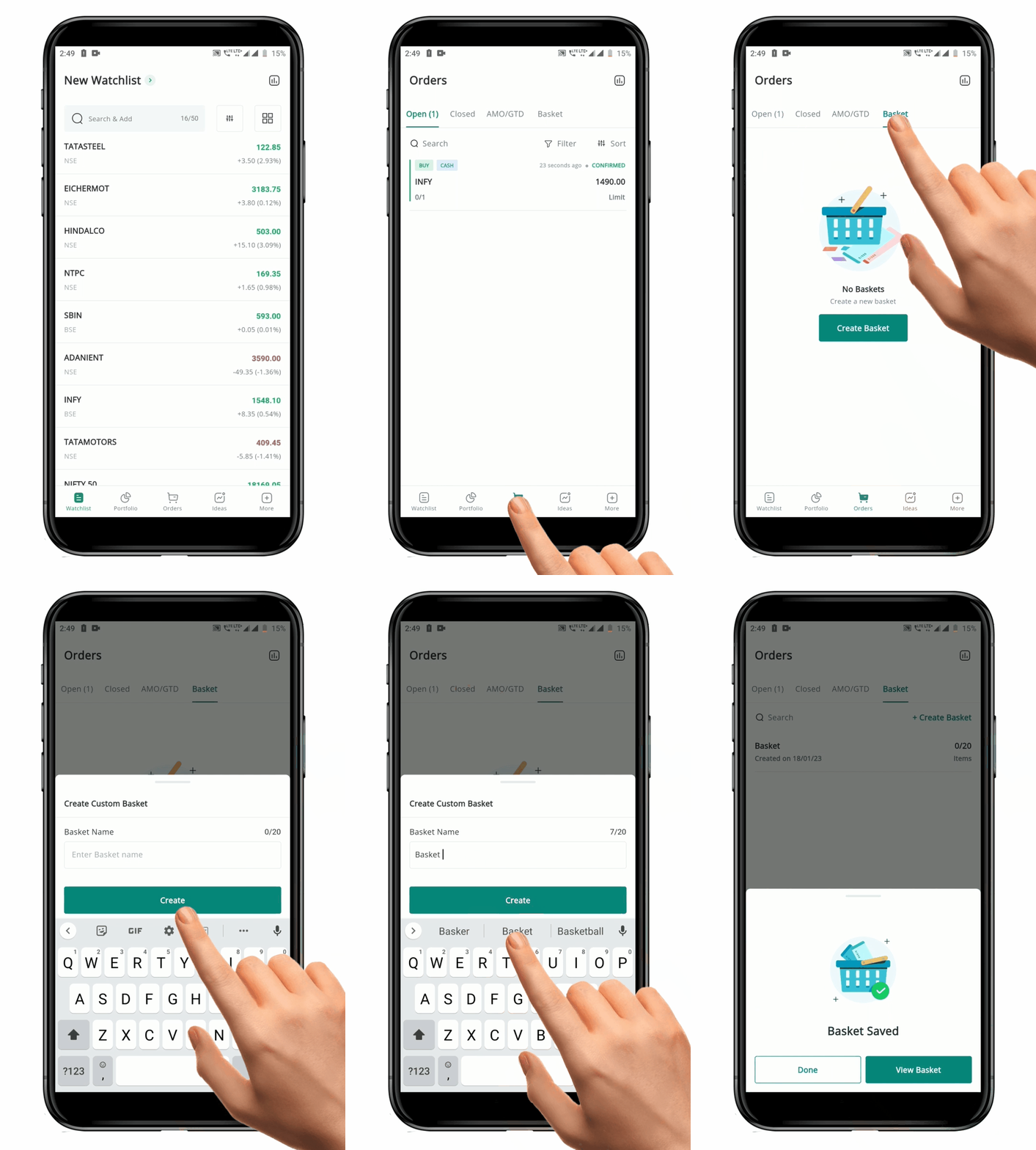
To **"Create"** a **Basket**, follow these steps:
* Go to the **Basket** tab in the **Orders Book** **page**.
* Tap on the option to **"Create"** a new **Basket**.
* A pop-up page will appear, allowing you to **Name your Basket.** The maximum number of characters allowed is 20.
* Set the name for the **Basket** and click on the **"Create" Button**.
* A message will appear, indicating that the **"Basket has been Saved"**. You will have two options: **"Done"** and **"View Basket"**.
* If you choose the **"View Basket"** option, you will be taken to the newly created **Basket**, where you can start adding Securities.
* If you choose the **"Done"** option, you will be taken back to the **Basket** landing page.
### 2. Adding Securities to the Basket
**"Add"** a security to a **Basket** in four ways:
#### 1) **Adding from Basket Page**
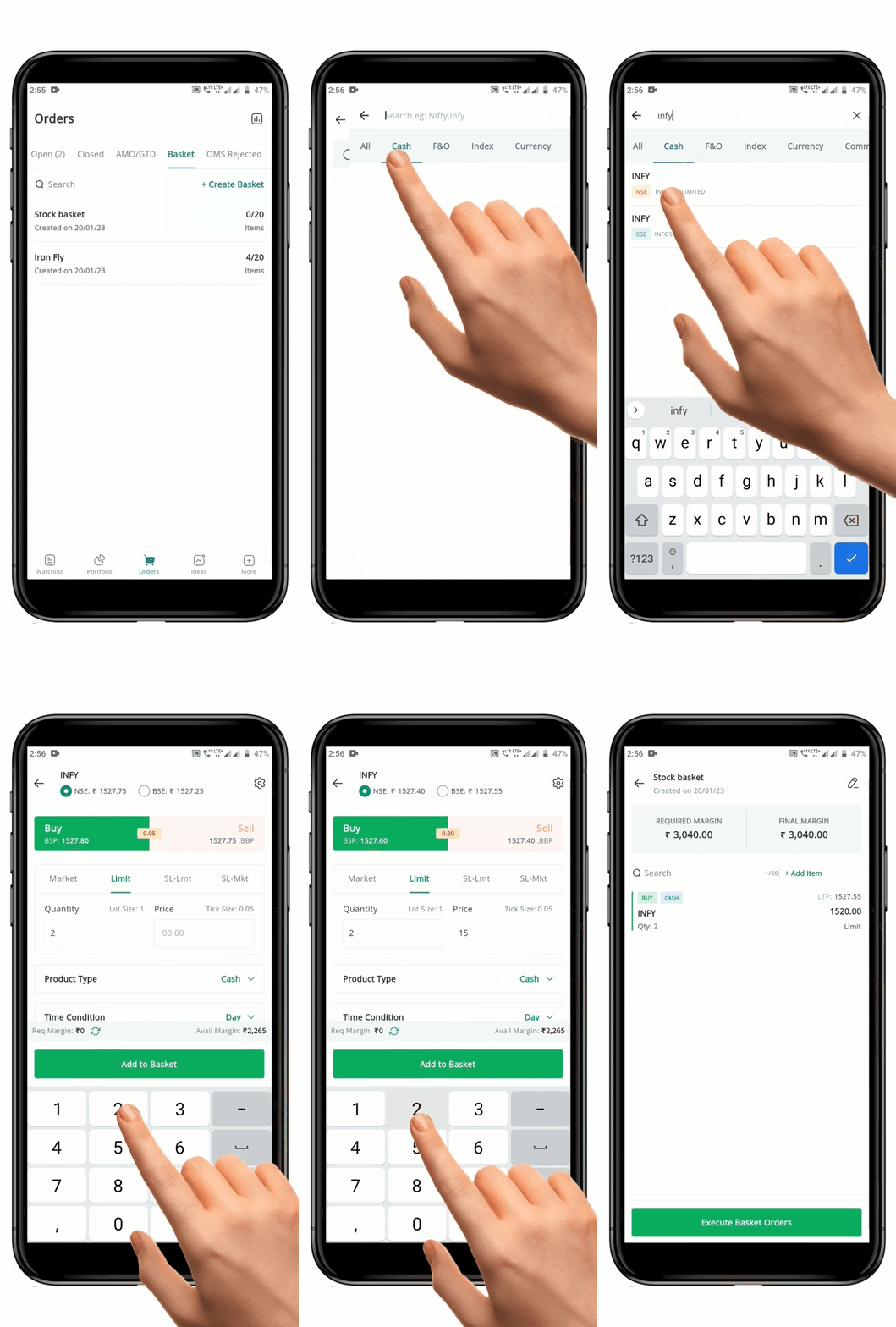
To **"Add"** a security from **Basket page**, follow these steps:
* Click on the **"Basket"** you have *created* to open it.
* Once inside the specific **Basket** page, click on
**page**.
* Tap on the option to **"Create"** a new **Basket**.
* A pop-up page will appear, allowing you to **Name your Basket.** The maximum number of characters allowed is 20.
* Set the name for the **Basket** and click on the **"Create" Button**.
* A message will appear, indicating that the **"Basket has been Saved"**. You will have two options: **"Done"** and **"View Basket"**.
* If you choose the **"View Basket"** option, you will be taken to the newly created **Basket**, where you can start adding Securities.
* If you choose the **"Done"** option, you will be taken back to the **Basket** landing page.
### 2. Adding Securities to the Basket
**"Add"** a security to a **Basket** in four ways:
#### 1) **Adding from Basket Page**
To **"Add"** a security from **Basket page**, follow these steps:
* Click on the **"Basket"** you have *created* to open it.
* Once inside the specific **Basket** page, click on  **"Add Item"** on the top right-hand side to go to the **Symbol Search page.**
* Search for the desired **Symbol** by typing its name in the **Search Bar**
**"Add Item"** on the top right-hand side to go to the **Symbol Search page.**
* Search for the desired **Symbol** by typing its name in the **Search Bar** **.** This will display any **Symbols** that match the search.
* Tap on the **Symbol** you wish to add.
* This will open the **Order Placement** **Page** for that specific symbol.
* Enter all the necessary **Order details** as desired.
* Once you have updated the **Order** tab, click on the **"Add to Basket"** **Button**. This will add security with the *specified conditions* to the **Basket**.
* To add more securities to the **Basket**, click on the **"Add Items" Button** inside the specific **Basket** page and repeat the process.
#### 2) Adding to Basket from Watchlist page
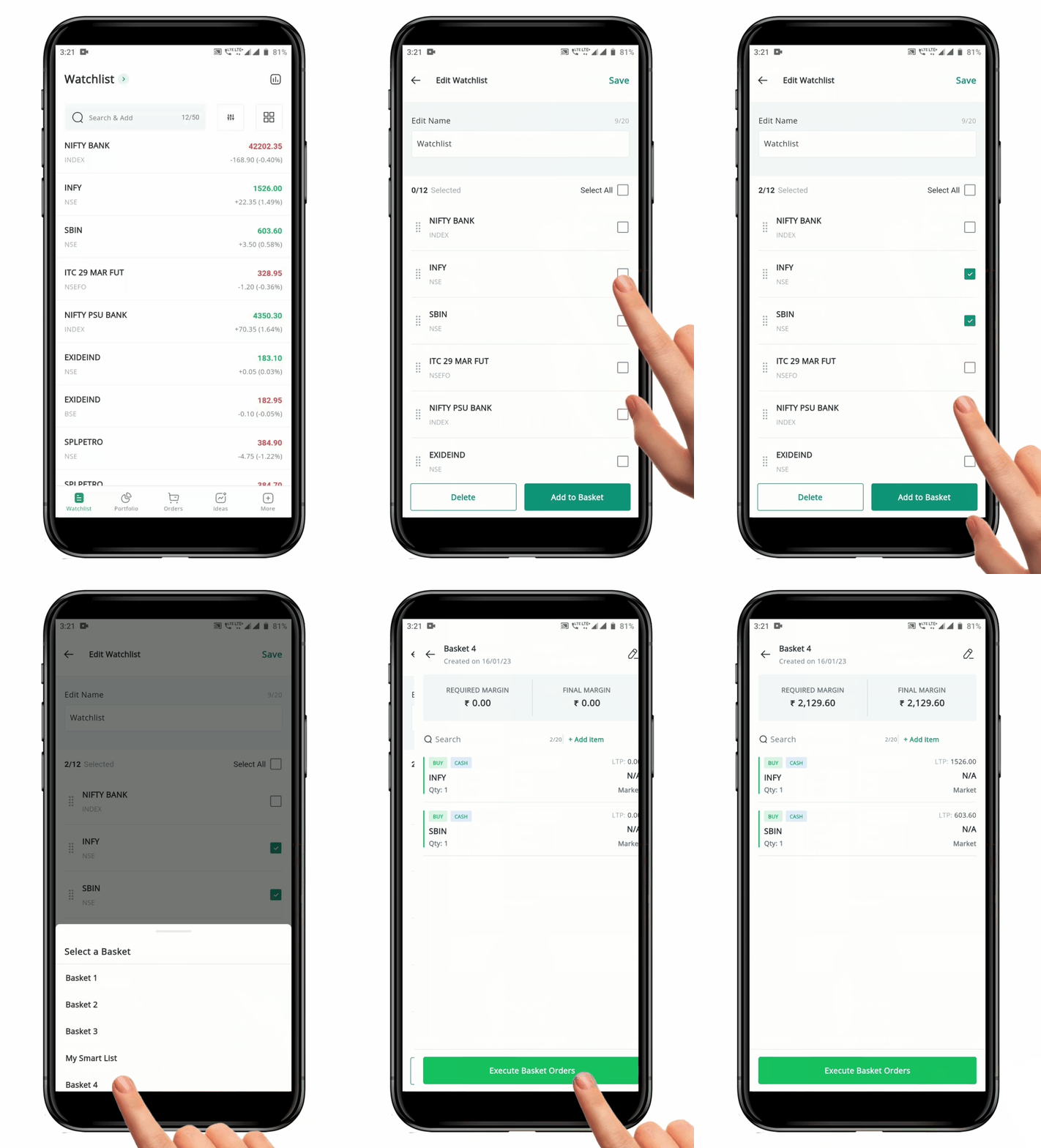
To **"Add"** a security from **Watchlist page**, follow these steps:
* Open the **"Watchlist"** from which you want to *add a security* to your **Basket**.
* Long press on any of the **Symbol** in the watchlist to open the "**Edit"** **page**.
* Tap on the **"Check Box"**
**.** This will display any **Symbols** that match the search.
* Tap on the **Symbol** you wish to add.
* This will open the **Order Placement** **Page** for that specific symbol.
* Enter all the necessary **Order details** as desired.
* Once you have updated the **Order** tab, click on the **"Add to Basket"** **Button**. This will add security with the *specified conditions* to the **Basket**.
* To add more securities to the **Basket**, click on the **"Add Items" Button** inside the specific **Basket** page and repeat the process.
#### 2) Adding to Basket from Watchlist page
To **"Add"** a security from **Watchlist page**, follow these steps:
* Open the **"Watchlist"** from which you want to *add a security* to your **Basket**.
* Long press on any of the **Symbol** in the watchlist to open the "**Edit"** **page**.
* Tap on the **"Check Box"** next to the **Symbol** that you want to add to your **Basket**.
* Click the **"Add to Basket"** **Button**.
* A pop-up of existing **Baskets** will appear.
* You can choose to add the security to an existing **Basket** by clicking on it, or *create* a new **Basket** by clicking on **"Create Custom"**
* If creating a new **Basket**, name the Basket and click on **"Done"** or **"View Basket".**
* The securities will be added to the selected **Basket**.
**Please Note:** The default Order is *"Buy"* with a quantity of 1, and the Order Type is a *Market Order*. You can edit these details by clicking on the security name within the Basket.
#### 3) Adding to Basket from Option Chain page
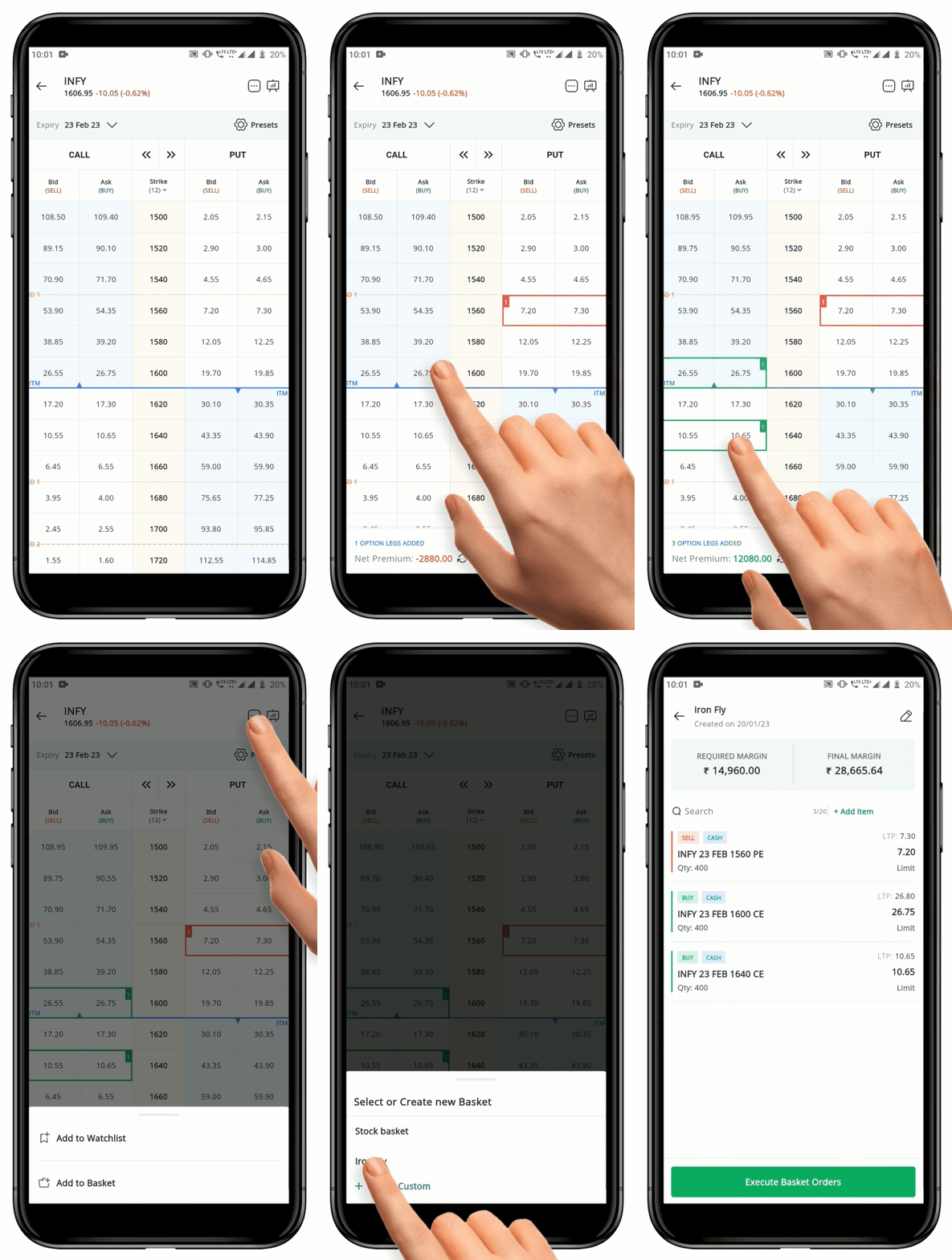
To **"Add"** a security from **Option Chain page**, follow these steps:
* Open the **"Option Chain"** for the *Expiration Date* and *Symbol* you wish to trade.
* Select the *bid* or *ask price* for the specific **Call or Put Contract** you wish to **"Add to a Basket".**
* Click on the **"Three-Dot" Icon**
next to the **Symbol** that you want to add to your **Basket**.
* Click the **"Add to Basket"** **Button**.
* A pop-up of existing **Baskets** will appear.
* You can choose to add the security to an existing **Basket** by clicking on it, or *create* a new **Basket** by clicking on **"Create Custom"**
* If creating a new **Basket**, name the Basket and click on **"Done"** or **"View Basket".**
* The securities will be added to the selected **Basket**.
**Please Note:** The default Order is *"Buy"* with a quantity of 1, and the Order Type is a *Market Order*. You can edit these details by clicking on the security name within the Basket.
#### 3) Adding to Basket from Option Chain page
To **"Add"** a security from **Option Chain page**, follow these steps:
* Open the **"Option Chain"** for the *Expiration Date* and *Symbol* you wish to trade.
* Select the *bid* or *ask price* for the specific **Call or Put Contract** you wish to **"Add to a Basket".**
* Click on the **"Three-Dot" Icon** at the top of the tab.
* In the pop-up menu, click on the **"Add to Basket" Icon**
at the top of the tab.
* In the pop-up menu, click on the **"Add to Basket" Icon** **.**
* A pop-up page with a list of existing **Baskets** will appear.
* You can choose to add the contract to an *existing Basket* by clicking on it, or *Create a new basket* by clicking **"Create Custom".**
* If creating a new basket, *name* the basket and click on **"Done" or "View Basket".**
* The contract will be added to the selected **Basket.**
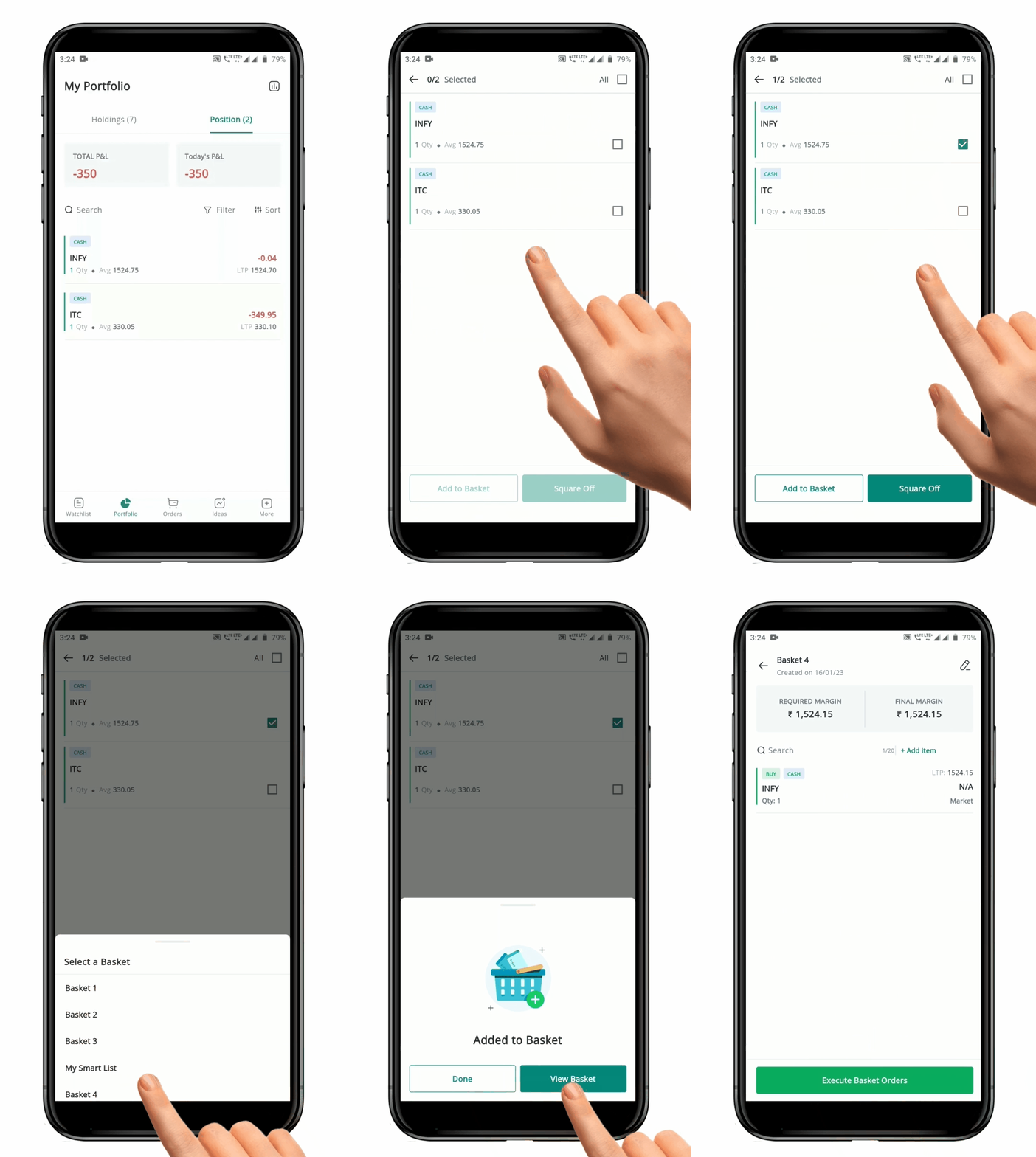
#### 4) Adding to Basket from Positions Page
To **"Add"** a security from **Position page**, follow these steps:
* Open the "**Position" page** under Portfolio.
* Long press on any of the symbols in the **Positions page**.
* Tap on the **"Check Box"**
**.**
* A pop-up page with a list of existing **Baskets** will appear.
* You can choose to add the contract to an *existing Basket* by clicking on it, or *Create a new basket* by clicking **"Create Custom".**
* If creating a new basket, *name* the basket and click on **"Done" or "View Basket".**
* The contract will be added to the selected **Basket.**
#### 4) Adding to Basket from Positions Page
To **"Add"** a security from **Position page**, follow these steps:
* Open the "**Position" page** under Portfolio.
* Long press on any of the symbols in the **Positions page**.
* Tap on the **"Check Box"** next to each Symbol that you want to add to your **Basket**. This will show a **"Tick Mark"**
 next to the selected **Symbol Name.**
* Once you have selected all the **Symbols** that you want to *add to the Basket,* click the **"Add to Basket"** **Button** at the bottom of the screen.
* A pop-up with existing **Baskets** will appear.
* You can choose to add the security to an *existing basket* by clicking on it or *create* a new basket by clicking **"Create Custom".**
* If you are creating a **New Basket,** **Name the Basket** and click **"Done and View Basket".**
* The securities will be added to the selected **Basket**.
**Please Note:** The default Order Type is *"Buy"* with a quantity of 1, and the order is a *Market Order*. You can edit these details by clicking on the security name within the Basket.
### 3. How to Execute an Order from a Basket
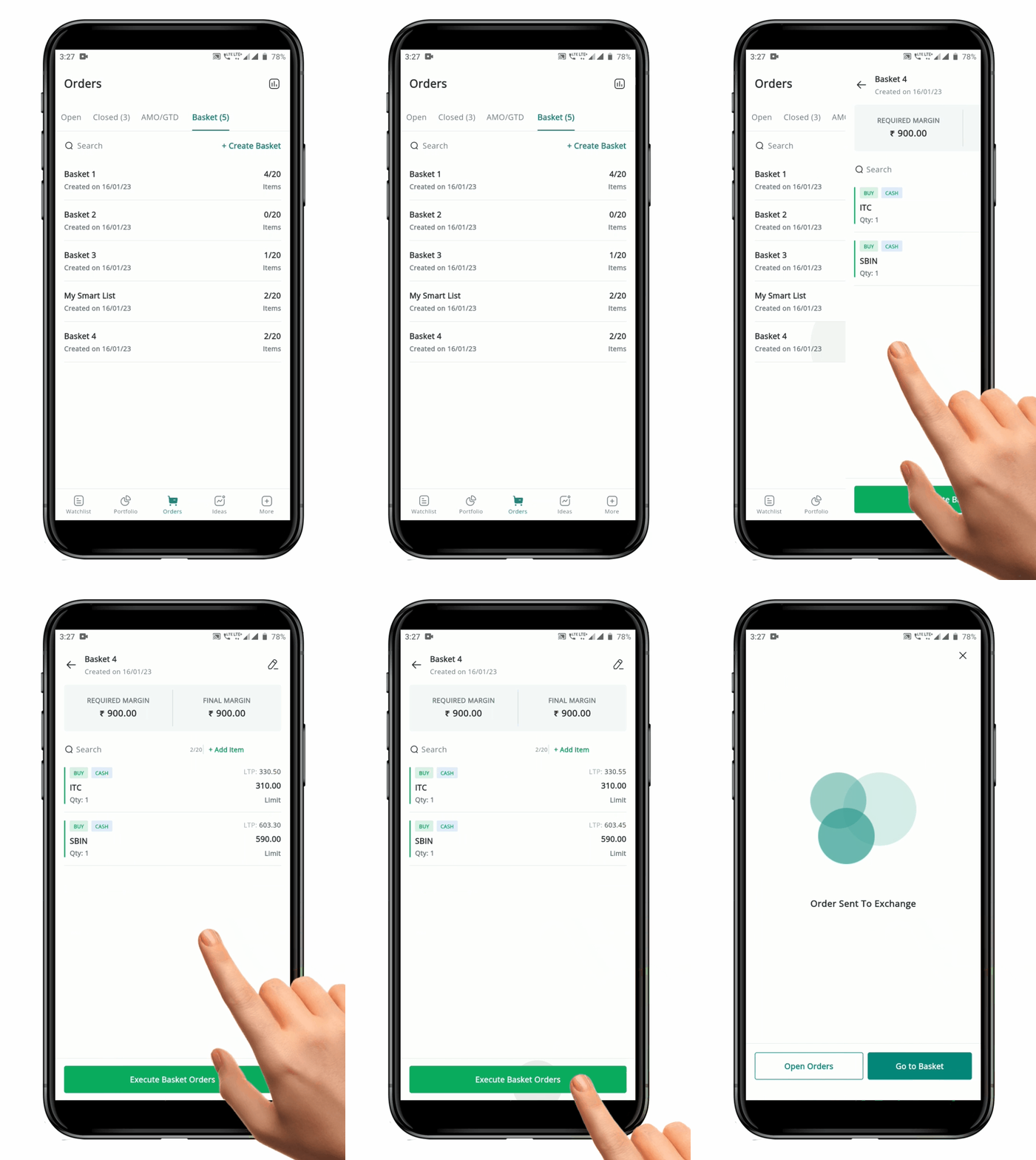
#### **1) Execute Entire orders in a Basket**
To **"Execute"** an entire order in a **Basket**, follow these steps:
* Go to the **Basket** page on the **Order** **Book Page** :book-blank:.
* Select the **Name of the Basket** you wish to Execute.
* On the **Basket** page, you will see a list of the shares in the **Basket**.
* At the bottom of the page, you will find **"Execute Basket Order" Button.**
* Click on the "**Execute Basket Order" Button.**
* The Orders for each security in the **Basket** will be send to the Exchange.
* Once the Orders have been sent, the **Sent Status** will be visible against each security.
* You can check the **Open or Closed Order Book** to see the status of the sent orders.
* **Basket Orders** will have a **"Basket" Icon** :basket-shopping-minus: in the **Open and Closed Order book.**
**Please Note:** There is *No Order Confirmation* for Basket Orders. It is important to verify all order conditions at the time of adding a security to the Basket.
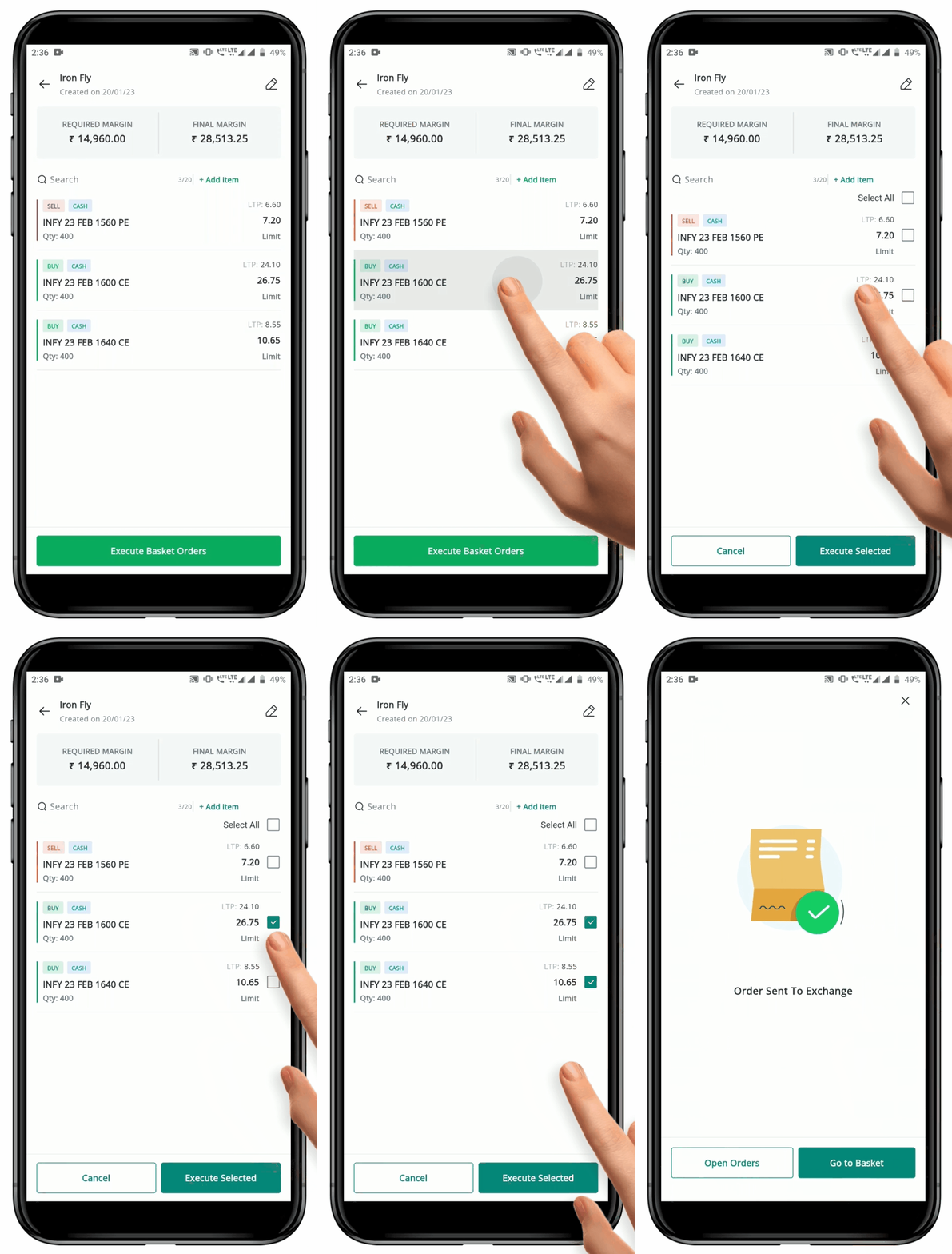
#### **2) Execute part of the orders in a basket**
To **"Execute"** a part of the order in a **Basket**, follow these steps:
* Go to the **"Basket"** page on the **Order Book Page** :book:**.**
* Select the **Name of the Basket** you want to execute.
* On the **Basket** page, you will see a list of the securities in the basket.
* Long press on any of the **Symbol Names** to select the security you want to execute.
* Click on the **"Execute Selected" Button** at the bottom of the page.
* All the **Selected Orders** will be sent to the Exchange.
* Check the **"Sent Status"** to see if the orders have been sent.
* The **Sent Orders** will be grouped under **"Inactive Orders"** and the orders that are not yet sent will be active**.**
* Click on the **"Execute Order" Button** to send any remaining orders to the exchange at any time.
* You can check the **Open or Closed Order Book** to see the status of the sent orders.
* **Basket Orders** will have a **"Basket" Icon** :basket-shopping: in the **Open and Closed Order Book.**
### **4. Resetting/ Reactivating a Basket**
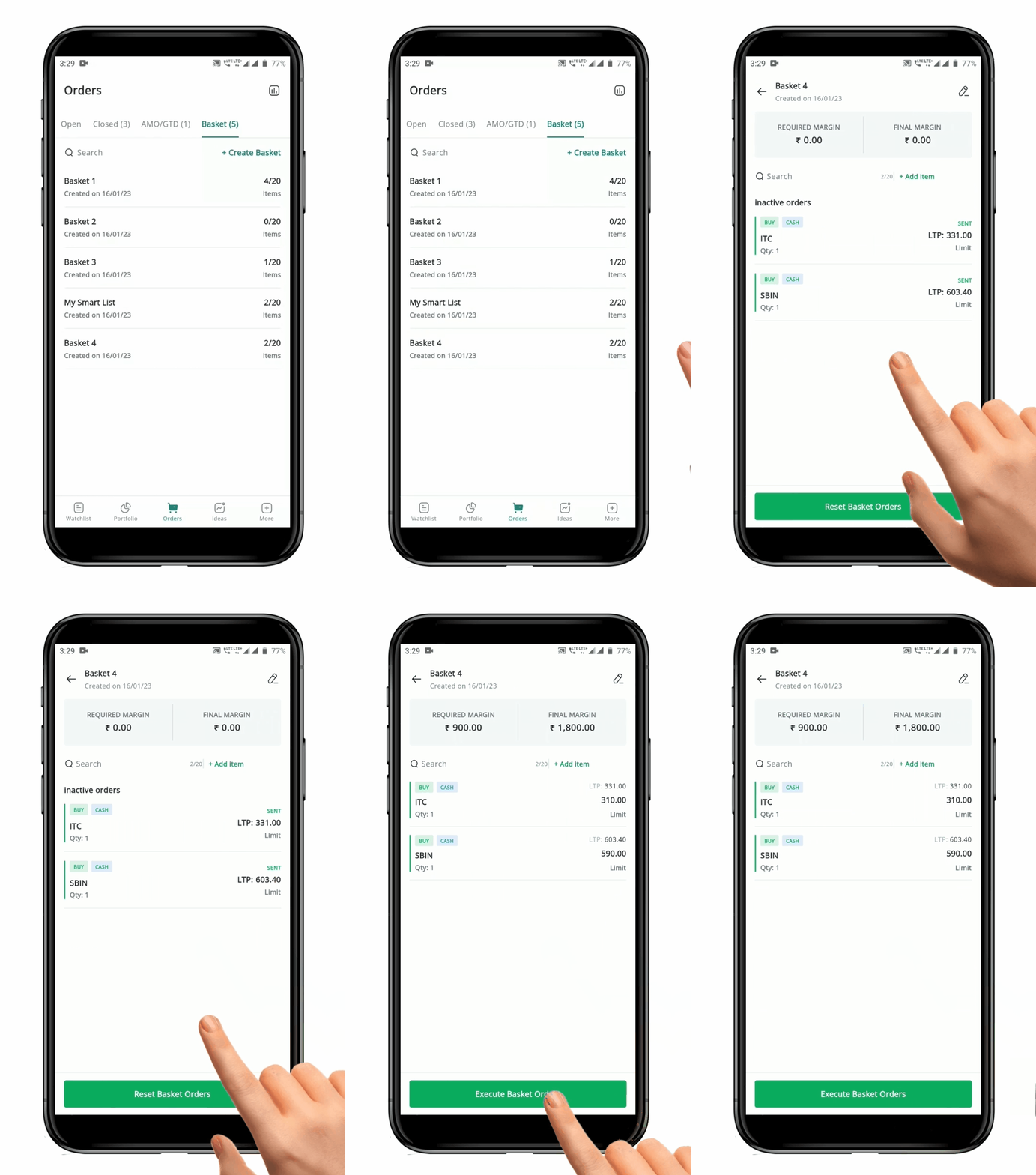
#### How to Reset a Basket
To **"Reset"** a Basket, folow these steps:
* Open the **"Basket"** under **Order Book** :book:.
* Click on the desired **"Basket".**
* Locate and click on the **"Reset Basket Order" Button** at the bottom of the page.
* The **Basket** is now *active* and ready for *execution*.
#### **How to Reactivate a Basket**
After a **Basket Orders** is sent to an exchange for execution, the orders within the basket become *inactive*.
To make these Orders **Active** again, the trader must **Reset the Basket.**
This will cause the Orders to be **"Activated"** again based on the original conditions, including the specified *Prices and Quantities.*
### **5. How to Remove/ Delete a Security from a Basket**
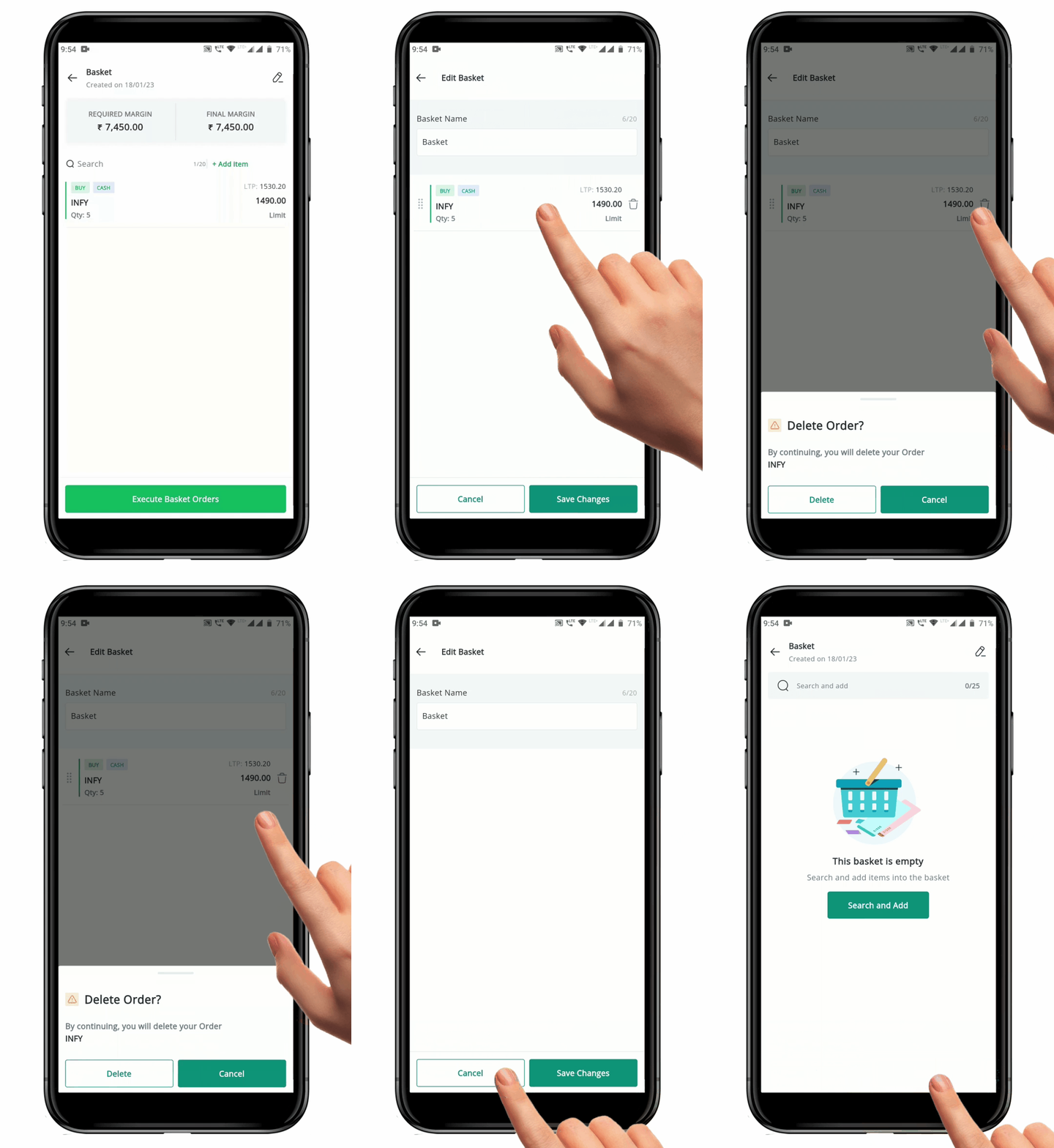
To **"Remove/Delete"** a security from a **Basket**, follow these steps:
* Open the **Basket** containing the security you want to "**Remove/Delete".**
* Click on the **"Edit" Icon** :pen: in the top right-hand side of the page.
* This will open the **Edit Basket** page.
* Click on the **"Delete" Icon** :trash: next to the **Symbol/Name** of the security you want to **"Remove"**.
* A **Confirmation Page** will pop up to confirm the **Deletion**.
* Click on the **"Delete" Button** to confirm the deletion.
* The security will now be **Removed** from the **Basket**.
### 6. How to Rearrange the order of Security in a Basket
To **"Rearrange"** the order of security in a **Basket**, follow these steps:
* Open the **Basket** you wish to **Rearrange**.
* Click on the **"Edit" Icon**
next to the selected **Symbol Name.**
* Once you have selected all the **Symbols** that you want to *add to the Basket,* click the **"Add to Basket"** **Button** at the bottom of the screen.
* A pop-up with existing **Baskets** will appear.
* You can choose to add the security to an *existing basket* by clicking on it or *create* a new basket by clicking **"Create Custom".**
* If you are creating a **New Basket,** **Name the Basket** and click **"Done and View Basket".**
* The securities will be added to the selected **Basket**.
**Please Note:** The default Order Type is *"Buy"* with a quantity of 1, and the order is a *Market Order*. You can edit these details by clicking on the security name within the Basket.
### 3. How to Execute an Order from a Basket
#### **1) Execute Entire orders in a Basket**
To **"Execute"** an entire order in a **Basket**, follow these steps:
* Go to the **Basket** page on the **Order** **Book Page** :book-blank:.
* Select the **Name of the Basket** you wish to Execute.
* On the **Basket** page, you will see a list of the shares in the **Basket**.
* At the bottom of the page, you will find **"Execute Basket Order" Button.**
* Click on the "**Execute Basket Order" Button.**
* The Orders for each security in the **Basket** will be send to the Exchange.
* Once the Orders have been sent, the **Sent Status** will be visible against each security.
* You can check the **Open or Closed Order Book** to see the status of the sent orders.
* **Basket Orders** will have a **"Basket" Icon** :basket-shopping-minus: in the **Open and Closed Order book.**
**Please Note:** There is *No Order Confirmation* for Basket Orders. It is important to verify all order conditions at the time of adding a security to the Basket.
#### **2) Execute part of the orders in a basket**
To **"Execute"** a part of the order in a **Basket**, follow these steps:
* Go to the **"Basket"** page on the **Order Book Page** :book:**.**
* Select the **Name of the Basket** you want to execute.
* On the **Basket** page, you will see a list of the securities in the basket.
* Long press on any of the **Symbol Names** to select the security you want to execute.
* Click on the **"Execute Selected" Button** at the bottom of the page.
* All the **Selected Orders** will be sent to the Exchange.
* Check the **"Sent Status"** to see if the orders have been sent.
* The **Sent Orders** will be grouped under **"Inactive Orders"** and the orders that are not yet sent will be active**.**
* Click on the **"Execute Order" Button** to send any remaining orders to the exchange at any time.
* You can check the **Open or Closed Order Book** to see the status of the sent orders.
* **Basket Orders** will have a **"Basket" Icon** :basket-shopping: in the **Open and Closed Order Book.**
### **4. Resetting/ Reactivating a Basket**
#### How to Reset a Basket
To **"Reset"** a Basket, folow these steps:
* Open the **"Basket"** under **Order Book** :book:.
* Click on the desired **"Basket".**
* Locate and click on the **"Reset Basket Order" Button** at the bottom of the page.
* The **Basket** is now *active* and ready for *execution*.
#### **How to Reactivate a Basket**
After a **Basket Orders** is sent to an exchange for execution, the orders within the basket become *inactive*.
To make these Orders **Active** again, the trader must **Reset the Basket.**
This will cause the Orders to be **"Activated"** again based on the original conditions, including the specified *Prices and Quantities.*
### **5. How to Remove/ Delete a Security from a Basket**
To **"Remove/Delete"** a security from a **Basket**, follow these steps:
* Open the **Basket** containing the security you want to "**Remove/Delete".**
* Click on the **"Edit" Icon** :pen: in the top right-hand side of the page.
* This will open the **Edit Basket** page.
* Click on the **"Delete" Icon** :trash: next to the **Symbol/Name** of the security you want to **"Remove"**.
* A **Confirmation Page** will pop up to confirm the **Deletion**.
* Click on the **"Delete" Button** to confirm the deletion.
* The security will now be **Removed** from the **Basket**.
### 6. How to Rearrange the order of Security in a Basket
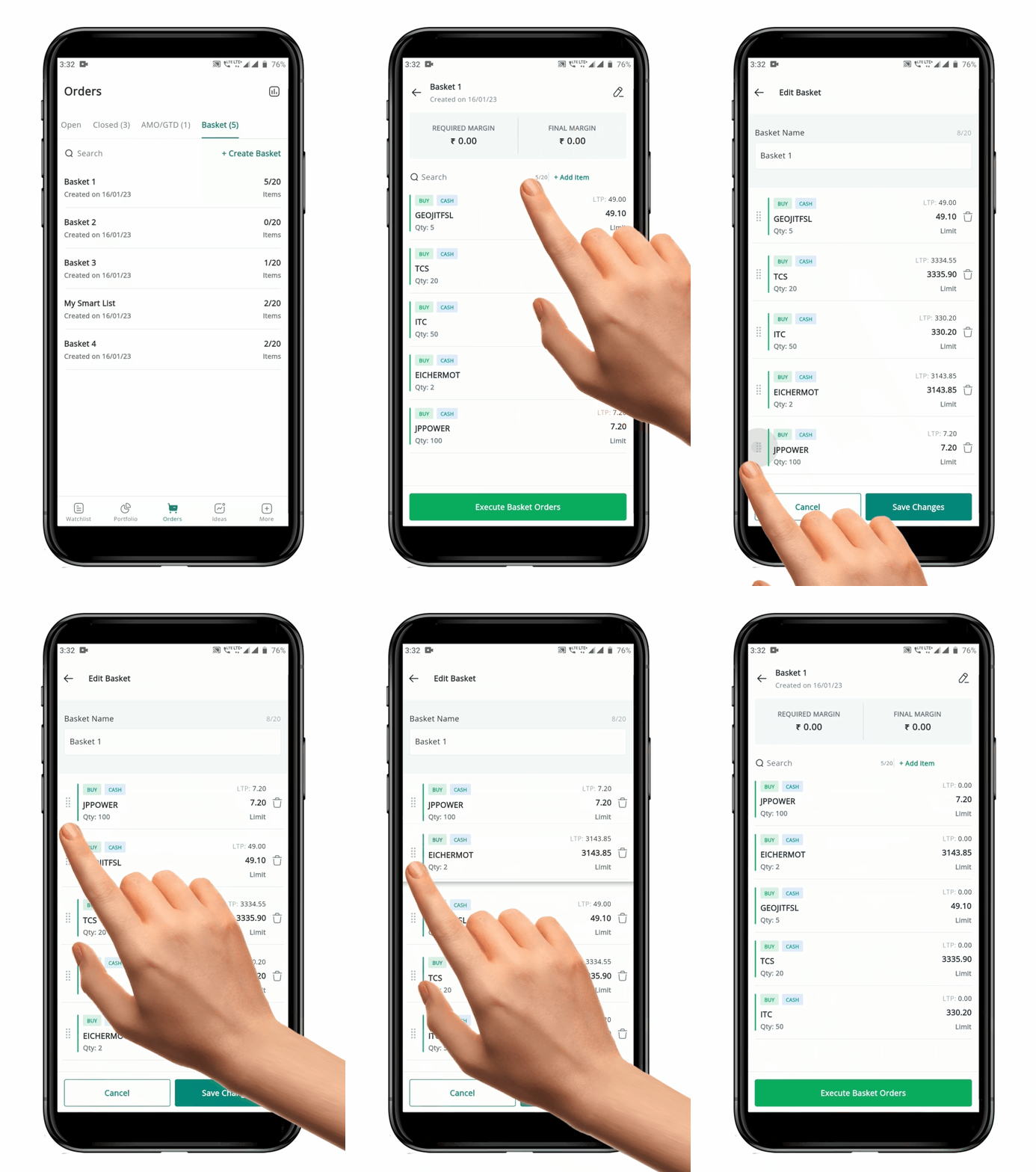
To **"Rearrange"** the order of security in a **Basket**, follow these steps:
* Open the **Basket** you wish to **Rearrange**.
* Click on the **"Edit" Icon** in the top right-hand side of the page.
* This will redirect you to the **Edit Basket** page.
* Use the **Drag and Drop Function**
in the top right-hand side of the page.
* This will redirect you to the **Edit Basket** page.
* Use the **Drag and Drop Function** to **"Rearrange"** the Order of the securities in the **Basket**.
* Simply click on a security and move it up or down to the desired position.
* Once you have *reordered* the **Basket**, click on the **"Save Changes" Button** at the bottom of the page.
* Your Basket has now been **"Rearranged"** and **Saved.**
### **7. How to Search for a Security within a Basket**
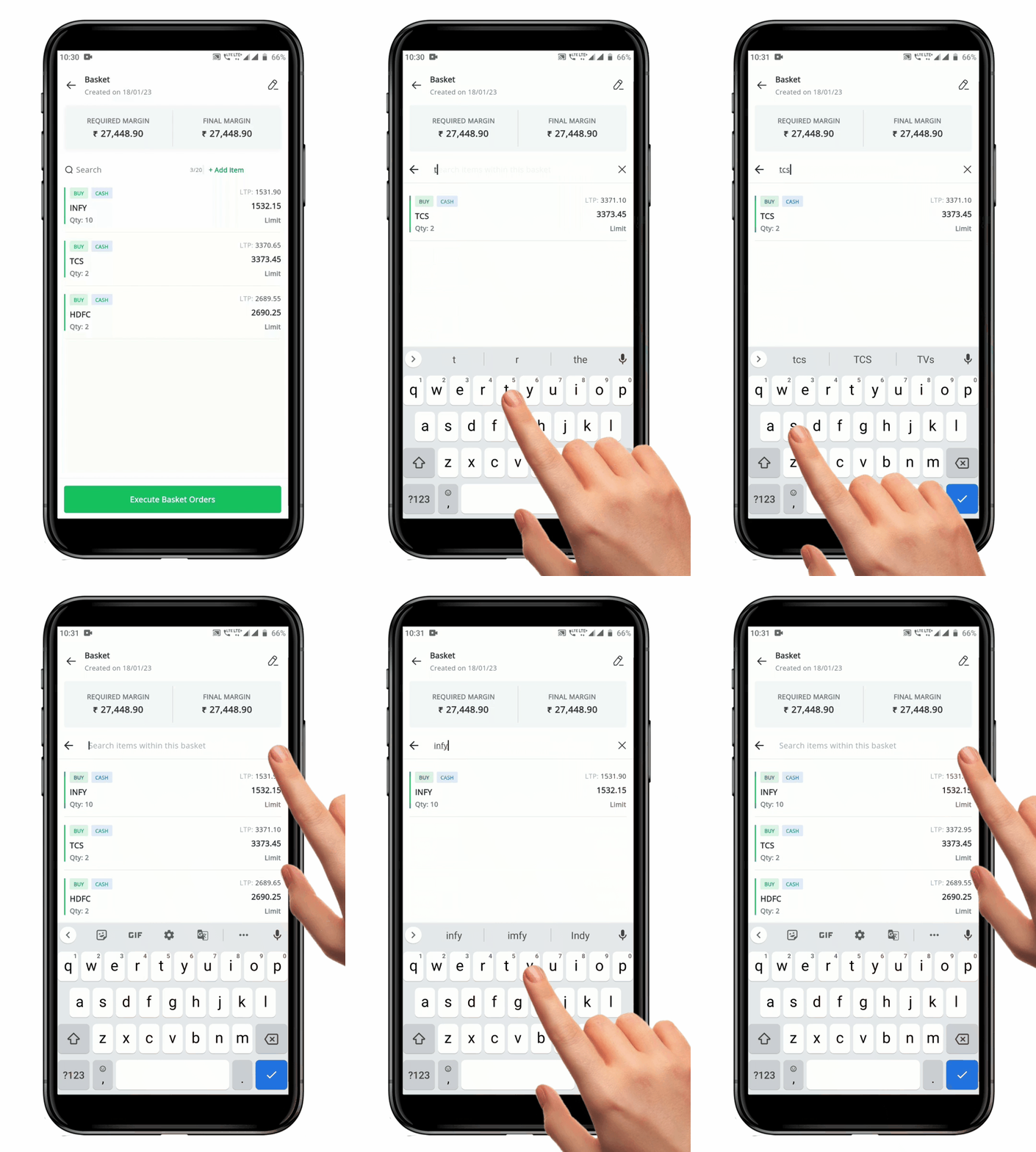
To **"Search"** for a security within the **Basket,** follow these steps:
* Open the **Basket page**.
* Open the desired **Basket** by clicking on the **Name of the** **Basket.**
* Click on the "**Search" Tab** provided at the top of the **Basket page**.
* Type the **"Symbol Name"** of the security you wish to search for.
* The **Symbol** will be *Filtered and Displayed* if it is part of the selected **Basket**.
* Click on the **"X" Icon** on the **Search Bar** to remove the search Filter.
### 8. Modify Order Condition of a Security added to a Basket
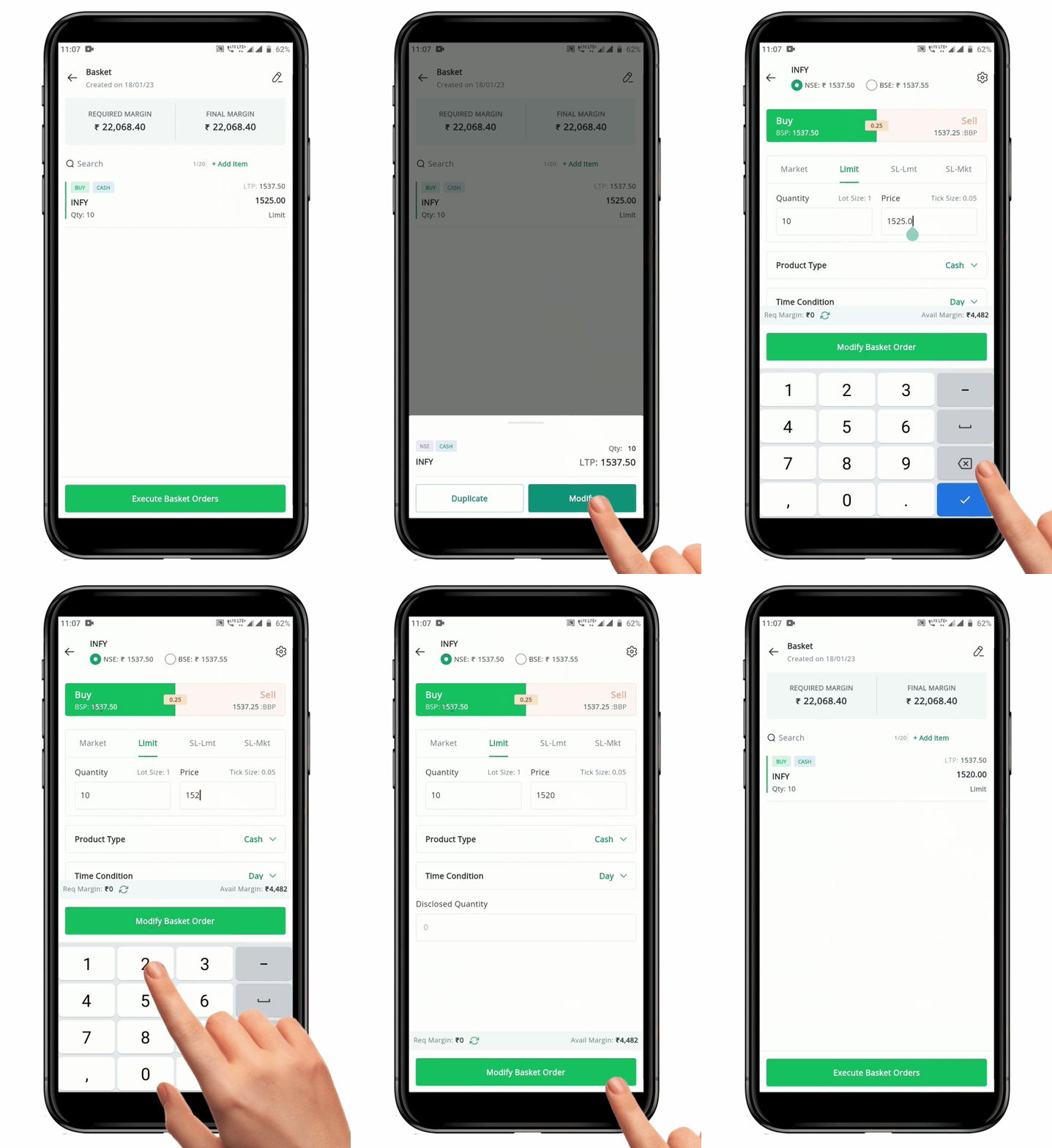
To **"Modify"** Order Condition, follow these steps:
* Open the **Basket** containing the security whose **Order Condition** you want to Modify.
* Click on the **Security Name** to access its Order details.
* Click on the **"Modify" Button** on the pop-up.
* This will open the **Order Placement page** for the selected security, showing the current **Order Condition.**
* You can **"Modify"** any fields as desired.
* Click on the **"Modify Basket Order" Button** at the bottom of the screen.
* The **Modified Order** will be saved.
* Repeat the process to modify the **Order Conditions** for any other securities in the **Basket**.
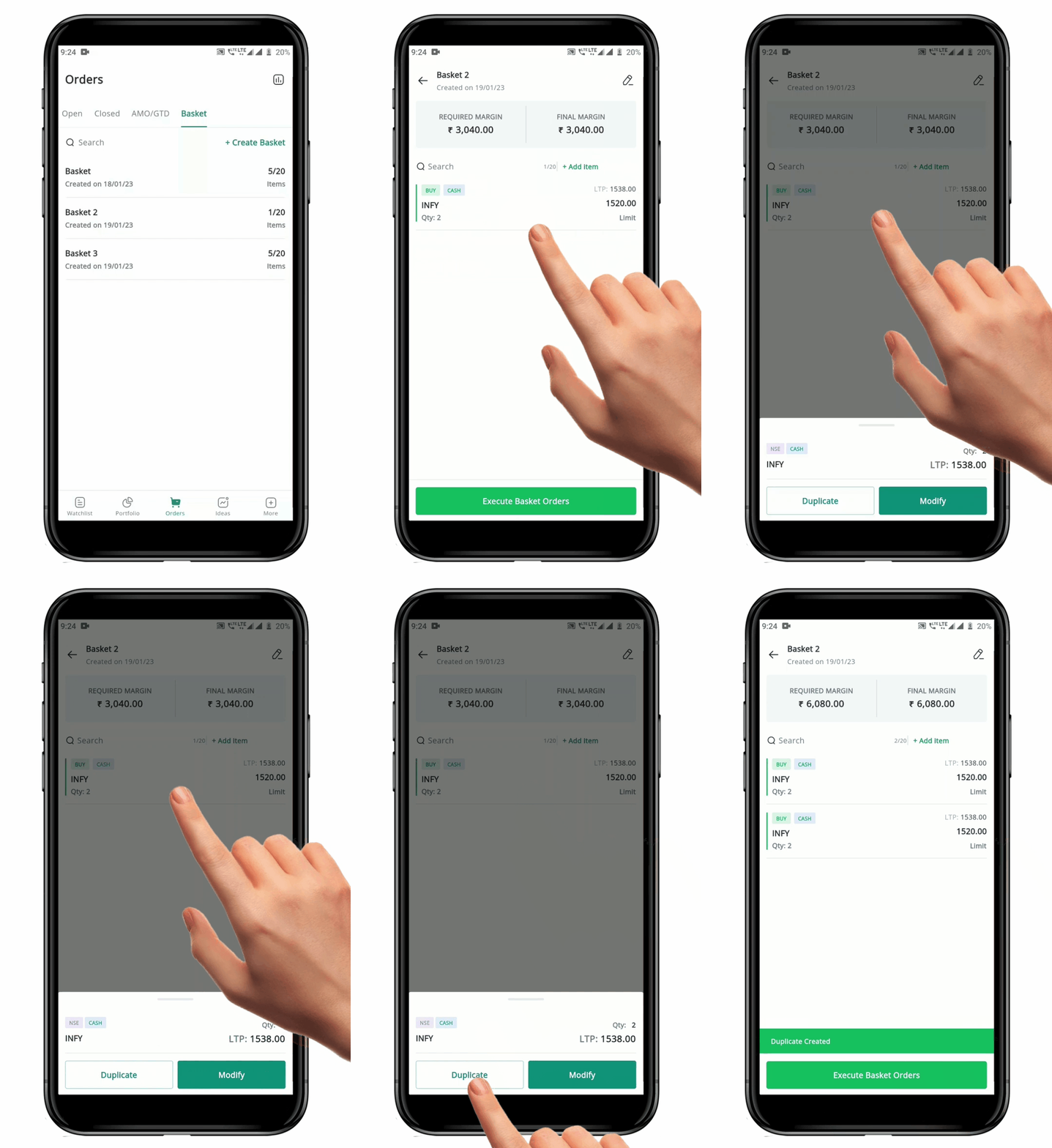
### 9. How to Duplicate an Order in a Basket
To **"Duplicate"** an Order, follow these steps:
* Open the **Basket** containing the security you wish to duplicate.
* Click on the **Security Name** to access its Order details.
* Click on the **"Duplicate" Button** on the pop-up.
* A **Confirmation** message will be shown.
* The security will be added again to the same **Basket** with the same **"Order Conditions".**
* You may **Modify** the duplicated order in the **Basket** if needed.
* You can **"Duplicate"** the security as many times as you want, as long as the number of securities in the **Basket** does not exceed the maximum limit set for one **Basket**.
### 10. How to Rename a Basket
To *rename* a **Basket**, follow these steps:
* Open the **Basket page.**
* Open the desired **Basket** by clicking on the **Name of the Basket.**
* Click on the **"Edit"** :pen: **Icon** on the top right-hand side of the **Basket**.
* You will be redirected to the **Edit page.**
* Here, top of the page you can see the **Basket name.**
* Click on the Box, erase the old name and then enter the new name as you wish *(Maximum 20 characters).*
* Click on the **"Save Changes" Button** towards the bottom of the page.
* Your Basket's name will be changed to the new name.
to **"Rearrange"** the Order of the securities in the **Basket**.
* Simply click on a security and move it up or down to the desired position.
* Once you have *reordered* the **Basket**, click on the **"Save Changes" Button** at the bottom of the page.
* Your Basket has now been **"Rearranged"** and **Saved.**
### **7. How to Search for a Security within a Basket**
To **"Search"** for a security within the **Basket,** follow these steps:
* Open the **Basket page**.
* Open the desired **Basket** by clicking on the **Name of the** **Basket.**
* Click on the "**Search" Tab** provided at the top of the **Basket page**.
* Type the **"Symbol Name"** of the security you wish to search for.
* The **Symbol** will be *Filtered and Displayed* if it is part of the selected **Basket**.
* Click on the **"X" Icon** on the **Search Bar** to remove the search Filter.
### 8. Modify Order Condition of a Security added to a Basket
To **"Modify"** Order Condition, follow these steps:
* Open the **Basket** containing the security whose **Order Condition** you want to Modify.
* Click on the **Security Name** to access its Order details.
* Click on the **"Modify" Button** on the pop-up.
* This will open the **Order Placement page** for the selected security, showing the current **Order Condition.**
* You can **"Modify"** any fields as desired.
* Click on the **"Modify Basket Order" Button** at the bottom of the screen.
* The **Modified Order** will be saved.
* Repeat the process to modify the **Order Conditions** for any other securities in the **Basket**.
### 9. How to Duplicate an Order in a Basket
To **"Duplicate"** an Order, follow these steps:
* Open the **Basket** containing the security you wish to duplicate.
* Click on the **Security Name** to access its Order details.
* Click on the **"Duplicate" Button** on the pop-up.
* A **Confirmation** message will be shown.
* The security will be added again to the same **Basket** with the same **"Order Conditions".**
* You may **Modify** the duplicated order in the **Basket** if needed.
* You can **"Duplicate"** the security as many times as you want, as long as the number of securities in the **Basket** does not exceed the maximum limit set for one **Basket**.
### 10. How to Rename a Basket
To *rename* a **Basket**, follow these steps:
* Open the **Basket page.**
* Open the desired **Basket** by clicking on the **Name of the Basket.**
* Click on the **"Edit"** :pen: **Icon** on the top right-hand side of the **Basket**.
* You will be redirected to the **Edit page.**
* Here, top of the page you can see the **Basket name.**
* Click on the Box, erase the old name and then enter the new name as you wish *(Maximum 20 characters).*
* Click on the **"Save Changes" Button** towards the bottom of the page.
* Your Basket's name will be changed to the new name.