> For the complete documentation index, see [llms.txt](https://usermanuals.geojit.com/llms.txt). Markdown versions of documentation pages are available by appending `.md` to page URLs; this page is available as [Markdown](https://usermanuals.geojit.com/flip-mobile/order-book/amo-gtd-orders.md).
# AMO/GTD Orders
After Market Orders and Good-Till-Date Orders
### This Section Contains:
1. [After Market Orders](#id-1.after-market-orders)
2. [Good-Till-Date Orders](#id-2.good-till-date-order)
### 1.After Market Orders
**"**[**After Market Orders" or** **AMOs**](https://support.geojit.com/support/solutions/articles/89000007778-what-is-an-after-market-order-amo-how-can-i-place-an-amo-), are orders that are placed after the market closes for the day. These orders are placed for *execution* on the *next trading day.*
#### How to view AMO Orders
To view **AMO Orders**, follow these steps:
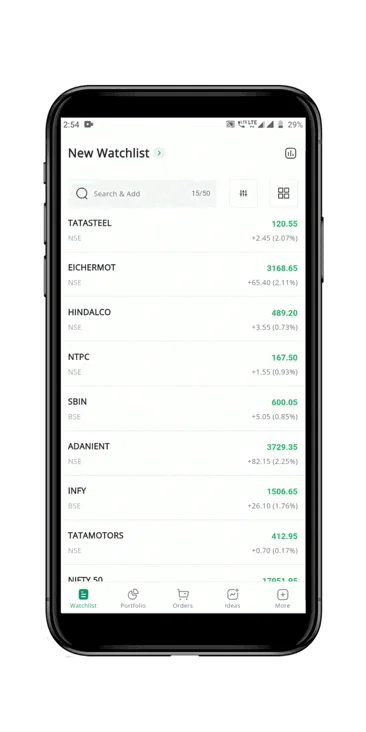
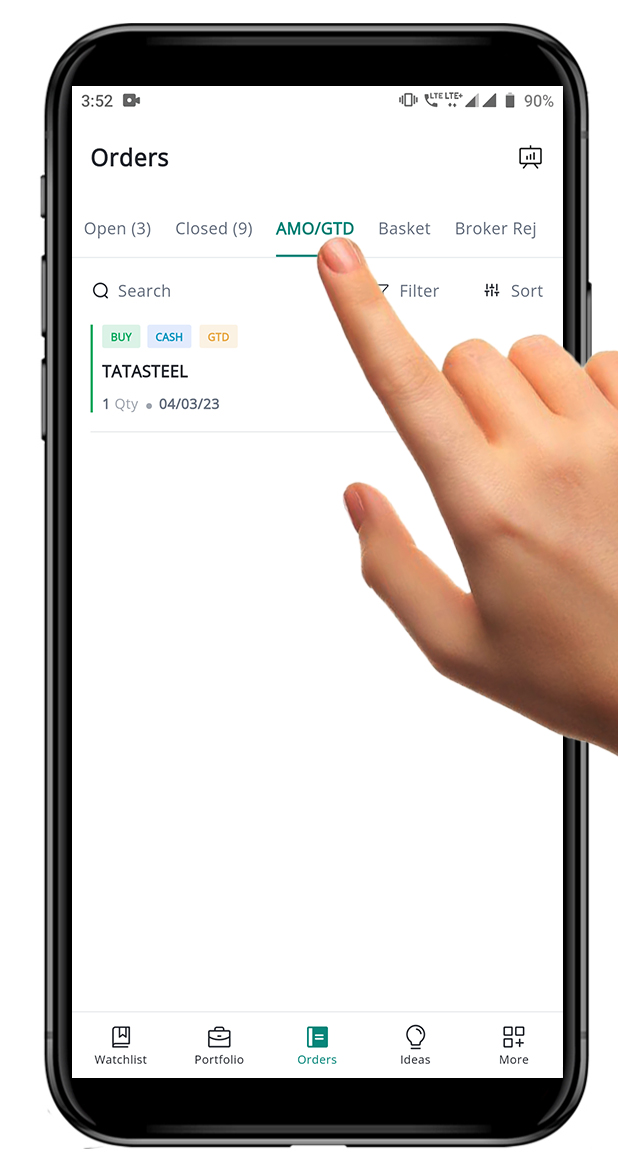
* **"AMO Orders"** can be found in the *AMO/GTD Book tab* in the **Order Book** **.**
* **"AMO Orders"** are in the *saved status* until *8:45 a.m.*, and then in the queued status until 9:15 a.m.
* Once the market opens, "**AMO Orders"** are sent to the exchange.
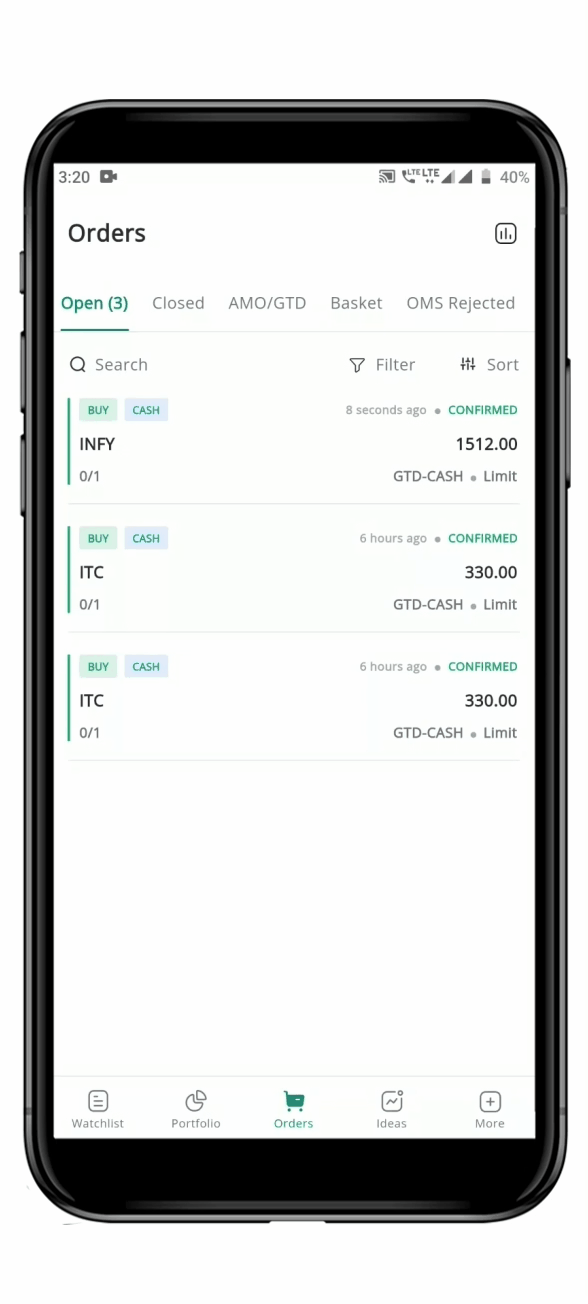
* After being sent to the exchange, **"AMO Orders"** can no longer be viewed in the AMO/GTD Book, but you can find it in the **Open / Closed Order Book.**
### 2.Good-Till-Date Order
A **"**[**Good-Till-Date" (GTD) Order**](https://support.geojit.com/support/solutions/articles/89000007731-what-is-a-good-till-date-gtd-order-how-does-it-work-) is an Order to *buy or sell* a security that remains open until you **Cancel** it or it is **Executed**. This type of Order allows a trader to set a *specific date* for the order to *expire*, up to a maximum of **365 days**. This is useful if you have a specific **Target Price or Market Event** in mind, but don't want to constantly monitor their trades.
The Order remains open until it is **Executed** or the *specified date arrives*, at which point it will be automatically **Canceled**. It's important to note that there is no guarantee that a **"GTD" Order** will be executed, as market conditions can change and prevent the trade from occurring (*Read GTD T\&C*).
#### How to view GTD Order
* Open the **Order Book**
**.**
* **"AMO Orders"** are in the *saved status* until *8:45 a.m.*, and then in the queued status until 9:15 a.m.
* Once the market opens, "**AMO Orders"** are sent to the exchange.
* After being sent to the exchange, **"AMO Orders"** can no longer be viewed in the AMO/GTD Book, but you can find it in the **Open / Closed Order Book.**
### 2.Good-Till-Date Order
A **"**[**Good-Till-Date" (GTD) Order**](https://support.geojit.com/support/solutions/articles/89000007731-what-is-a-good-till-date-gtd-order-how-does-it-work-) is an Order to *buy or sell* a security that remains open until you **Cancel** it or it is **Executed**. This type of Order allows a trader to set a *specific date* for the order to *expire*, up to a maximum of **365 days**. This is useful if you have a specific **Target Price or Market Event** in mind, but don't want to constantly monitor their trades.
The Order remains open until it is **Executed** or the *specified date arrives*, at which point it will be automatically **Canceled**. It's important to note that there is no guarantee that a **"GTD" Order** will be executed, as market conditions can change and prevent the trade from occurring (*Read GTD T\&C*).
#### How to view GTD Order
* Open the **Order Book** **.**
* Look for the **"AMO/GTD" Orders Book** tab.
* In the **"AMO/GTD" Orders Book** tab, you will see **GTD Orders** that have a date associated with them.
* **GTD Orders** with a status of **"Saved"** is not yet send to the exchange. These orders will remain in the *Saved Status* until the morning before the market opens.
* Once the **GTD Order** is sent to the exchange on market opening, its status will change to **"Send"** and you will be able to view it in the **Open/Closed Order book** also.
#### How to Modify GTD Order
To **"Modify"** an order, follow these steps:
* Go to the **"AMO/GTD Order Book"** and find the order you want to **"Modify"**.
* Click on the Order to open the **Order Summary page**, which displays the details and log of the selected order.
* Click on the **"Modify" Button** at the bottom of the **Order Summary** **page**. This will open the Order page, which is pre-filled with the details of your existing **Open Order.**
* **"Modify"** the fields you wish to change.
* Click on the **"Review" Button.** This will provide you with a prompt asking whether you want to **"Modify"** either the **GTD Order**, or **Open Order** that is already sent to the exchange, or both.
* Make your **Selection** and **Confirm** the modification.
**Please note:** Modifications of *GTD Orders* will only take effect from the next working day. If you choose to *Modify* both the Open and GTD Order, both orders will be modified according to the changes you have made. The process for modifying GTD orders from the Open Order Book is the same as from the GTD Order Book.
#### How to Cancel a GTD Order
To **Cancel** a GTD Order, follow these steps:
* Go to the **AMO/GTD Order Book** and find the order you want to "**Cancel"**.
* Click on the order to open the **Order Summary** **page**.
* Click on the **"Cancel" Button** at the bottom of the **Order Summary** **page**.
* Choose to **"Cancel"** only the **GTD Order**, the current open order, or both.
* Click on the **"OK" Order Button** to confirm the cancelation.
**.**
* Look for the **"AMO/GTD" Orders Book** tab.
* In the **"AMO/GTD" Orders Book** tab, you will see **GTD Orders** that have a date associated with them.
* **GTD Orders** with a status of **"Saved"** is not yet send to the exchange. These orders will remain in the *Saved Status* until the morning before the market opens.
* Once the **GTD Order** is sent to the exchange on market opening, its status will change to **"Send"** and you will be able to view it in the **Open/Closed Order book** also.
#### How to Modify GTD Order
To **"Modify"** an order, follow these steps:
* Go to the **"AMO/GTD Order Book"** and find the order you want to **"Modify"**.
* Click on the Order to open the **Order Summary page**, which displays the details and log of the selected order.
* Click on the **"Modify" Button** at the bottom of the **Order Summary** **page**. This will open the Order page, which is pre-filled with the details of your existing **Open Order.**
* **"Modify"** the fields you wish to change.
* Click on the **"Review" Button.** This will provide you with a prompt asking whether you want to **"Modify"** either the **GTD Order**, or **Open Order** that is already sent to the exchange, or both.
* Make your **Selection** and **Confirm** the modification.
**Please note:** Modifications of *GTD Orders* will only take effect from the next working day. If you choose to *Modify* both the Open and GTD Order, both orders will be modified according to the changes you have made. The process for modifying GTD orders from the Open Order Book is the same as from the GTD Order Book.
#### How to Cancel a GTD Order
To **Cancel** a GTD Order, follow these steps:
* Go to the **AMO/GTD Order Book** and find the order you want to "**Cancel"**.
* Click on the order to open the **Order Summary** **page**.
* Click on the **"Cancel" Button** at the bottom of the **Order Summary** **page**.
* Choose to **"Cancel"** only the **GTD Order**, the current open order, or both.
* Click on the **"OK" Order Button** to confirm the cancelation.