> For the complete documentation index, see [llms.txt](https://usermanuals.geojit.com/llms.txt). Markdown versions of documentation pages are available by appending `.md` to page URLs; this page is available as [Markdown](https://usermanuals.geojit.com/flip-mobile/order-book.md).
# Order Book
The Order Book provides a real-time snapshot of the current status of each order.
### This section contains:
1. [How to open Order Book](#id-1.-how-to-view-order-book)
2. [Order Summary](#id-2.-order-summary)
The **"Order Book"** is a record of all the orders placed by you during the Trading Day. These **Orders** can be grouped into several categories, such as **"Open Orders", "Closed Orders", "After-Market Orders", and "Good-Till-Date Orders"**. The **Order Book** provides a real-time snapshot of the *current status* of each order, allowing you to see which orders have been *executed*, which are still *pending*, and which have been *cancelled.*
### 1. How to view Order Book?
To *view* the **Order Book,** follow these steps:
* Locate the **"Order" Icon** at the bottom of the tab.
* Click on the **"Order" Icon**
at the bottom of the tab.
* Click on the **"Order" Icon** to open the **Order Book tab**.
* The **"Order Book"** page will be open.
* You can see "**Open Order", "Closed Order", "GTD Order", "Baskets", "Smartfolio", and "Broker Rejection".**
* Click/Swipe between "**Open Order", "Closed Order", "GTD Order", "Baskets", "Smartfolio"** and **"Broker Rejection"** to select it.
### 2. Order Summary
#### How to View Order Summary page
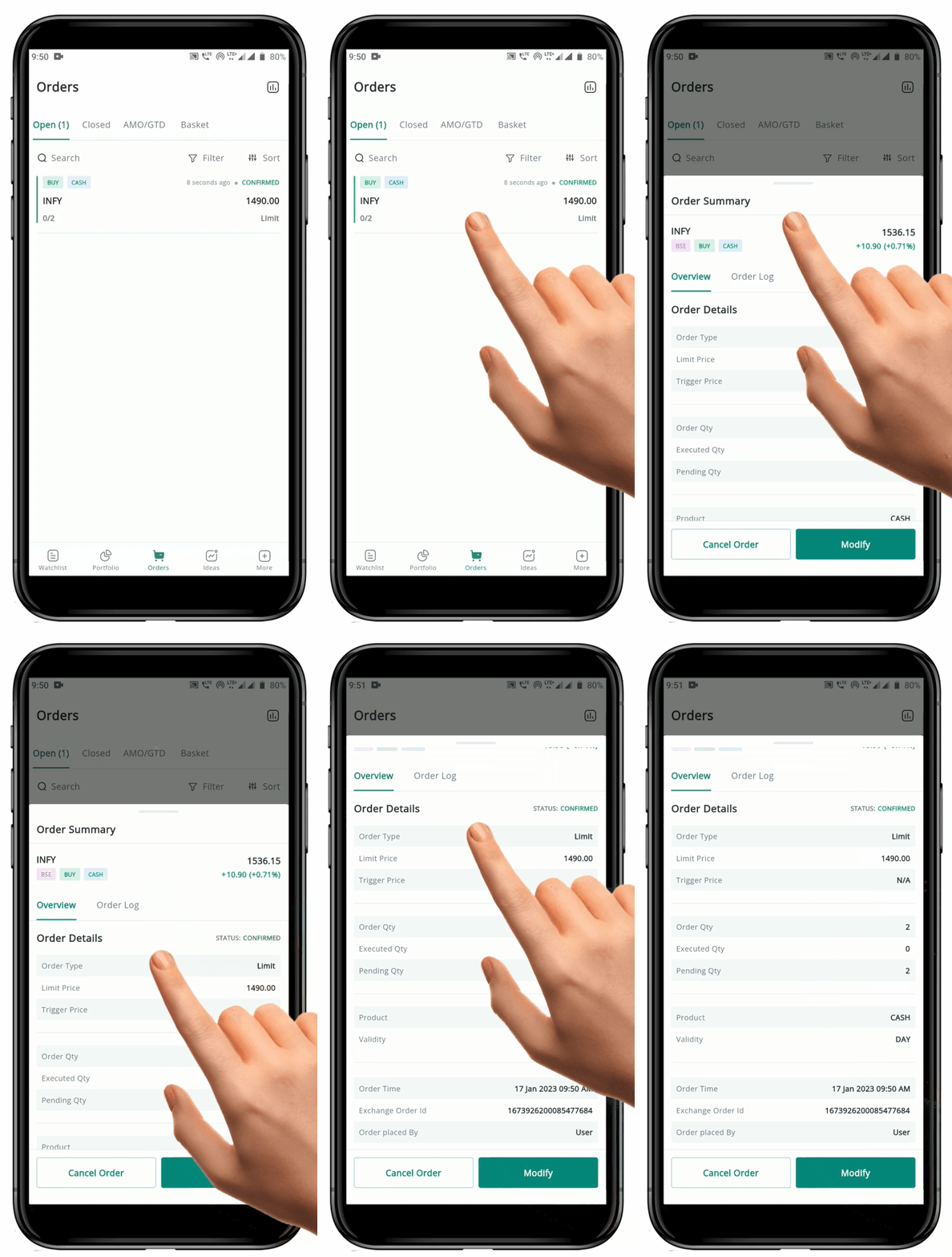
* Navigate to the **"Order Book", Open or Closed** depending on the **"Order Summary"** you wish to see.
* Click on the desired **Order** to open the **"Order Summary page".**
* Review the **"Order Summary",** which includes two tabs:
* **Order Overview:** Showing details of the order such as the *Order Type, Product Type, Order Quantity, Order Price, and Order Status.*
* **Order Log:** Showing the timing of various stages of the order, such as *Order Placement, Confirmation by the Exchange, Execution, Rejection, Cancelation, and Modification.*
* Click on any tab you wish to **Review**.
#### Order Log
An **"Order Log"** typically provides detailed information about the timing of various events related to the Order. This can include when the Order was placed, when it was **confirmed by the exchange,** when it was **executed**, when it was **rejected**, when it was **canceled**, when it was **modified** and when **any modifications were confirmed.**
#### Overview Tab
An **"Order Summary"** is a document that provides a detailed overview of a customer's order. It includes information about the *type of order placed*. The **"Order Summary"** is an important tool that allows the customer, trader, or business to track and manage their orders effectively. It serves as a record of the Order, providing all the necessary details to understand the Order and make informed decisions.
Below are the details of **Order summary** :
* Order Type: Limit, Market, Stop Loss Order.
* Product Type: Intraday Cash, BTST, MTF.
* Order Validity.
* Limit Price and Trigger Price based on order type.
* Ordered quantity, executed quantity, and pending quantity.
* Order Status: Confirmed, executed, rejected, or cancelled.
* Order Time and Exchange Order ID.
* Who placed the order (user, branch, or customer care).
#### FAQ
1. What is [GTD Order?](https://support.geojit.com/support/solutions/articles/89000007731-what-is-a-good-till-date-gtd-order-how-does-it-work-)
2. What is [Smartfolios?](https://support.geojit.com/kb/en/article/what-is-smartfolios)
3. What are the different [types of Order?](https://support.geojit.com/kb/en/article/what-are-the-different-order-types)
4. What is [AMO Orders?](https://support.geojit.com/kb/en/article/what-is-an-after-market-order-amo)
to open the **Order Book tab**.
* The **"Order Book"** page will be open.
* You can see "**Open Order", "Closed Order", "GTD Order", "Baskets", "Smartfolio", and "Broker Rejection".**
* Click/Swipe between "**Open Order", "Closed Order", "GTD Order", "Baskets", "Smartfolio"** and **"Broker Rejection"** to select it.
### 2. Order Summary
#### How to View Order Summary page
* Navigate to the **"Order Book", Open or Closed** depending on the **"Order Summary"** you wish to see.
* Click on the desired **Order** to open the **"Order Summary page".**
* Review the **"Order Summary",** which includes two tabs:
* **Order Overview:** Showing details of the order such as the *Order Type, Product Type, Order Quantity, Order Price, and Order Status.*
* **Order Log:** Showing the timing of various stages of the order, such as *Order Placement, Confirmation by the Exchange, Execution, Rejection, Cancelation, and Modification.*
* Click on any tab you wish to **Review**.
#### Order Log
An **"Order Log"** typically provides detailed information about the timing of various events related to the Order. This can include when the Order was placed, when it was **confirmed by the exchange,** when it was **executed**, when it was **rejected**, when it was **canceled**, when it was **modified** and when **any modifications were confirmed.**
#### Overview Tab
An **"Order Summary"** is a document that provides a detailed overview of a customer's order. It includes information about the *type of order placed*. The **"Order Summary"** is an important tool that allows the customer, trader, or business to track and manage their orders effectively. It serves as a record of the Order, providing all the necessary details to understand the Order and make informed decisions.
Below are the details of **Order summary** :
* Order Type: Limit, Market, Stop Loss Order.
* Product Type: Intraday Cash, BTST, MTF.
* Order Validity.
* Limit Price and Trigger Price based on order type.
* Ordered quantity, executed quantity, and pending quantity.
* Order Status: Confirmed, executed, rejected, or cancelled.
* Order Time and Exchange Order ID.
* Who placed the order (user, branch, or customer care).
#### FAQ
1. What is [GTD Order?](https://support.geojit.com/support/solutions/articles/89000007731-what-is-a-good-till-date-gtd-order-how-does-it-work-)
2. What is [Smartfolios?](https://support.geojit.com/kb/en/article/what-is-smartfolios)
3. What are the different [types of Order?](https://support.geojit.com/kb/en/article/what-are-the-different-order-types)
4. What is [AMO Orders?](https://support.geojit.com/kb/en/article/what-is-an-after-market-order-amo)