> For the complete documentation index, see [llms.txt](https://usermanuals.geojit.com/llms.txt). Markdown versions of documentation pages are available by appending `.md` to page URLs; this page is available as [Markdown](https://usermanuals.geojit.com/flip-mobile/more/funds.md).
# Funds
Help manage Trading Account
### This section contains:
1. [Funds Page.](#id-1.-funds-page)
2. [How to Open the Funds page.](#id-2.-how-to-open-the-funds-page)
3. [Withdraw](#id-3.-withdraw)
4. [Add Funds](#id-4.-add-funds)
5. [Block/Unblock Funds](#what-is-the-procedure-to-block-unblock-funds)
6. [How to view your Pay In/Pay Out Report ?](#how-to-view-your-pay-in-pay-out-report)
7. [How to find your margin details ?](#how-to-find-your-margin-details)
### 1. Funds Page
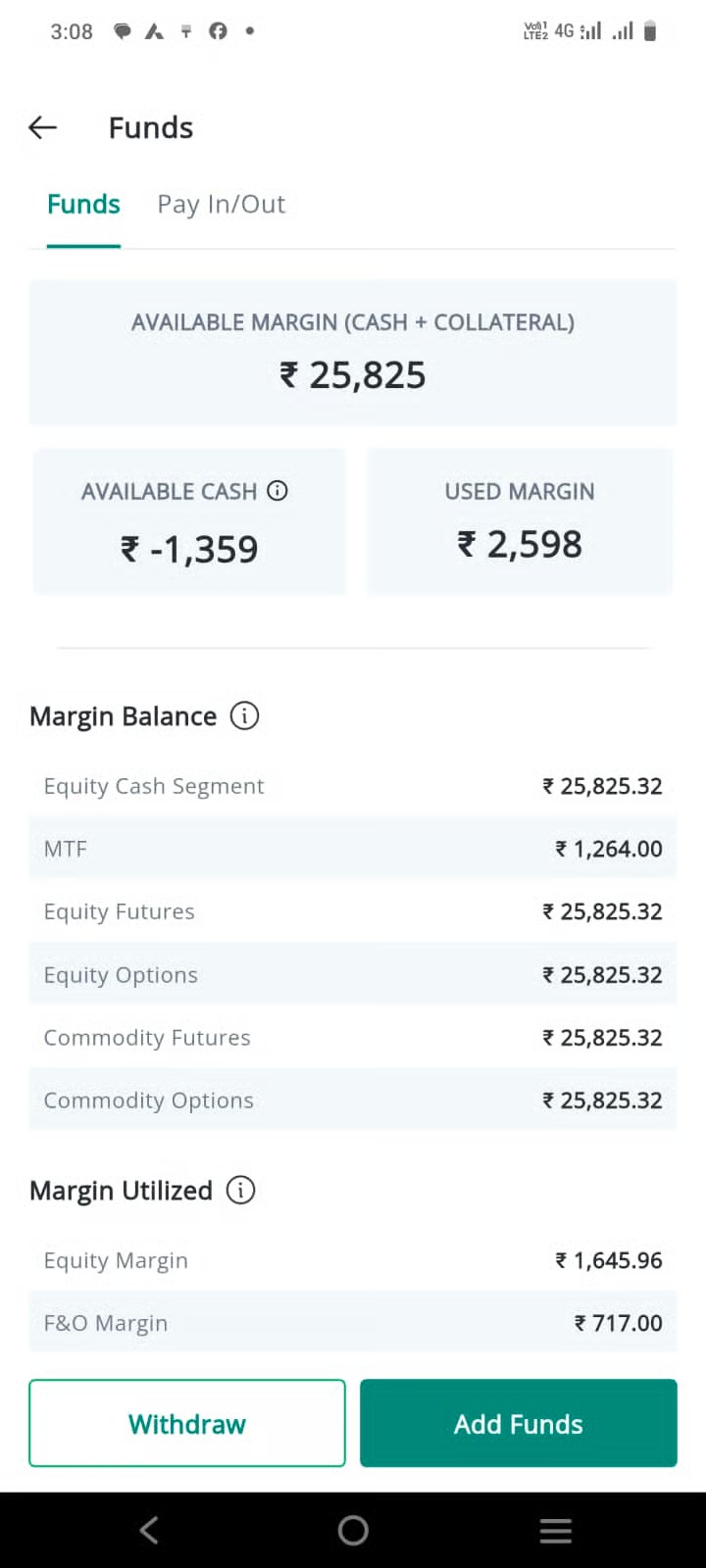
The **"Funds" page** is a vital tool for users to manage their Trading Account. It allows users to keep track of their **Available Funds**, monitor their **Margin** usage, and manage their **Account Balance.**
The page provides a detailed overview of the user's financial status, including:
#### **Available Margin**
This represents the total margin available for the user to take new positions. The values are computed on a real-time basis and are therefore indicative in nature. Final figures for booked profits/losses, brokerage, and other charges are accounted for at the end of the day in the ledger. Users are advised to refer to the end-of-day [**account statement**](https://usermanuals.geojit.com/mygeojit-mobile/reports/account-statement) for final and accurate balances.
#### **Available Cash**
This figure represents the amount of cash that is currently available in the user's account. If you have traded for the day, then these values are computed on a real-time basis and are therefore indicative in nature. So please refer the [**Account statement**](https://usermanuals.geojit.com/mygeojit-mobile/reports/account-statement) to get the real figures at End of the Day.
#### **Margin Utilized**
This shows the amount of margin that is currently being used for open trades.
Furthermore, the page provides a breakdown of the **Margin Balance** and **Margin Utilized** for each trading segment like equity, MTF, F\&O allowing users to monitor their margin usage across different markets. Also, in case of **buying power**, **segregation of margin** between **Equity & Commodity derivatives**, and **segregation of Equity cash & MTF** can be seen in this section.
In addition to this, the **"Funds" page** offers users the option to manage their **Account Balance.** Users can add funds to their trading account or withdraw their balance directly from this page.
Moreover, by clicking on the **Payout Status****,** the user can easily view the current status of their **Payout** request in their **MyGeojit Account.** This feature offers users the convenience of tracking their **Payout Requests** and keeping themselves updated with the status of their account.
#### Note
1\) When you exit an Intraday Position for a profit, the profit from the transaction is only released as margin upon the settlement of the transaction, so until then the profit position is shown as blocked.
2\) When you sell a stock from your holdings, only 80% of the sale proceeds are released as margin balance, with the remaining 20% blocked.
### **2. How to Open the Funds Page**
You can go to the **"Funds"**
is a vital tool for users to manage their Trading Account. It allows users to keep track of their **Available Funds**, monitor their **Margin** usage, and manage their **Account Balance.**
The page provides a detailed overview of the user's financial status, including:
#### **Available Margin**
This represents the total margin available for the user to take new positions. The values are computed on a real-time basis and are therefore indicative in nature. Final figures for booked profits/losses, brokerage, and other charges are accounted for at the end of the day in the ledger. Users are advised to refer to the end-of-day [**account statement**](https://usermanuals.geojit.com/mygeojit-mobile/reports/account-statement) for final and accurate balances.
#### **Available Cash**
This figure represents the amount of cash that is currently available in the user's account. If you have traded for the day, then these values are computed on a real-time basis and are therefore indicative in nature. So please refer the [**Account statement**](https://usermanuals.geojit.com/mygeojit-mobile/reports/account-statement) to get the real figures at End of the Day.
#### **Margin Utilized**
This shows the amount of margin that is currently being used for open trades.
Furthermore, the page provides a breakdown of the **Margin Balance** and **Margin Utilized** for each trading segment like equity, MTF, F\&O allowing users to monitor their margin usage across different markets. Also, in case of **buying power**, **segregation of margin** between **Equity & Commodity derivatives**, and **segregation of Equity cash & MTF** can be seen in this section.
In addition to this, the **"Funds" page** offers users the option to manage their **Account Balance.** Users can add funds to their trading account or withdraw their balance directly from this page.
Moreover, by clicking on the **Payout Status****,** the user can easily view the current status of their **Payout** request in their **MyGeojit Account.** This feature offers users the convenience of tracking their **Payout Requests** and keeping themselves updated with the status of their account.
#### Note
1\) When you exit an Intraday Position for a profit, the profit from the transaction is only released as margin upon the settlement of the transaction, so until then the profit position is shown as blocked.
2\) When you sell a stock from your holdings, only 80% of the sale proceeds are released as margin balance, with the remaining 20% blocked.
### **2. How to Open the Funds Page**
You can go to the **"Funds"** **page** from **"Market Overview"** **page** and **"More"** **page.**
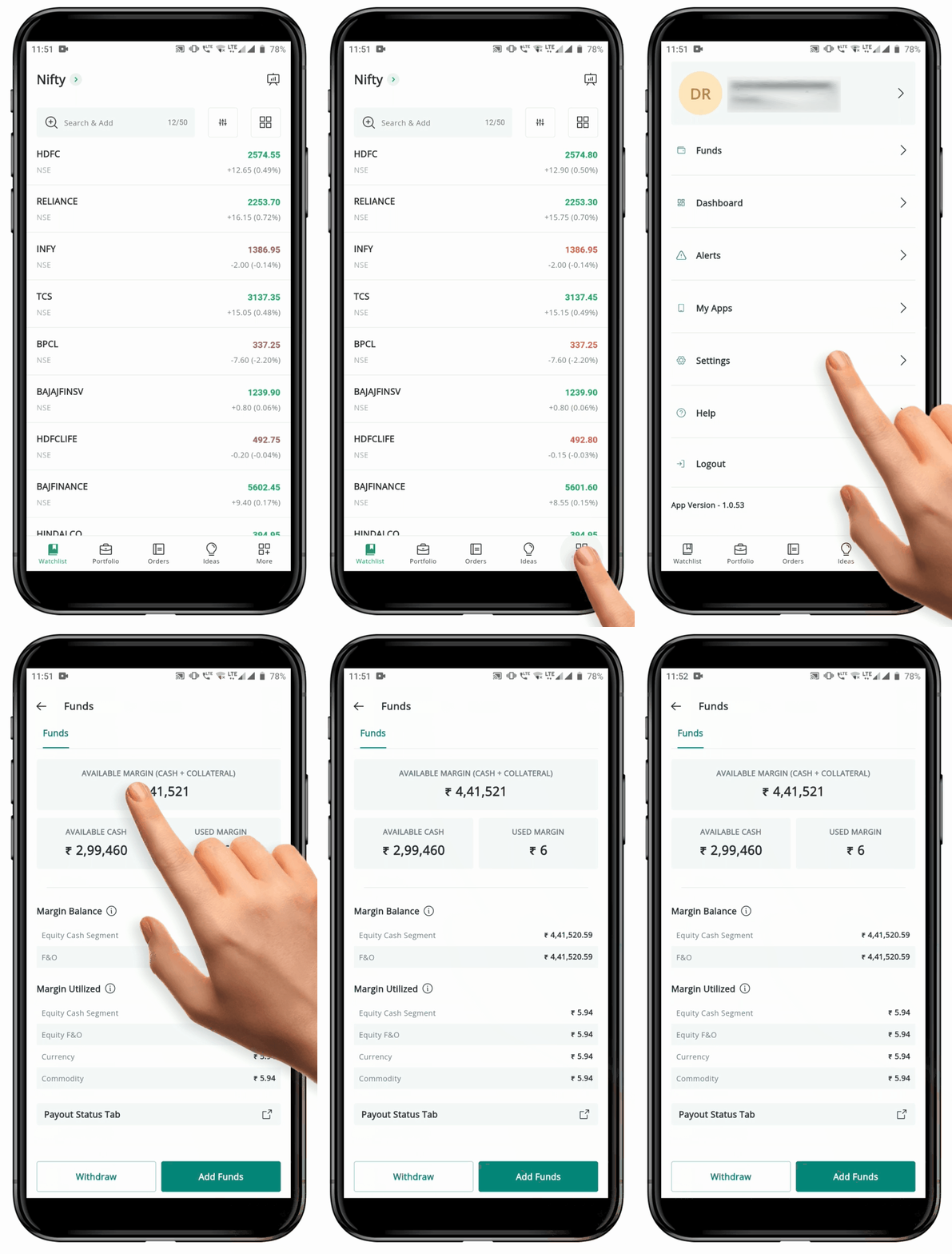
#### Go to Funds from More Page
To go to **"Funds"** from **More page,** follow these steps:
* Locate the **"More" Icon**
**page** from **"Market Overview"** **page** and **"More"** **page.**
#### Go to Funds from More Page
To go to **"Funds"** from **More page,** follow these steps:
* Locate the **"More" Icon** on the navigation menu.
* Click on the **"More" Icon**
on the navigation menu.
* Click on the **"More" Icon** and you will be redirected to the More page.
* Tap on the **"Funds"** **Option.**
* This will take you to the **"Funds" Page**.
#### **Go to Funds from the Market Overview Page**
To go to **"Funds"** from **Market Overview page,** follow these steps:
* Locate the **"Market Overview" Icon**
and you will be redirected to the More page.
* Tap on the **"Funds"** **Option.**
* This will take you to the **"Funds" Page**.
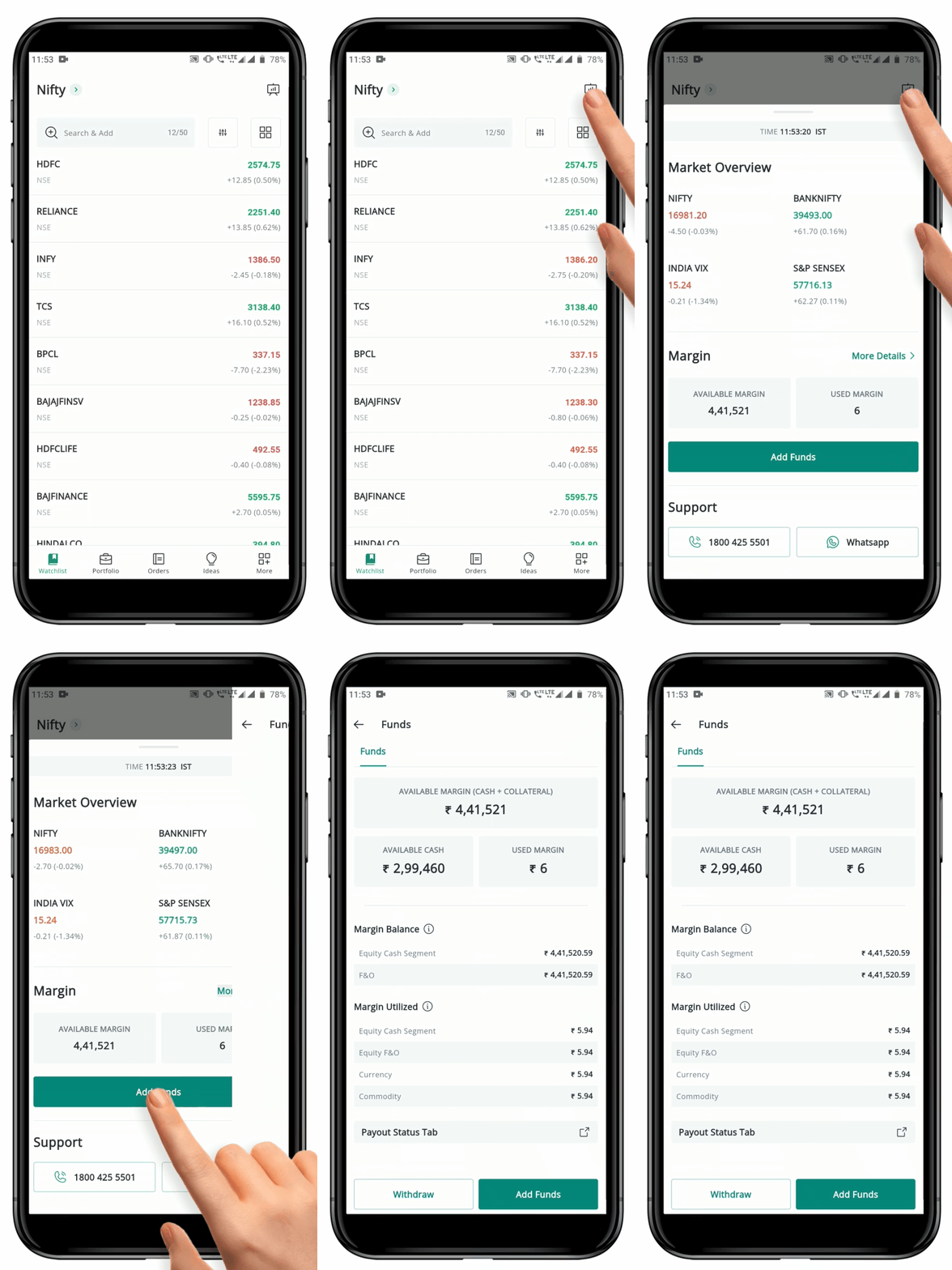
#### **Go to Funds from the Market Overview Page**
To go to **"Funds"** from **Market Overview page,** follow these steps:
* Locate the **"Market Overview" Icon** at the top left-hand side of **Watchlist, Orders, or Portfolio page.**
* Click on the **"Market Overview" Icon**
at the top left-hand side of **Watchlist, Orders, or Portfolio page.**
* Click on the **"Market Overview" Icon** and the Market Overview pop-up will appear.
* Click on **"More Details"**
and the Market Overview pop-up will appear.
* Click on **"More Details"** adjacent to the Margin.
* You be redirected to the **"Funds"** **page.**
### 3. Withdraw
The **"Withdraw"** feature in the FLIP Application is used for transferring amount from your **Trading Account** to your **Registered Bank Account.**
#### **How to Withdraw Funds**
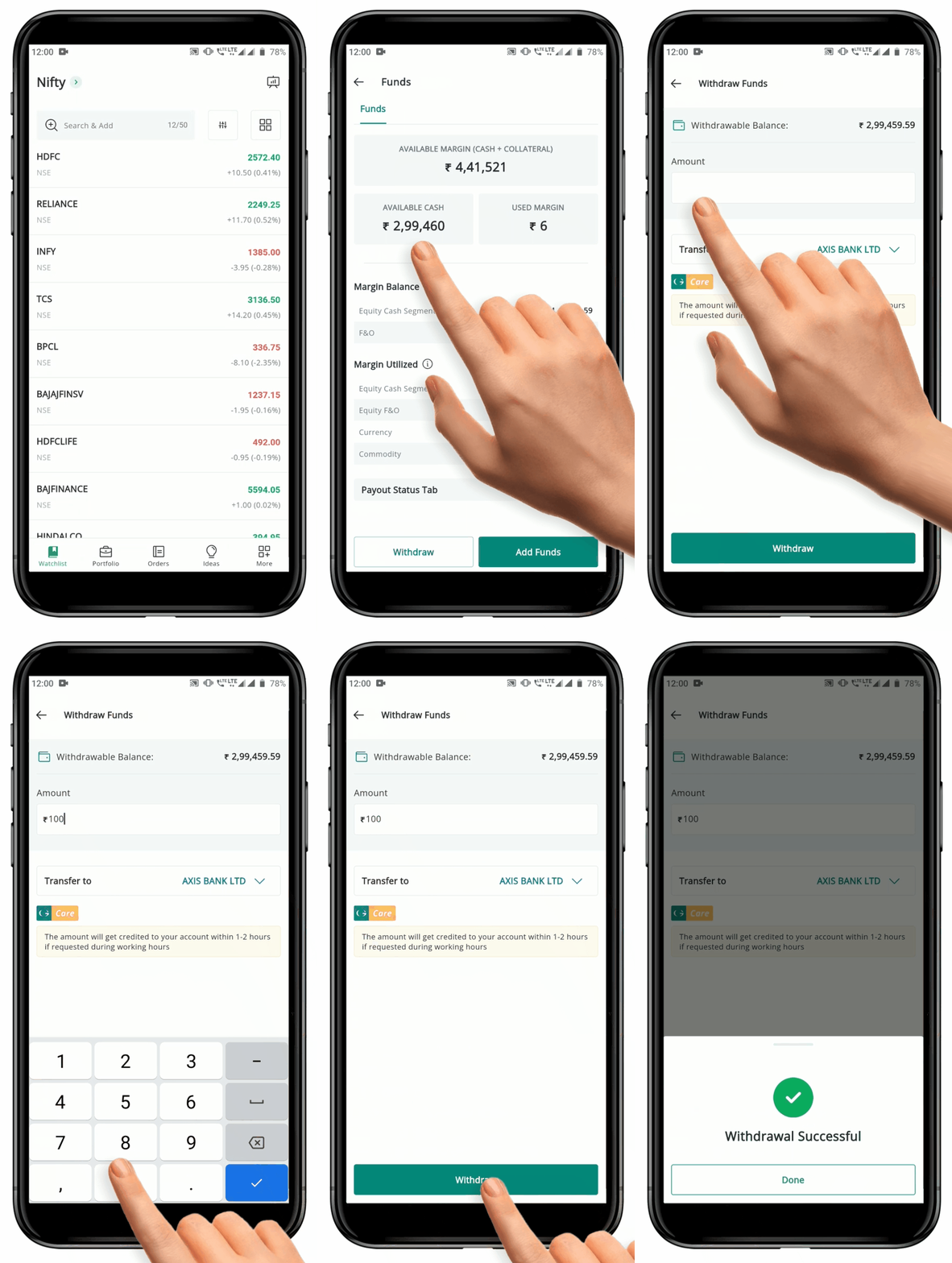
To **"Withdraw"** amount, follow these steps:
* Go to the **"Funds"** **page.**
* Click on **"Withdraw" Button** at the bottom of the page.
* You will be redirected to **Withdraw Funds Page.**
* At the top of the page you can see **"Withdrawal Balance"** available in the **Trading Account.** It is the amount that is available in the **Account** which you can **"Withdraw".**
* Enter the **Amount** you wish to **"Withdraw"** on the box.
* If you have added multiple **Bank Accounts**, the default payout bank will be automatically selected. However, if you wish to select a different bank account, you can do so from the Drop-down Menu
adjacent to the Margin.
* You be redirected to the **"Funds"** **page.**
### 3. Withdraw
The **"Withdraw"** feature in the FLIP Application is used for transferring amount from your **Trading Account** to your **Registered Bank Account.**
#### **How to Withdraw Funds**
To **"Withdraw"** amount, follow these steps:
* Go to the **"Funds"** **page.**
* Click on **"Withdraw" Button** at the bottom of the page.
* You will be redirected to **Withdraw Funds Page.**
* At the top of the page you can see **"Withdrawal Balance"** available in the **Trading Account.** It is the amount that is available in the **Account** which you can **"Withdraw".**
* Enter the **Amount** you wish to **"Withdraw"** on the box.
* If you have added multiple **Bank Accounts**, the default payout bank will be automatically selected. However, if you wish to select a different bank account, you can do so from the Drop-down Menu provided.
* To confirm the Withdrawal of the entered amount, tap on the **"Withdraw" Button** toward the end of the page.
* A **Confirmation Message** will be displayed.
### 4. Add Funds
**"Add Funds"** feature in the FLIP Application is used for transferring funds from the **Registered Bank Account** to your **Trading Account.**
#### **How to Add Funds**
To **"Add Funds"**, follow these steps:
* To **"Add Funds",** navigate to the **Funds** **page** by clicking on the **"More"**
provided.
* To confirm the Withdrawal of the entered amount, tap on the **"Withdraw" Button** toward the end of the page.
* A **Confirmation Message** will be displayed.
### 4. Add Funds
**"Add Funds"** feature in the FLIP Application is used for transferring funds from the **Registered Bank Account** to your **Trading Account.**
#### **How to Add Funds**
To **"Add Funds"**, follow these steps:
* To **"Add Funds",** navigate to the **Funds** **page** by clicking on the **"More"** **Button** **Button** at the bottom of the page.
* On the **Funds page**, locate and click on the **"Add Funds" Button** at the bottom of the page.
* This will take you to the **"Add Funds" page.**
* This page will display your **"Current Available Fund Balance"** and various options for adding funds.
* Enter the desired **Amount** in the provided space.
* Select the **Bank** from which you wish to transfer the **Funds**.
* If you have multiple **Registered Banks**, click on the a**"Drop-down" Icon**
**Button** **Button** at the bottom of the page.
* On the **Funds page**, locate and click on the **"Add Funds" Button** at the bottom of the page.
* This will take you to the **"Add Funds" page.**
* This page will display your **"Current Available Fund Balance"** and various options for adding funds.
* Enter the desired **Amount** in the provided space.
* Select the **Bank** from which you wish to transfer the **Funds**.
* If you have multiple **Registered Banks**, click on the a**"Drop-down" Icon** to select the desired **Bank.**
* Choose the desired **"Mode of Transfer"** from the available options.
#### Three Payment Method
**1) Entering UPI ID**
To **Add Funds** using **"UPI ID",** follow these steps:
* Click on the **"UPI" option** provided on the **FLIP Application.**
* Enter the **"UPI ID"** of your choice in the pop-up page, or just **select the "UPI"** option.
* If you enter your UPI ID, then the **UPI ID** will be verified before the request is sent.
* A collect request from **"Geojit"** will appear on the selected **UPI App.**
* Enter your **"UPI PIN"** and approve the transfer.
* If the transfer is successful, you will receive a confirmation pop-up.
* If you have selected the 'UPI' option without entering the UPI ID, then the UPI apps installed on your mobile phone will be displayed.
* **Click on the preferred UPI app**, and you will be navigated to the fund transfer page of that particular UPI app.
* Complete the payment process, and you are good to go.
#### **Please Note:**
* The UPI-linked bank should be the same bank that is registered with Geojit by you.
* The maximum amount you can **transfer via UPI** is **5 lakhs** for capital market transactions.
### What is the procedure to block/unblock funds?
The fund‑block facility (automatic transfers based on funds blocked in the customer’s bank account) is available with Federal Bank, South Indian Bank, and Punjab National Bank.
to select the desired **Bank.**
* Choose the desired **"Mode of Transfer"** from the available options.
#### Three Payment Method
**1) Entering UPI ID**
To **Add Funds** using **"UPI ID",** follow these steps:
* Click on the **"UPI" option** provided on the **FLIP Application.**
* Enter the **"UPI ID"** of your choice in the pop-up page, or just **select the "UPI"** option.
* If you enter your UPI ID, then the **UPI ID** will be verified before the request is sent.
* A collect request from **"Geojit"** will appear on the selected **UPI App.**
* Enter your **"UPI PIN"** and approve the transfer.
* If the transfer is successful, you will receive a confirmation pop-up.
* If you have selected the 'UPI' option without entering the UPI ID, then the UPI apps installed on your mobile phone will be displayed.
* **Click on the preferred UPI app**, and you will be navigated to the fund transfer page of that particular UPI app.
* Complete the payment process, and you are good to go.
#### **Please Note:**
* The UPI-linked bank should be the same bank that is registered with Geojit by you.
* The maximum amount you can **transfer via UPI** is **5 lakhs** for capital market transactions.
### What is the procedure to block/unblock funds?
The fund‑block facility (automatic transfers based on funds blocked in the customer’s bank account) is available with Federal Bank, South Indian Bank, and Punjab National Bank.
* For users whose Depository Participant (DP) is PNB:
* Log in to the Flip app.
* Go to **'More' > Funds.**
* Tap on **'Add Funds'.**
* **Enter the amount** you wish to block.
* Choose **'Block Funds.'**
* Now you will be redirected to the PNB retail banking page.
* Now **enter the user ID** and **click continue.**
* Next, **enter the password and click Log In.**
* You will now land on the '**Lien Unlien Service'** page, where your lien details will be displayed.
* Review the details and **click 'Confirm.'**
* Now enter your '**Transaction Password'** and **enter the OTP** you have now received on your registered mobile number.
* Once done, you will get a success message.
To unblock:
* Log in to the Flip app.
* Go to 'More' > Funds.
* Tap on 'Withdraw Funds'.
* Tap on the 'Unblock' tab.
* Enter the amount you wish to unblock.
* Click "unblock," and your fund will be unblocked instantly.
{% hint style="info" %}
\[Please Note: 10% of the blocked amount or 1000Rs, whichever is higher, cannot be unblocked manually. This portion will be automatically released only at the end of the day.\
\
You can block/unblock funds only between 7am and 3:30pm.
{% endhint %}
* For users whose Depository Participant (DP) is **SIB** or **Federal:**
* Go to 'More' > Funds.
* Log in to the Flip app.
* Tap on 'Add Funds'.
* Enter the amount you wish to block.
* Choose 'Block Funds.'
* To unblock:
* Log in to the Flip app.
* Go to 'More' > Funds.
* Tap on 'Withdraw Funds'.
* Tap on the 'Unblock' tab.
* Enter the amount you wish to unblock.
* Click "unblock," and your fund will be unblocked instantly.
### How to view your Pay In/Pay Out Report ?
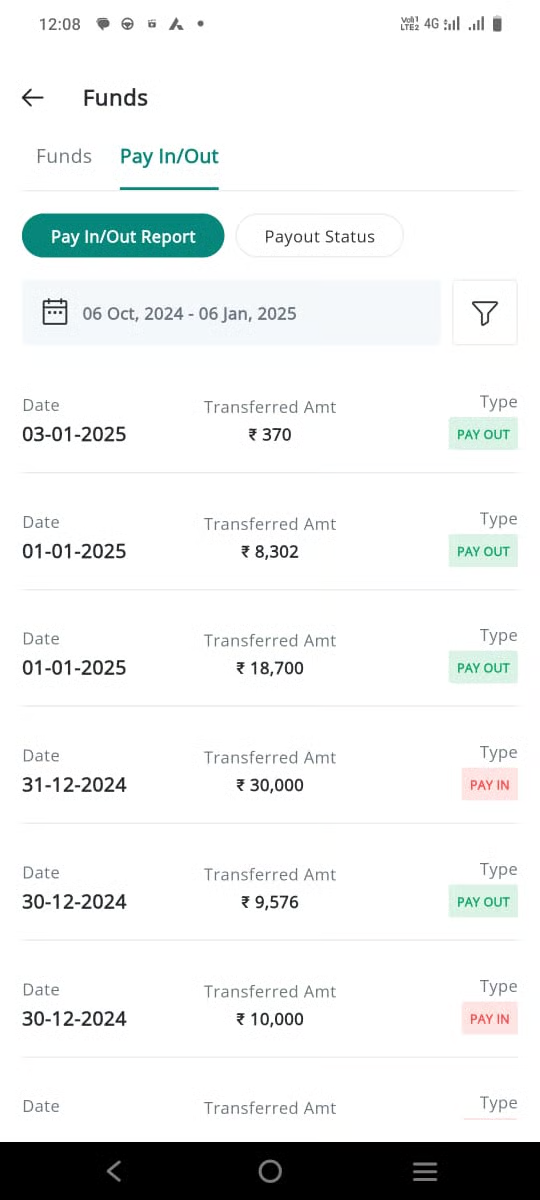
To find the details of your pay-in/pay-out report, follow the below steps:
* Go to the **"Funds"** **page.**
* You will by default land on the "**Funds**" page.
* Find the **"Pay In/Pay Out"** tab **right** next to the Funds button. **Click on it.**
* Your Pay In/Pay Out Report is displayed, with the most recent transaction at the top. **Date of transaction, transferred amount,** and **type of transaction** can be seen.
* You can see the report for a specific time period by clicking on the **calendar icon** given just **below** the **Pay In/Pay Out butto**n.
* You can apply a **filter** and view the pay-in-only and pay-out-only reports too.
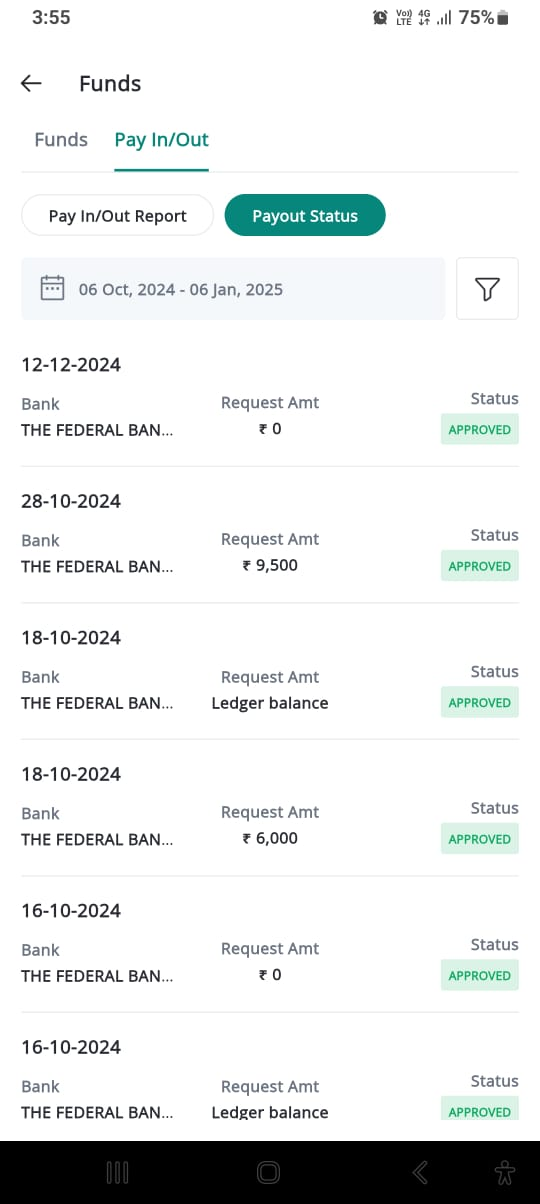
### How to view your Payout Status ?
* **Click on** the **"Payout Status"** button given right next to the Pay In/Pay Out Report.
* Here you can see the transaction history, with the most recent one at the top. The requested amount and status (approved or rejected) will be shown here.
* You can apply a filter and see the list of transactions that are approved and rejected separately.
### How to find your margin details ?
This section deals with your [**margin**](https://support.geojit.com/support/solutions/articles/89000007607-what-are-margins-)-related information. You can find the [**peak margin**](https://support.geojit.com/support/solutions/articles/89000007516-what-are-peak-margins-) blocked, [**MTM** ](https://support.geojit.com/support/solutions/articles/89000007503-what-is-mark-to-market-mtm-)amount and percentage, and [**MTF**](https://support.geojit.com/support/solutions/articles/89000007804-what-are-the-advantages-of-margin-trading-funding-mtf-) violation amount and percentage here.
* Locate the **"More" Icon** on the navigation menu.
* Click on the **"More" Icon** and you will be redirected to the More page.
* Tap on the **"Funds"** :wallet: **Option.**
* This will take you to the **"Funds" Page**.
* You will by default land on the "**Funds**" page.
* Find the '**Margin**' tab right next to the '**Funds'** page.
MtoM figures here can be both profit and loss. However, MTM % will show if there are losses in your open position.
MtoM of equity transactions is calculated differently, as it considers:
1. **MtoM of shares of Trade day** (T day)—mark-to-market valuation of shares traded on the current day.
2. **MtoM** **losses** in pending settlements—unrealized losses on trades that are yet to be settled.
3. **MtoM losses of shares in CUSPA**—losses arising from shares held under the CUSPA