# Alert

### This section contains: <a href="#this-section-contains" id="this-section-contains"></a>

1. [How to open the Alert Page](#id-1.-how-to-open-alert-page)
2. [How to create a New Price Alert](#id-2.-how-to-create-a-new-price-alert)
3. [Delete a Single Active Alert](#id-3.-delete-a-single-active-alert)
4. [Delete all or Multiple Alert](#id-4.-delete-all-or-multiple-alerts)
5. [Modify an Active Alert](#id-5.-modify-an-active-alert)

The **"Alert"** feature is a tool that can be used to *notify* traders when the price of a particular underlying asset crosses above or below a **Trigger Price** set by you. This allows you to stay informed about **Market Conditions** and make trading decisions in a timely manner. **"Alerts"** can be set up to **"Trigger Notifications"** via **Pop-up, Email, or Text Message.**

### **1. How to open Alert page** <a href="#id-1.-how-to-open-alert-page" id="id-1.-how-to-open-alert-page"></a>

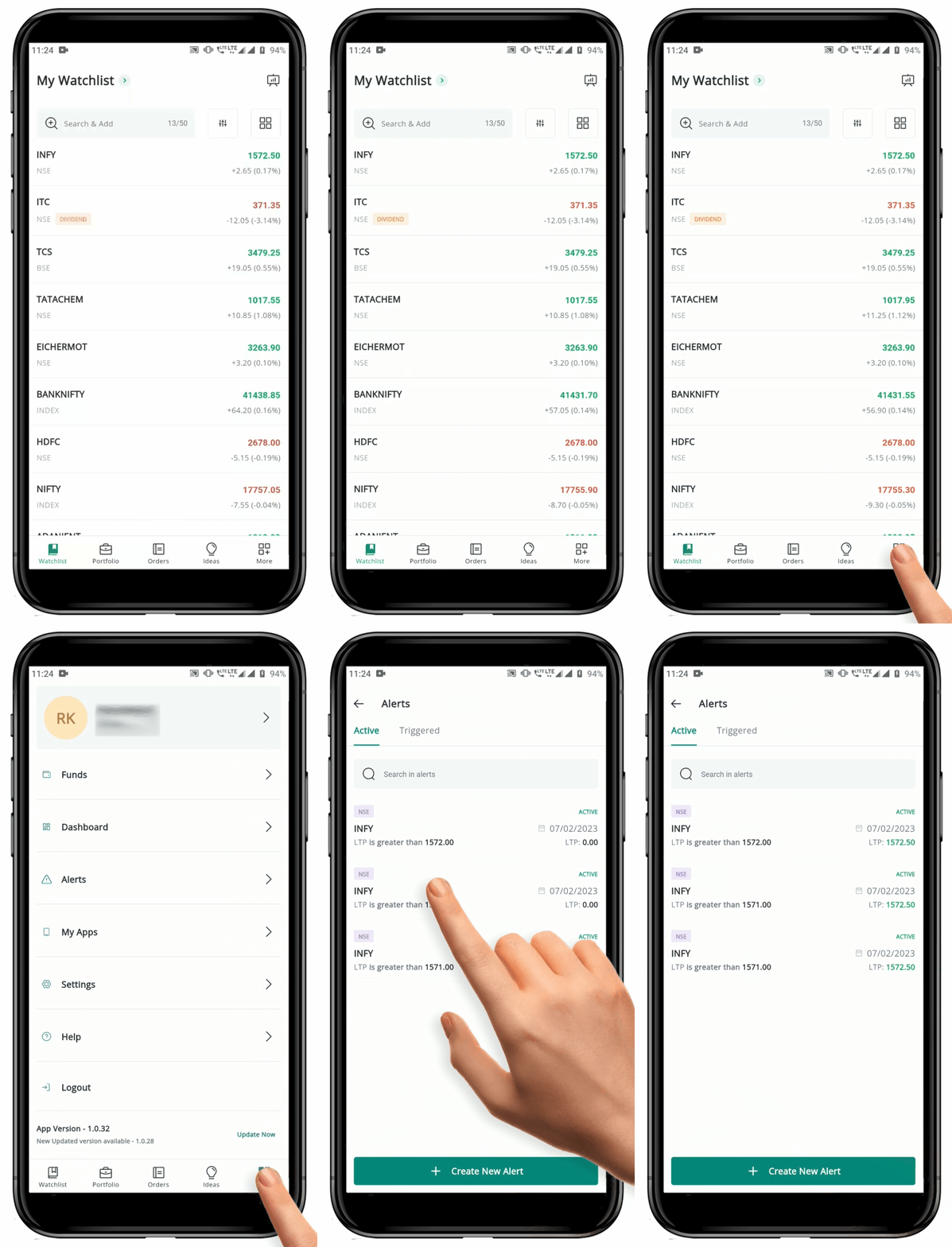
To open the **"Alert"** page, follow these steps:

<div align="left"><figure><img src="https://files.gitbook.com/v0/b/gitbook-x-prod.appspot.com/o/spaces%2FOOkrtgr3FzpImfJDvQpQ%2Fuploads%2FHedckg9ZecZeVbwDwvSS%2FHow%20to%20Alert.gif?alt=media&#x26;token=093ccc87-0eea-4c2a-86aa-4317d0954aea" alt="" width="375"><figcaption></figcaption></figure></div>

* Locate the **"More" Icon**![](https://4250648999-files.gitbook.io/~/files/v0/b/gitbook-x-prod.appspot.com/o/spaces%2FQUVvHauOEWZZorbZR584%2Fuploads%2FukODTFTZpRIIXdYngdiq%2Fmore%20icon.png?alt=media\&token=ece9af3e-14c7-4094-b00e-b3bc484518f1) at the navigation menu.
* Click on the **"More" Icon**![](https://4250648999-files.gitbook.io/~/files/v0/b/gitbook-x-prod.appspot.com/o/spaces%2FQUVvHauOEWZZorbZR584%2Fuploads%2Fw58D1sdaXp7Vn8SvUC7C%2Fmore%20clicked.png?alt=media\&token=6b3d6818-6613-4ba8-a114-adf69d03b3bc) to open the **More** page.
* Find the **"Alert"**![](https://4250648999-files.gitbook.io/~/files/v0/b/gitbook-x-prod.appspot.com/o/spaces%2FQUVvHauOEWZZorbZR584%2Fuploads%2Fkuqyichwjp0LEXCKEXrV%2Fset%20alert%20green%20.png?alt=media\&token=c1d3b305-977e-442f-8f7d-b8dd5c571263) option and click on it to get redirected to the **Alert** page.
* Here, you can see **"Active"** and **"Triggered Alert"** option.
* By default you will be on the **"Active Alert"** page.
* To choose between **Active** and **Triggered Alert** you can either click on it or swipe.
* At the bottom of the page there is **"Create Alert Button".**

### **2. How to Create a New Price Alert** <a href="#id-2.-how-to-create-a-new-price-alert" id="id-2.-how-to-create-a-new-price-alert"></a>

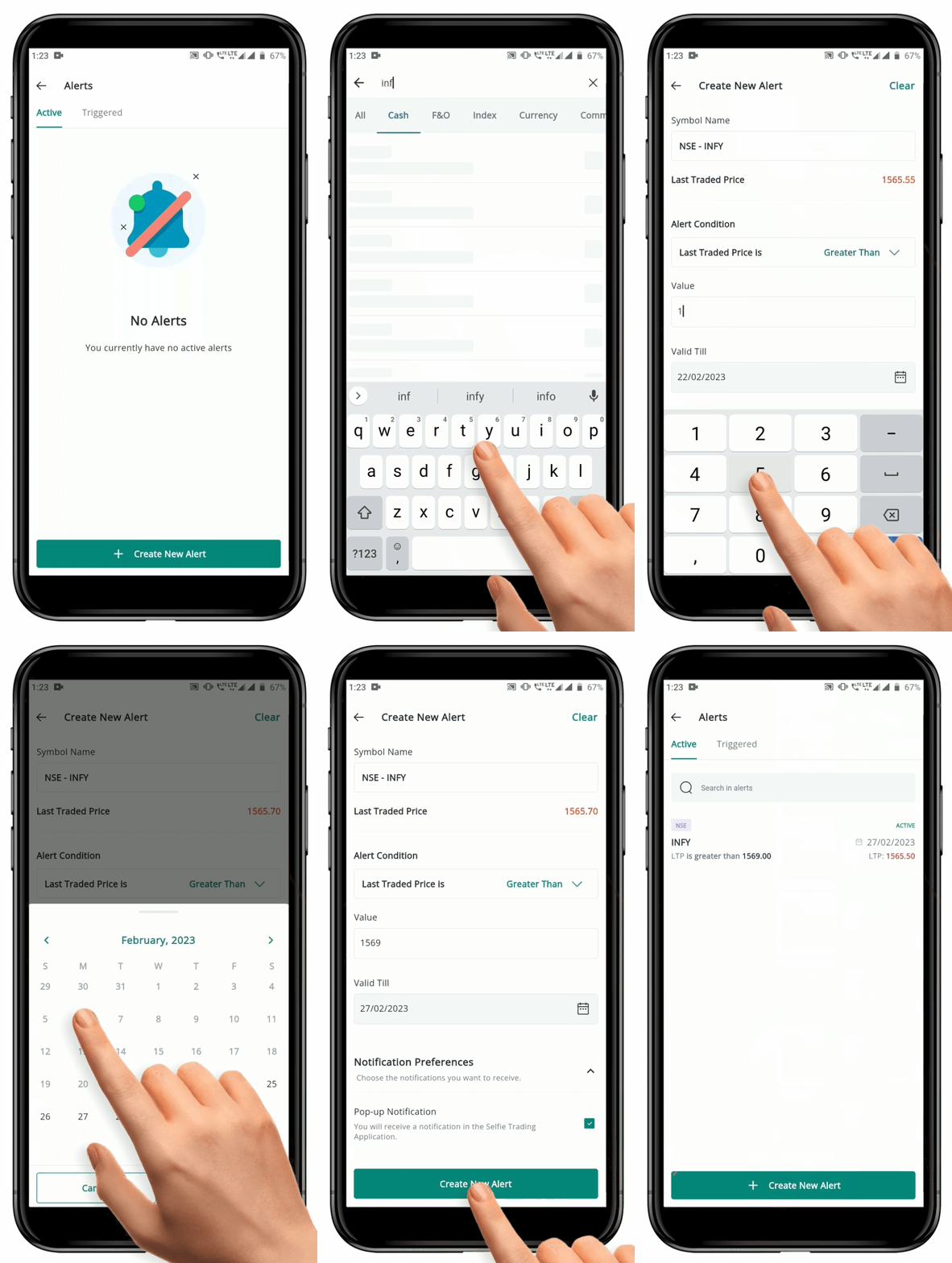
You can **"Create" Alert** from **Alert page** and **Security page.**

#### Creating Alert from Alert page <a href="#creating-alert-from-alert-page" id="creating-alert-from-alert-page"></a>

To **"Create"** Alert from Alert page, follow these steps:

<div align="left"><figure><img src="https://files.gitbook.com/v0/b/gitbook-x-prod.appspot.com/o/spaces%2FOOkrtgr3FzpImfJDvQpQ%2Fuploads%2FL5CjA6Jh3eb79GsijU3U%2FCreate%20an%20alert.gif?alt=media&#x26;token=5bd22204-7fe4-49ee-88fa-cedd7bb4bf00" alt="" width="375"><figcaption></figcaption></figure></div>

* Open the **FLIP Application** and click on the **"More" icon**![](https://4250648999-files.gitbook.io/~/files/v0/b/gitbook-x-prod.appspot.com/o/spaces%2FQUVvHauOEWZZorbZR584%2Fuploads%2Fw58D1sdaXp7Vn8SvUC7C%2Fmore%20clicked.png?alt=media\&token=6b3d6818-6613-4ba8-a114-adf69d03b3bc) at the bottom of the page.&#x20;
* This will redirect you to the **More page** and display a list of *features* available in the **"More" Section**.
* Locate the **"Alerts"**![](https://4250648999-files.gitbook.io/~/files/v0/b/gitbook-x-prod.appspot.com/o/spaces%2FQUVvHauOEWZZorbZR584%2Fuploads%2Fkuqyichwjp0LEXCKEXrV%2Fset%20alert%20green%20.png?alt=media\&token=c1d3b305-977e-442f-8f7d-b8dd5c571263) option and click on it.&#x20;
* By default, **"Active Alert" page** will open, which shows any alerts you have already created.
* On the **Active Alert page,** click on the **"Create New Alert" Button** at the bottom of the page. You be redirected to **Create New Alert page.**
* On the **"Create New Alert" page,** click on the **Symbol Name Box** to search for the symbol you want to create an alert for.
* Type the **Symbol Name** in the **Search Box** and select the desired symbol from the list of results by clicking on it.
* The **Symbol** will be populated into the **Symbol Name** field.
* Select the **Alert Condition** from the **"Drop-down Arrow" Icon**![](https://flipmobilemanual.geojit.com/~gitbook/image?url=https%3A%2F%2F3574784015-files.gitbook.io%2F%7E%2Ffiles%2Fv0%2Fb%2Fgitbook-x-prod.appspot.com%2Fo%2Fspaces%252FOOkrtgr3FzpImfJDvQpQ%252Fuploads%252FL7m9T7AbDu8LA2SyyYAJ%252Fdrop%2520down%2520arrow%2520-%2520Copy.png%3Falt%3Dmedia%26token%3D861cc2eb-e7d4-4919-a404-bc3f6c86bf71\&width=300\&dpr=4\&quality=100\&sign=a811dc4d\&sv=2).
* Enter the **"Alert Trigger Value",** which is the price at which the **Alert** will be triggered.
* Select the **"Validity Date"** for the **Alert**.
* Choose whether you want to *receive* the **"Alert"** as a pop-up within the Platform or as an SM&#x53;**.**
* Click on the **"Create New Alert" Button** at the bottom to create the alert.
* If you go back to the active alert page, you should see the **New Alert** listed with an **"Active" Status.**

#### Create Alert from Security page <a href="#create-alert-from-security-page" id="create-alert-from-security-page"></a>

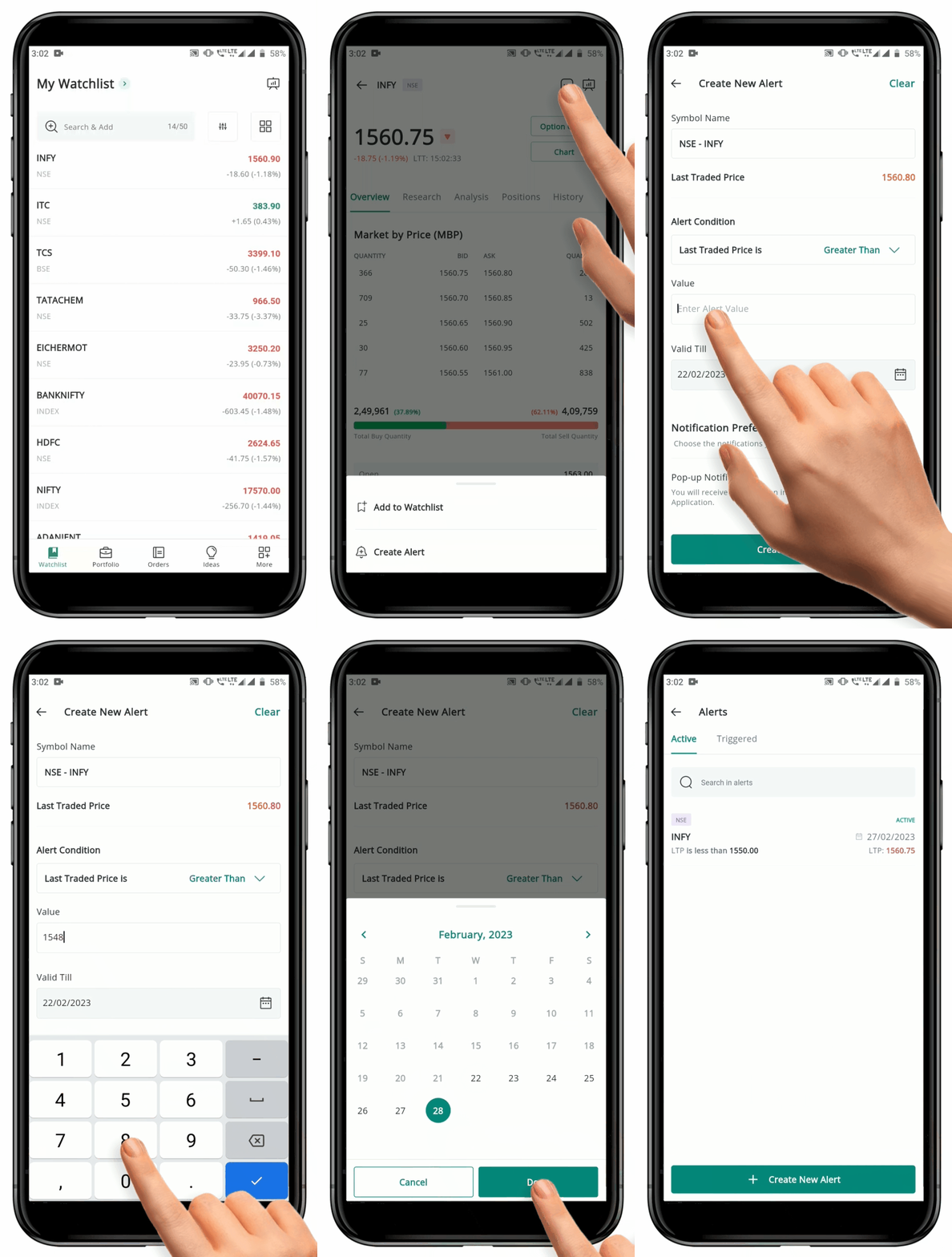
To **"Create"** Alert from Security page, follow these steps:

<div align="left"><figure><img src="https://files.gitbook.com/v0/b/gitbook-x-prod.appspot.com/o/spaces%2FOOkrtgr3FzpImfJDvQpQ%2Fuploads%2FA0T2YkSeCPovz6Qga6P1%2FFrom%20Sec%20page.gif?alt=media&#x26;token=e6122fb9-4cb3-4ef1-9d88-00d349913815" alt="" width="375"><figcaption></figcaption></figure></div>

* Choose the desired **Watchlist** from **"My Watchlist".**
* Tap on the Symbol you wish to **"Create Alert".**
* This will take you to the **"Security page"** of that particular Security.
  * Locate and tap on the **"Three Dot" Icon**![](https://4250648999-files.gitbook.io/~/files/v0/b/gitbook-x-prod.appspot.com/o/spaces%2FQUVvHauOEWZZorbZR584%2Fuploads%2FgKY3jb5vvATZ4oFggYaU%2Fthree%20dot%20icon.png?alt=media\&token=7846f941-877a-44bb-8856-cd8f7d6e8e99) at the top left-hand side.
* A pop-up at the bottom of the page will appear.&#x20;
* Click on **"Create Alert"**![](https://4250648999-files.gitbook.io/~/files/v0/b/gitbook-x-prod.appspot.com/o/spaces%2FQUVvHauOEWZZorbZR584%2Fuploads%2Ffhs0cH3C01u9qFHIs8g5%2Fset%20alert.png?alt=media\&token=3d39b1c8-1917-4db2-9103-e5b19dd33fa3) and you will be redirected to the "Create New Alert" page.
* The **"Symbol Name"** will be filled automatically.
* Choose the remaining options according to your wish.
* Click on the **"Create New Alert" Button** at the bottom of the page.
* If you go back to the active alert page, you should see the **New Alert** listed with an **"Active" Status.**

### **3. Delete a Single Active Alert** <a href="#id-3.-delete-a-single-active-alert" id="id-3.-delete-a-single-active-alert"></a>

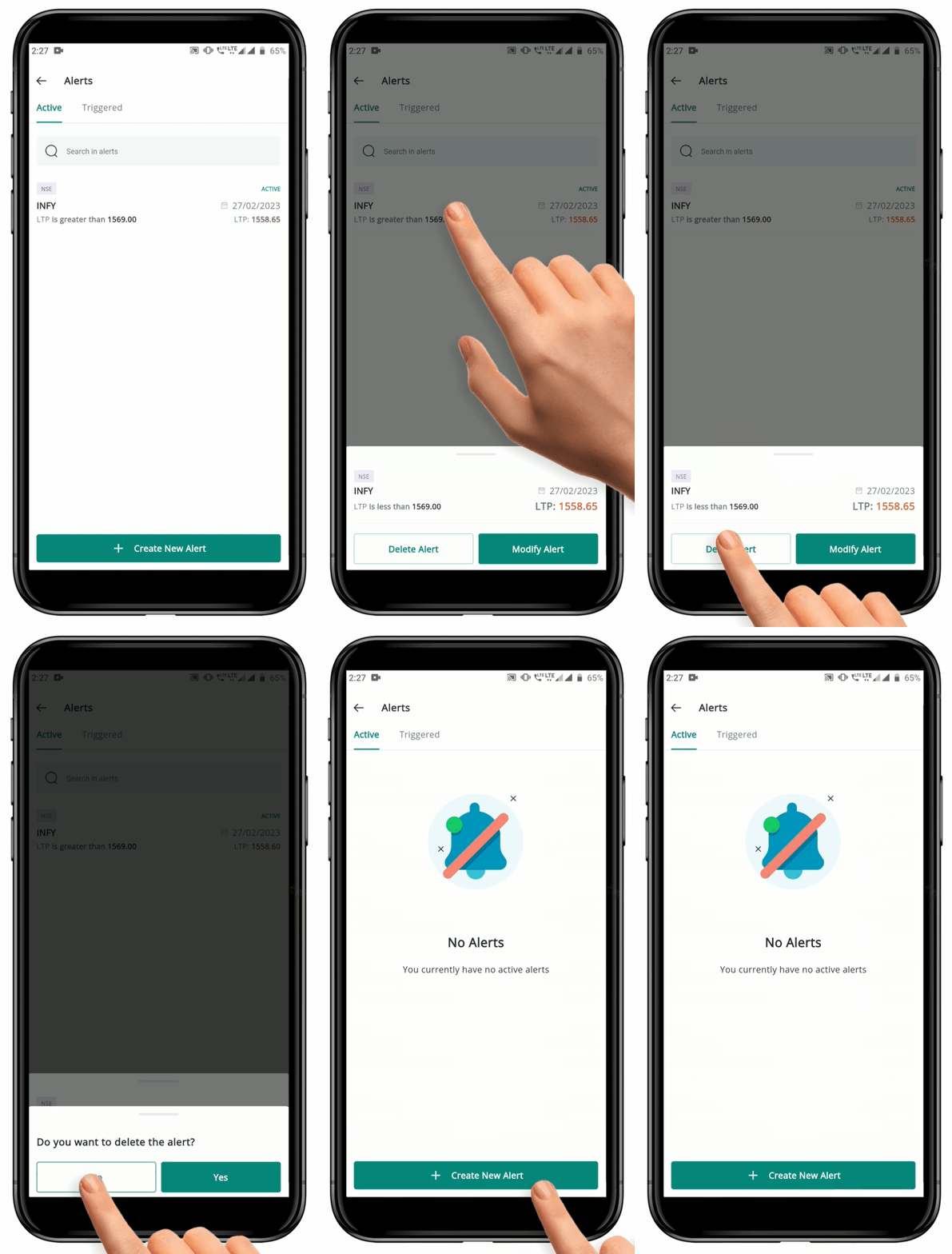
To **"Delete"** the an Active Alert, follow these steps:

<div align="left"><figure><img src="https://files.gitbook.com/v0/b/gitbook-x-prod.appspot.com/o/spaces%2FOOkrtgr3FzpImfJDvQpQ%2Fuploads%2Ffn2JmBMgrMnI1OTJBUN6%2FDelete%20Alert.gif?alt=media&#x26;token=e503cfd7-9b94-4886-a75f-61e6f79151f5" alt="" width="375"><figcaption></figcaption></figure></div>

* Navigate to the **"Alerts"**![](https://4250648999-files.gitbook.io/~/files/v0/b/gitbook-x-prod.appspot.com/o/spaces%2FQUVvHauOEWZZorbZR584%2Fuploads%2Fkuqyichwjp0LEXCKEXrV%2Fset%20alert%20green%20.png?alt=media\&token=c1d3b305-977e-442f-8f7d-b8dd5c571263) **page,** which can be found in the **"More"**![](https://4250648999-files.gitbook.io/~/files/v0/b/gitbook-x-prod.appspot.com/o/spaces%2FQUVvHauOEWZZorbZR584%2Fuploads%2Fw58D1sdaXp7Vn8SvUC7C%2Fmore%20clicked.png?alt=media\&token=6b3d6818-6613-4ba8-a114-adf69d03b3bc) section.
* This will open the page with a list of your **"Active Alerts".**
* Find the **"Alert"** that you want to **Delete** and click on it.
* A pop-up message will appear, offering you the options to **Modify** or **Delete** the **"Alert".**
* Click on the **"Delete Alert" Button.**
* A confirmation pop-up will appear.
* Click **"OK" Button** to confirm that you want to **Delete** the **"Alert".**
* After the deletion process is complete, the **Alert** will no longer be visible on the "**Active Alerts" page.**

### **4. Delete all or Multiple Alerts** <a href="#id-4.-delete-all-or-multiple-alerts" id="id-4.-delete-all-or-multiple-alerts"></a>

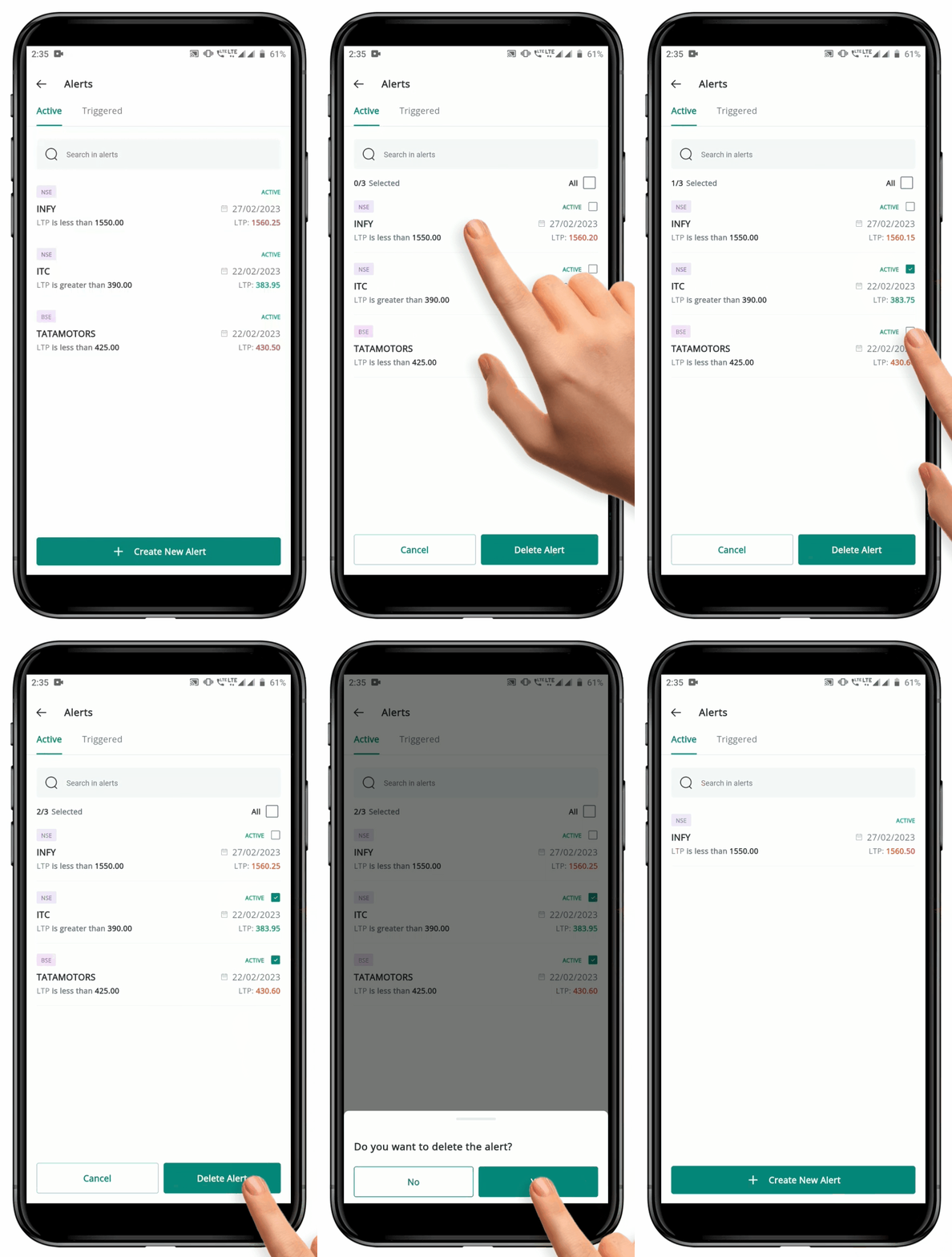
To **"Delete"** multiple Alerts, follow these steps:

<div align="left"><figure><img src="https://files.gitbook.com/v0/b/gitbook-x-prod.appspot.com/o/spaces%2FOOkrtgr3FzpImfJDvQpQ%2Fuploads%2FhHCuCxyp8ka2vumnqzMQ%2FDelete%20Multiple.gif?alt=media&#x26;token=b4679b00-3cac-449d-ab65-30699b41839e" alt="" width="375"><figcaption></figcaption></figure></div>

* Navigate to the **"Alerts"**![](https://4250648999-files.gitbook.io/~/files/v0/b/gitbook-x-prod.appspot.com/o/spaces%2FQUVvHauOEWZZorbZR584%2Fuploads%2Fkuqyichwjp0LEXCKEXrV%2Fset%20alert%20green%20.png?alt=media\&token=c1d3b305-977e-442f-8f7d-b8dd5c571263) **page,** which can be found in the **"More"**![](https://4250648999-files.gitbook.io/~/files/v0/b/gitbook-x-prod.appspot.com/o/spaces%2FQUVvHauOEWZZorbZR584%2Fuploads%2Fw58D1sdaXp7Vn8SvUC7C%2Fmore%20clicked.png?alt=media\&token=6b3d6818-6613-4ba8-a114-adf69d03b3bc) section.
* This will open the page with a list of your **"Active Alerts".**
* Long press on one of the **Active Alert** to enable the **"Tick Boxes"**![](https://4250648999-files.gitbook.io/~/files/v0/b/gitbook-x-prod.appspot.com/o/spaces%2FQUVvHauOEWZZorbZR584%2Fuploads%2FjnKXxcUcUUfOxNztpiIQ%2Fcheck%20box.png?alt=media\&token=c9c5b577-5751-45fe-9de7-0d5a88ad66cc) and the **"Select All" option**.
* Select the **"Alerts"** that you want to **Delete** by checking the **"Tick Boxes"**![](https://4250648999-files.gitbook.io/~/files/v0/b/gitbook-x-prod.appspot.com/o/spaces%2FQUVvHauOEWZZorbZR584%2Fuploads%2FAmLhaOtADBEevw6gqGDm%2Ftick%20mark.png?alt=media\&token=b2278252-d3fd-4de6-b0f1-05826dde8e83).
* The ticked boxes indicate the **"Selected Alerts".**
* Click on the **"Delete Alert" Button.**
* A confirmation pop-up will appear.
* Click **"OK" Button** to confirm that you want to **Delete** the **"Selected Alerts".**
* After the deletion process is complete, the selected alerts will no longer be visible on the **"Active Alerts" page.**

### **5. Modify an Active Alert** <a href="#id-5.-modify-an-active-alert" id="id-5.-modify-an-active-alert"></a>

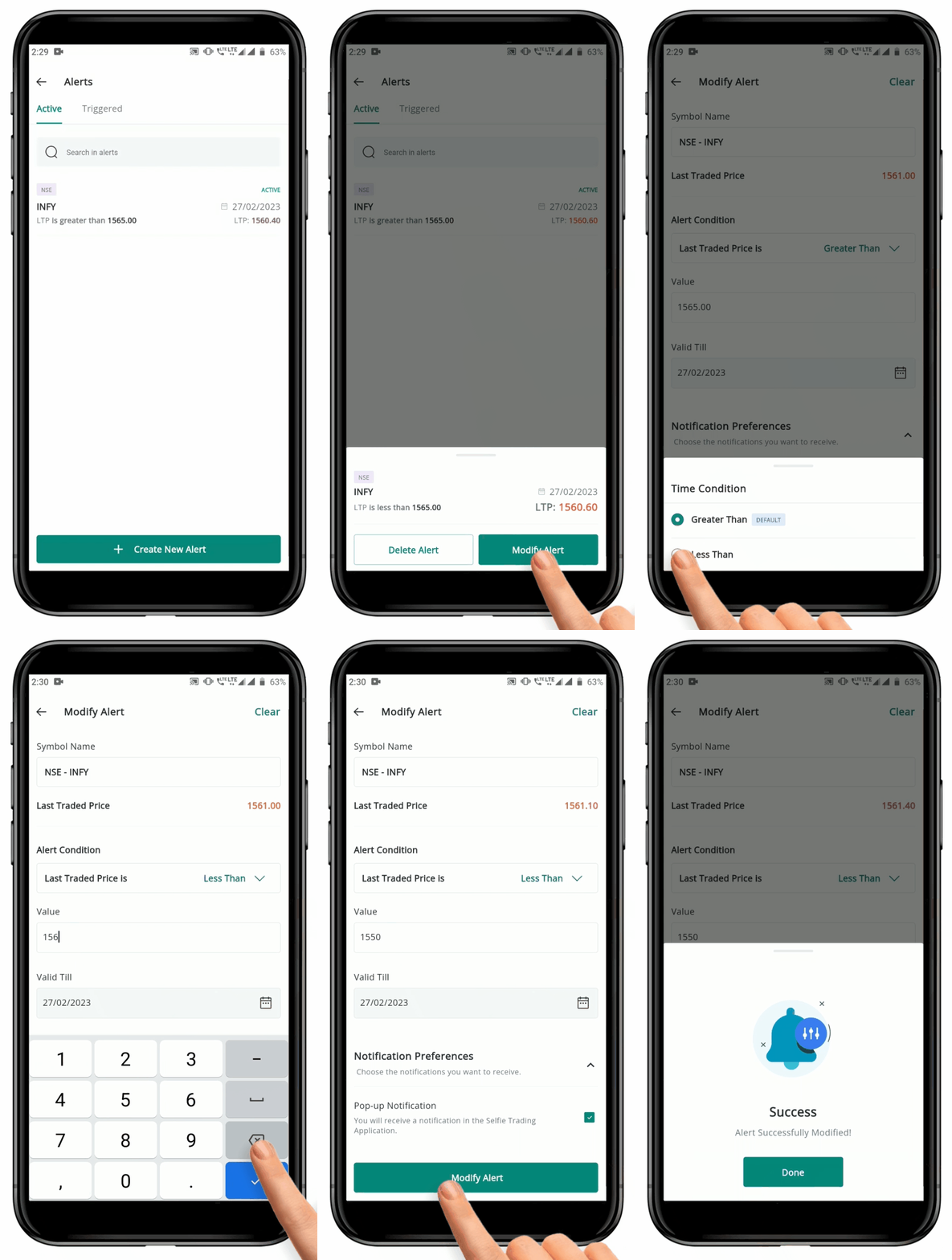
To **"Modify"** an Active Alert, follow these steps:

<div align="left"><figure><img src="https://files.gitbook.com/v0/b/gitbook-x-prod.appspot.com/o/spaces%2FOOkrtgr3FzpImfJDvQpQ%2Fuploads%2FY7xz3JDNS9j9hDjy5qHd%2FModify.gif?alt=media&#x26;token=673596d8-a65a-4cc1-9637-b0df6a690632" alt="" width="375"><figcaption></figcaption></figure></div>

* Navigate to the **"Alerts"**![](https://4250648999-files.gitbook.io/~/files/v0/b/gitbook-x-prod.appspot.com/o/spaces%2FQUVvHauOEWZZorbZR584%2Fuploads%2Fkuqyichwjp0LEXCKEXrV%2Fset%20alert%20green%20.png?alt=media\&token=c1d3b305-977e-442f-8f7d-b8dd5c571263) **page,** which can be found in the **"More"**![](https://4250648999-files.gitbook.io/~/files/v0/b/gitbook-x-prod.appspot.com/o/spaces%2FQUVvHauOEWZZorbZR584%2Fuploads%2Fw58D1sdaXp7Vn8SvUC7C%2Fmore%20clicked.png?alt=media\&token=6b3d6818-6613-4ba8-a114-adf69d03b3bc) section.
* This will open the page with a list of your **"Active Alerts".**
* Find the **"Alert"** that you want to **"Modify"** and click on it.
* A pop-up message will appear, offering you the options to **"Modify"** or **"Delete"** the alert.
* Click on the **"Modify Alert" Button.**
* This will redirect you to the **"Modify Alert" page.**
* Make the necessary changes to the **"Alert".**
* Click on the **"Modify" Button** at the bottom of the page.
* If you go back to the **"Active Alerts" page**, you should see your **Modified Alert.**
---

# Agent Instructions: Querying This Documentation

If you need additional information that is not directly available in this page, you can query the documentation dynamically by asking a question.

Perform an HTTP GET request on the current page URL with the `ask` query parameter:

```
GET https://usermanuals.geojit.com/flip-mobile/more/alert.md?ask=<question>
```

The question should be specific, self-contained, and written in natural language.
The response will contain a direct answer to the question and relevant excerpts and sources from the documentation.

Use this mechanism when the answer is not explicitly present in the current page, you need clarification or additional context, or you want to retrieve related documentation sections.