> For the complete documentation index, see [llms.txt](https://usermanuals.geojit.com/llms.txt). Markdown versions of documentation pages are available by appending `.md` to page URLs; this page is available as [Markdown](https://usermanuals.geojit.com/flip-mobile/discover/dashboard.md).
# Dashboard
The dashboard gives you a real-time snapshot of your portfolio, showing total holding value, total profit and loss, today's profit and loss, available margin, and more for quick insights.
#### This Section Contains:
* [What all are displayed under the Holdings section?](#what-all-are-displayed-under-the-holdings-section)
* [What is inter-app functionality?](#what-is-inter-app-functionality)
* [How do I apply for an IPO via Flip?](#how-do-i-apply-for-an-ipo-via-flip)
* [How to view my available margin and used margin?](#how-to-view-my-available-margin-and-used-margin)
* [How do I view my monthly P\&L?](#how-do-i-view-my-monthly-p-and-l)
* [How to view order status?](#how-to-view-order-status)
* [How to access Recommendations?](#how-to-access-recommendations)
* [Actions Required](#action-required)
* [How to pay AMC dues via Flip?](#how-to-pay-amc-dues-via-flip)
* [Contact Us](#contact-us)
### What all are displayed under the Holdings section?
* Go to the 'Discover'  page.
* You will land on the 'Dashboard page.'
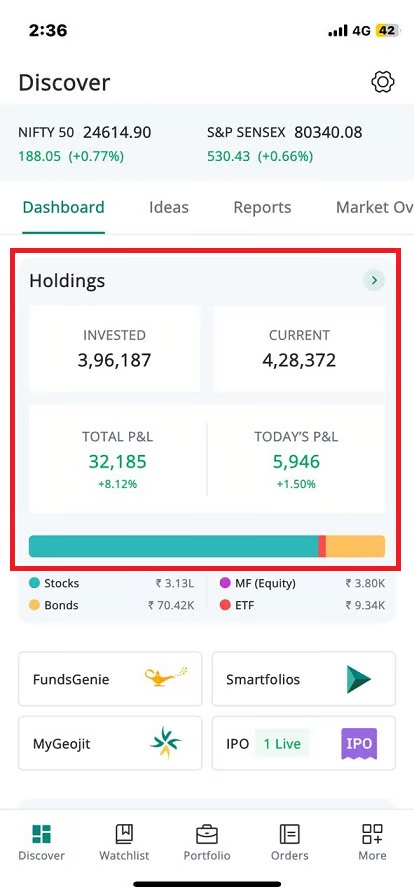
* The holdings section in the dashboard page displays the following fields: **invested value**, **current value**, your **total profit and loss,** and **today's profit and loss** (both in number and percentage).
* Click on the arrow > and you can see **'Holding Overview.'**
Under the holdings section, you can see a line chart, which shows the percentage you have invested in various capital market instruments like **stocks**, **bonds**, **mutual funds (equity), and ETF.**
### What is inter-app functionality?
Now you can access the following apps through Flip:
* [Fundsgenie](https://usermanuals.geojit.com/fundsgenie-mobile)
* [MyGeojit](https://usermanuals.geojit.com/mygeojit-web)
* [Smartfolios](https://usermanuals.geojit.com/smartfolios-mobile)
* [IPO](https://support.geojit.com/support/solutions/articles/89000006825-what-is-an-initial-public-offering-ipo-)
To access these apps,
* Go to the '**Discover'** page.
* You will land on the '**Dashboard page**.'
* Just below the Holdings section, you can see the **icons of various apps** listed.
* **Click on the desired app to open it**.
The inter-app functionality is also availble from the Watchlist/Portfolio/Orders.
* Click on the '**More**' icon  given towards the top-right end of the page.
* You will be provided with a set of apps like **Smartfolios, FundsGenie and MyGeojit.**
* Click on any of the apps, and you will land directly inside the app without logging in.
### How do I apply for an IPO via Flip?
You can apply for IPO easily through Flip Mobile application. For this,
* **Login** to Flip.
* Click on the '**Discover**'  tab.
* You will land on the dashboard page.
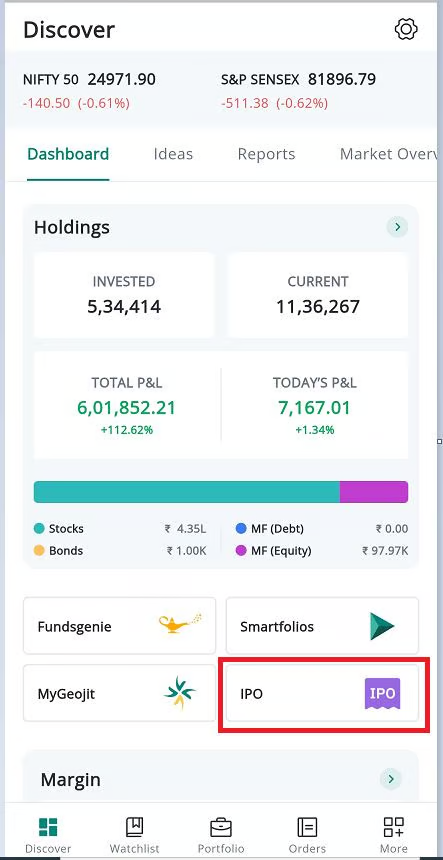
* **Scroll down** to find the **IPO button** . Click on it.
* You will be navigated to the MyGeojit app, from where you can easily [apply for an IPO.](/mygeojit-web/products/ipo-fpo-ofs.md)
### How to view my available margin and used margin?
* Go to the '**Discover'**  page.
* You will land on the '**Dashboard page**.'
* Scroll down to see the '**Margin**' section.
* Here you can see both available margin and used margin.
* Click on the arrow > and you will land on the funds page.
### Rate Your Experience
This screen allows you to rate your overall trading experience on FLIP.
* Go to the '**Discover'**  page.
* You will land on the '**Dashboard page**.'
* Scroll down to see the '**Rate your experience**' section
* Select a rating between **0 and 10**, where:
* **0–6** indicates a *Poor* experience
* **7–8** indicates a *Good* experience
* **9–10** indicates an *Excellent* experience
* After selecting a rating, tap **Submit** to share your feedback.
* You may also close the screen without submitting a rating by tapping the **Close (✕)** icon.
### How do I view my monthly P\&L?
Know your profit and loss data month-wise.
* Go to the '**Discover'**  page.
* You will land on the '**Dashboard page**.'
* **Scroll down** and find the '**Monthly P\&L'** section.
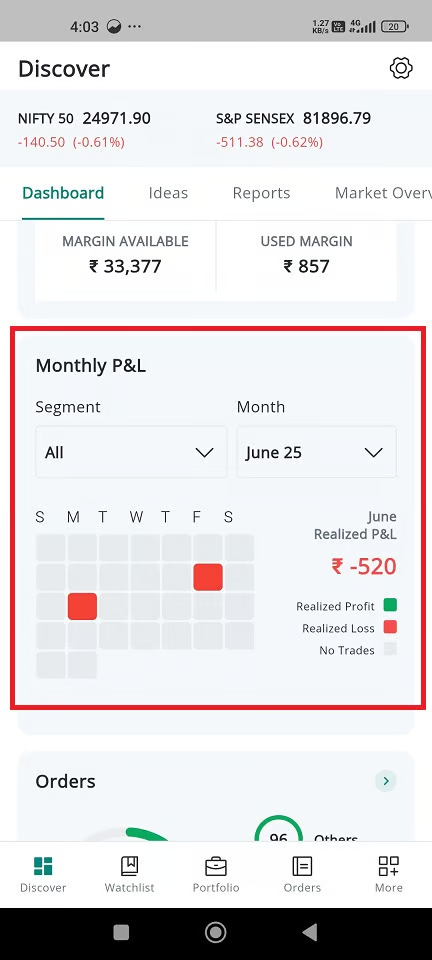
* You have the option to view the calendar "segment-wise" by clicking on the **"drop-down menu"** under **Segment.** You will see options such as **"All," "Equity," "Futures & Options," "Currency,"** and **"Commodity."**
* To see the data of a **specific month**, click on the '**Month**' tab and choose from the list.
* You can see your **realized profit and loss** marked in **green** 📗 and **red** 📕, respectively.
* The P\&L data will be shown in a **calendar format**, where the day on which you have done a trade will be in green or red color, respective to the profit or loss you made. No color means no trade.
### How to view order status?
* Go to the '**Discover'**  page.
* You will land on the '**Dashboard page**.'
* Scroll down and find the '**Orders**' section.
* You can see the number of orders you've made on that day and the status of the same—pending, executed, and other (GTD/AMO).
* Click on the arrow button > to access the comprehensive **"Order Book"** page.
### How to access recommendations?
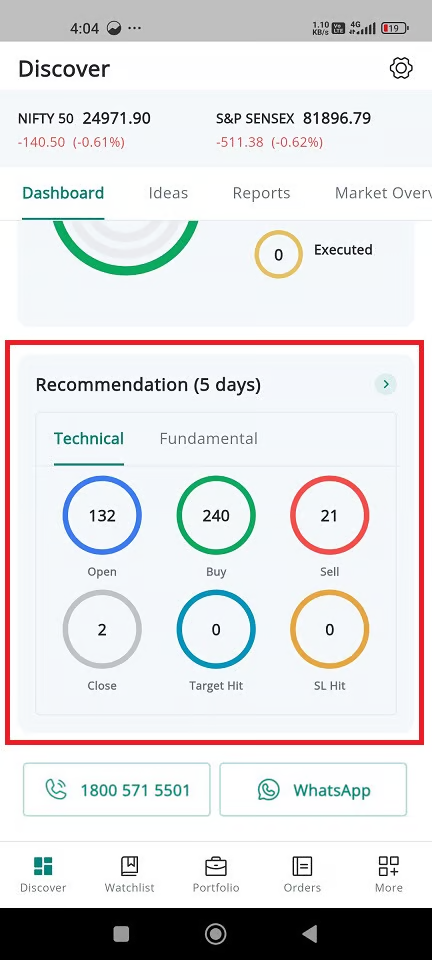
Flip also provides insights into the **Fundamental** and **Technical (5 days)** research recommendations.
Please Note: If you want to see Geojit's research recommendations in Flip, you need to subscribe to our research services first.[ ***Follow these steps to activate 'Free Research Services.'***](/mygeojit-web/ideas.md#how-do-i-access-research-data)
### Action Required
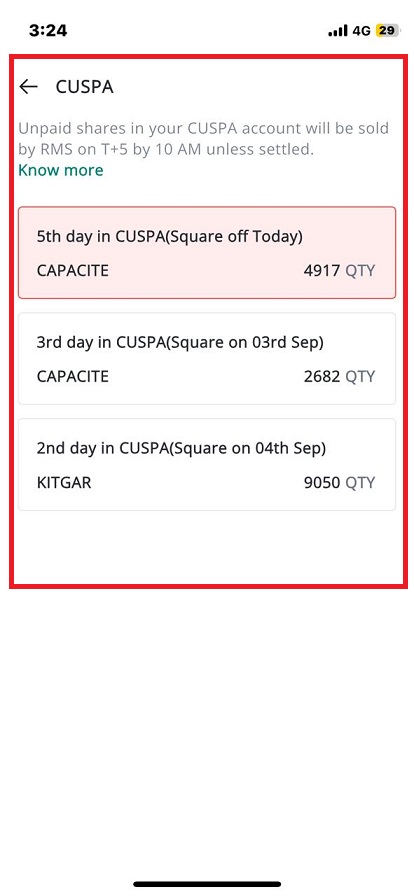
If you have any pending dues [**(CUSPA)**](https://support.geojit.com/support/solutions/articles/89000007601-what-is-a-client-unpaid-securities-pledgee-account-cuspa-) that need to be cleared, that will be noted in this section. This enables clients to clear unpaid shares on time and prevent forced selling. Any **pending AMC dues** or **KYC updates** will also be notified here.
#### How to pay AMC dues via Flip?
Pay your outstanding AMC dues quickly and easily using Flip.
* Go to the 'Discover' page. You will land on the 'Dashboard' page by default.
* Scroll down to find the new "Actions Required" section.
* If AMC dues are pending, that will be displayed here.
* Click on the 'Pay Now' button to make the payment.
* Now you will be navigated to the 'DP AMC' page.
* Your DP ID and the outstanding AMC due amount will be displayed here.
* Click on the 'Pay' button given towards the end of the page.
* You will now be redirected to the payment screen.
* The total payable amount and available payment options will be displayed here.
* Choose your preferred payment method from Credit Card, Debit Card, Net Banking, Wallet, or UPI.
* If you select UPI, a list of supported UPI apps will be displayed.
* Select your preferred UPI app to proceed to its payment screen.
* Complete the payment to successfully settle your dues.
#### **How to access the Unpaid Share Clearance Section?**
* Go to the 'Discover' page. You will land on the 'Dashboard' page by default.
* Scroll down to find the new "Actions Required" section.
* If there is any action to be taken by the user, this option will be enabled automatically.
* If there are any unpaid shares, then within the "Actions Required" section, there will be a distinct tab labeled "**Unpaid Share Clearance**."
* The "Unpaid Share Clearance" tab will display relevant information for each unpaid share, including:
\- Scrip Name
\- Quantity of unpaid shares
\- Settlement Date
\- Number of days overdue
\- Monetary value of the unpaid shares
### Contact Us
* Go to the '**Discover'**  page.
* You will land on the '**Dashboard page**.'
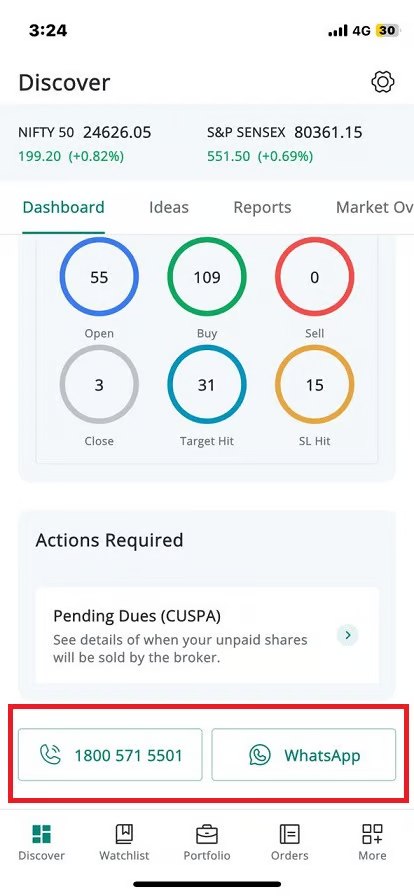
* Scroll down to the end of the page, and you will see our toll-free number to contact us in case of queries and a WhatsApp link to directly chat with a Geojit customer care agent.